
1. Ozi nchekwa
This OMTech 60W CO2 Laser Engraver is a Class 2 laser product with 0.827 mW output power. Always follow safety guidelines to prevent injury or damage. Read this manual completely before operation.
- Nchedo anya: Never look directly into the laser beam. Always use appropriate laser safety glasses.
- Igwe ikuku: Ensure adequate ventilation to remove smoke and fumes generated during operation. The built-in air assist helps, but an external exhaust system is crucial.
- Nchekwa ọkụ: Do not leave the machine unattended during operation. Keep a fire extinguisher nearby. Engraving certain materials can cause flames.
- Ndakọrịta ihe: Only engrave or cut materials compatible with CO2 lasers. Avoid materials that produce toxic fumes or are highly flammable.
- Nkwụsị ihe mberede: Mara onwe gị nke ọma na ebe na ọrụ nke bọtịnụ nkwụsị mberede.
- Nlekọta: The widened viewing window is made from flame retardant material for safe observation of the engraving process.
2. Ngwaahịa gafereview
The OMTech 60W CO2 Laser Engraver is designed for precision engraving and cutting on various non-metallic materials. It features a 20x28 inch (500x700 mm) work area, autofocus, and a 4-way pass-through for larger items.

Foto 2.1: N'ihu view of the OMTech 60W CO2 Laser Engraver.
Akụkụ ndị bụ isi:
- Ike Laser: 60W CO2 laser tube.
- Mpaghara ọrụ: 20x28 inches (500x700 mm).
- Nchekwa onwe: Automatic focal distance adjustment.
- Autolift Workbed: Adjustable workbed height.
- 4-Way Pass-Through: Accommodates larger and longer materials.
- Enyemaka Ikuku: Integrated air assist for smoke and dust removal.
- Dual Workbeds: Includes honeycomb and aluminum blade beds.
- Ndakọrịta Software: Compatible with RDWorks, LightBurn, CorelDRAW, and AutoCAD.
3. Nhazi
3.1 Unboxing na ntinye
Carefully unbox the laser engraver. Ensure the machine is placed on a stable, level surface in a well-ventilated area, away from flammable materials.
3.2 Njikọ
- Ike: Jikọọ ụdọ ọkụ na ebe mgbakwasị ụkwụ.
- USB/Ethernet: Connect the machine to your computer using the provided USB or Ethernet cable.
- Mgbapu mmiri: Connect the water pump and ensure the laser tube is properly cooled.
- Enyemaka Ikuku: The machine has built-in air assist. Ensure the air compressor (if external) is connected and functioning.
- Sistemụ mkpochapụ: Connect the exhaust pipe to an external ventilation system to safely remove fumes.

Figure 3.1: Proper connection of the exhaust system is essential for safety and performance.
4. Ntuziaka ọrụ
4.1 Nwụnye na nhazi ngwanrọ
Install the recommended laser software (e.g., LightBurn, RDWorks) from the provided USB flash drive or official website. Follow the software's instructions for machine connection and initial setup.
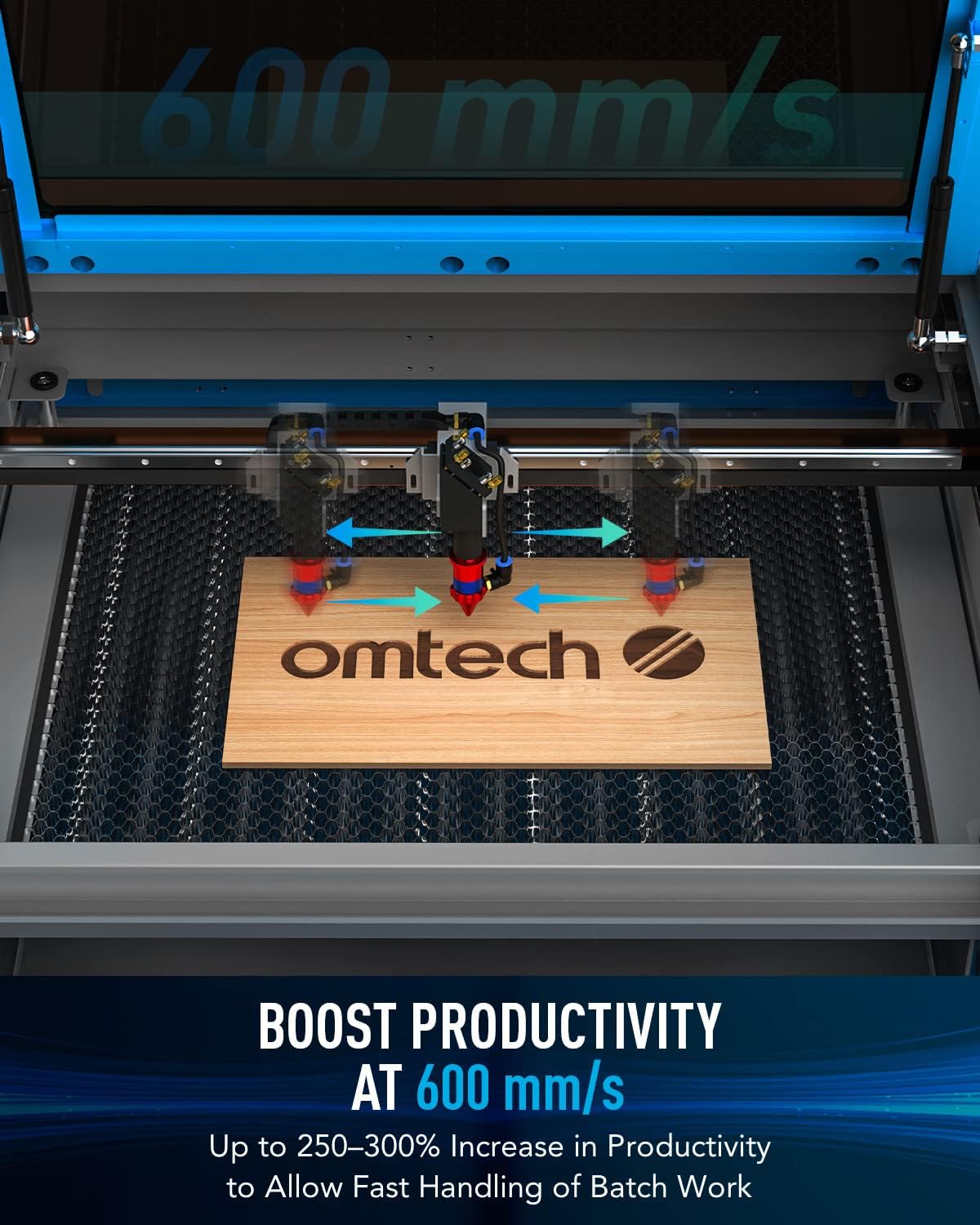
Figure 4.1: Digital control panel and compatible software interfaces.
4.2 Material Loading and Focusing
- Ihe eji ebu: Place your material flat on the workbed. For acrylic mirror, load with the non-reflective side facing up for engraving.
- Nchekwa onwe: Use the autofocus function to automatically set the correct focal distance. This eliminates manual adjustments and ensures precise results.

Figure 4.2: The autofocus feature automatically adjusts the laser head to the optimal focal distance.
4.3 Usoro ihe osise na ịkpụ
Prepare your design in the software. Set appropriate power and speed settings for your material. Initiate the engraving or cutting process. Monitor the operation through the flame-retardant viewwindow.
Video 4.1: Demonstration of laser engraving and cutting on acrylic mirror. This video illustrates material preparation, software settings, and post-processing for acrylic mirror projects.
Video 4.2: Guide on how to laser engrave a photo using a CO2 laser engraver. This video covers image preparation and specific settings for achieving detailed photo engravings.
5. Nlekọta
- Nhicha: Regularly clean the work area, lenses, and mirrors to ensure optimal performance and longevity.
- Laser Tube Care: The high-performance DC tube delivers 60W of power for up to 1000 hours of usage and doubles its lifespan when consistently used at lower settings. Ensure proper water cooling is maintained.
- Air Assist Nozzle: Keep the air assist nozzle clear of debris to maintain efficient smoke and dust removal.
6. Nchọpụta nsogbu
| Nsogbu | Ihe nwere ike ime | Ngwọta |
|---|---|---|
| Laser anaghị agba ọkụ | Power supply issue, laser tube fault, software error | Check power connections, inspect laser tube, restart software/machine |
| Àgwà osise na-adịghị mma | Incorrect focus, wrong power/speed settings, dirty optics | Perform autofocus, adjust settings, clean lenses and mirrors |
| Igwe anaghị ejikọta na kọmputa | USB/Ethernet cable issue, driver problem, software configuration | Check cable, reinstall drivers, verify software settings |
| Anwụrụ ọkụ/ụfụ dị ukwuu | Ineffective exhaust, clogged air assist | Ensure exhaust system is powerful and clear, clean air assist nozzle |
7. Nkọwapụta
- Akụkụ ngwaahịa: 47.2 x 34.3 x 36.6 sentimita asatọ
- Ibu ihe: 249 pound
- Oke. Ọsọ ihe osise: 600 mm / s
- Front/Back Pass Size: 32.8 x3.7 inch
- Side/Side Pass Size: 20.4 x0.7 inch
- Mbufe data: USB Cable, Ethernet Cable, USB Flash Drive, Offline
8. Kedu ihe dị na Igbe ahụ
- 1x 60W CO2 Laser Engraver
- 1x Akwụkwọ ntuziaka onye ọrụ
- 1x Ụdọ Ike
- 1 x USB flash mbanye
- 1 x eriri USB
- 1x Ethernet USB
- 1 x teepu nwere akụkụ abụọ
- 1x Wrench Set
- 1x Tube of Silicone Insulation
- 1x Ceramic Resistor
- 1x ọkpọkọ ekpochapụ
- 1x Pipe Clamp
- 1x Water Pump
- 1x Water Pipe
- 1x Wire Set
- 6x igodo
9. Akwụkwọ ikike na nkwado
This OMTech 60W CO2 Laser Engraver comes with a two-year support warranty. For technical assistance, please contact our U.S.-based technical support team. 24/7 online customer service is also available.