
1. Okwu mmalite
This user manual provides detailed instructions for the Rocketek PC/SC USB Smart Card Reader. This device is designed to facilitate secure digital interactions, including online identification, digital signatures, and access to various smart card applications. Please read this manual thoroughly before using the product to ensure proper functionality and longevity.
2. Ngwaahịa gafereview
The Rocketek PC/SC USB Smart Card Reader is a versatile device supporting a wide range of smart cards. It features a compact design and a standard USB interface for easy connectivity.
Ihe ngwugwu 2.1
- Rocketek PC/SC USB Smart Card Reader
- Akwụkwọ ntuziaka (akwụkwọ a)
2.2 Njirimara ngwaọrụ
The card reader includes dedicated slots for different card types and an indicator light for operational status.
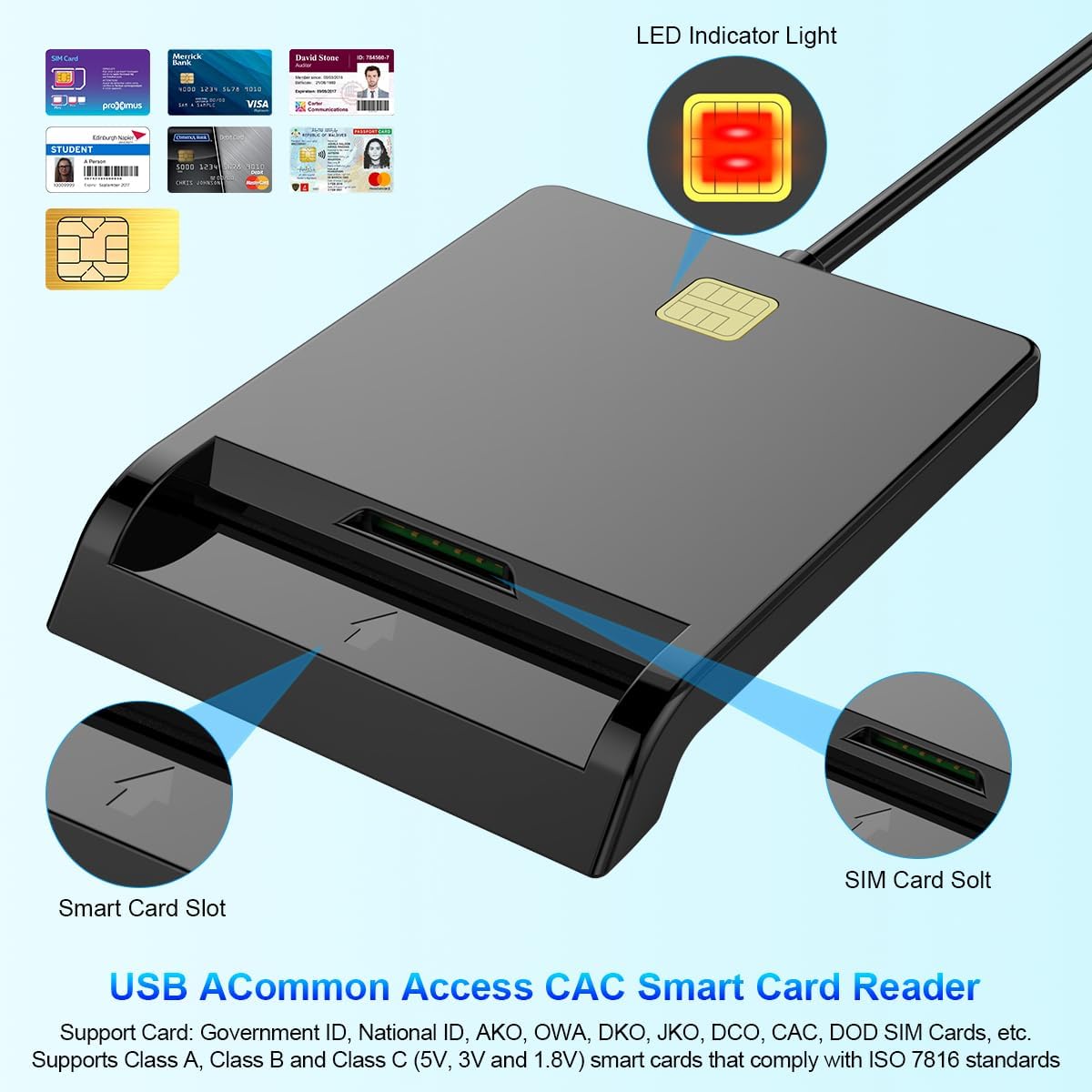
Foto 1: N'ihu view of the Rocketek Smart Card Reader, highlighting the LED indicator light, the main smart card slot, and the SIM card slot.

Foto 2: The Rocketek Smart Card Reader shown with its USB connector, a SIM card, and a standard debit card, illustrating its multi-card compatibility.
3. Nhazi
Follow these steps to set up your Rocketek PC/SC USB Smart Card Reader.
3.1 System chọrọ
- Sistemụ nrụọrụ: Windows 98 / Me / 2000 / NT 4.0 / XP / CE / Vista / 7 / 8 / 8.1 / 10 / 11, Chromebook OS, Linux, Ubuntu, Mac OS.
- Ihuenyo: Ọdụ USB dị.

Foto 3: The card reader is compatible with various operating systems, including different versions of Windows and Linux.
3.2 Ijikọ ngwaọrụ
- Chọta ọdụ ụgbọ mmiri USB dị na kọmputa gị ma ọ bụ laptọọpụ gị.
- Plug the USB connector of the Rocketek Smart Card Reader into the USB port.
- The device is generally Nkwụnye & Gwuo for Windows systems, meaning it should be recognized automatically without manual driver installation. For Mac OS and Linux, or for specific smart card applications (e.g., Belgian eID, CAC cards), additional drivers or official software may be required. Refer to the card issuer's website for necessary software.
4. Ntuziaka ọrụ
Using the Rocketek PC/SC USB Smart Card Reader is straightforward.
4.1 Ịtinye kaadi smart
- Hụ na ejikọrọ ihe na-agụ kaadị na kọmputa gị.
- For standard smart cards (e.g., ID cards, bank cards), insert the card into the main smart card slot with the chip facing upwards and towards the reader.
- For SIM cards, insert the SIM card into the dedicated SIM card slot.
- The LED indicator light on the reader will illuminate or flash to indicate card detection and activity.
4.2 Iji kaadị Reader
- Once the card is inserted and recognized, you can use it with compatible software for tasks such as:
- Online banking
- mbinye aka dijitalụ
- Online tax declarations
- Accessing government services (e.g., Belgian eID)
- CAC, AKO, OWA, DKO, JKO, NKO, BOL, GKO, Marinenet, AF-Portal, Pure Edge Viewngwa ngwa
- Ihe dị mkpa: The reader is designed to read only one card at a time. Do not attempt to insert multiple cards simultaneously into different slots if they are intended for active use.

Foto 4: The card reader supports high-speed data transmission but can only process one smart card or SIM card at any given moment.
5. Nlekọta
To ensure optimal performance and extend the lifespan of your card reader, follow these maintenance guidelines:
- Debe ngwaọrụ ahụ ọcha na enweghị ntụ. Jiri akwa dị nro, kpọrọ nkụ maka nhicha.
- Avoid exposing the reader to extreme temperatures, humidity, or direct sunlight.
- Do not insert foreign objects into the card slots.
- Handle the USB cable gently to prevent damage.
- Store the reader in a safe place when not in use.
6. Nchọpụta nsogbu
If you encounter issues with your Rocketek Smart Card Reader, refer to the following common problems and solutions:
6.1 Achọpụtaghị Ngwaọrụ
- Lelee njikọ USB: Ensure the reader is firmly plugged into a working USB port. Try a different USB port or a different computer if possible.
- Malitegharịa kọmputa: Sometimes a simple restart can resolve recognition issues.
- Nwụnye ọkwọ ụgbọala: While the device is generally plug-and-play for Windows, some specific smart cards (e.g., certain government IDs, health cards) or operating systems (Mac OS, Linux) may require dedicated drivers or middleware. Visit the official website of your smart card issuer or the Rocketek support page for driver downloads.
6.2 Kaadị Anaghị Agụ
- Ntinye ziri ezi: Ensure the smart card is inserted correctly with the chip facing the right direction and fully seated in the slot.
- Card Condition: Check the smart card for any visible damage or dirt on the chip. Clean the chip gently with a soft, dry cloth if necessary.
- Ndakọrịta Software: Verify that you have the correct software installed for the specific type of smart card you are trying to read (e.g., eID software for Belgian ID cards).
- Single Card Rule: Ensure only one card is inserted into the reader at a time.
6.3 Ịrụ ọrụ nwayọ
- Ọdụ ụgbọ mmiri USB: Ensure you are using a high-speed USB port (e.g., USB 2.0 or 3.0).
- Akụrụngwa sistemụ: Close unnecessary applications running in the background that might be consuming system resources.
7. Nkọwapụta
| Ụdị | Rocketek |
| Nlereanya | B0C5LR8DTN |
| Teknụzụ Njikọta | USB |
| Ngwa dakọtara | Computers, Laptops |
| Sistemu eji arụ ọrụ | Windows 98 / Me / 2000 / NT 4.0 / XP / CE / Vista / 7 / 8 / 8.1 / 10 / 11, Chromebook OS, Linux, Ubuntu, Mac OS |
| Njirimara Pụrụ Iche | Nkwụnye & Gwuo |
| Ụdị kaadị akwadoro | Smart, ID, CAC, CRS, CNS, IC, SIM, etc. (ISO 7816 Class A, B, C for 5V, 3V and 1.8V smart cards) |
| Akụkụ (Ihe dị ka) | 84mm (L) x 65mm (W) x 9.5mm (H) |
| Cable Length (Approx.) | 95cm / 2.5in |

Foto 5: Approximate dimensions of the Rocketek Smart Card Reader and its integrated USB cable.
8. Akwụkwọ ikike na nkwado
Rocketek stands behind the quality of its products.
8.1 Akwụkwọ ikike nke onye nrụpụta
All Rocketek USB CAC smart card readers come with a worry-free Akwụkwọ ikike nke onye nrụpụta ọnwa iri na abụọ site na ụbọchị ịzụrụ. Akwụkwọ ikike a na-ekpuchi ntụpọ dị na ngwa na arụ ọrụ n'okpuru ojiji nkịtị.
8.2 Nkwado ndị ahịa
If you have any questions, require technical assistance, or experience issues with your product, please do not hesitate to contact Rocketek customer support directly. Refer to the product packaging or the Rocketek official websaịtị maka ozi kọntaktị.