
1. Ngwaahịa gafereview
The EPOS Impact 1030T is a single-sided Bluetooth office headset designed for professionals requiring clear communication while maintaining situational awareness. It features advanced noise-canceling microphone technology, Super Wideband Audio, and EPOS BrainAdapt™ technology to reduce cognitive load. This headset is optimized for open office environments and certified for Microsoft Teams, Zoom, and Skype.
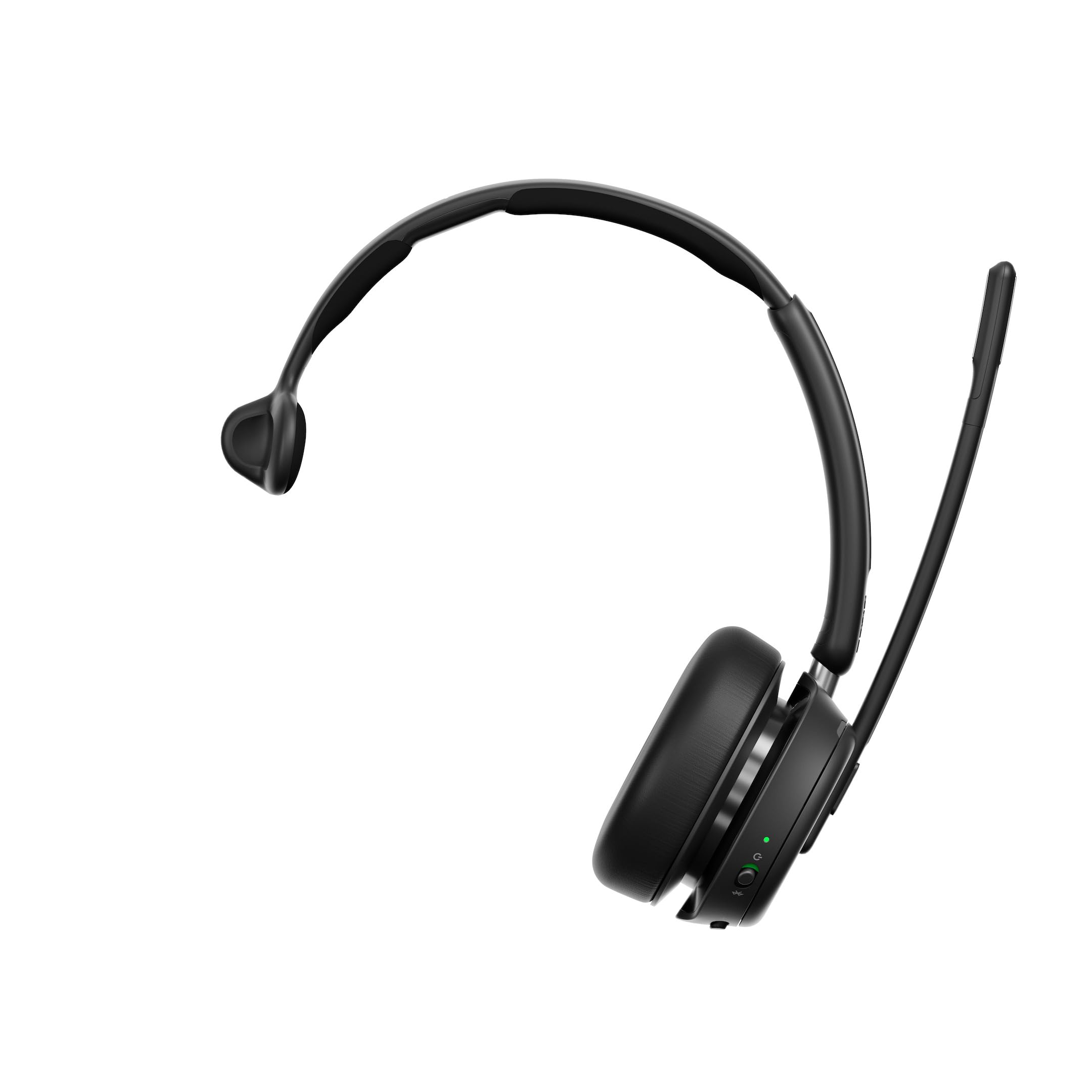
Figure 1: EPOS Impact 1030T Headset
The single-sided design allows one ear to remain open to the surroundings, while the other provides high-quality audio. Soft ear cushions and a padded headband ensure comfort during extended use. A 360-degree busylight indicates when you are on a call, minimizing interruptions. Triple wireless connectivity enables seamless switching between PC, laptop, smartphone, and tablet. Intuitive controls allow for call management, such as muting by raising the boom arm and automatically ending calls when the headset is removed.

Foto 2: Top view of the EPOS Impact 1030T Headset
2. Kedu ihe dị na Igbe ahụ
Chọpụta na akụrụngwa niile dị na nkwakọ ngwaahịa:
- EPOS Impact 1030T Headset
- eriri USB-C (1.2m)
- Bluetooth USB Dongle
- Akpa Ibu Dị Nro
- Safety & Compliance Sheet
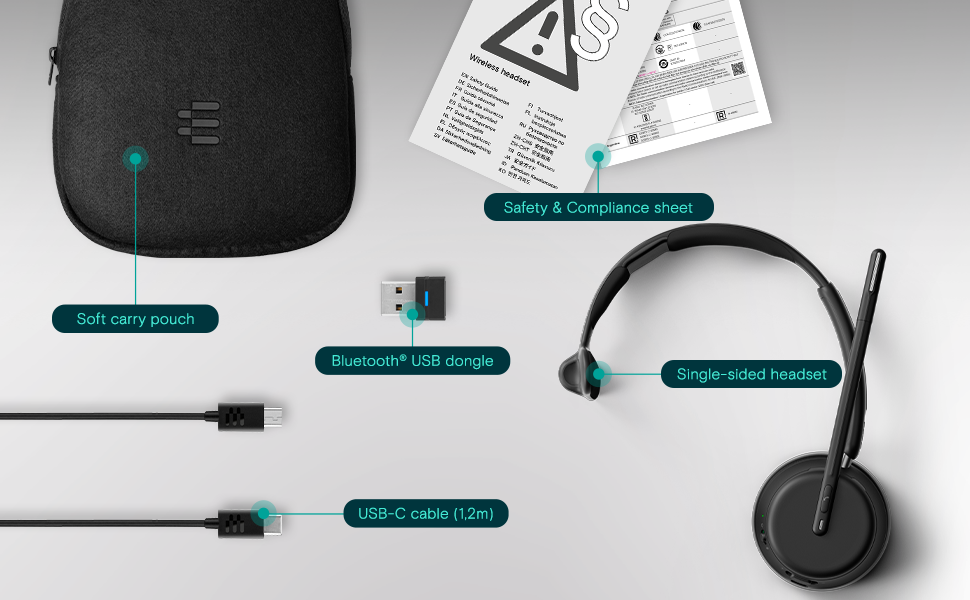
Ọgụgụ 3: Ihe ngwugwu
3. Ntọala na Njikọta
3.1 Ịchaji ekweisi
Before initial use, fully charge the headset using the provided USB-C cable. Connect the USB-C end to the headset and the USB-A end to a power source (e.g., computer USB port or wall adapter). The charging indicator light will show the charging status.
3.2 Yi ekweisi
Place the ear cup over one ear and adjust the headband for a comfortable and secure fit. Position the microphone boom arm close to your mouth for optimal voice pickup. The boom arm can be rotated to either side depending on your preference.
3.3 Njikọ Bluetooth
The EPOS Impact 1030T supports triple wireless connectivity, allowing connection to multiple devices.
- To a PC/Laptop (using USB Dongle): Insert the Bluetooth USB dongle into an available USB port on your computer. The headset and dongle are pre-paired and should connect automatically.
- To a Smartphone/Tablet: Put the headset into pairing mode (refer to the headset's specific button combination, usually holding the power button). On your device, go to Bluetooth settings and select 'EPOS Impact 1030T' from the list of available devices.
4. Ntuziaka ọrụ
4.1 Gbanyụọ ma ọ bụ gbanyụọ
Press and hold the Power button for approximately 2 seconds to turn the headset on or off.
4.2 Njikwa oku
- Azịza/Kwụsị Oku: Pịa bọtịnụ oku.
- Mechie igwe okwu: Raise the microphone boom arm upwards. Lower it to unmute.
- Automatic Call End: The headset is designed to automatically end calls when removed from your head.
4.3 Njikwa olu
Use the volume up (+) and volume down (-) buttons located on the ear cup to adjust the listening volume.
4.4 Noise Cancellation (Adaptive ANC)
The headset features Adaptive Noise Cancellation (ANC) to reduce ambient noise. This function helps to minimize listening effort and improve concentration. The ANC can be toggled on or off using the dedicated ANC button on the ear cup.
4.5 ọkụ ọrụ
The integrated 360-degree busylight automatically illuminates when you are on a call, signaling to others that you are busy and should not be disturbed.
4.6 EPOS AI™ Voice Pickup
The EPOS AI™ adaptive microphones are engineered to provide industry-leading voice pickup, effectively filtering out background noise to ensure your voice is transmitted clearly during calls.
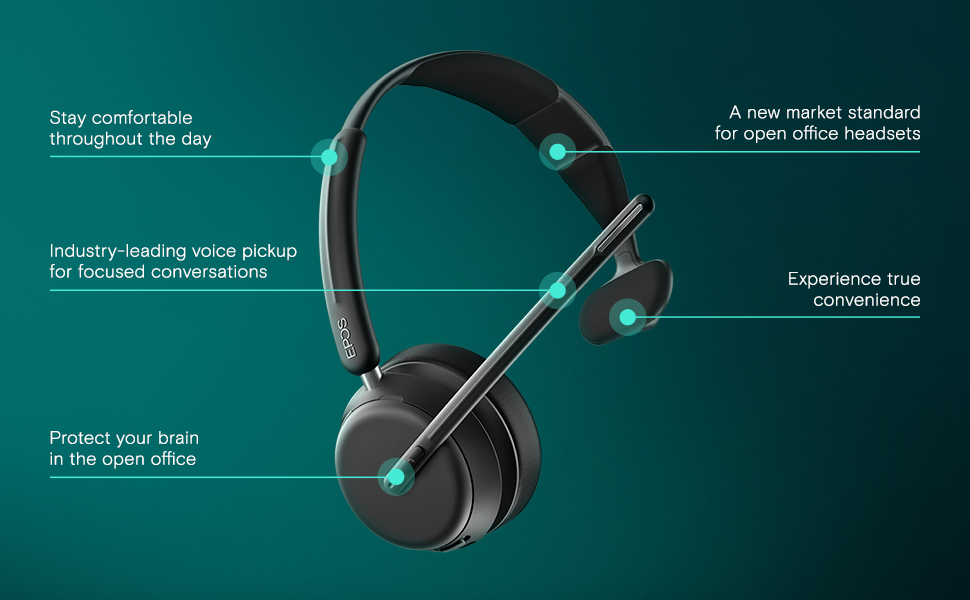
Figure 4: Key Features of the EPOS Impact 1030T
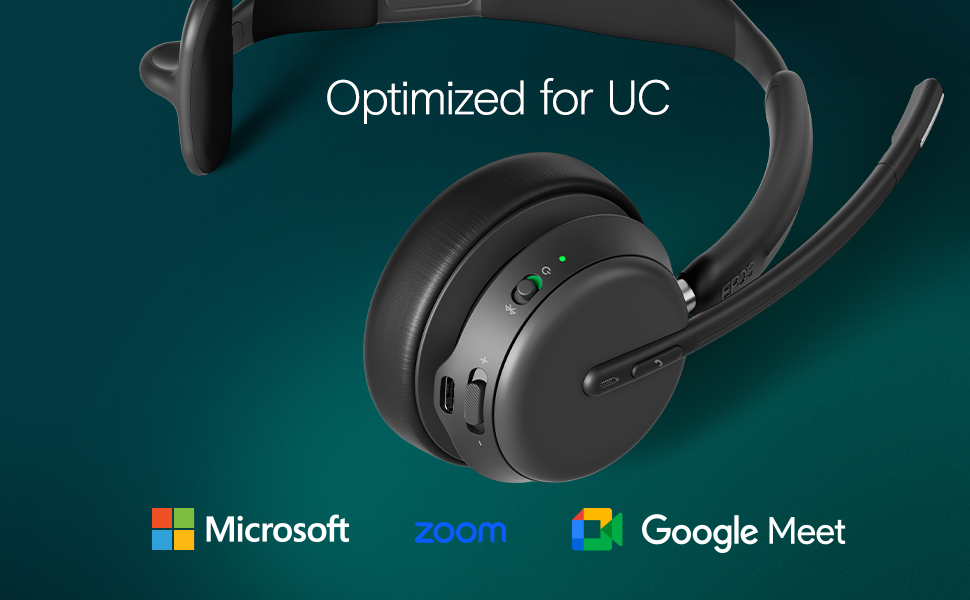
Figure 5: Optimized for Unified Communications Platforms
Video 1: Powerful Sound and Comfort for Your Workday. This video demonstrates the EPOS Impact 1000 series headset's features, including its comfortable design, noise reduction capabilities, and clear audio for professional use.
5. Nlekọta
5.1 Nhicha
Regularly clean the headset with a soft, dry cloth. For ear cushions, use a slightly damp cloth with mild soap if necessary, and ensure they are completely dry before use. Do not use harsh chemicals or abrasive materials.
5.2 Nchekwa
When not in use, store the headset in its soft carry pouch to protect it from dust and damage. Avoid storing in extreme temperatures or direct sunlight.
6. Nchọpụta nsogbu
6.1 No Audio/Poor Audio Quality
- Gbaa mbọ hụ na agbanyere ekweisi wee chajịa nke ọma.
- Verify Bluetooth connection to your device. Re-pair if necessary.
- Check volume levels on both the headset and your connected device.
- Confirm the headset is selected as the default audio input/output device in your computer's sound settings or communication application.
6.2 Igwe okwu anaghị arụ ọrụ
- Ensure the microphone boom arm is lowered and not muted.
- Check microphone settings in your computer or communication application to ensure the headset microphone is selected and not muted.
6.3 Okwu Njikọta
- Move closer to your connected device to ensure you are within Bluetooth range.
- Restart both the headset and your connected device.
- Clear previous Bluetooth pairings on your device and re-pair the headset.
7. Nkọwapụta
| Njirimara | Nkọwa |
|---|---|
| Ụdị | EPOS |
| Aha Nlereanya | MMETỤTA 1030T |
| Nọmba nlereanya | 1001137 |
| Teknụzụ Njikọta | Ikuku (Bluetooth) |
| Ụdị Bluetooth | 4.0 |
| Ntinye ntị | Na Ntị |
| Ụdị Ihe | Na Ntị |
| Njikwa mkpọtụ | Nkagbu mkpọtụ na-eme mgbanwe |
| Igwe okwu | Noise-Canceling Mic with EPOS AI™ Voice Pickup |
| Ụdị ọkwọ ụgbọ ala ọdịyo | Ọkwọ ụgbọala dị ike |
| Oke ugboro ugboro | 20 Hz - 20,000 Hz |
| Ụdị njikwa | Njikwa olu, bọtịnụ pịa |
| Atụmatụ ndị ọzọ | Adjustable Headband, Lightweight, Busylight, Wireless Charging (with compatible stand) |
| Ngwa dakọtara | Laptops, Desktops, Tablets, Telephones, Smart Speakers |
| Ihe onwunwe | Fabric, Leather, or Memory Foam |
| Agba | Nwa |
8. Akwụkwọ ikike Ozi
The EPOS Impact 1030T headset comes with a Akwụkwọ ikike onye nrụpụta afọ 2. Please retain your proof of purchase for warranty claims. For detailed terms and conditions, refer to the official EPOS websaịtị ma ọ bụ akwụkwọ ikike gụnyere ngwaahịa gị.
9. Nkwado
For further assistance, technical support, or to access additional resources such as FAQs and software updates, please visit the official EPOS support websaịtị ahụ. Enwere ike ịchọta ozi kọntaktị maka ọrụ ndị ahịa na nke onye nrụpụta websaịtị ma ọ bụ na nkwakọ ngwaahịa.