
1. Okwu mmalite
This manual provides detailed instructions for the proper use and maintenance of your LENVII F510 Wired Handheld Scanner. The F510 is designed for efficient and reliable scanning of various 1D and 2D barcodes, including those displayed on mobile phone and computer screens. Please read this manual thoroughly before operating the device to ensure optimal performance and longevity.
2. Ihe ngwugwu
Nyochaa na etinyere ihe niile edepụtara n'okpuru na ngwugwu gị. Ọ bụrụ na ihe ọ bụla na-efu ma ọ bụ mebie, biko kpọtụrụ nkwado ndị ahịa.
- LENVII F510 Barcode Scanner
- eriri USB
- Akwụkwọ ntuziaka nhazi ngwa ngwa

Image 2.1: Contents of the LENVII F510 package, showing the barcode scanner, USB cable, and quick setup manual.
3. Nhazi
The LENVII F510 scanner is designed for simple plug-and-play operation, requiring no additional driver software for most operating systems.
3.1 Ijikọ ihe nyocha
- Connect the USB cable to the scanner's port.
- Plug the other end of the USB cable into an available USB port on your computer or POS system.
- The scanner will automatically install necessary drivers (if required by the operating system) and be ready for use.

Image 3.1: The LENVII F510 scanner features plug-and-play functionality, connecting directly via USB without requiring driver software. It supports various payment systems and barcode types.
3.2 ndakọrịta sistemụ
The F510 scanner is compatible with a wide range of operating systems, ensuring broad usability across different environments.
- Windows
- Mac OS
- Android
- Linux
- Other compatible systems

Image 3.2: The LENVII F510 scanner is compatible with multiple systems, including Windows, Mac OS, Android, and Linux, making it versatile for various setups.
4. Ntuziaka ọrụ
The LENVII F510 is designed for intuitive and efficient barcode scanning in various professional settings.
4.1 Basic Scanning Operation
- Hold the scanner firmly, pointing the scanning window towards the barcode.
- Press the trigger button to activate the scanning beam.
- Position the scanner so that the red scanning line crosses the entire barcode.
- A successful scan will be indicated by a blue LED light and an audible beep.
4.2 Advanced Scanning Capabilities
The F510 utilizes advanced decoding algorithms to read a wide range of complex 1D and 2D codes, including those displayed on digital screens.
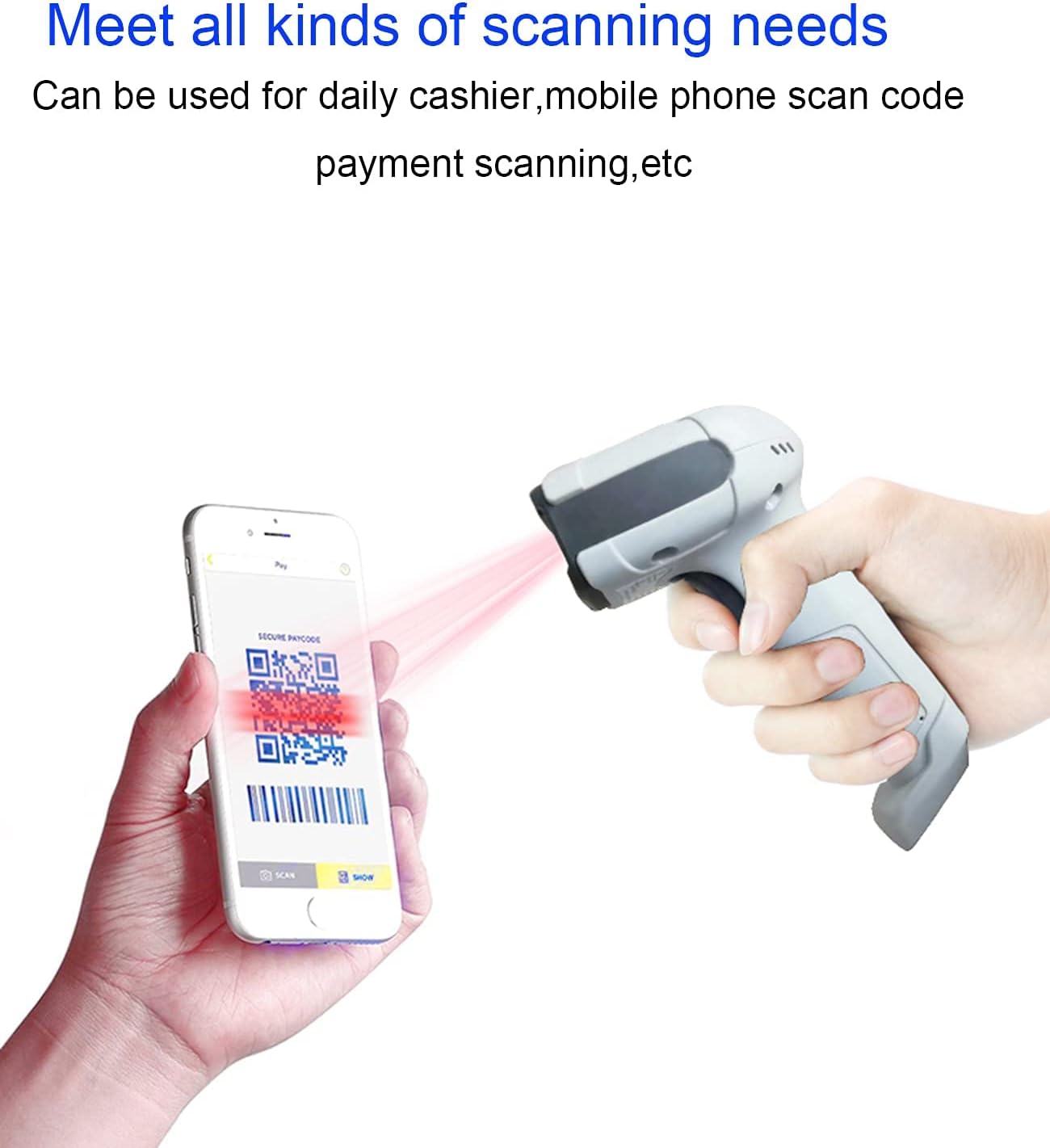
Image 4.1: The LENVII F510 scanner is capable of reading barcodes directly from mobile phone and computer screens, suitable for daily cashier operations and mobile payment scanning.

Image 4.2: The LENVII F510 scanner supports scanning most 1D and 2D QR codes, including standard 1D barcodes, incomplete codes, high-density codes, deformation codes, QR codes, DataMatrix, PDF417, Minitype codes, and Border codes.
4.3 Ngwa ndapụta
The F510 scanner is versatile and suitable for various environments:
- Commerce: Retail stores, supermarkets, clothing stores.
- Ngwa ngwa: Warehouses, shipping and receiving.
- Nlekọta ahụike: Pharmacies.
- Ile ọbịa: Dining rooms, coffee shops.
- Mmụta: Bookstores.
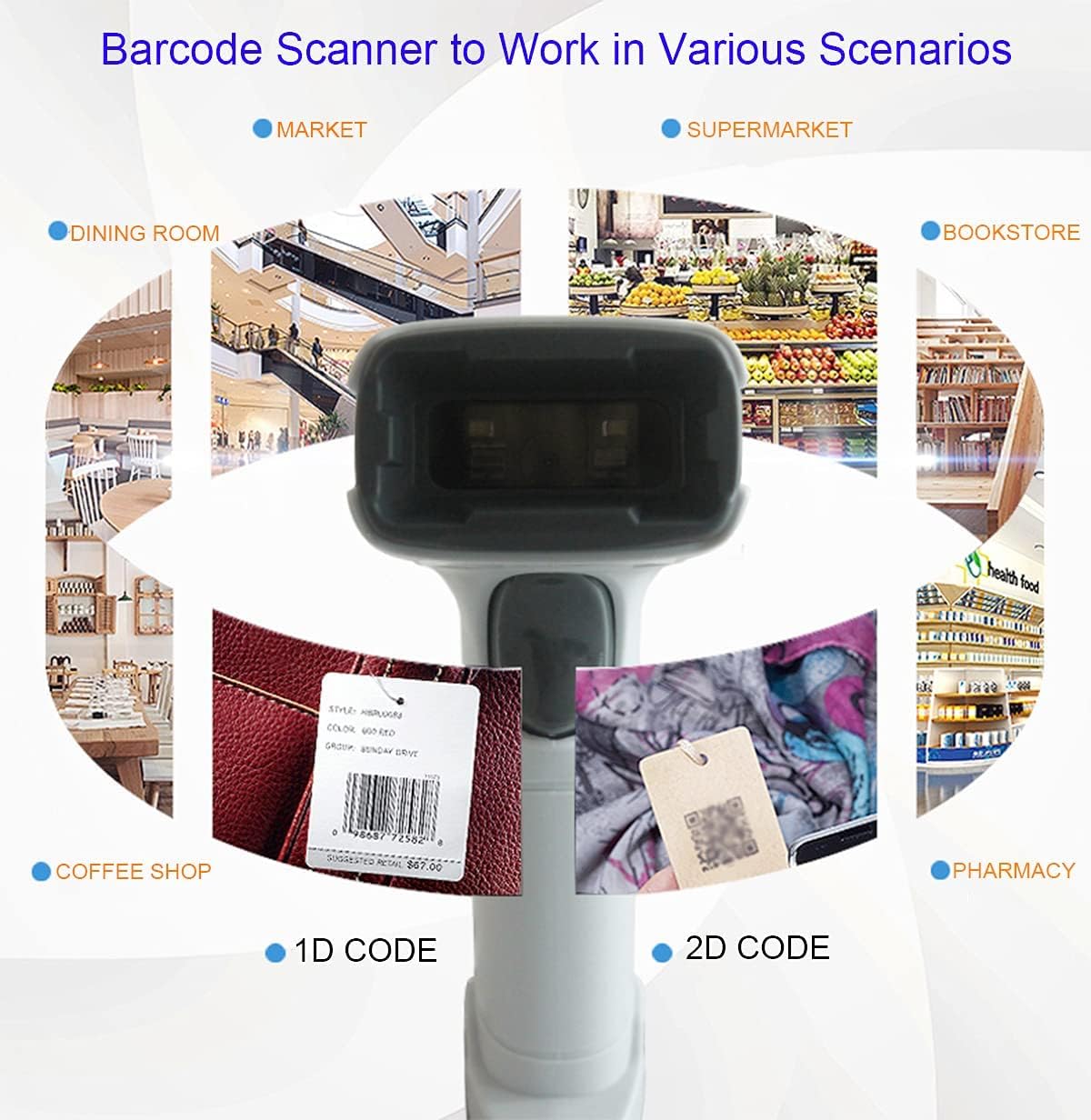
Image 4.3: The LENVII F510 barcode scanner is designed to work in various scenarios, including markets, supermarkets, dining rooms, bookstores, coffee shops, and pharmacies, efficiently scanning both 1D and 2D codes.
5. Nlekọta
To ensure the longevity and optimal performance of your LENVII F510 scanner, follow these maintenance guidelines:
- Nhicha: The scanner features a fully dust-proof design. For general cleaning, wipe the exterior with a soft, dry cloth. For stubborn dirt, use a slightly damp cloth and then dry thoroughly. Do not use abrasive cleaners or solvents.
- Nchekwa: Debe ihe nyocha ahụ n'ebe dị jụụ ma kpọọ nkụ, ebe anwụ na-anaghị apụta kpọmkwem na oke okpomọkụ.
- Nlekọta USB: The USB cable is made of high and low temperature resistant materials and high-quality inner copper wires for durability. Avoid bending or twisting the cable excessively to prevent damage.
- Ogologo oge: The scanner is designed with anti-shock and anti-fall features to withstand typical operational impacts. However, avoid intentional drops or severe impacts.

Image 5.1: The LENVII F510 scanner is built with anti-shock and anti-fall properties, enhancing its durability in various working environments.
6. Nka na ụzụ nkọwa
Below are the detailed technical parameters for the LENVII F510 Handheld 2D Barcode Scanner:
| Njirimara | Nkọwa |
|---|---|
| Image (pixels) | 640 pixels (H) * 480 pixels (V) |
| Isi Iyi Ìhè | 617 nm LED |
| Viewna n'akuku | 65° / Tilt 30° / Bevel 55° |
| Printing Contrast | Karịrị 25% |
| Ụkpụrụ Ọgụgụ | Manual / Automatic Induction |
| Ngosipụta | LED blue light, Buzzer, Vibration indication |
| Ụdị njikọ | eriri USB |
| Akụkụ ngwaahịa | 173mm * 67mm * 94mm (L * W * H) |
| Ibu | 190g (0.42 lbs) |
| UPC | 727244741680 |
6.1 Recognizable Barcodes
The F510 scanner supports a comprehensive range of 1D and 2D barcode symbologies:
- Koodu 1D: UPC / EAN / JAN, UPC-A & UPC-E, EAN-8 & EAN-13, JAN-8 & JAN-13, ISBN / ISSN, Code 39 (with full ASCII), Codabar (NW7), Code 128 & EAN 128, Code 93, Interleaved 2 of 5 (ITF), Addendum 2 of 5 IATA Code, MSI / Plessy, China Postal Code, Code 32 (Italian Pharmacode), RSS 14, RSS Limited, RSS Expanded.
- Koodu 2D: QR Code, Data Matrix, PDF417, Aztec, Maxicode, etc.

Image 6.1: Physical dimensions of the LENVII F510 scanner, measuring 160mm x 64mm (6.29in x 2.5in) and weighing 140.5g (0.3lb).
7. Nchọpụta nsogbu
If you encounter issues with your LENVII F510 scanner, please refer to the following common troubleshooting steps:
- Ihe nyocha anaghị aza: Ensure the USB cable is securely connected to both the scanner and the host device. Try plugging the scanner into a different USB port or a different computer to rule out port or system issues.
- No Scan Indication: Check if the scanner's trigger button is functioning correctly. Ensure the barcode is clean, undamaged, and within the scanner's optimal reading range and angle.
- Mmepụta data ezighi ezi: Verify that the scanner's configuration (if any specific settings were applied) matches the expected output format. Refer to the quick setup manual for default settings or configuration options.
- Nyocha oge: Ensure there are no loose connections. Avoid scanning in environments with excessive glare or poor lighting conditions that might interfere with the scanner's optical sensor.
8. Nkwado ndị ahịa
For further assistance, technical support, or warranty inquiries regarding your LENVII F510 scanner, please contact your retailer or the LENVII customer service department. Please have your product model number (F510) and purchase information ready when contacting support.