
1. Okwu mmalite
This manual provides detailed instructions for the setup, operation, maintenance, and troubleshooting of your Cosmic Byte ARES Wired Controller for PC. Designed for an enhanced gaming experience, this controller features Hall Effect joysticks and triggers, dual vibration, and customizable Turbo functions.
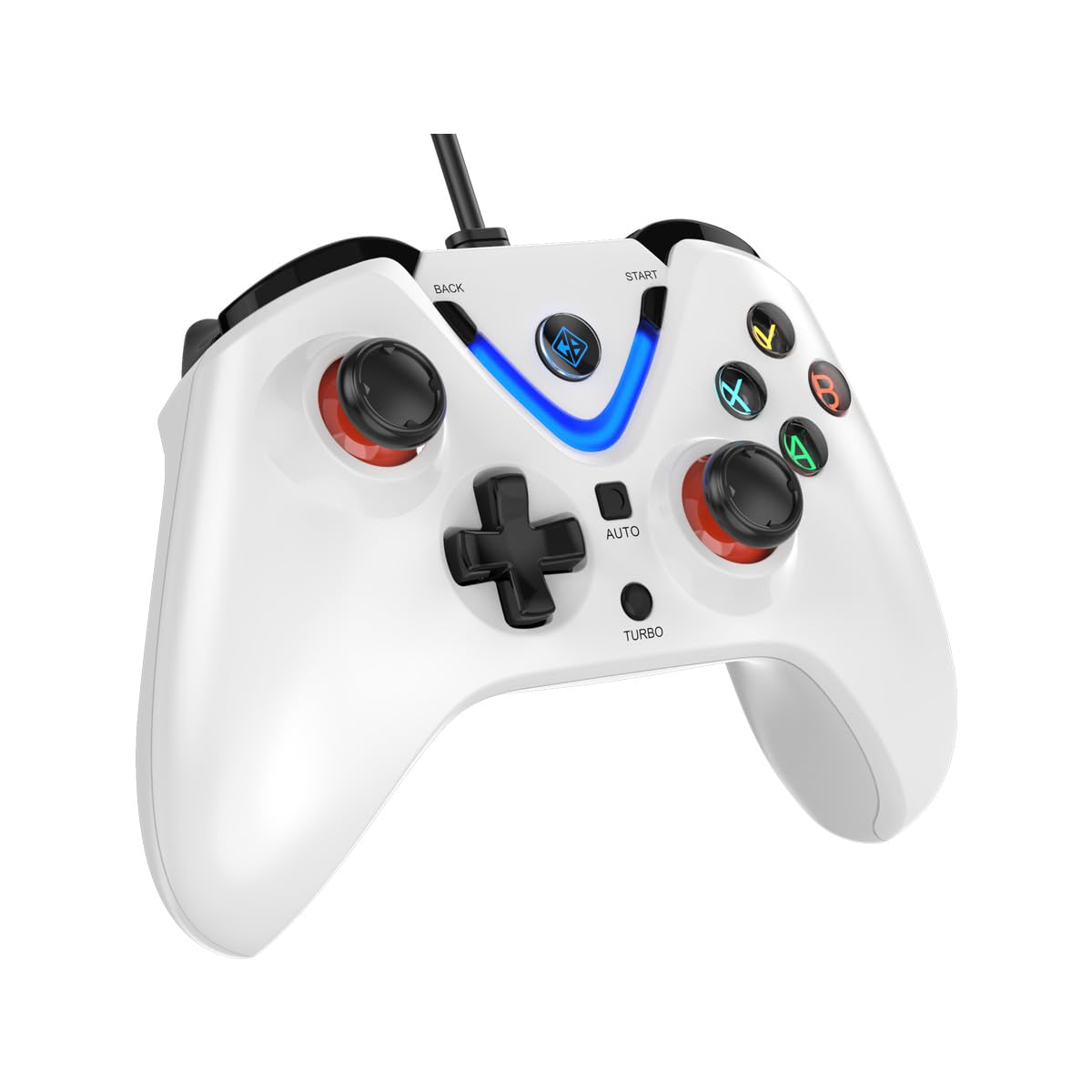
Image 1: The Cosmic Byte ARES Wired Controller in white, showcasinnhazi ergonomic ya.
2. Nhazi ntuziaka
2.1 Jikọọ na PC
- Gbaa mbọ hụ na agbanyere PC gị.
- Chọta ọdụ ụgbọ mmiri USB dị na kọmputa gị.
- Plug the USB connector of the Cosmic Byte ARES Wired Controller into the USB port.
- Sistemụ arụmọrụ ahụ ga-achọpụta ma wụnye draịva dị mkpa na akpaghị aka. Usoro a nwere ike were obere oge.
- Once installation is complete, the controller is ready for use.

Image 2: The controller connected via its wired USB connection, ensuring fast response.
3. Ntuziaka ọrụ
3.1 Njikwa ntọala
The Cosmic Byte ARES controller features standard gamepad layouts, including:
- Left and Right Analog Joysticks: Maka njikwa mmegharị na njikwa igwefoto ziri ezi.
- D-Pad: Maka ntinye ntụziaka, a na-ejikarị ya eme ihe na menus ma ọ bụ maka ihe omume egwuregwu kpọmkwem.
- Bọtịnụ Ọrụ (A, B, X, Y): For primary game interactions.
- Shoulder Buttons (L1, R1) and Triggers (L2, R2): For various in-game functions like shooting, aiming, or accelerating.
- Start and Back Buttons: For pausing games, accessing menus, or specific in-game commands.
- bọtịnụ Turbo: For activating rapid-fire functions.
- Bọtịnụ akpaaka: For activating automatic rapid-fire functions.
3.2 Hall Effect Joysticks and Triggers
The controller is equipped with Hall Effect joysticks and triggers, which use magnetic sensors instead of physical contacts. This technology provides:
- Ebuliri nkenke: More accurate and responsive input.
- Increased Durability: Reduces wear and tear, preventing stick drift over time.
- Ọrụ dị nro: Consistent and linear response for triggers, allowing for nuanced control in games.

Foto 3: Ihe gbawara view illustrating the Hall Effect joystick mechanism and the Hall Effect triggers.
3.3 Dual Vibration Feedback
The controller features dual vibration motors that provide tactile feedback during gameplay, enhancing immersion by simulating in-game events such as impacts, explosions, or engine rumbling.
3.4 Backlit LED Buttons
The action buttons (A, B, X, Y) and the central V-shaped indicator feature LED backlighting, providing visibility in low-light conditions and adding to the controller's aesthetic.

Image 4: The controller with its LED buttons illuminated and visual representation of vibration effects.
3.5 Turbo and Auto Turbo Functions
The Turbo and Auto Turbo functions allow for rapid, repeated input of a button press without continuously pressing the button.
- Turbo na-arụ ọrụ: Press and hold the desired action button (e.g., A) and then press the Turbo button. The button will now rapidly repeat its input as long as you hold it down.
- Activating Auto Turbo: Press and hold the desired action button (e.g., A) and then press the Akpaaka button. The button will now rapidly repeat its input automatically without needing to be held down.
- Deactivating Turbo/Auto Turbo: To deactivate, repeat the activation steps for the specific button, or press the Kpochapụ button (if available) or disconnect and reconnect the controller.

Image 5: Close-up of the controller showing the Turbo and Auto function buttons.
4. Nlekọta
- Nhicha: Jiri akwa dị nro dị nro hichaa njikwa. Maka unyi isi ike, ntakịrị damp cloth can be used, ensuring no liquid enters the controller. Avoid harsh chemicals or abrasive cleaners.
- Nchekwa: Store the controller in a cool, dry place away from direct sunlight and extreme temperatures. Avoid placing heavy objects on the controller.
- Nlekọta USB: Do not sharply bend or pull the USB cable. Always grasp the plug when disconnecting from the PC.
5. Nchọpụta nsogbu
- Controller Not Recognized:
- Ensure the USB cable is securely connected to both the controller and the PC.
- Try plugging the controller into a different USB port.
- Malitegharịa ekwentị gị na kọmputa.
- Check Device Manager on Windows to see if the controller is listed and if there are any driver issues.
- Buttons/Joysticks Not Responding:
- Verify the controller is recognized by your PC (see above).
- Test the controller in a different game or a controller testing utility to rule out game-specific issues.
- Hụ na ngwaọrụ ntinye ọ bụla ọzọ anaghị egbochi ya.
- Ịma jijiji anaghị arụ ọrụ:
- Lelee ntọala egwuregwu ahụ iji hụ na enyere nzaghachi mkpọtụ aka.
- Some games may not support vibration or may have limited vibration effects.
6. Nkọwapụta
| Njirimara | Nkọwa |
|---|---|
| Ụdị | Cosmic Byte |
| Aha Nlereanya | Ares |
| Ngwa dakọtara | PC |
| Ụdị njikwa | Gamepad |
| Teknụzụ Njikọta | USB |
| Njirimara ngwaahịa | Ergonomic |
| Ọnụọgụ bọtịnụ | 16 |
| Ngwaike Platform | PC |
| Ụdị isi iyi ike | Igwe ọkụ eletrik, eriri USB |
| Ibu Ibu | 220 grams |
| Akụkụ akụkụ | 6 x 10 x 4 centimita |
| Agba | Ọcha |
| Mba onye si | China |

Image 6: A comparison table highlighting features of different ARES controller models.
7. Akwụkwọ ikike na nkwado
7.1 Ozi akwụkwọ ikike
The Cosmic Byte ARES Wired Controller comes with a Akwụkwọ ikike nke afọ 1 megide mmejọ nrụpụta site na ụbọchị ịzụrụ. Biko dowe ihe akaebe nke ịzụrụ ihe maka akwụkwọ ikike.
7.2 Ozi kọntaktị onye nrụpụta
For support, service, or warranty inquiries, please contact:
Cosmic BytePrakash Warehousing, S. No.163, Hissa No 1-2-3-4-5A-5B/2/1,
Phursungi, Pune 412308, Maharashtra, India
For further assistance, please visit the official Cosmic Byte websaịtị ma ọ bụ kpọtụrụ ndị ahịa ha ọrụ.