
Ambrane OP-WLGC01
Ambrane Wireless Gaming Controller OP-WLGC01 User Manual
Model: OP-WLGC01
1. Okwu mmalite
Thank you for choosing the Ambrane Wireless Gaming Controller OP-WLGC01. This controller is designed to provide an immersive gaming experience across multiple platforms, including PC (Windows), PS3 Console, and Android TV. Featuring 2.4GHz wireless technology, dual vibration motors, and dynamic RGB lighting, this manual will guide you through its setup, operation, and maintenance.

Image 1.1: The Ambrane Wireless Gaming Controller OP-WLGC01, showcasing its transparent design and illuminated elements.
2. Ngwaahịa gafereview
The Ambrane OP-WLGC01 controller combines advanced features with a unique aesthetic. Key components and features include:
- Nhazi nghọta: A visually distinct transparent casing.
- Teknụzụ ikuku ikuku 2.4GHz: Ensures stable and responsive connectivity.
- Integrated Dual Intensity Motor: Provides haptic feedback for an immersive gaming experience.
- Illuminated Pad (RGB Lighting): Features 16.8 million colors with breathing RGB effects.
- Nhazi Ergonomic: Easy-to-hold body for comfortable extended gaming sessions.
- Bọtịnụ ọrụ pụrụ iche: Dedicated Turbo and Clear buttons for enhanced gameplay.

Image 2.1: Illustration of the dual vibrating motors providing haptic feedback.

Image 2.2: The controller displaying its dynamic 16.8 million color breathing RGB lighting effect.
3. Nhazi
3.1 Ịchaji njikwa
Before initial use, fully charge the controller. The integrated 800mAh battery provides up to 12 hours of gameplay on a full charge.
- Connect the provided Type-C charging cable to the charging port on the controller.
- Jikọọ nsọtụ nke ọzọ nke eriri ahụ na isi iyi ike USB (dịka ọmụmaatụ, ọdụ ụgbọ USB kọmputa, ihe nkwụnye mgbidi USB).
- The indicator lights on the controller will show charging status and turn off or change color when fully charged.

Image 3.1: The controller highlighting its Type-C charging port and other features.
3.2 Ijikọ na ngwaọrụ
The controller utilizes 2.4GHz wireless technology for connection. It is compatible with PC (Windows systems, supporting X-Input & D-Input modes), PS3 consoles, and Android TV devices.
- Insert the 2.4GHz USB receiver (dongle) into an available USB port on your PC, PS3 console, or Android TV.
- Turn on the controller by pressing the MODE button.
- The controller will automatically pair with the receiver. The indicator lights will stabilize once connected.
- For PC, ensure the correct input mode (X-Input or D-Input) is selected if prompted by your game or system.

Image 3.2: The controller demonstrating its compatibility with PS3 Console, Windows System, Android TV, and PC.
4. Ntuziaka ọrụ
Nhazi bọtịnụ na ọrụ 4.1
Familiarize yourself with the controller's button layout for optimal gameplay.

Image 4.1: Detailed diagram of the controller's buttons, including joysticks, directional pad, action buttons (A, B, X, Y), shoulder buttons (L1, L2, R1, R2), SELECT, START, TURBO, CLEAR, MODE, and RGB Control.
- Joysticks aka ekpe/aka nri: For analog movement and camera control.
- Directional Button (D-Pad): For precise directional input.
- Bọtịnụ Ọrụ (A, B, X, Y): Standard game actions.
- Bọtịnụ ubu (L1, L2, R1, R2): For various in-game functions.
- HỌRỌ/MALITE: Menu and pause functions.
- Bọtịnụ MODE: Power on/off and mode switching.
- Njikwa RGB: Button or combination for adjusting RGB lighting effects.
4.2 Ụdị Turbo
The Turbo mode allows for rapid and continuous actions by repeatedly pressing a single button. This can be useful for certain in-game scenarios.
- Press and hold the desired action button (e.g., A, B, X, Y, L1, R1).
- Mgbe ị na-ejide bọtịnụ ihe omume, pịa TURBO bọtịnụ otu ugboro.
- Release both buttons. The selected action button will now perform rapid presses when held down.
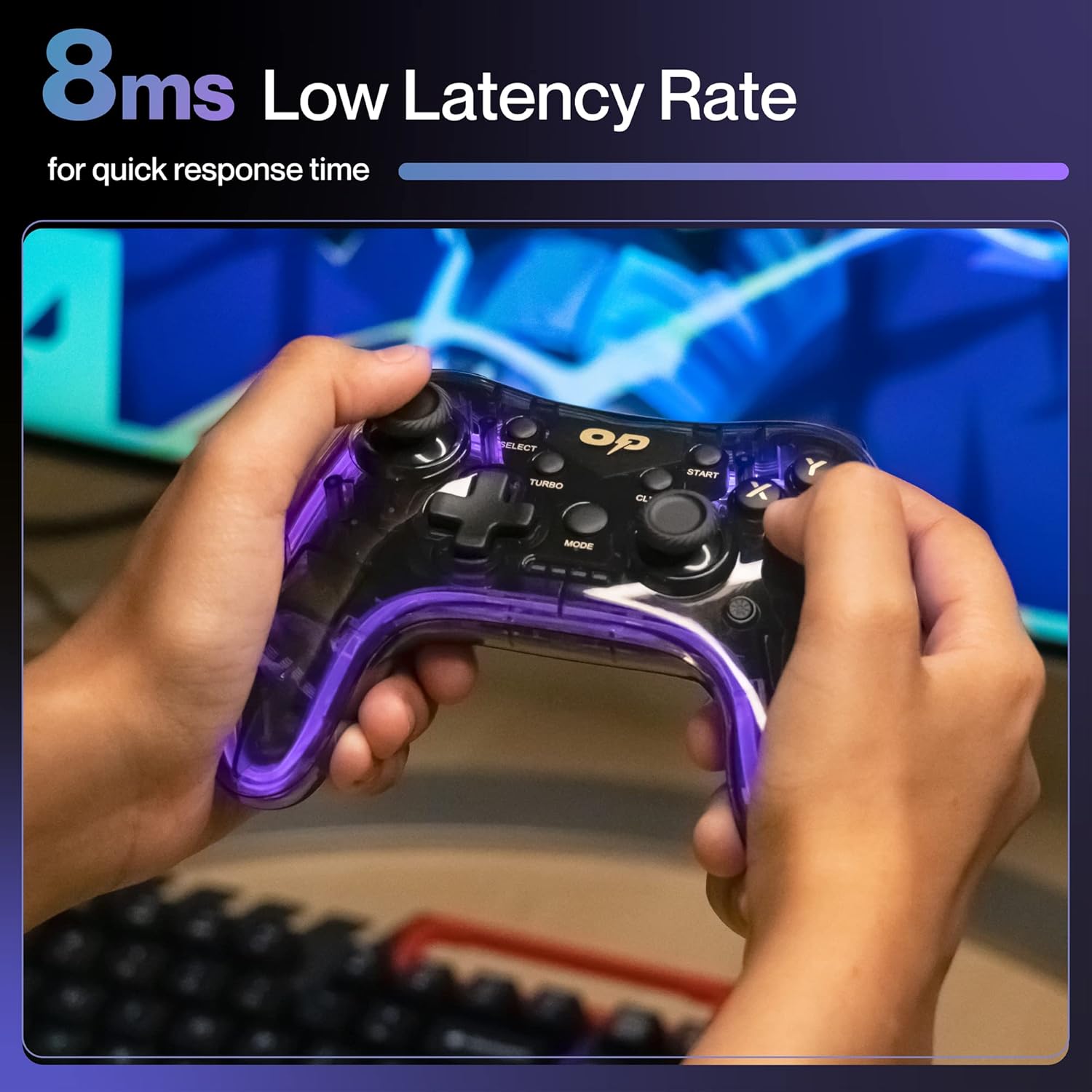
Foto 4.2: nso nso view of the TURBO and CLEAR special function buttons.
4.3 Clearing Turbo Mode
To deactivate Turbo mode for a specific button:
- Press and hold the action button for which Turbo mode is active.
- Mgbe ị na-ejide bọtịnụ ihe omume, pịa KPUCHIE bọtịnụ otu ugboro.
- Release both buttons. Turbo mode for that button is now deactivated.
To clear all Turbo settings, press and hold the KPUCHIE bọtịnụ maka ihe dịka 3 sekọnd.
5. Nlekọta
Proper maintenance ensures the longevity and optimal performance of your controller.
- Nhicha: Jiri akwa dị nro, kpọrọ nkụ hichaa njikwa. Maka unyi isi ike, ntakịrị dampen akwa na mmiri. Zere kemịkalụ siri ike ma ọ bụ ihe na-emebi emebi.
- Nchekwa: Chekwaa onye njikwa ahụ n'ebe dị jụụ, kpọrọ nkụ na-adịghị na ìhè anyanwụ kpọmkwem na oke okpomọkụ.
- Nlekọta batrị: Avoid fully discharging the battery frequently. If storing for an extended period, charge the controller to about 50% to prolong battery life.
- Zere mbelata: Chebe onye njikwa ahụ pụọ na mmetụta anụ ahụ, nke nwere ike imebi ihe dị n'ime.
6. Nchọpụta nsogbu
| Nsogbu | Ihe nwere ike ime | Ngwọta |
|---|---|---|
| Onye njikwa anaghị agbanwu. | Batrị dị ala. | Charge the controller using the provided Type-C cable. |
| Controller does not connect to device. | USB receiver not properly inserted or out of range. | Ensure the USB receiver is securely plugged in. Move closer to the receiver (within 10 meters). Re-pair by turning the controller off and on. |
| Bọtịnụ ma ọ bụ joystick anaghị anabata. | Software glitch or physical obstruction. | Restart the controller and the connected device. Check for any physical debris around buttons/joysticks. |
| Vibration function is not working. | Game does not support vibration or feature is disabled. | Check in-game settings for vibration options. Ensure the game supports haptic feedback. |
7. Nkọwapụta
| Njirimara | Nkọwa |
|---|---|
| Nọmba nlereanya | OP-WLGC01 |
| Njikọta | 2.4GHz ikuku |
| Ndakọrịta | PC (Windows X-Input/D-Input), PS3 Console, Android TV |
| Ike batrị | 800mAh batrị lithium |
| Ndabere batrị | Ruo awa iri abụọ |
| Nchaji ọdụ ụgbọ mmiri | Ụdị-C |
| Mmaji | Dual Intensity Motor |
| Ọkụ | 16.8M Colours Breathing RGB |
| Oke arụ ọrụ | Ruo mita 10 |
| Akụkụ (LxWxH) | 16.9 x 15.9 x 9 cm |
| Ibu Ibu | 195 g |
8. Akwụkwọ ikike na nkwado
This Ambrane product comes with a 365-day (1 Year) brand warranty against any manufacturing-related issues.
For warranty claims, technical support, or any inquiries, please contact Ambrane customer service:
- Email: Care@ambraneindia.com
Biko debe akwụkwọ nnata ịzụrụ ihe gị maka nkwenye akwụkwọ ikike.
Ask a question about this manual
Ask about setup, troubleshooting, compatibility, parts, safety, or missing instructions. Manuals+ will review the question and use this page’s manual context to help answer it.