
1. Okwu mmalite
This manual provides detailed instructions for the assembly, installation, operation, and maintenance of your AMANSON H07 ATX Mid Tower PC Case. Please read this manual thoroughly before beginning installation to ensure proper setup and safe operation. Keep this manual for future reference.

Figure 1.1: AMANSON H07 ATX Mid Tower PC Case with illuminated internal components.
2. Ozi nchekwa
- Always disconnect the power supply from the wall outlet before performing any installation or maintenance inside the PC case.
- Handle all components with care to prevent damage.
- Yiri eriri aka mgbochi-static iji gbochie mmebi nke ihe eletrọniki dị nro site na mwepụta electrostatic (ESD).
- Debe obere akụkụ na ihe nkwakọ ngwaahịa n'ebe ụmụaka nọ.
- Hụ na ikuku dị mma gburugburu akpa PC ahụ iji gbochie oke okpomọkụ.
3. Ihe ngwugwu
Chọpụta na ihe niile dị na ngwugwu:
- AMANSON H07 ATX Mid Tower PC Case
- Accessory Box (screws, standoffs, cable ties, etc.)
- Akwụkwọ ntuziaka (akwụkwọ a)
4. Akụkụ karịrịview
The AMANSON H07 PC case features a panoramic design with tempered glass panels for full visibility of your internal components. It supports various motherboard sizes and extensive cooling configurations.

Figure 4.1: Top I/O Panel with power button, USB 3.0, USB 2.0, and audio ports.
The top I/O panel includes:
- bọtịnụ ike
- Tọgharịa bọtịnụ
- 2x USB 2.0 ọdụ ụgbọ mmiri
- 1 x USB 3.0 ọdụ ụgbọ mmiri
- Audio In/Out Jacks
5. Ntọala & nwụnye
5.1. Ịkwadebe Okwu ahụ
The AMANSON H07 features tool-less hinged tempered glass side panels for easy access. Gently open the side panel by pulling it from the rear edge. The panels can also be removed by lifting them off their hinges for full access during installation.

Figure 5.1: Hinged tempered glass side panel for easy access.
5.2. Nwụnye motherboard
The H07 supports E-ATX, ATX, Micro-ATX, and ITX motherboards. Install the necessary standoffs for your motherboard form factor. Carefully align your motherboard with the standoffs and I/O shield, then secure it with screws.
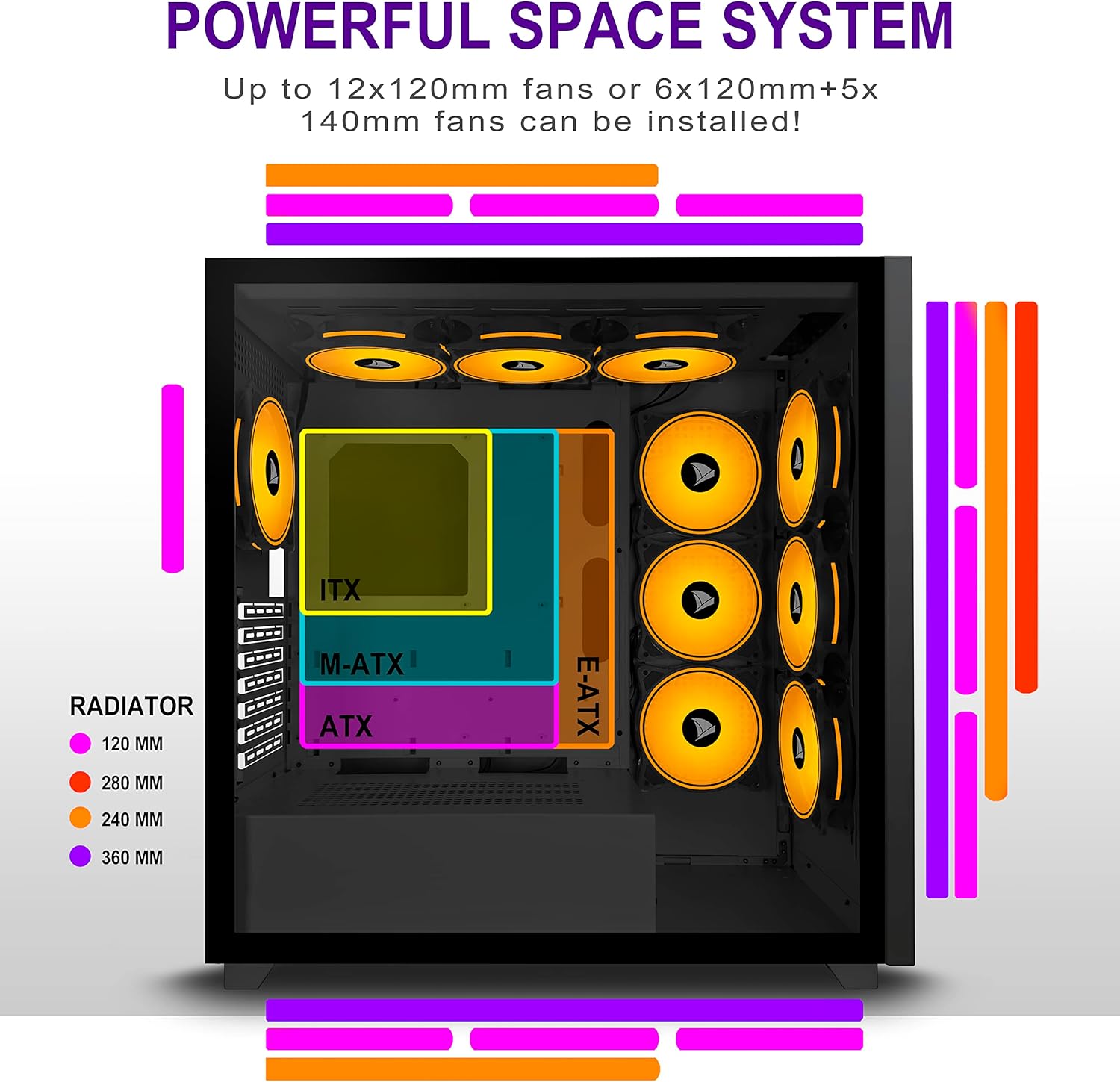
Figure 5.2: Motherboard and cooling component placement options.
5.3. Nwụnye ọkụ ọkụ
Install your power supply unit (PSU) into the dedicated compartment at the bottom rear of the case. Secure it with screws from the rear of the case.
5.4. Nwụnye ngwaọrụ nchekwa
The case provides multiple mounting points for storage devices. Install your 3.5" HDDs and 2.5" SSDs into the designated trays and mounting locations. Refer to the case diagram for specific locations.

Figure 5.3: Storage drive mounting options for HDDs and SSDs.
5.5. Nwụnye Kaadị Mgbasawanye (GPU)
Remove the necessary PCI-E slot covers from the rear of the case. Insert your graphics card or other expansion cards into the motherboard's PCI-E slots and secure them with screws.
5.6. Njikwa USB
Utilize the cable routing cutouts and tie-down points behind the motherboard tray to manage cables. This improves airflow and maintains a clean aesthetic.
6. Ntuziaka ọrụ
6.1. Ịgbanye / gbanyụọ
Press the power button located on the top I/O panel to turn on your PC. To shut down, use the operating system's shutdown function or press and hold the power button for several seconds.
6.2. Using Front I/O Ports
Connect USB devices to the USB 2.0 or USB 3.0 ports. Use the audio jacks for headphones, microphones, or speakers.
7. Nlekọta
7.1. Nhicha
Jiri ihe dị nro, d hichaa mpụta nke akpa ahụ mgbe niile.amp cloth. For internal cleaning, use compressed air to remove dust from fans and components. Ensure the PC is powered off and unplugged before cleaning.
7.2. Uzuzu nzacha
The AMANSON H07 may include removable dust filters. Clean these filters periodically to maintain optimal airflow and cooling performance.
8. Nchọpụta nsogbu
- PC anaghị agba ọkụ: Check all power connections, including the PSU to the wall, the PSU to the motherboard, and the front panel power switch cable to the motherboard.
- Overheating issues: Ensure all fans are properly installed and functioning. Verify that dust filters are clean and not obstructing airflow. Check thermal paste application on CPU cooler.
- USB ports not working: Confirm that the front panel USB cables are correctly connected to the motherboard headers.
- Audio jacks not working: Verify that the front panel audio cable is correctly connected to the motherboard's audio header.
9. Nkọwapụta
Below are the technical specifications for the AMANSON H07 PC Case:
| Njirimara | Nkọwa |
|---|---|
| Nlereanya | H07 |
| Ụdị ikpe | Mid Tower |
| Ndakọrịta Motherboard | E-ATX, ATX, Micro ATX, ITX |
| Ihe onwunwe | Igwe ọkụ |
| Akụkụ ngwaahịa (LxWxH) | 19.69 x 13.78 x 19.69 sentimita (500 x 350 x 500 mm) |
| Ibu Ibu | 24.2 pound |
| Ọnụọgụ nke ọdụ ụgbọ mmiri USB 2.0 | 2 |
| Ọnụọgụ nke ọdụ ụgbọ mmiri USB 3.0 | 1 |
| Number of Expansion Slots | 8 |
| Usoro jụrụ oyi | Ikuku |
| Ụdị Nkwanye Ike | Ugwu ala |

Figure 9.1: AMANSON H07 PC Case dimensions (520mm height, 510mm length, 250mm width).
10. Akwụkwọ ikike Ozi
Please refer to the product packaging or the official AMANSON websaịtị maka usoro na ọnọdụ akwụkwọ ikike akọwapụtara. Debe ihe akaebe nke ịzụrụ ihe gị maka nkwupụta akwụkwọ ikike.
11. Nkwado
For technical assistance or customer support, please visit the official AMANSON website or contact their customer service department. Contact details can typically be found on the product packaging or the brand's websaịtị.