
Okwu mmalite
This manual provides essential information for the safe and efficient use of your ONN 42-Inch Full HD LED Smart TV, Model 100018254. Please read these instructions thoroughly before operating your television and retain them for future reference.
Kedu ihe dị na Igbe ahụ
Nyochaa na akụrụngwa niile dị tupu ịmalite ntọlite.
- ONN 42-Inch Full HD LED Smart TV
- Njikwa anya
- Ihe nkwụnye TV (2 iberibe)
- Ihe nkedo maka TV Stand
- Ụdọ ọkụ
- Ntuziaka mmalite ngwa ngwa (anaghị etinye ya na ntuziaka a)

Foto: N'ihu view of the ONN 42-inch Smart TV displaying the Roku TV home screen with various streaming app icons like Netflix, Disney+, Apple TV, Hulu, Peacock, and Roku Channel. The TV is black with slim bezels and two stand feet.
Melite
1. Ịgbakwụnye ihe nkwụnye TV
- Jiri nlezianya tinye ihuenyo TV n'elu ala dị nro ma dị ọcha iji gbochie mmebi.
- Hazie ihe nkwụnye ọ bụla na oghere skru kwekọrọ na ala TV ahụ.
- Jiri skru ndị enyere kee akụkụ ihe nkwụnye ọ bụla. Hụ na e siri ike nke ọma.

Image: A diagram illustrating the dimensions of the ONN 42-inch TV, showing its width as 43 inches and height as 37 inches when placed on its stand.
2. Mgbidi mgbidi (nhọrọ)
This TV is compatible with VESA standard wall mounts. Refer to your wall mount's instructions for proper installation. Ensure the wall mount can support the weight of the television.

Foto: N'azụ view of the ONN 42-inch TV, highlighting the VESA mounting screw holes in a square pattern and various input ports on the side and bottom right.
3. Ijikọ Ngwaọrụ
Connect your external devices such as cable boxes, gaming consoles, or Blu-ray players to the TV's input ports.
- HDMI: For high-definition audio and video. Use an HDMI cable to connect devices like set-top boxes, game consoles, or streaming sticks.
- USB: Maka ijikọ ngwaọrụ nchekwa USB ka ọ kpọọ mgbasa ozi files.
- Wi-Fi: For internet connectivity to access smart TV features and streaming services.
4. Ọkachamara Mmalite na Ntọlite
- Tinye eriri ọkụ n'ime TV wee banye n'ime oghere mgbidi.
- Pịa bọtịnụ ike na njikwa anya ma ọ bụ na TV n'onwe ya.
- Follow the on-screen instructions to complete the initial setup, including language selection, network connection (Wi-Fi), channel scanning, and linking to your Roku account (if applicable).
Na-arụ ọrụ TV
1. Remote Control Overview
The remote control allows you to navigate the TV's interface and control various functions.
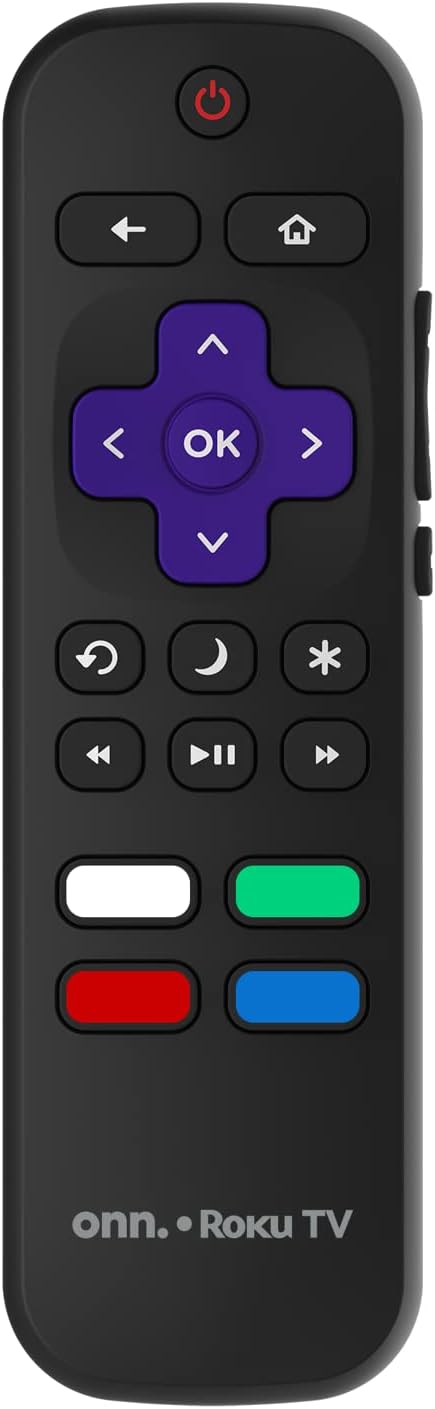
Image: The ONN Roku TV remote control, featuring a power button, directional pad, OK button, home button, back button, volume controls, and dedicated buttons for popular streaming services.
- Bọtịnụ ike: Gbanyụọ ma ọ bụ gbanyụọ TV.
- Directional Pad (D-Pad) & OK: Na-agagharị menu ma na-akwado nhọrọ.
- Bọtịnụ ụlọ: Ọ laghachiri na ihuenyo mbụ nke Roku TV.
- Bọtịnụ azụ: Na-alaghachi na ihuenyo gara aga ma ọ bụ menu.
- Elu elu/ala: Na-edozi olu ọdịyo.
- Oghere bọtịnụ: Mebie ma ọ bụ mebie ụda olu.
- Ọwa elu/ala: Changes channels (for antenna/cable inputs).
- Bọtịnụ ngwa raara onwe ya nye: Quick access to popular streaming services like Netflix, Hulu, etc.
2. Smart TV Atụmatụ
Your ONN Smart TV provides access to a wide range of streaming content and smart functionalities.
- Ọrụ gụgharia: Access pre-installed apps like Netflix, YouTube, and many more through the Roku Channel Store.
- Njikwa olu: Compatible with Alexa and Google Assistant for hands-free control (requires a separate compatible voice assistant device).
- Mmelite Ngwanrọ Akpaka: The TV will automatically update its software when connected to the internet, ensuring you have the latest features and security.
3. Nhọrọ Ntinye
To switch between connected devices (e.g., cable box, game console), use the Ntinye button on your remote or select the desired input from the Roku TV home screen.
4. Foto na Ntọala ụda
Access the TV's settings menu to customize picture and sound preferences. Navigate to Settings > TV picture settings or Ntọala > Audio to adjust options like brightness, contrast, color, sound mode, and equalizer settings.
Nlekọta
1. Na-ehicha ihuenyo
- Gbanyụọ TV gị mgbe niile ma wepụ ya tupu ị sachaa ya.
- Jiri akwa dị nro, nke na-enweghị lint, dị ntakịrị dampejiri mmiri kpuchie ya ma ọ bụ ihe nhicha ihuenyo pụrụ iche.
- Afesakwala ihe nhicha ozugbo na ihuenyo. Buru ụzọ tinye ya na akwa ahụ.
- Avoid using abrasive cleaners, alcohol, benzene, or thinners, as these can damage the screen.
2. Mmelite ngwanrọ
Ensure your TV is connected to the internet to receive automatic software updates. These updates improve performance, add features, and enhance security. You can manually check for updates in the Ntọala> Sistemu> Mmelite sistemụ menu.
Nchọpụta nsogbu
Ọ bụrụ na ị na-enwe nsogbu na TV gị, rụtụ aka na azịza ndị a na-ahụkarị:
Enweghị ike
- Lelee ma eriri ọkụ eletrik ahụ dị n'ime TV na ebe a na-etinye ya n'ime mgbidi.
- Hụ na ihe mkpuchi mgbidi ahụ na-arụ ọrụ site na ịpịnye ngwaọrụ ọzọ.
- Gbalịa ịpị bọtịnụ ike na TV n'onwe ya, ọ bụghị naanị nke dịpụrụ adịpụ.
Ọnweghị Foto/Foto gbagọrọ agbagọ
- Gbaa mbọ hụ na ahọpụtara isi mmalite ntinye ziri ezi (dịka ọmụmaatụ, HDMI 1, HDMI 2).
- Lelee njikọ niile dị n'etiti TV na ngwaọrụ mpụga.
- Nwaa eriri HDMI dị iche ma ọ bụrụ na o kwere mee.
- Gbanwee ntọala foto (ọkụ, ọdịiche) na menu TV.
Enweghị ụda / ụda dị ala
- Check if the TV is muted or if the volume is turned down.
- Ensure external audio devices (soundbars, receivers) are properly connected and powered on.
- Lelee ntọala ọdịyo na menu TV.
Okwu Njikọ netwọkụ
- Verify your Wi-Fi router is powered on and functioning.
- Malitegharịa ekwentị gị na modem gị.
- Gaa na Ntọala> Netwọk> Lelee njikọ on your TV to diagnose the issue.
- Gbaa mbọ hụ na ị na-abanye paswọọdụ Wi-Fi ziri ezi.
Nkọwapụta
| Njirimara | Nkọwa |
|---|---|
| Nọmba nlereanya | 100018254 |
| Nha ihuenyo | 42 sentimita asatọ |
| Ngosipụta teknụzụ | Ikanam |
| Mkpebi | 1080p (HD zuru ezu) |
| Ọnụego ume ọhụrụ | 60 Hz |
| Njikọta | USB, Wi-Fi |
| Ọrụ ịntanetị akwadoro | Netflix, YouTube (and others via Roku platform) |
| Usoro njikwa | Voice (via Alexa & Google Assistant compatible devices), Remote Control |
| Ụdị nkwụnye | Wall Mount (VESA dakọtara) |
| Agba | Nwa |
| UPC | 671227025567 |

Image: Energy Guide label for Television Model 100018254, indicating an estimated yearly energy cost of $11 based on 12 cents per kWh and 5 hours use per day.
Akwụkwọ ikike na nkwado
For warranty information and technical support, please refer to the documentation included with your purchase or visit the official ONN support websaịtị. Debe akwụkwọ nnata ịzụrụ maka akwụkwọ ikike.