
Okwu mmalite
The Datalogic QuickScan QD2590 is a high-performance, handheld 2D barcode imager designed for various point-of-sale (POS) and general-purpose applications. This device offers fast and reliable scanning of 1D and 2D barcodes, ensuring efficient data capture. Its durable design and flexible connectivity options (USB, RS-232) make it suitable for diverse environments. This manual provides essential information for setting up, operating, maintaining, and troubleshooting your QD2590 scanner.
Melite
1. Unpacking the Scanner
Jiri nlezianya wepụ ihe niile dị na ngwugwu ahụ. Hụ na ihe niile edepụtara na ngalaba "Ihe dị n'ime Igbe" dị.
- QuickScan QD2590 Portable 1D/2D Barcode Reader (Black)
2. Ijikọ ihe nyocha
The QD2590 scanner supports USB and RS-232 connectivity. Connect the appropriate cable to the scanner's interface port and then to your host device (computer, POS system).
Maka njikọ USB: Plug the USB cable into an available USB port on your computer. The scanner will typically be recognized automatically, and necessary drivers will be installed by the operating system.
For RS-232 Connection: Connect the RS-232 cable to a serial port on your host device. Ensure proper configuration of the serial port settings on your host system to match the scanner's default settings (e.g., baud rate, data bits, parity, stop bits).
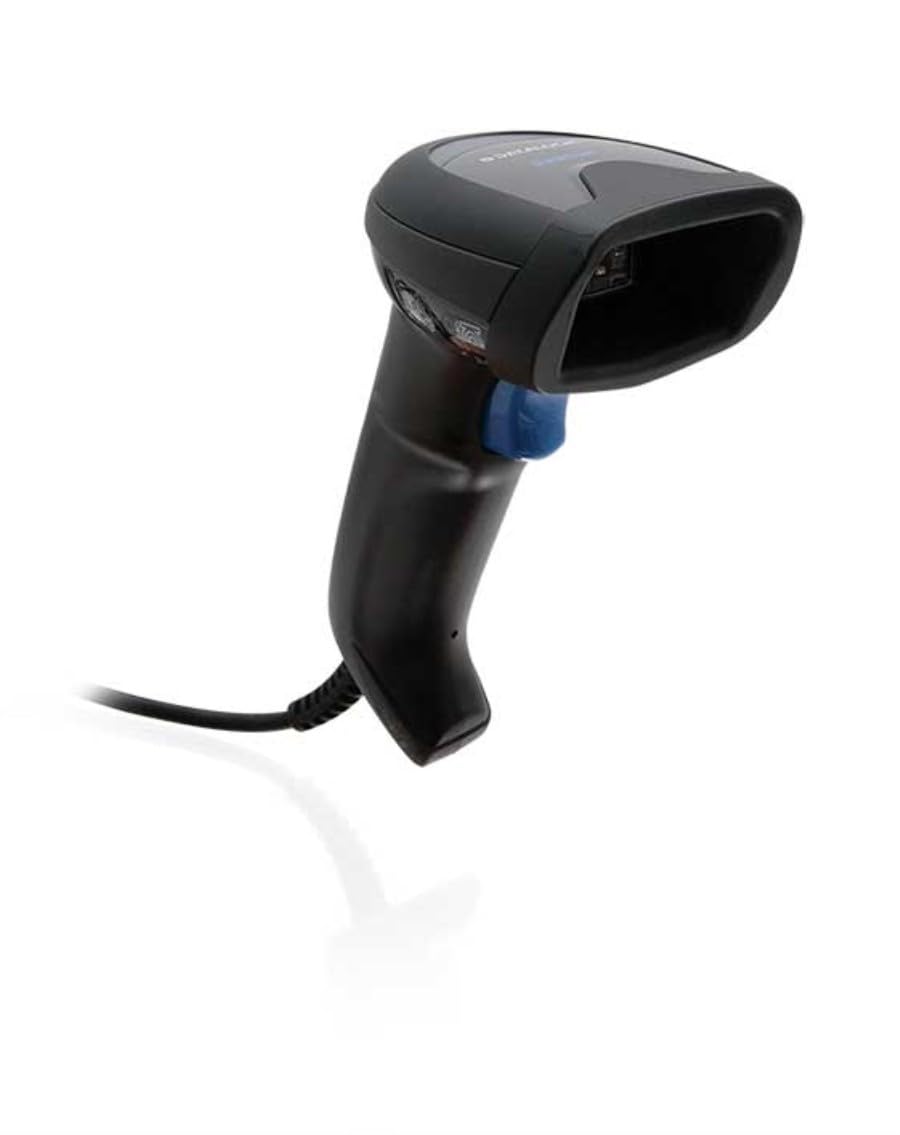
Image: The Datalogic QuickScan QD2590 scanner showing its wired connection.
Na-arụ ọrụ nyocha
1. Usoro Nnyocha Dị Mkpa
- Ensure the scanner is properly connected and powered on.
- Tụtụ aka na mpio ihe nyocha na koodu mkpọchi nke ịchọrọ inyocha.
- Pịa ma jide bọtịnụ mkpalite ahụ. Ọkụ uhie ga-apụta.
- Center the aiming beam over the entire barcode.
- Once the barcode is successfully read, the scanner will emit an audible beep and/or the LED indicator will change color (typically green).
- Release the trigger button. The scanned data will be transmitted to your host device.
2. Scanning Feedback
- Good Read Indicator: A successful scan is typically indicated by a green LED and a configurable beep sound.
- Beam chọrọ: The red aiming beam helps position the scanner correctly over the barcode.

Foto: N'ihu view of the Datalogic QuickScan QD2590, highlighting the scanning area.
Nlekọta
1. Na-ehicha ihe nyocha
To ensure optimal performance, keep the scanner's window clean. Use a soft, lint-free cloth dampened with water or a mild, non-abrasive cleaner. Do not use harsh chemicals, solvents, or abrasive materials, as these can damage the scanning window or casing.
2. Nchekwa
When not in use, store the scanner in a clean, dry environment, away from extreme temperatures, direct sunlight, and corrosive materials. Avoid dropping or subjecting the scanner to excessive impact.
Nchọpụta nsogbu
| Nsogbu | Ihe nwere ike ime | Ngwọta |
|---|---|---|
| Scanner anaghị agbanye ọkụ. | Cable not connected properly; host device not powered on. | Check cable connections. Ensure host device is powered on. |
| Scanner does not read barcodes. | Barcode damaged or poorly printed; incorrect symbology enabled; scanning window dirty; scanner not configured correctly. | Try scanning a different barcode. Clean the scanning window. Refer to the full product manual for symbology enablement and advanced configuration. |
| Scanned data is incorrect or incomplete. | Incorrect data formatting; partial scan. | Ensure the aiming beam covers the entire barcode. Check host application settings for data formatting. |
| No audible beep on good read. | Beeper disabled in configuration. | Refer to the full product manual to enable the beeper. |
For more detailed troubleshooting and advanced configuration, please refer to the complete Datalogic QuickScan QD2590 product manual available on the Datalogic websaịtị.
Nkọwa nka nka
| Njirimara | Nkọwa |
|---|---|
| Nọmba nlereanya | W126053080 |
| Ụdị nyocha | Handheld 2D Imager |
| Ụdị ihe nyocha | 2D Imager - Red LED Sensor |
| Mkpuchi mmetụta | 1280 x 800 pikselụ |
| Nyochaa ọsọ | okpokolo agba 60 kwa nkeji (fps) |
| Minimum Bar Symbol Width | 3 nde |
| Teknụzụ Njikọta | Wired (USB, RS-232) |
| Isi Iyi Ike | DC 5V (via cable) |
| Akụkụ (W x D x H) | 6.8 cm x 12.6 cm x 14.8 cm |
| Ibu | 145 g |
| Agba | Nwa |
| Ngwa dakọtara | Smartphone, laptop, desktop, tablet |
| Ezigbo View Akụkụ | 40 ogo |
Akwụkwọ ikike na nkwado
Ozi akwụkwọ ikike
The Datalogic QuickScan QD2590 barcode scanner comes with a Akwụkwọ ikike onye nrụpụta afọ 2. Akwụkwọ ikike a na-ekpuchi ntụpọ dị na ngwa na arụ ọrụ n'okpuru ojiji nkịtị. Biko dowe ihe akaebe nke ịzụrụ ihe maka akwụkwọ ikike.
Nkwado ndị ahịa
For technical assistance, product inquiries, or warranty service, please contact Datalogic customer support. Visit the official Datalogic websaịtị maka nkọwa kọntaktị, FAQs, na akụrụngwa ndị ọzọ.
Datalogic Official Websaịtị: www.datalogic.com