
HISTTON H6-i7-10810U
HISTTON H6 Fanless Industrial Mini PC User Manual
Model: H6-i7-10810U
1. Okwu mmalite
This manual provides essential information for the setup, operation, maintenance, and troubleshooting of your HISTTON H6 Fanless Industrial Mini PC. This compact and powerful system features an Intel Core i7-10810U processor, 16GB DDR4 RAM, and a 512GB M.2 SSD, running Windows 11 Pro. It is designed for various applications requiring stable performance and multiple connectivity options.

Image 1.1: The HISTTON H6 Fanless Industrial Mini PC.
2. Kedu ihe dị na Igbe ahụ
Chọpụta na ihe niile dị na ngwugwu:
- 1 x HISTTON H6 Mini PC
- 1 x nkwụnye ọkụ
- 1 x Akwụkwọ ntuziaka onye ọrụ
- 1 x HDMI USB
- 1 x VESA Mount
- 8 x Screws for VESA Mount/Storage
- 2 x eriri WiFi
- 2 x SATA Cables (for 2.5-inch drive installation)

Image 2.1: Package contents including the Mini PC, power adapter, cables, antennas, and VESA mount.
3. Ngwaahịa gafereview
3.1 Atụmatụ
- Ihe nhazi: Intel Core i7-10810U (10th Gen, 6 Cores, 12 Threads, up to 4.90 GHz)
- Eserese: Intel UHD Graphics for 10th Gen Processors, supporting 4K resolution.
- Ebe nchekwa: 16GB DDR4 RAM (expandable up to 64GB via 2 SO-DIMM slots)
- Nchekwa: 512GB M.2 NVMe PCIe 3.0x4 / SATA 3 SSD, with an additional 2.5-inch SATA HDD/SSD slot.
- Ihe ngosi: Dual HD (HDMI) and one DP (DisplayPort) for triple 4K display support.
- Netwọk: Dual Gigabit Ethernet LAN (RJ-45), Dual-band 2.4G+5.0G WiFi (WIFI5), Bluetooth 4.2.
- ọdụ ụgbọ mmiri: 4x USB 3.0, 2x HD, 1x DP, 2x RS232/RS485 COM, 1x 14 Pin GPIO, 1x SPK (Audio Out), 1x MIC (Audio In).
- Na-ajụ oyi: Fanless design for silent operation and excellent heat dissipation.
- Sistemụ nrụọrụ: Pre-installed Windows 11 Pro 64-bit (activated).
3.2 Ngwa ime

Image 3.1: Internal layout highlighting the M.2 2280 slot, DDR4 RAM slots, and SATA 3.0 slot.
The internal design allows for easy upgrades of RAM and storage. The system supports up to 64GB DDR4 RAM and includes slots for both M.2 NVMe/SATA SSDs and 2.5-inch SATA HDDs/SSDs.
3.3 Port Layout

Foto 3.2: Zuru ezu view of the front and rear ports, including USB, HD, DP, LAN, COM, and GPIO.
The Mini PC offers a comprehensive set of ports for various industrial and personal applications. The front panel includes the power button, USB 3.0 ports, and GPIO/COM ports. The rear panel features audio jacks, Gigabit LAN ports, HD (HDMI) ports, a DisplayPort, USB 2.0 ports, and the DC power input.
4. Nhazi ntuziaka
4.1 Njikọ mbụ
- Jikọọ antennas: Screw the two WiFi antennas onto the corresponding connectors on the rear of the Mini PC.
- Ngosipụta Jikọọ: Connect your monitor(s) to the HD (HDMI) and/or DP (DisplayPort) outputs using the provided HDMI cable or a compatible DP cable. The device supports up to three displays simultaneously.
- Ngwa njikọ: Tinye ahụigodo USB na òké gị n'ime ọdụ USB dị.
- Jikọọ netwọk (Nhọrọ): For a wired connection, connect an Ethernet cable to one of the Gigabit LAN ports.
- Njikọ Ike: Tinye ihe nkwụnye ike n'ime ọdụ ụgbọ mmiri DC IN na Mini PC, wee jikọọ ihe nkwụnye ahụ na ebe a na-enye ike.
4.2 Ike On
Press the power button located on the front panel of the Mini PC. The system will boot up, and Windows 11 Pro will load automatically.
4.3 Ntinye VESA (Nhọrọ)
The Mini PC can be mounted to the back of a VESA-compatible monitor or to a wall using the included VESA mount and screws. Attach the VESA bracket to the Mini PC, then secure the bracket to your desired mounting location.
5. Ntuziaka ọrụ
5.1 Sistemụ arụmọrụ
Your HISTTON H6 Mini PC comes with Windows 11 Pro pre-installed and activated. Follow the on-screen prompts for initial Windows setup, including user account creation and network configuration.

Image 5.1: The Mini PC running Windows 11 Pro.
5.2 Triple Display Setup
The Mini PC supports connecting up to three independent displays simultaneously via its two HD (HDMI) ports and one DP (DisplayPort). To configure multiple displays:
- Connect all desired monitors to the available video output ports.
- Pịa aka nri na desktọpụ wee họrọ "Ngosipụta ntọala."
- Windows should detect all connected displays. You can arrange them, change their resolution, and set their orientation.
- Choose between "Extend these displays" to have a larger desktop area or "Duplicate these displays" to mirror content.
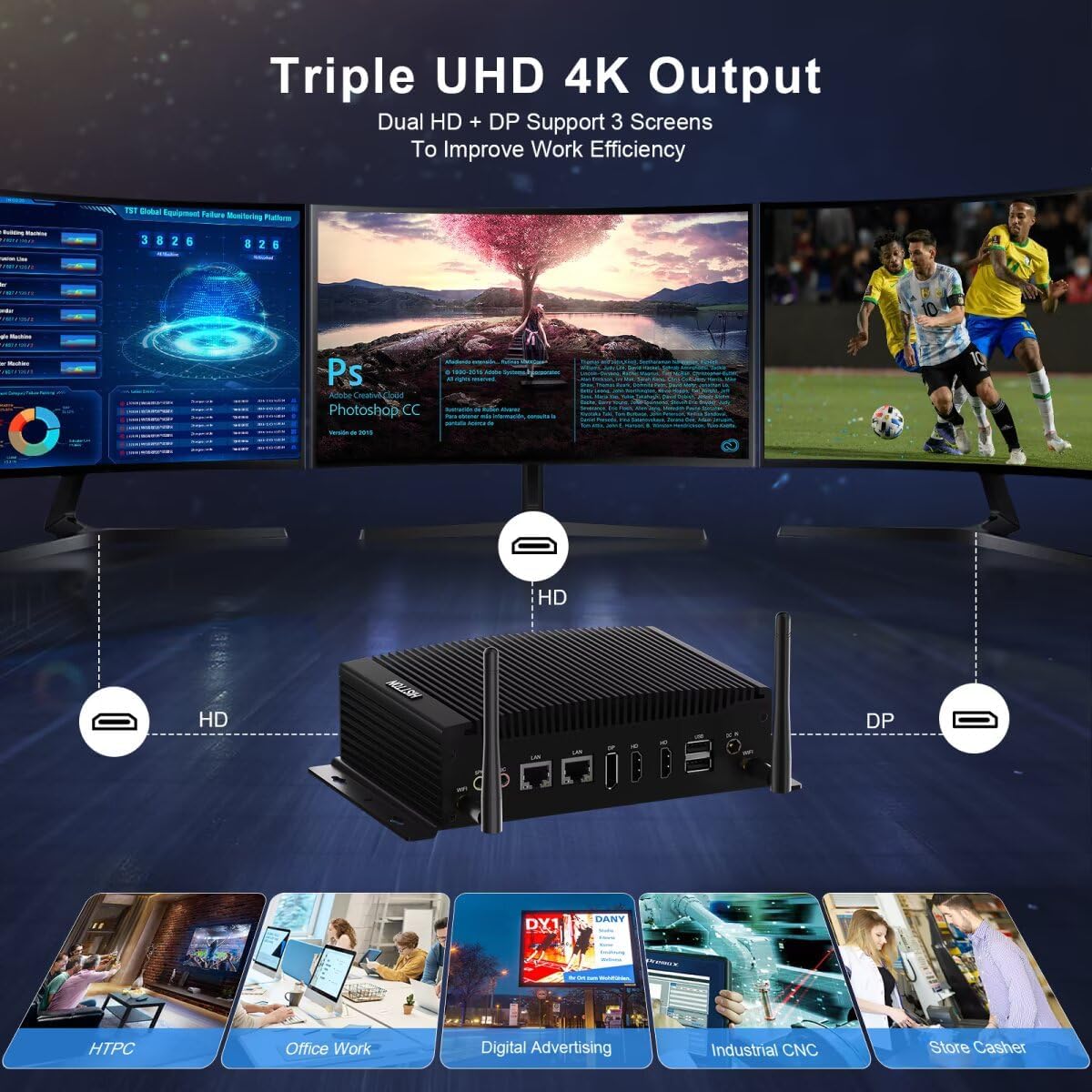
Image 5.2: Triple 4K display output configuration.
5.3 Njikọ netwọkụ
The Mini PC offers both wired and wireless networking options:
- Ekwentị LAN: Connect an Ethernet cable to either of the two Gigabit LAN ports for a stable, high-speed internet connection.
- Wi-Fi: The built-in Dual-band (2.4G+5.0G) Wi-Fi 5 module provides wireless internet access. To connect, click the Wi-Fi icon in the system tray, select your network, and enter the password.
- Bluetooth: Bluetooth 4.2 allows connection to compatible wireless peripherals such as keyboards, mice, and headphones. Access Bluetooth settings via the Windows Settings menu.

Image 5.3: High-speed network capabilities including Wi-Fi and Gigabit Ethernet.
5.4 GPIO and COM Ports
The 14-pin GPIO and 2x RS232/RS485 COM ports are designed for industrial applications and specialized peripheral connections. Refer to the specific documentation for your industrial equipment or custom applications for proper configuration and usage of these ports.
6. Nlekọta
6.1 Nhicha
- Gbaa mbọ hụ na agbanyụrụ ngwaọrụ ahụ wee wepụ ya tupu ihicha ya.
- Jiri ákwà dị nro ma kpọọ nkụ hichaa mpụta nke Mini PC.
- Avoid using liquid cleaners or sprays directly on the device.
6.2 Mmelite ngwanrọ
Regularly update your Windows operating system and drivers to ensure optimal performance and security. Access Windows Update through the Settings menu.
6.3 Storage and RAM Upgrades
The Mini PC supports upgrades for both RAM and storage. If you plan to upgrade, ensure the device is powered off and unplugged. Refer to the internal component diagram (Image 3.1) for slot locations. Use compatible DDR4 SO-DIMM modules and M.2 2280 NVMe/SATA SSDs or 2.5-inch SATA drives.
7. Nchọpụta nsogbu
- Enweghị ike: Hụ na e jikọrọ ihe nkwụnye ọkụ eletrik ahụ nke ọma na Mini PC na ebe ọkụ eletrik na-arụ ọrụ. Jiri ngwaọrụ ọzọ nwalee ebe ọkụ eletrik ahụ.
- Enweghị Ngosipụta: Verify that the monitor is powered on and correctly connected to the Mini PC. Try a different video cable or monitor if available. Ensure the correct input source is selected on your monitor.
- Enweghị njikọ ịntanetị: For wired connections, check the Ethernet cable and router status. For Wi-Fi, ensure antennas are attached, Wi-Fi is enabled in Windows, and you are connected to the correct network with the right password.
- Mbelata Sistemụ: Check Task Manager for high CPU or RAM usage by specific applications. Ensure sufficient free storage space. Consider performing a disk cleanup or system scan for malware.
- Achọpụtaghị ihe dị n'akụkụ: Gbalịa ijikọ ihe mkpuchi ahụ na ọdụ USB dị iche. Hụ na etinyere draịva ma ọ bụrụ na achọrọ ya.
8. Nkọwapụta
| Njirimara | Nkọwapụta |
|---|---|
| Nhazi | Intel Core i7-10810U (1.1 GHz base, up to 4.90 GHz) |
| Eserese | Ihe eserese Intel UHD maka 10th Gen Intel Processors |
| RAM | 16 GB DDR4 (2x SO-DIMM slots, max 64GB) |
| Nchekwa | 512 GB M.2 NVMe PCIe 3.0x4 / SATA 3 SSD, 1x 2.5-inch SATA HDD/SSD slot |
| Sistemụ nrụọrụ | Windows 11 Pro |
| Mkpebi ihuenyo kacha | 3840 x 2160 pikselụ (4K) |
| Mpụta vidiyo | 2x HD (HDMI), 1x DP (DisplayPort) |
| ọdụ ụgbọ mmiri USB | 4x USB 3.0, 2x USB 2.0 |
| Netwọk | 2x Gigabit Ethernet (RJ-45), Dual-band 2.4G+5.0G WiFi (WIFI5), Bluetooth 4.2 |
| Ọdụ ụgbọ mmiri Serial | 2x RS232/RS485 COM |
| GPIO | 1x 14 Pin GPIO |
| Audio | 1x SPK (Audio Out), 1x MIC (Audio In) |
| Ịnye ọkụ | DC 12V 5A |
| Akụkụ (LxWxH) | 8.07 x 4.92 x 2.09 sentimita (20.5 x 12.5 x 5.3 cm) |
| Ibu | 2.64 pound (1.2 n'arọ) |
9. Akwụkwọ ikike na nkwado
HISTTON provides customer support for its products. For technical assistance, warranty claims, or general inquiries, please use the following contact methods:
- Nkwado Amazon: For purchases made through Amazon, you can contact support by logging into your Amazon account, navigating to "Your Orders," and selecting "Ask Product Question" for your HISTTON Mini PC.
- Nkwado mgbe-ahịa gasịrị: You may also send an email directly to the HISTTON after-sales team for dedicated support.

Image 9.1: Support contact options for HISTTON products.
9.1 Official Ngwaahịa Video
Vidiyo nke 9.1: Mwepuview of the HISTTON Mini PC, showcasing its features and potential applications with Windows 11 Pro and Linux/Ubuntu support.
Ask a question about this manual
Ask about setup, troubleshooting, compatibility, parts, safety, or missing instructions. Manuals+ will review the question and use this page’s manual context to help answer it.