
1. Okwu mmalite
This manual provides essential information for the installation, operation, and maintenance of your Montech Titan Gold 850W ATX 3.0 Power Supply. This high-end power supply is designed for gaming systems, featuring 80 Plus Gold and Cybenetics Gold certifications, fully modular cabling, and readiness for PCIe 5.0 with a new 12VHPWR connector. Please read this manual thoroughly before installation and use to ensure proper functionality and safety.

Figure 1: Montech Titan Gold 850W Power Supply and its retail packaging.
2. Ozi nchekwa
Always observe the following safety precautions to prevent injury or damage to your power supply and system components:
- Ensure the power supply is disconnected from the AC power outlet before installation or handling.
- Emeghela ọkụ ọkụ casing. Akwa voltages are present inside, and there are no user-serviceable parts.
- Wụnye ọkụ ọkụ na mpaghara ikuku nke ọma, pụọ na ebe okpomọkụ, ìhè anyanwụ kpọmkwem, na mmiri.
- Use only the modular cables provided with this power supply. Using incompatible cables may cause damage.
- Gbaa mbọ hụ na njikọ niile edoberela nke ọma tupu ịgbanye sistemụ.
3. Ihe ngwugwu
Chọpụta na ihe niile dị na ngwugwu:
- Montech Titan Gold 850W Power Supply Unit
- Setịpụ eriri igwe modular (gụnyere eriri 12VHPWR)
- Igwe ọkụ AC
- Ịkwanye kposara
- Njikọ eriri/Velcro
- Akwụkwọ ntuziaka (akwụkwọ a)

Figure 2: Included modular cables and accessories for the power supply.
4. Ntọala na nwụnye
Follow these steps to install your power supply:
- Kwadebe akpa PC gị: Ensure your PC case is compatible with ATX power supplies.
- Tinye PSU: Secure the power supply into the designated PSU bay in your PC case using the provided mounting screws. Ensure the fan is oriented correctly for optimal airflow (typically facing downwards if your case has a bottom vent).
- Jikọọ eriri modular: Identify the necessary cables for your motherboard, CPU, graphics card(s), and storage devices. Connect these cables to the corresponding ports on the power supply. The fully modular design allows you to connect only the cables you need, reducing clutter.
- Jikọọ na akụrụngwa: Route the connected cables through your case's cable management channels and connect them to your motherboard (24-pin ATX, 8-pin EPS/CPU), graphics card(s) (PCIe, including the 12VHPWR for compatible GPUs), and storage drives (SATA, Molex).
- Njikọ echekwara Double-check all connections to ensure they are firm and properly seated.

Nyocha 3: N'eluview of the modular cable connection ports on the power supply.
5. Ntuziaka ọrụ
After installation, follow these steps to operate your power supply:
- Jikọọ ike AC: Plug the AC power cord into the power supply's AC inlet and then into a wall outlet or surge protector.
- Ike mgba ọkụ: Locate the main power switch on the rear of the power supply and flip it to the 'ON' (I) position.
- Ike sistemu: Press the power button on your PC case to start your computer.
- Smart Zero Fan Feature: This power supply includes a 'Smart Zero Fan' switch. When enabled (ON), the fan will remain off under low load conditions for silent operation. The fan will automatically activate when the load increases to maintain optimal temperatures. If disabled (OFF), the fan will operate continuously.

Figure 4: Rear panel with main power switch and Smart Zero Fan control.
6. Nlekọta
To ensure the longevity and optimal performance of your power supply, periodic maintenance is recommended:
- Nhicha uzuzu: Regularly clean dust from the power supply's fan intake and exhaust vents using compressed air. Ensure the power supply is turned off and unplugged before cleaning.
- Nyocha USB: Periodically check all modular cable connections for looseness or damage. Re-seat any loose cables.
- Ọnọdụ gburugburu: Maintain a clean, dry, and cool environment for your PC to prevent excessive heat and dust buildup.

Foto 5: Top view of the power supply, highlighting the fan grill for cleaning.
7. Nchọpụta nsogbu
Ọ bụrụ na ị hụ nsogbu na ọkọnọ ike gị, lee nsogbu na ngwọta ndị a na-ahụkarị:
- Enweghị ike:
- Gbaa mbọ hụ na etinyere eriri ọkụ AC n'ime ma ọkụ ọkụ yana mpụta mgbidi.
- Verify the main power switch on the PSU is in the 'ON' (I) position.
- Check all modular cable connections, especially the 24-pin ATX and 8-pin EPS/CPU cables, for secure seating.
- Jiri ngwaọrụ ọzọ nwalee oghere mgbidi ahụ iji gosi na o nwere ike.
- Sistemu na-emechi na mberede:
- This could indicate an overload or overheating. Ensure your system's power consumption does not exceed the PSU's 850W capacity.
- Check for proper ventilation around the PSU and inside the PC case. Clean any dust buildup.
- Ensure the 'Smart Zero Fan' is functioning correctly or try disabling it to force continuous fan operation.
- Fan Not Spinning (under low load):
- If the 'Smart Zero Fan' feature is enabled, the fan will not spin under low loads. This is normal operation. The fan will activate when the system load increases.
- If the fan never spins even under high load with 'Smart Zero Fan' disabled, contact customer support.
8. Nkọwapụta
Detailed technical specifications for the Montech Titan Gold 850W Power Supply:
| Njirimara | Nkọwapụta |
|---|---|
| Ụdị | Montech |
| Aha Nlereanya | Titan Gold 850W (TIS0124) |
| Wattage | 850 Watt |
| Mpụta Wattage | 750 Watts (Note: Product title states 850W, specifications list 750W. Please verify with manufacturer if discrepancy is critical.) |
| Asambodo arụmọrụ | 80 Plus Gold, Cybenetics Gold |
| Ụdị Ihe | ATX |
| Nhazi ike inye ike | Modul zuru ezu |
| Ụdị njikọ | ATX, PCIe 5.0 (12VHPWR) |
| Usoro jụrụ oyi | Air (1 Fan) |
| Ibu Ibu | 7.52 pound |
| Ụbọchị mbụ dị | Disemba 13, 2022 |
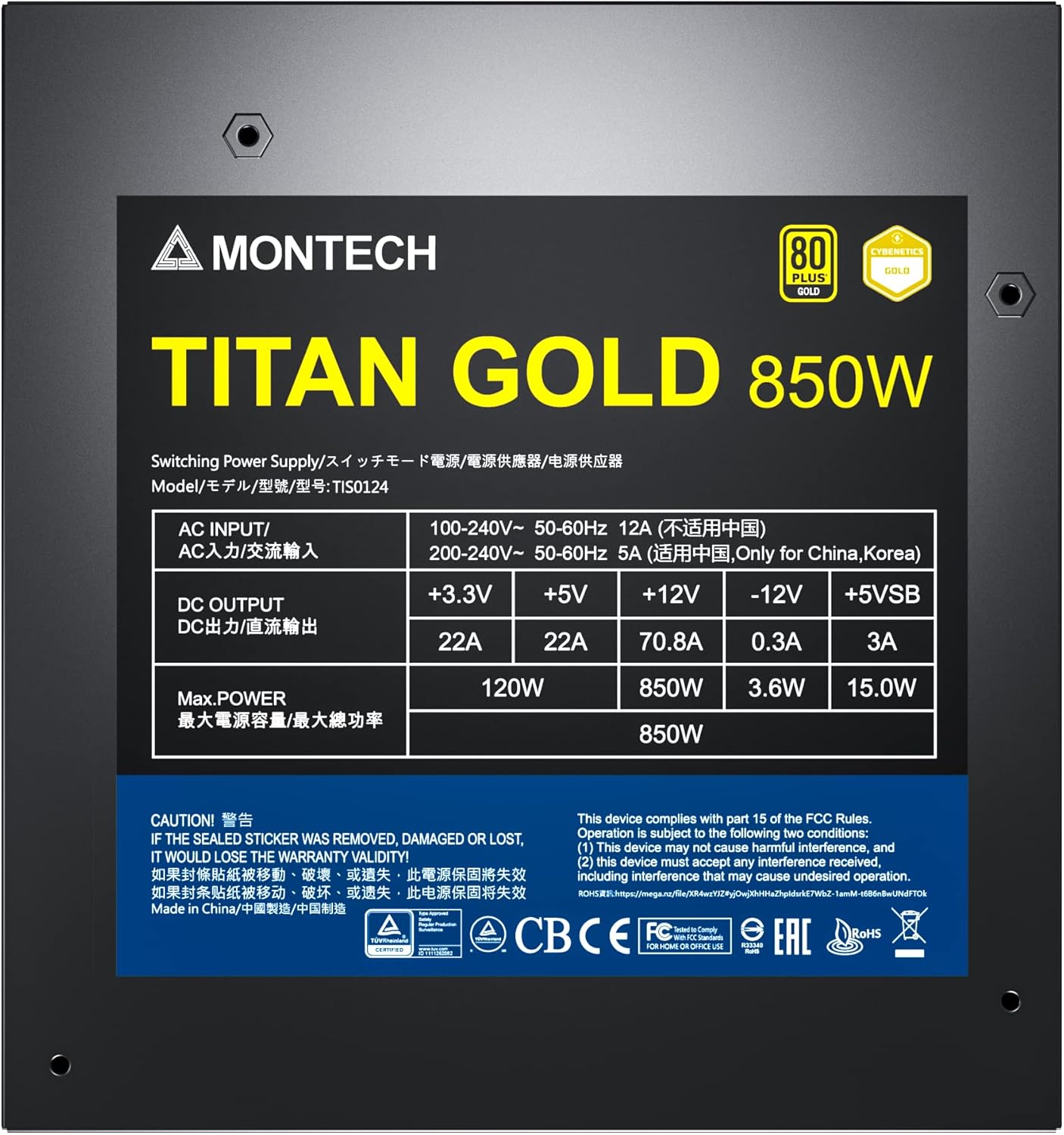
Figure 6: Product label displaying electrical specifications and certifications.
9. Akwụkwọ ikike & Nkwado
The Montech Titan Gold 850W Power Supply comes with a 10-afọ akwụkwọ ikike, ensuring long-term reliability and peace of mind. For technical support, warranty claims, or further assistance, please visit the official Montech websaịtị ma ọ bụ kpọtụrụ ngalaba ọrụ ndị ahịa ha.
Biko dowe ihe akaebe nke ịzụrụ ihe maka nkwado akwụkwọ ikike.