
1. Ngwaahịa gafereview
The GIGABYTE G24F 2 is a 23.8-inch gaming monitor designed for an immersive visual experience. It features a Super Speed IPS panel, Full HD (1920 x 1080) resolution, and a high refresh rate for smooth gameplay.

Foto 1.1: N'ihu view of the GIGABYTE G24F 2 gaming monitor.
Akụkụ ndị bụ isi:
- Nha panel: 23.8-inch SS IPS display
- Mkpebi: 1920 x 1080 (FHD)
- Oge nzaghachi: 1ms MPRT
- Ọnụego ume ọhụrụ: 165Hz (Overclockable to 180Hz)
- Saturation agba: 95% DCI-P3, 125% sRGB
- Icha ọkụ: 300 cd/m2 (TYP)
- Ọdịiche dị iche: 1100:1
- Njikọta: 2 x HDMI 2.0, 1 x DisplayPort 1.2 (HDR capable), 2 x USB 3.2 Gen 1 Downstream, 1 x USB 3.2 Gen 1 Upstream, 1 x Earphone Jack
- Atụmatụ pụrụ iche: OSD Sidekick, Aim Stabilizer, Black Equalizer, Dashboard, Crosshair, Timer, Counter, Auto-Update, Smart OD, HDR Ready, Flicker-free, Kensington lock
2. Ozi nchekwa
Please read all instructions carefully before using the monitor. Keep this manual for future reference.
- Etinyela ihe nlele ahụ n'ime mmiri ozuzo ma ọ bụ mmiri iji zere ọkụ ma ọ bụ ihe egwu mberede.
- Emeghela ihe nlele ahụ casing. Enweghị akụkụ ndị ọrụ ga-arụ ọrụ n'ime. Kpọtụrụ ndị ọrụ ruru eru ọrụ niile.
- Debe ihe nlele ahụ n'elu ebe kwụsiri ike ma dị larịị iji gbochie ya ịda.
- Hụ na ikuku dị mma gburugburu ihe nlele ahụ. Ekpuchila oghere ikuku.
- Jiri naanị ihe nkwụnye ike na eriri ndị nrụpụta nyere.
- Kwụpụ ihe nlele ahụ na ebe ọkụ eletrik dị n'oge oké ifufe ma ọ bụ mgbe ejiri ya ruo ogologo oge.
- Clean the screen with a soft, lint-free cloth. Avoid using liquid cleaners directly on the screen.
3. Ihe ngwugwu
Chọpụta na ihe niile dị na ngwugwu gị:
- GIGABYTE G24F 2 Monitor
- Nyochaa Stand (Base and Olu)
- Igwe ọkụ ọkụ
- HDMI USB
- USB Cable (Upstream)
- Ntuziaka mmalite ngwa ngwa (QSG)
- Akwụkwọ ikike kaadị

Ọgụgụ 3.1: N'azụ view of the monitor, illustrating the stand attachment area.
4. Nhazi
4.1 Ịchịkọta Stand
- Jiri nlezianya wepụ ihe nleba anya ma guzobe ihe ndị dị na nkwakọ ngwaahịa ahụ.
- Tinye olu kwụ ọtọ na panel nlekota. Gbaa mbọ hụ na ọ pịrị na ebe nchekwa ma ọ bụ kechie ya na skru ma ọ bụrụ na enyere ya.
- Tinye ntọala nkwụnye n'olu nkwụnye. Gbanwee skru ma ọ bụ skru isi mkpịsị aka na ala nke ntọala ahụ.
- Debe ihe nleba anya gbakọtara n'elu kwụsiri ike ma dịkwa larịị.
4.2 Ijikọ Monitor
Connect the monitor to your computer and other devices using the appropriate cables.

Figure 4.1: Monitor connectivity ports.
- Njikọ ike: Jikọọ eriri ọkụ eletrik ahụ na ntinye ike nke ihe nlele ahụ wee jikọọ na ebe a na-etinye ọkụ eletrik.
- Njikọ vidiyo:
- For optimal performance, use the DisplayPort 1.2 cable to connect to your computer's graphics card.
- Alternatively, use one of the two HDMI 2.0 ports.
- USB Upstream Connection: Connect the provided USB 3.2 Gen 1 Upstream cable from your computer to the monitor's upstream USB port to enable the monitor's downstream USB ports.
- USB Downstream Connections: Connect USB devices (e.g., keyboard, mouse) to the monitor's two USB 3.2 Gen 1 Downstream ports.
- Mmepụta ọdịyo: Jikọọ ekweisi ma ọ bụ igwe okwu mpụga na Jack ekweisi.
5. Na-arụ ọrụ nlekota oru
5.1 Gbanyụọ ma ọ bụ gbanyụọ
Press the power button, usually located on the bottom or rear of the monitor, to turn the monitor on or off. The power indicator light will show the monitor's status.
5.2 Ngosipụta Ngosipụta (OSD) NchNhr
The OSD menu allows you to adjust various monitor settings. Navigate the OSD using the joystick or buttons typically found on the rear of the monitor.

Figure 5.1: OSD Sidekick software for convenient monitor control.
For advanced control, install the OSD Sidekick software on your PC. This utility allows you to adjust monitor settings directly from your desktop.
5.3 Njirimara egwuregwu
The GIGABYTE G24F 2 includes several features to enhance your gaming experience:
- Aim Stabilizer: Reduces motion blur and improves visual clarity in fast-paced games.
- Ihe nhazi ojii: Enhances visibility in dark areas of the game without overexposing bright areas.

Figure 5.2: Black Equalizer in action.
- Dashboard: Displays real-time hardware information (e.g., CPU/GPU temperature, usage) directly on the screen.

Figure 5.3: Dashboard displaying system metrics.
- Crosshair: Provides a customizable on-screen crosshair to assist with aiming.

Figure 5.4: On-screen Crosshair.
- Timer/Counter: On-screen timers and counters for in-game tracking.
- Smart OD: Optimizes overdrive settings for the best response time.
- Imelite onwe: Ensures the monitor's firmware and OSD Sidekick software are up-to-date.
5.4 Ntọala ngosi
- Ọnụego ume ọhụrụ: The monitor supports up to 165Hz, with an overclock option to 180Hz, for fluid motion.
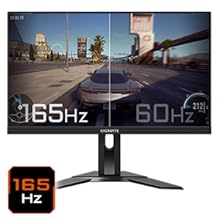
Figure 5.5: Visual comparison of 165Hz vs. 60Hz refresh rate.
- Oge nzaghachi: Enjoy a 1ms MPRT (Moving Picture Response Time) for minimal ghosting.
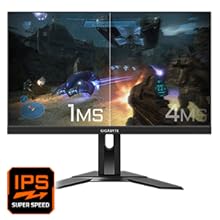
Figure 5.6: Visual comparison of 1ms vs. 4ms response time.
- Agba agba: The monitor covers 95% DCI-P3 and 125% sRGB for vibrant and accurate colors.
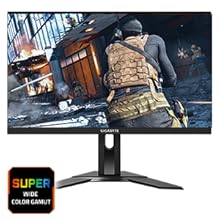
Figure 5.7: Wide color gamut for rich visuals.
- Ìhè na-acha anụnụ anụnụ dị ala: Reduces blue light emissions to protect your eyes during extended use.
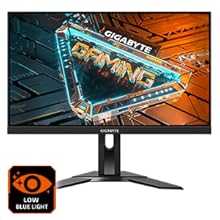
Figure 5.8: Low Blue Light feature for reduced eye strain.
- Flicker-enweghị: Na-ewepụ mmetụ ihuenyo maka nkasi obi karịa viewahụmahụ.

Figure 5.9: Flicker-Free technology for comfortable viewing.
5.5 Product Feature Video
Vidiyo nke 5.1: Mwepuview of the GIGABYTE G24F 2 monitor's features and specifications.
6. Nlekọta
Proper maintenance ensures the longevity of your monitor.
- Na-ehicha ihuenyo: Jiri nwayọ hichaa ihuenyo ahụ site na iji akwa dị nro, kpọrọ nkụ, akwa enweghị akwa. Maka akara ndị isi ike, dị obere dampen akwa na mmiri ma ọ bụ ihe nhicha ihuenyo pụrụ iche (tinye na akwa akwa, ọ bụghị ozugbo na ihuenyo).
- Na-ehicha Casing: Jiri ákwà dị nro ma kpọrọ nkụ hichaa ihe nlele ahụasing. Zere ihe nhicha ihe nhicha.
- Igwe ikuku: Ensure the ventilation openings on the monitor are clear of dust and obstructions.
- Gbanyụọ: Turn off and unplug the monitor when not in use for extended periods.
7. Nchọpụta nsogbu
If you encounter issues with your monitor, refer to the following table for common problems and solutions.
| Nsogbu | Ihe nwere ike ime | Ngwọta |
|---|---|---|
| Enweghị onyonyo na ihuenyo | Power cable not connected; Video cable not connected; Incorrect input source selected | Check power and video cable connections; Select correct input source via OSD. |
| Onyonyo na-agbagọ ma ọ bụ agbagọ | Incorrect resolution; Loose video cable | Set display resolution to 1920x1080; Ensure video cable is securely connected. |
| Enweghị ụda sitere na ekweisi/ọkà okwu | Audio cable not connected; Volume too low; Incorrect audio output selected on PC | Check audio cable connection; Adjust volume; Select monitor as audio output on PC. |
| Ọdụ ụgbọ mmiri USB anaghị arụ ọrụ | USB upstream cable not connected | Connect the USB 3.2 Gen 1 Upstream cable from the monitor to your PC. |
| Ihuenyo na-egbukepụ egbukepụ | Refresh rate issue; Faulty cable | Ensure refresh rate is set correctly; Try a different video cable. |
8. Nkọwapụta
Detailed technical specifications for the GIGABYTE G24F 2 monitor.

Figure 8.1: Monitor dimensions.
| Njirimara | Nkọwa |
|---|---|
| Ụdị | GIGABYTE |
| Aha Nlereanya | G24F 2 |
| Nọmba nlereanya | 9DG24F2-00-1ABIN |
| Nha ihuenyo | 23.8 sentimita asatọ |
| Mkpebi | Pikselụ 1920 x 1080 (FHD 1080p) |
| Akụkụ akụkụ | 16:9 |
| Ụdị ngosi | LCD (SS IPS Panel) |
| Ọnụego ume ọhụrụ | 165 Hz (180Hz OC) |
| Oge nzaghachi | 1 Milliseconds (MPRT) |
| Icha ọkụ | 300 candela_per_square_meter (TYP) |
| Ọnụọgụ ọdịiche | 1100:1 |
| Saturation agba | 95% DCI-P3, 125% sRGB |
| Viewna n'akuku | 178 ogo |
| Njikọta | 2 x HDMI 2.0, 1 x DisplayPort 1.2, 2 x USB 3.2 Gen 1 Downstream, 1 x USB 3.2 Gen 1 Upstream, 1 x Earphone Jack |
| Mmekọrịta na-agbanwe agbanwe | FreeSync adịchaghị |
| Oriri ike | 17.5 Watt |
| Ibu Ibu | 3.2 kilogram |
| Akụkụ ihe (D x W x H) | 5.3D x 54.1W x 32.6H centimita |
| Ụdị nkwụnye | Ugwu mgbidi |
| Njirimara ngwaahịa | Flicker-Free, Height Adjustment, High Dynamic Range, Tilt Adjustment |
9. Akwụkwọ ikike na nkwado
The GIGABYTE G24F 2 monitor comes with a 3-afọ akwụkwọ ikike sitere na onye nrụpụta.
For technical support, warranty claims, or further inquiries, please contact GIGABYTE customer service:
- Onye nrụpụta: GIGABYTE Technology (India) Pvt Ltd
- adreesị: B-808, Naman Midtown, Elphinstone Road, Mumbai – 400013 – INDIA
- Ekwentị: + 91-22-40633222
Biko debe ihe akaebe nke ịzụrụ ihe gị maka ọrụ akwụkwọ ikike.