
1. Okwu mmalite
This instruction manual provides detailed guidance for setting up and operating your Olizen Universal Large Button Simple TV Remote Control. Designed for ease of use, this learning remote is specifically compatible with Infrared (IR) remote-controlled devices, such as most televisions. It is not compatible with RF, Bluetooth, or Magic Link remote systems.
Please read this manual thoroughly before use to ensure proper functionality and to maximize your experience with the remote control.
2. Ngwaahịa gafereview
The Olizen Universal Remote Control features a simplified design with large, easy-to-press buttons, making it ideal for seniors or anyone seeking a straightforward remote solution. It is designed to learn commands from your existing IR remote control.

Foto nke 2.1: Ihu na Azụ View nke Remote Control
This image displays the front of the remote with its large, clearly labeled buttons for Power, Volume, Channel, and AV input. The back view shows the battery compartment.

Figure 2.2: Large Button Design
The remote features oversized buttons for improved visibility and tactile feedback, enhancing usability for individuals with dexterity challenges or visual impairments.

Figure 2.3: Internal Smart Chip
Equipped with an upgraded smart chip, the remote is designed for enhanced performance and extended durability.
3. Setup and Learning Instructions
This remote control operates by learning infrared signals from your existing remote. Ensure your original remote is an IR type before proceeding.
3.1 Confirming IR Remote Compatibility

Figure 3.1: Checking for IR Signal Light
To confirm if your original remote is an IR remote, point its front end towards a smartphone camera. Press any button on the original remote. If you see a flashing light on your phone screen, your remote is an IR remote and compatible with this learning remote.
3.2 Ntinye batrị
Before operation, ensure you have installed 2xAAA alkaline batteries into the learning remote control. Open the battery compartment cover on the back of the remote, insert the batteries according to the polarity indicators (+/-), and close the cover securely.
3.3 Learning Process
Follow these steps to program the Olizen Universal Remote Control:

Figure 3.2: Learning Instruction Steps
This image provides a visual representation of each step in the learning process, showing the positioning of the remotes and the buttons to press.
- Step 1: Position Remotes
Hold both the original remote control and the learning remote control at a distance of 2-5 cm (approximately 1-2 inches) from each other, with their IR emitters facing each other. - Step 2: Activate Learning Mode
Pịa ma jide IKE na CH ^ buttons simultaneously on the learning remote control. The LED indicator on the learning remote will start blinking continuously, indicating that the learning system is activated. - Step 3: Select Button to Learn
Press the desired button on the learning remote control (e.g., the IKE button). The LED indicator will stop blinking and remain lit, waiting for the signal. - Step 4: Learn Command
While keeping the original remote control aimed at the learning remote, press and hold the corresponding button on the original remote (e.g., its Power button) for at least 2 seconds. Upon successful reception of the signal, the LED on the learning remote will blink 3 times quickly and then return to continuous blinking. Release the button on the original remote. - Step 5: Learn More Buttons
To program additional buttons, repeat Step 3 and Step 4 for each desired button (e.g., Volume +, Volume -, Channel +, Channel -, AV). - Step 6: Exit Learning Mode
Once you have finished programming all desired buttons, press the IKE na CH ^ buttons simultaneously again on the learning remote. The LED indicator will turn off, signifying that the learning mode has been exited.
Mara: The learning mode will automatically exit if there is no button pressed for 10 seconds. If a button does not work after programming, please repeat the learning steps for that specific button.
4. Ntuziaka ọrụ
Once programmed, the Olizen Universal Remote Control functions like your original remote for the learned commands. Simply point the remote at your device (TV, IR cable box) and press the desired button.
- IKE Bọtịnụ: Turns your device on or off.
- Vol +/- Bọtịnụ: Na-edozi olu elu ma ọ bụ ala.
- CH ^ / v Bọtịnụ: Na-agbanwe ọwa elu ma ọ bụ ala.
- AV Bọtịnụ: Switches between video input sources (e.g., HDMI 1, HDMI 2, AV).
- F Bọtịnụ: Function button, can be programmed for an additional command.
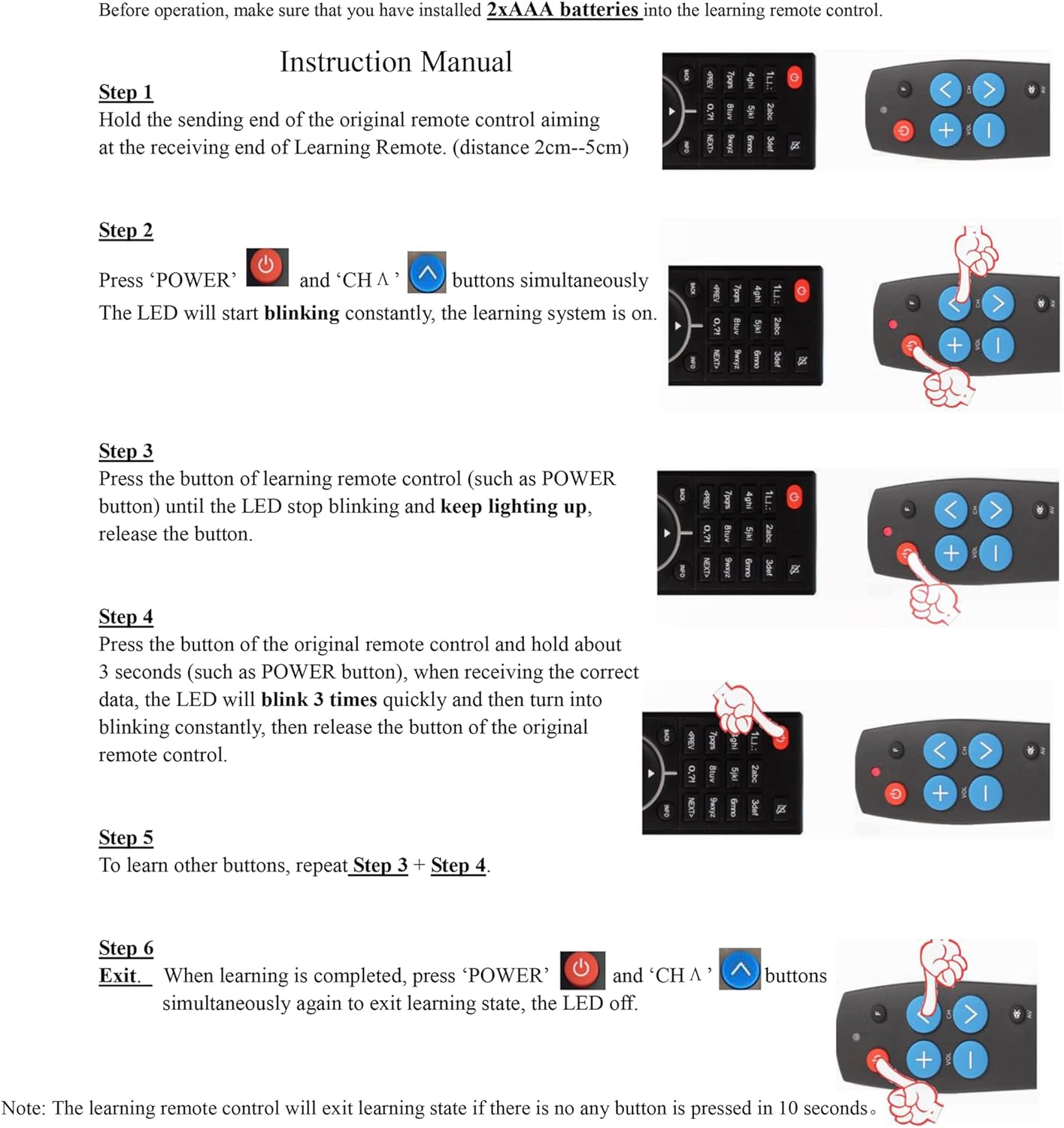
Foto nke 4.1: Ndakọrịta zuru ụwa ọnụ
The remote is designed to work with a wide range of major TV brands once programmed. It is important to note that it is not compatible with Cable Boxes, Fire Sticks, Roku Sticks, or DVD/Blu-Ray players, as it is designed for IR TV and IR cable box control only.
5. Nlekọta
Iji hụ na ogologo ndụ na ịrụ ọrụ kacha mma nke njikwa remote gị, soro ntuziaka mmezi ndị a:
- Nhicha: Jiri ákwà dị nro ma kpọọ nkụ hichaa ihe eji arụ ọrụ remote. Ejila ihe nhicha ma ọ bụ ihe mgbaze.
- Ngbanwe batrị: Replace batteries when the remote's response becomes sluggish or the LED indicator does not light up. Always use new AAA alkaline batteries and dispose of old batteries responsibly.
- Nchekwa: Debe ihe eji emechi ihe n'ebe dị jụụ ma kpọọ nkụ, ebe anwụ na-anaghị anwụ kpọmkwem na oke okpomọkụ dị oke njọ.
- Zere mbelata: Chebe ihe dị n'ime ya site na ihe mberede na ọdịda anụ ahụ, nke nwere ike imebi ihe dị n'ime ya.
6. Nchọpụta nsogbu
If you encounter issues with your Olizen Universal Remote Control, refer to the following common solutions:
- Remote anaghị aza:
- Check if batteries are correctly inserted and have sufficient charge. Replace if necessary.
- Ensure there are no obstructions between the remote and the device's IR receiver.
- A specific button does not work after programming:
- Repeat the learning process (Section 3.3) specifically for that button. Ensure the original remote is held steady and close to the learning remote during the learning step.
- Verify that your original remote is indeed an IR remote (Section 3.1).
- Learning mode exits unexpectedly:
- The learning mode automatically exits after 10 seconds of inactivity. Ensure you complete each step within this timeframe.
- Remote does not control my device:
- Confirm that your device uses an IR remote control. This universal remote is not compatible with RF, Bluetooth, or Magic Link systems.
- Ensure all necessary buttons have been successfully programmed from your original remote.
7. Nkọwapụta
| Njirimara | Nkọwa |
|---|---|
| Ụdị | Olizen |
| Aha Nlereanya | AN-MR21GA |
| Nọmba nlereanya | Remote Control for Seniors |
| Ngwa dakọtara | Television (IR-controlled) |
| Atụmatụ pụrụ iche | IR Learning, Universal Compatibility |
| Ụdị njikọ | Infrared |
| Ọnụọgụ bọtịnụ | 6 |
| Oke kacha | 15 mita |
| Nkọwa batrị | Alkaline (AAA) |
| Batrị gụnyere | Mba |
| Akụkụ ngwaahịa | 2.4 x 4.7 x 5 cm; 90 g |
8. Akwụkwọ ikike na nkwado ndị ahịa
Olizen offers a 360-day warranty return service for this product. If you experience any issues or have questions, please contact our customer service team. We aim to respond to all customer service inquiries within 12 hours.
For support, please refer to the contact information provided with your purchase or visit the official Olizen websaịtị.