
1. Okwu mmalite
Thank you for choosing the TMEZON 4G LTE Solar Wireless Outdoor Security Camera. This manual provides detailed instructions for the installation, operation, and maintenance of your camera. Please read this manual thoroughly before use to ensure proper functionality and to maximize the camera's performance.
This camera is designed for outdoor surveillance in areas without Wi-Fi access, utilizing 4G LTE connectivity. It features a built-in rechargeable battery and a solar panel for continuous power, 2K resolution, 355° pan and 90° tilt capabilities, color night vision, PIR motion detection, and two-way audio communication.
2. Ihe ngwugwu
Please check the package contents upon receipt. If any items are missing or damaged, contact customer support.
- TMEZON 4G LTE Solar Wireless Outdoor Security Camera
- Igwe ọkụ anyanwụ
- Arịọnụ mgbodo
- Ihe mgbakwasị ụkwụ na arịlịka
- Igwe nchaji USB
- Akwụkwọ ntuziaka onye ọrụ
- Pre-installed 100MB SIM Card
3. Ngwaahịa gafereview
Familiarize yourself with the camera's components.

Foto: N'ihu view of the TMEZON 4G LTE Solar Wireless Outdoor Security Camera, showing the main camera unit, solar panel, and antennas. This camera operates using 4G LTE signal, eliminating the need for Wi-Fi.
- Igwefoto oghere: Na-ewepụta vidiyo footage.
- Igwe ọkụ infrared: For black and white night vision.
- Ntụkwasị obi: For color night vision and alarm illumination.
- PIR Sensọ: Detects motion based on heat signatures.
- Igwe okwu: Captures audio for two-way communication and recording.
- Ọkà okwu: Outputs audio for two-way communication and alarms.
- Mpi: For 4G LTE signal reception.
- Ogwe anyanwụ: Charges the internal battery using sunlight.
- Oghere kaadi SIM: For the 4G LTE SIM card.
- Oghere kaadị Micro SD: For local video storage (up to 128GB, not included).
- Tọgharịa bọtịnụ: A na-eji ya emegharị igwefoto ahụ ka ọ bụrụ ntọala ụlọ ọrụ mmepụta ihe.
- USB Nchaji Port: For initial charging or manual charging.
4. Nhazi
4.1 Nchaji izizi
Before first use, fully charge the camera's built-in battery using the provided USB cable and a 5V/2A power adapter (not included). The charging indicator light will turn solid blue when fully charged.
4.2 SIM Card & Micro SD Card Installation
The camera comes with a pre-installed 100MB SIM card. If you wish to use your own SIM card or install a Micro SD card for local storage, follow these steps:
- Locate the SIM card and Micro SD card slots on the camera body. These are typically protected by a rubber cover.
- Carefully open the rubber cover.
- Insert the Nano SIM card into the SIM card slot with the gold contacts facing down and the notched corner oriented correctly. Push until it clicks into place.
- Insert a Micro SD card (Class 10 or higher, up to 128GB, not included) into the Micro SD card slot with the gold contacts facing down. Push until it clicks into place.
- Ensure both cards are securely seated.
- Close the rubber cover firmly to maintain the camera's IP65 waterproof rating.

Foto: nso nso view of the camera's card slots, showing how to insert a Nano SIM card (included) and a Micro SD card (not included).
4.3 App Installation & Account Creation
The camera operates with the UBox app. Download it from your smartphone's app store (iOS App Store or Google Play Store).
- Chọọ maka "UBox" in your app store and download the application.
- Open the UBox app and register a new account using your email address.
- Soro ntuziaka na ihuenyo iji mezue ndebanye aha na nbanye usoro.
4.4 Camera Pairing
- Ensure your camera is powered on and fully charged.
- Open the UBox app and tap the "+" icon to add a new device.
- Select "4G Camera" or "Add 4G Device" from the options.
- Nyochaa koodu QR dị na igwefoto ma ọ bụ nkwakọ ngwaahịa ya.
- Follow the app's prompts to connect the camera. The camera will emit a voice prompt when successfully connected.
- Kpọọ igwefoto gị maka njirimara dị mfe.
4.5 na -arịgo igwefoto
Choose a suitable location for mounting the camera. Consider areas with good 4G signal reception and sufficient sunlight exposure for the solar panel.
- Họrọ ebe: Identify a mounting spot that provides the desired viewing angle and receives direct sunlight for several hours daily.
- Mark Drill oghere: Use the mounting bracket as a template to mark the positions for drilling holes on the wall or surface.
- Oghere egwu egwu: Drill holes at the marked positions. Insert wall anchors if mounting on masonry or concrete.
- Mgbakwunye akara: Chekwaa ihe nkwado mgbago na mgbidi site na iji skru ndị enyere.
- Tinye igwefoto: Mount the camera onto the bracket. Adjust the angle of the solar panel to maximize sun exposure.
- Njikọ echekwara Ensure all cables (solar panel to camera) are securely connected and protected from weather.

Image: The TMEZON camera mounted outdoors with its solar panel, illustrating its wire-free, solar-powered operation.

Image: The camera being sprayed with water, highlighting its IP65 waterproof rating, suitable for outdoor use in various weather conditions.
5. Ntuziaka ọrụ
5.1 Ndụ View & Pan/Tilt Control
Access the live video feed and control the camera's movement through the UBox app.
- Open the UBox app and select your camera from the device list.
- The live video feed will appear.
- Use the directional controls (pan/tilt) on the app interface to rotate the camera horizontally (355°) and vertically (90°).

Image: A smartphone displaying the live view from the camera, with on-screen controls for 355° horizontal and 90° vertical rotation.
5.2 Nchọpụta na Ịdọ Aka Ná Ntị
The camera uses PIR (Passive Infrared) detection to identify human movement and send alerts.
- Enable motion detection in the camera settings within the UBox app.
- Adjust sensitivity levels as needed to minimize false alarms.
- When motion is detected, the camera will send an alert notification to your smartphone.
- The camera can also activate its spotlights and siren as an alarm.

Image: A smartphone screen showing a "Motion Detection" alarm message from the UBox app, indicating a person detected by the camera.

Image: The camera's alarm siren and flashes activating in response to an intruder, with a smartphone notification showing "Person is detected from Device 01."
5.3 Audio ụzọ abụọ
Communicate with visitors or deter intruders using the camera's built-in microphone and speaker.
- Mgbe na ndụ view, tap the microphone icon in the UBox app to speak.
- Your voice will be transmitted through the camera's speaker.
- Release the microphone icon to listen to the audio from the camera's location.
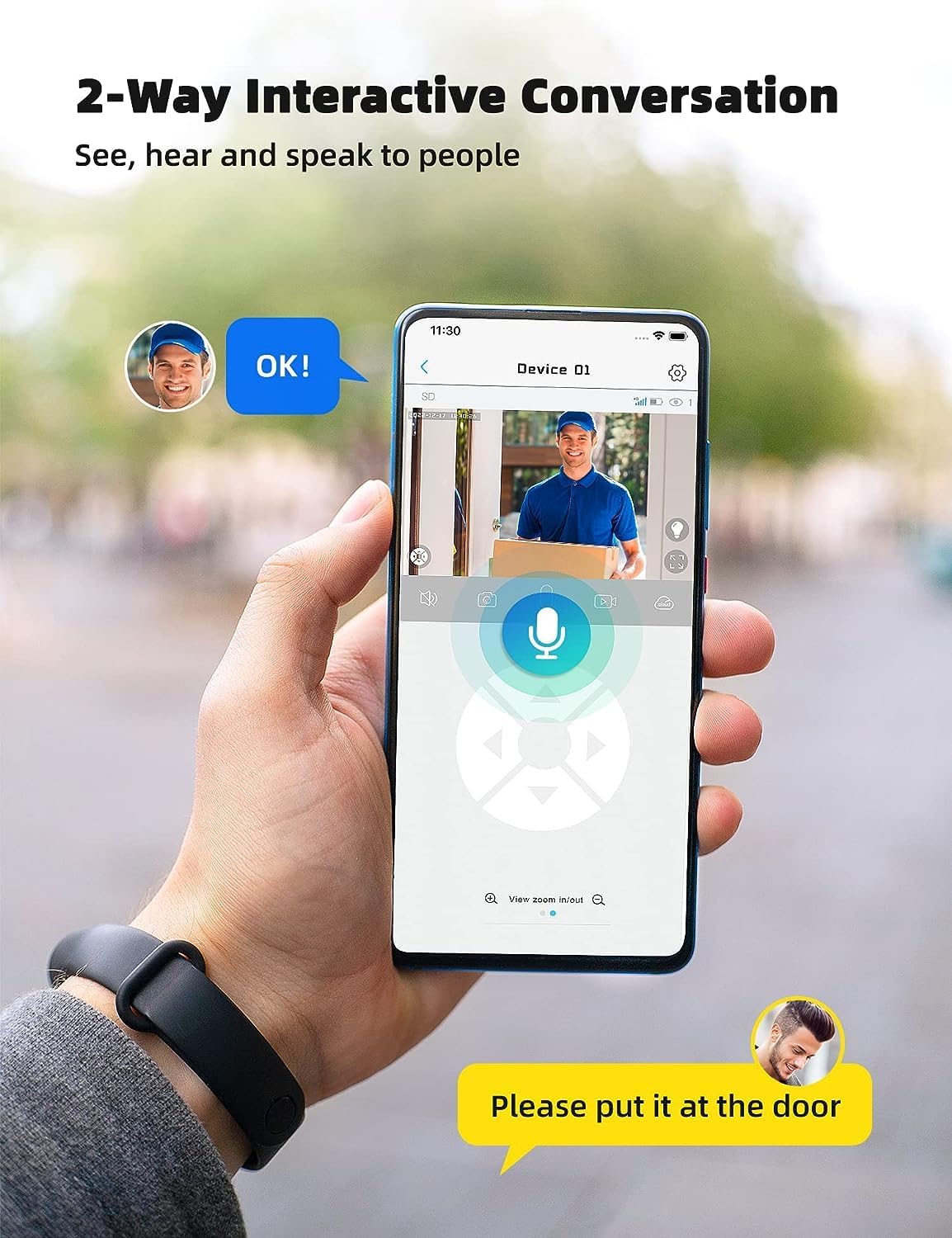
Image: A smartphone displaying the UBox app interface for two-way communication, showing a person speaking through the camera to a delivery person.

Image: A user communicating in real-time with a delivery person via the camera's two-way audio feature, instructing them to place a package by the door.
5.4 Recording & Playback
The camera supports both Micro SD card storage and cloud storage (subscription may be required).
- Motion-triggered events are automatically recorded.
- Iji view recordings, navigate to the "Playback" section in the UBox app.
- Select the date and time to review edekọ footage.
- If the Micro SD card is full, older recordings will be overwritten by new ones.
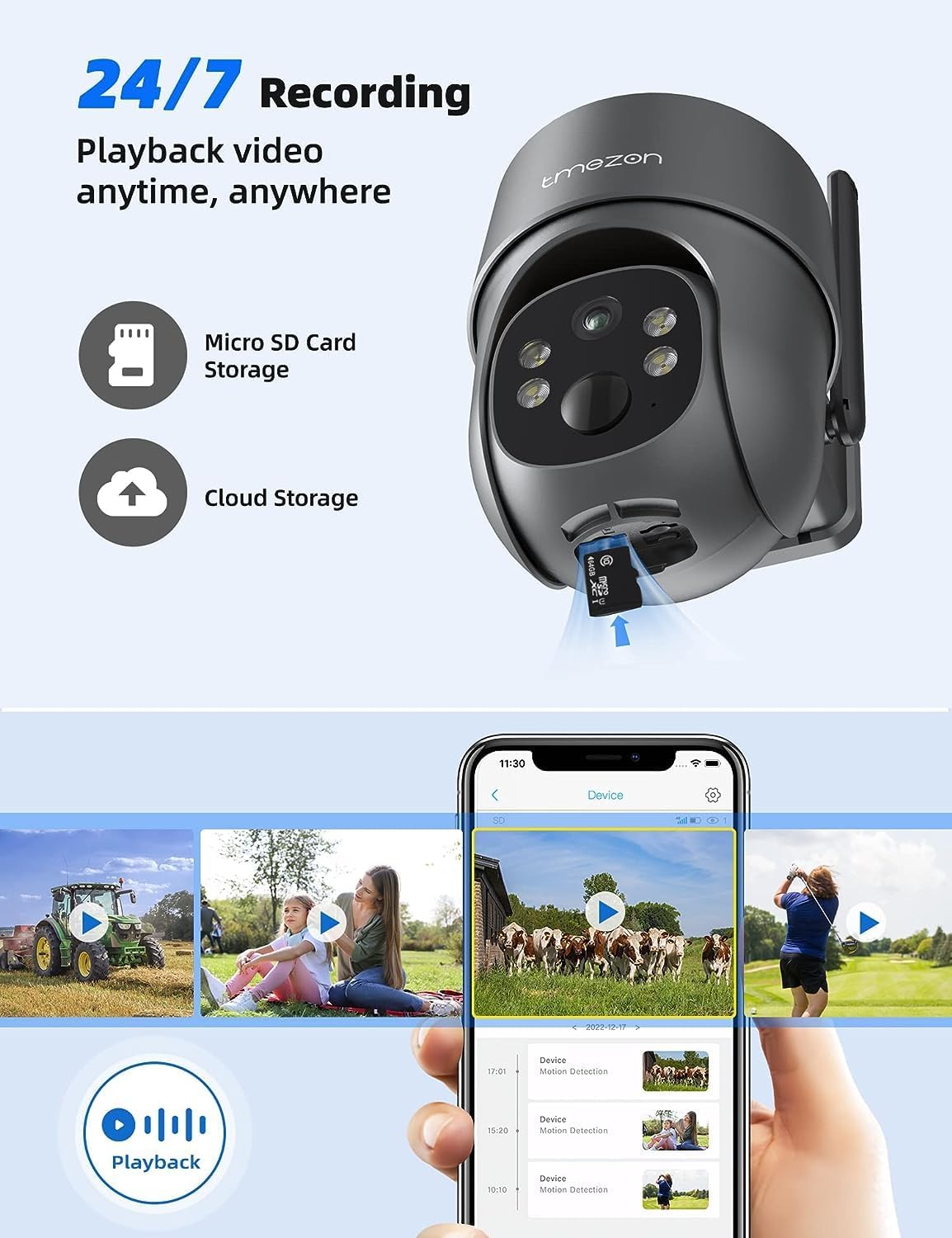
Image: A smartphone displaying the UBox app's playback interface, showing a timeline of recorded events and various video clips.
Ụdị ọhụụ abalị 5.5
The camera offers two night vision modes:
- Infrared (IR) Night Vision: Provides clear black and white video in low-light conditions.
- Agba Ọhụụ abalị: Activates the camera's spotlights to provide full-color video even in darkness. This mode can be enabled in the app settings.
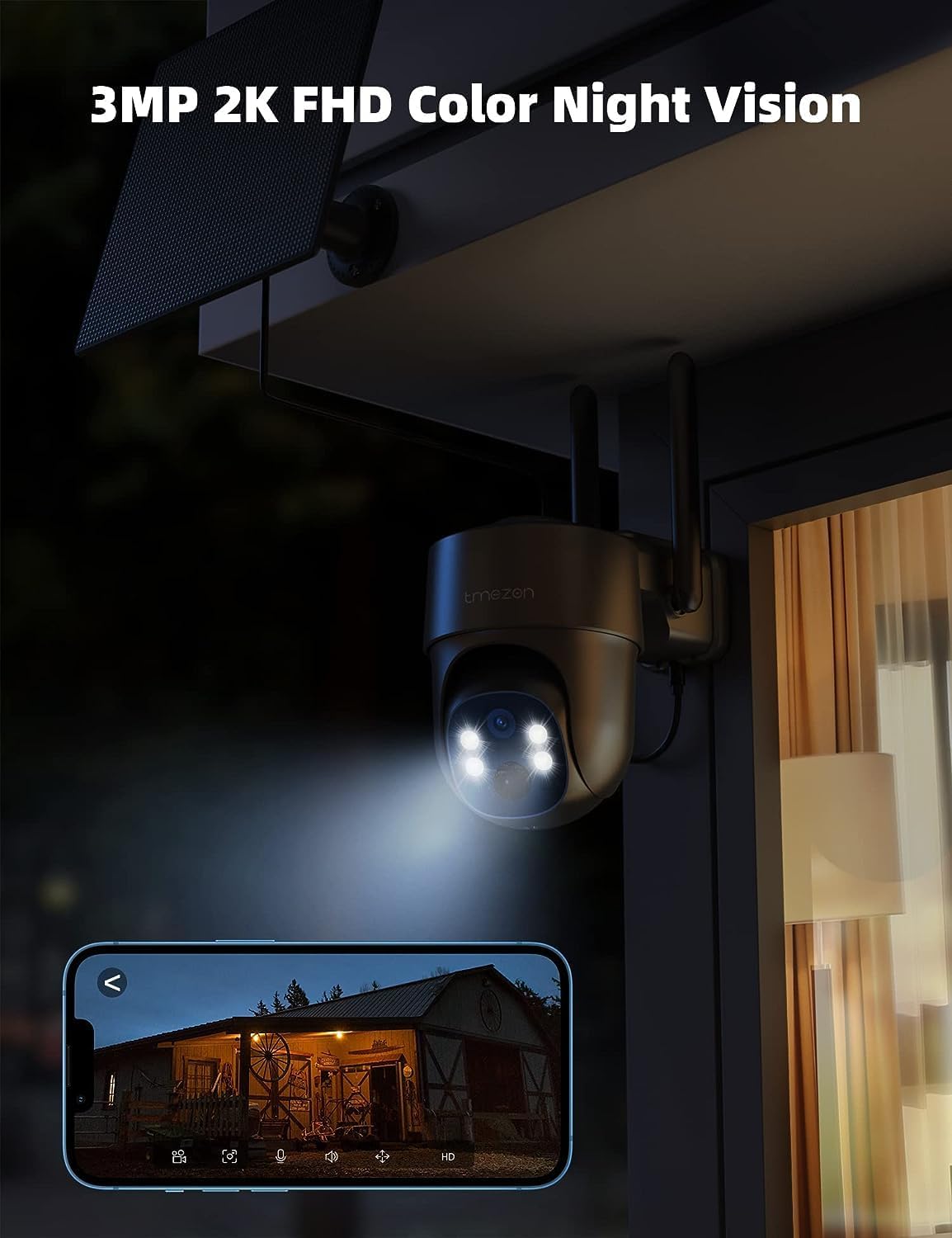
Image: The TMEZON camera operating at night with its spotlights on, providing clear 2K color night vision of the surrounding area.

Image: A split image demonstrating the difference between night vision with spotlights off (monochrome) and spotlights on (color), showcasing the camera's 2K color night vision capability.
6. Nlekọta
6.1 Battery & Solar Panel Care
- Regularly check the battery level in the UBox app.
- Ensure the solar panel is clean and free from dust, dirt, or obstructions (e.g., leaves, snow) to ensure efficient charging.
- Position the solar panel to receive maximum direct sunlight throughout the day.
- If the camera's battery level is consistently low due to insufficient sunlight, consider manually charging it via the USB port.
6.2 Nhicha
- Jiri nwayọọ, damp cloth to clean the camera lens and body.
- Do not use harsh chemicals or abrasive cleaners, as these can damage the camera's finish or lens.
- Ensure the rubber covers for the card slots and charging port are securely closed after any maintenance to maintain waterproofing.
7. Nchọpụta nsogbu
7.1 Camera Not Connecting to 4G Network
- Gbaa mbọ hụ na etinyere kaadị SIM nke ọma ma rụọ ọrụ ya.
- Check if the SIM card has an active data plan.
- Verify 4G signal strength at the camera's location. Move the camera to an area with better signal if necessary.
- Restart the camera by pressing the reset button or power cycling it.
7.2 Frequent Disconnections
- Poor 4G signal strength can cause disconnections. Relocate the camera or consider a 4G signal booster.
- Ensure the camera's battery is sufficiently charged.
7.3 Motion Detection Not Working or Too Many False Alarms
- Check motion detection settings in the UBox app. Ensure it is enabled.
- Adjust PIR sensitivity levels. Lower sensitivity for fewer false alarms, higher for more sensitive detection.
- Ensure there are no objects (e.g., tree branches, reflective surfaces) that might trigger false alarms in the detection zone.
7.4 Cannot View Ndekọ
- Ensure a Micro SD card is inserted correctly and formatted (if applicable) in the app.
- Check if cloud storage is active and your subscription is valid.
- Verify that motion detection recording is enabled in the app settings.
7.5 Camera Not Charging via Solar Panel
- Ensure the solar panel is clean and free from obstructions.
- Verify the solar panel cable is securely connected to the camera.
- Check if the solar panel is receiving direct sunlight for several hours daily.
- In prolonged cloudy weather, manual charging via USB may be required.
8. Nkọwapụta
| Njirimara | Nkọwa |
|---|---|
| Nọmba nlereanya | MZ-C8-4G-EU |
| Teknụzụ Njikọta | Wireless (4G LTE) |
| Mkpebi | 2K (2000 Pixels effective capture) |
| Pan n'akuku | 355 ogo |
| Tilt Angle | 90 ogo |
| Ọhụụ abalị | Agba Ọhụụ abalị |
| Atụmatụ pụrụ iche | Motion Detector, Two-Way Audio |
| Isi Iyi Ike | Solar Powered (with 9,600 mAh rechargeable battery) |
| Ụdị batrị | 2 Lithium-ion (gụnyere) |
| Voltage | 5 volts |
| Wattage | 5 Watt awa |
| Ogo IP | IP65 (ihe mgbochi mmiri) |
| Nchekwa | Micro SD Card (up to 128GB, not included), Cloud Storage (subscription optional) |
| Ụdị njikwa | Android (UBox App) |
| Ụdị nkwụnye | Ugwu mgbidi |
9. Akwụkwọ ikike na nkwado
9.1 Ozi akwụkwọ ikike
Ngwaahịa TMEZON na-abịakarị na akwụkwọ ikike nke onye nrụpụta ọkọlọtọ. Biko lee kaadị akwụkwọ ikike dị na ngwugwu gị ma ọ bụ gaa na TMEZON gọọmentị. webebe a maka usoro na ọnọdụ akwụkwọ ikike zuru ezu. Debe risit ịzụrụ ihe gị dị ka ihe akaebe nke ịzụrụ ihe maka nkwupụta akwụkwọ ikike.
9.2 Nkwado ndị ahịa
If you encounter any issues or have questions regarding your TMEZON 4G LTE Solar Wireless Outdoor Security Camera, please contact TMEZON customer support. Contact information can usually be found on the official websaịtị ma ọ bụ na nkwakọ ngwaahịa.
- Nkwado n'ịntanetị: Visit the TMEZON official websaịtị maka FAQs, ntuziaka maka nsogbu, na fọm kọntaktị.
- Nkwado email: Refer to your product documentation for the customer support email address.