
1. Okwu mmalite
Daalụ maka ịzụrụasing the AZATOM Zenith Z4. This portable audio system combines DAB/DAB+ and FM radio, a CD player, Bluetooth connectivity, USB playback, and an alarm clock function. This manual provides essential information for setting up, operating, and maintaining your device. Please read it thoroughly before use and retain it for future reference.
2. Igbe dị na ya
Carefully unpack your Zenith Z4 and ensure all items listed below are present:
- AZATOM Zenith Z4 Unit
- Ihe nkwụnye ọkụ Main
- Akwụkwọ ntuziaka (akwụkwọ a)
- Kaadị ndebanye aha

Image showing the AZATOM Zenith Z4 unit, its power adapter, user manual, and registration card as included in the box.
3. Ngwaahịa gafereview: Njikwa na Atụmatụ
3.1 Njikwa ihu ihu

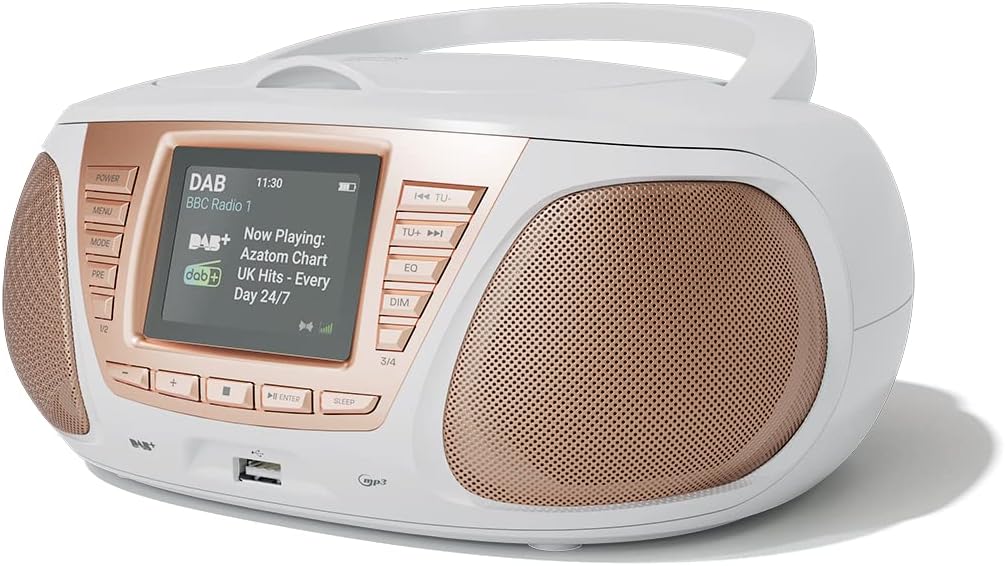
Zuru ezu view of the AZATOM Zenith Z4's front panel, highlighting the color LCD display and various control buttons.
- Bọtịnụ IKE: Gbanyụọ ma ọ bụ gbanyụọ unit ahụ.
- Bọtịnụ MENU: Accesses the system menu.
- Bọtịnụ MODE: Switches between DAB, FM, CD, Bluetooth, USB, and AUX modes.
- PRE Button (Presets): Accesses stored radio station presets.
- 1/2, 3/4 Buttons: Direct access to specific presets or navigation.
- +, - Buttons: Adjusts volume, navigates menus, or tunes radio frequencies.
- Tinye bọtịnụ: Na-akwado nhọrọ.
- Bọtịnụ Ụra: Na-edozi oge ihi ụra.
- TU- / TU+ Buttons: Tunes radio frequencies down/up or skips tracks.
- EQ bọtịnụ: Na-edozi ntọala nhazi nhata.
- Bọtịnụ DIM: Na-edozi nchapụta ngosi.
- Ọdụ ụgbọ mmiri USB: For connecting USB storage devices for MP3 playback.
- Jack ekweisi: Mmepụta 3.5mm maka ige ntị nkeonwe.
3.2 Njikọ azụ azụ
The rear panel typically includes the power input and auxiliary input.
- DC N'ime: Njikọ nkwụnye ọkụ.
- Nkeji oge: 3.5mm input for connecting external audio sources.
4. Nhazi
4.1 Na-agbanye ike
The Zenith Z4 can be powered by the included AC adapter or by batteries for portability.
- Ike AC: Connect the mains power adapter to the DC IN socket on the rear of the unit and plug it into a wall outlet.
- Ike batrị: Open the battery compartment (usually on the bottom or rear) and insert the required batteries (type and quantity specified in the compartment).

The AZATOM Zenith Z4 is designed for portability, allowing use with batteries or the supplied mains power adapter.
4.2 Mbido Mmalite (Ojiji Mbụ)
Upon first power-on, the unit may automatically perform an initial setup:
- The display will typically show a welcome message.
- The unit may automatically scan for available DAB/DAB+ and FM radio stations. This process can take a few minutes.
- The clock will usually set itself automatically via DAB signal. If not, refer to the menu settings to manually set the time and date.
5. Ntuziaka ọrụ
5.1 DAB/DAB + Redio
To access digital radio stations:
- Pịa MODE button until 'DAB' is displayed.
- The unit will automatically scan for stations if it hasn't already. To perform a full scan manually, navigate to the 'Full Scan' option in the DAB menu.
- Jiri ihe TU- or TU+ buttons to browse the list of available stations.
- Pịa Banye ịhọrọ ọdụ ọdụ.

The Zenith Z4 features leading British DAB and FM technology for optimal digital radio performance.
Igwe redio FM 5.2
To listen to FM radio stations:
- Pịa MODE bọtịnụ ruo mgbe 'FM' ga-apụta.
- Pịa ma jide TU- or TU+ to auto-scan for the next available station. Briefly press to fine-tune the frequency.
- Pịa Banye to confirm a station.
5.3 Storing and Recalling Presets (DAB/FM)
The Zenith Z4 allows you to store up to 60 preset stations (30 DAB, 30 FM).
- Tune to your desired DAB or FM station.
- Pịa ma jide PRE button until 'Preset Store' appears on the display.
- Jiri ihe +/- buttons to select a preset number (1-30 for DAB, 1-30 for FM).
- Pịa Banye to save the station.
- To recall a preset, briefly press the PRE bọtịnụ, wee jiri +/- or the numbered buttons (1/2, 3/4) to select and press Banye.

The Zenith Z4 allows storing up to 60 presets (30 DAB and 30 FM) for quick access to your favorite stations.
5.4 CD ọkpụkpọ
Ka ịkpọọ CD ọdịyo:
- Pịa MODE button until 'CD' is displayed.
- Open the CD compartment lid located on the top of the unit.
- Place a CD (CD, CD-R, CD-RW compatible) with the label side facing up.
- Close the CD compartment lid. The unit will begin reading the disc and playback will start automatically.
- Jiri ihe TU- na TU+ buttons to skip tracks. Use Banye for Play/Pause.

The Zenith Z4 features a top-loading CD player, compatible with various CD formats, to enjoy your music collection.
5.5 Njikọ Bluetooth
Stream audio wirelessly from your compatible devices:
- Pịa MODE button until 'Bluetooth' is displayed. The unit will enter pairing mode, indicated by a flashing Bluetooth icon or message.
- Na ekwentị mkpanaaka gị (ama, mbadamba, laptọọpụ), mee ka Bluetooth rụọ ọrụ ma chọọ ngwaọrụ dị.
- Select 'AZATOM Zenith Z4' from the list. Once paired, the unit will confirm the connection.
- You can now play audio from your device, and it will stream through the Zenith Z4.

Connect your Bluetooth device to the Zenith Z4 to enjoy streaming services like Spotify and Apple Music.
5.6 USB playback
Ịkpọ MP3 files from a USB drive:
- Fanye draịvụ USB flash (nke a haziri ka ọ bụrụ FAT32) nke nwere ọdịyo MP3 files n'ime ọdụ ụgbọ USB dị na panel ihu.
- Pịa MODE button until 'USB' is displayed.
- The unit will read the files, and playback should begin automatically. Use the TU- na TU+ bọtịnụ ka ịnyagharịa egwu.
Ntinye inyeaka 5.7
Connect external audio devices using the AUX IN port:
- Connect one end of a 3.5mm audio cable (not included) to the AUX IN port on the rear of the Zenith Z4.
- Connect the other end to the headphone jack or audio output of your external device (e.g., MP3 player, older smartphone).
- Pịa MODE bọtịnụ ruo mgbe 'AUX' ga-apụta.
- Jikwaa ọkpụkpọ dị na mpụga ngwaọrụ gị.
5.8 Ojiji Ekweisi
For private listening:
- Plug your 3.5mm headphones into the headphone jack on the front panel.
- The sound from the speakers will automatically mute.
- Gbanwee olu site na iji +/- bọtịnụ.
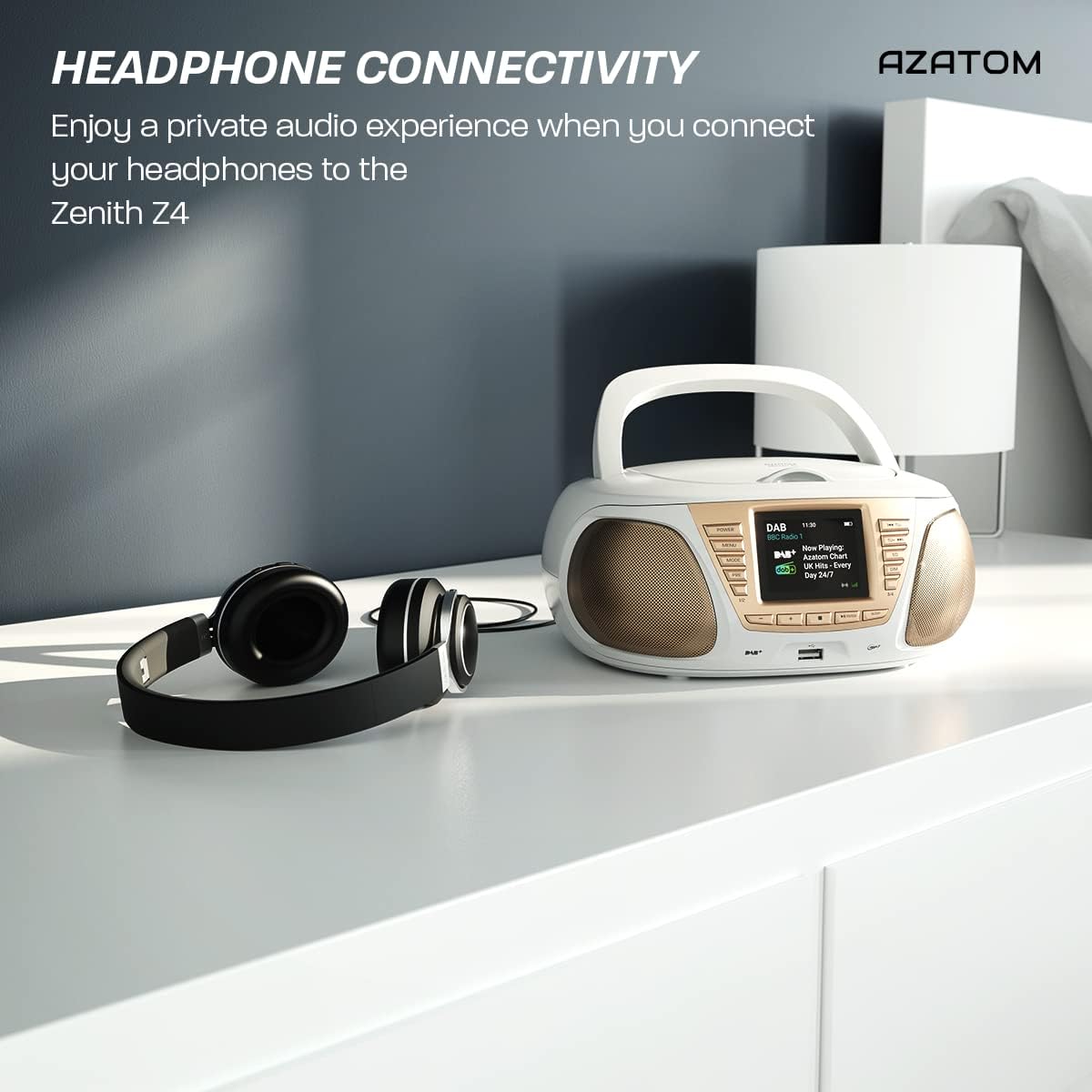
Enjoy a private audio experience by connecting your headphones to the Zenith Z4.
5.9 Ọrụ Elekere Mkpu
The Zenith Z4 includes an alarm clock feature:
- Access the alarm settings through the MENU bọtịnụ.
- Follow the on-screen prompts to set the alarm time, source (e.g., buzzer, DAB, FM), and volume.
- Ensure the unit is powered on or in standby mode for the alarm to activate.
6. Nlekọta
To ensure the longevity and optimal performance of your Zenith Z4:
- Nhicha: Use a soft, dry cloth to clean the unit's exterior. Do not use abrasive cleaners, waxes, or solvents.
- Ihe ọkpụkpọ CD: If the CD player experiences issues, use a specialized CD lens cleaner disc.
- Igwe ikuku: Ensure the unit has adequate ventilation and is not covered during operation.
- Nchekwa: When not in use for extended periods, disconnect from power and remove batteries. Store in a cool, dry place.
7. Nchọpụta nsogbu
If you encounter issues with your Zenith Z4, please refer to the table below for common problems and solutions:
| Nsogbu | Ihe nwere ike ime | Ngwọta |
|---|---|---|
| Unit anaghị agbanye ọkụ | No power supply; flat batteries | Check AC adapter connection; replace batteries. |
| Enweghị ụda | Volume too low; headphones connected; incorrect mode | Increase volume; disconnect headphones; select correct mode (DAB, FM, CD, BT, USB, AUX). |
| Nnabata redio adịghị mma | Antenna not extended; weak signal | Fully extend the telescopic antenna; reposition the unit for better signal. |
| CD anaghị egwu | CD dirty/scratched; incorrect disc type; CD not inserted correctly | Clean CD; ensure CD is compatible (CD, CD-R, CD-RW); reinsert CD label-side up. |
| Bluetooth anaghị ejikọ | Unit not in pairing mode; device too far; already connected to another device | Ensure unit is in Bluetooth mode and pairing; move device closer; disconnect from other devices. |
8. Nkọwapụta
Key technical specifications for the AZATOM Zenith Z4:
- Akara: AZATOM
- Nọmba nlereanya: Z4SLV
- Agba: Ọcha
- Teknụzụ Njikọta: Auxiliary, DAB+, DAB, Bluetooth, USB
- Mgbakọta ọdụ ụgbọ mmiri USB: 1
- Ngwa dakọtara: Smartphone, Tablet, MP3 Player, Personal Computer
- Akụkụ ihe (LxWxH): 23 x 20 x 10 centimita
- Isi mmalite ike: Wired Electric, Battery
- Ụdị ọkà okwu: Boombox
- Ibu ihe: 1.3 kilogram
- Mpụta ike: 20 Watt
9. Akwụkwọ ikike na nkwado
AZATOM products are engineered in the UK and come with comprehensive support:
- Akwụkwọ ikike: The Zenith Z4 includes a 3-year premium warranty. Online registration is required to activate this warranty.
- Nkwado ndị ahịa: AZATOM offers lifetime customer service based in the UK for setup and installation advice. Please refer to the registration card or AZATOM's official websaịtị maka nkọwa kọntaktị.
AZATOM provides a 3-year warranty (registration required) and dedicated UK customer support for their products.