
1. Okwu mmalite
Daalụ maka ịzụrụasing the Yifeng Wireless Keyboard. This keyboard offers versatile connectivity options, supporting both 2.4 GHz USB wireless and Bluetooth connections. It is designed for multi-device use, allowing simultaneous pairing with up to four devices and quick switching between them. Featuring a comfortable scissor-switch mechanism and an integrated stand, it enhances productivity across various platforms including Windows, iOS, and Android devices.
2. Ozi nchekwa
- Ekpughela ahụigodo ahụ na mmiri mmiri ma ọ bụ oke okpomọkụ.
- Avoid disassembling or attempting to repair the device yourself.
- Debe ebe ụmụaka na-apụghị iru.
- Jiri naanị eriri USB enyere maka ịchaji.
3. Ihe ngwugwu
Biko lelee na ihe niile dị:
- Yifeng Wireless Keyboard
- Igwe nchaji USB
- 2.4 GHz USB Receiver (may be stored in the keyboard's battery compartment)
- Akwụkwọ ntuziaka (akwụkwọ a)
4. Nhazi
4.1. 2.4 GHz USB Wireless Connection
- Locate the 2.4 GHz USB receiver. It is often stored in a dedicated slot on the keyboard.
- Tinye eriri USB n'ọdụ ụgbọ mmiri dị na kọmputa gị ma ọ bụ ngwaọrụ gị.
- Turn on the keyboard using the power switch (usually located on the side or back).
- The keyboard should automatically connect to your device. If not, press the dedicated 2.4GHz connection key (often labeled with a '4' or '2.4G' icon) to activate pairing mode.
4.2. Njikọ Bluetooth
- Gbaa mbọ hụ na agbanyere na agbanyere ahụigodo.
- Press and hold one of the Bluetooth channel keys (e.g., Bluetooth 1, Bluetooth 2, ma ọ bụ Bluetooth 3) for 3-5 seconds until the indicator light flashes, indicating pairing mode.
- Na ngwaọrụ gị (mbadamba, ama ama, PC), gaa na ntọala Bluetooth wee mee ka Bluetooth rụọ ọrụ.
- Chọọ maka available devices. The keyboard should appear as "Yifeng Keyboard" or similar.
- Select the keyboard to pair. Follow any on-screen prompts, such as entering a pairing code.
- Ozugbo ejikọtara ọnụ, ọkụ egosi ga-akwụsị ịcha ọkụ wee nọgide na-esi ike maka sekọnd ole na ole.
4.3. Multi-Device Pairing
This keyboard supports connecting up to 4 devices simultaneously: one via 2.4 GHz USB and three via Bluetooth. Follow the steps above to pair each device to a different channel (2.4GHz, Bluetooth 1, Bluetooth 2, Bluetooth 3).
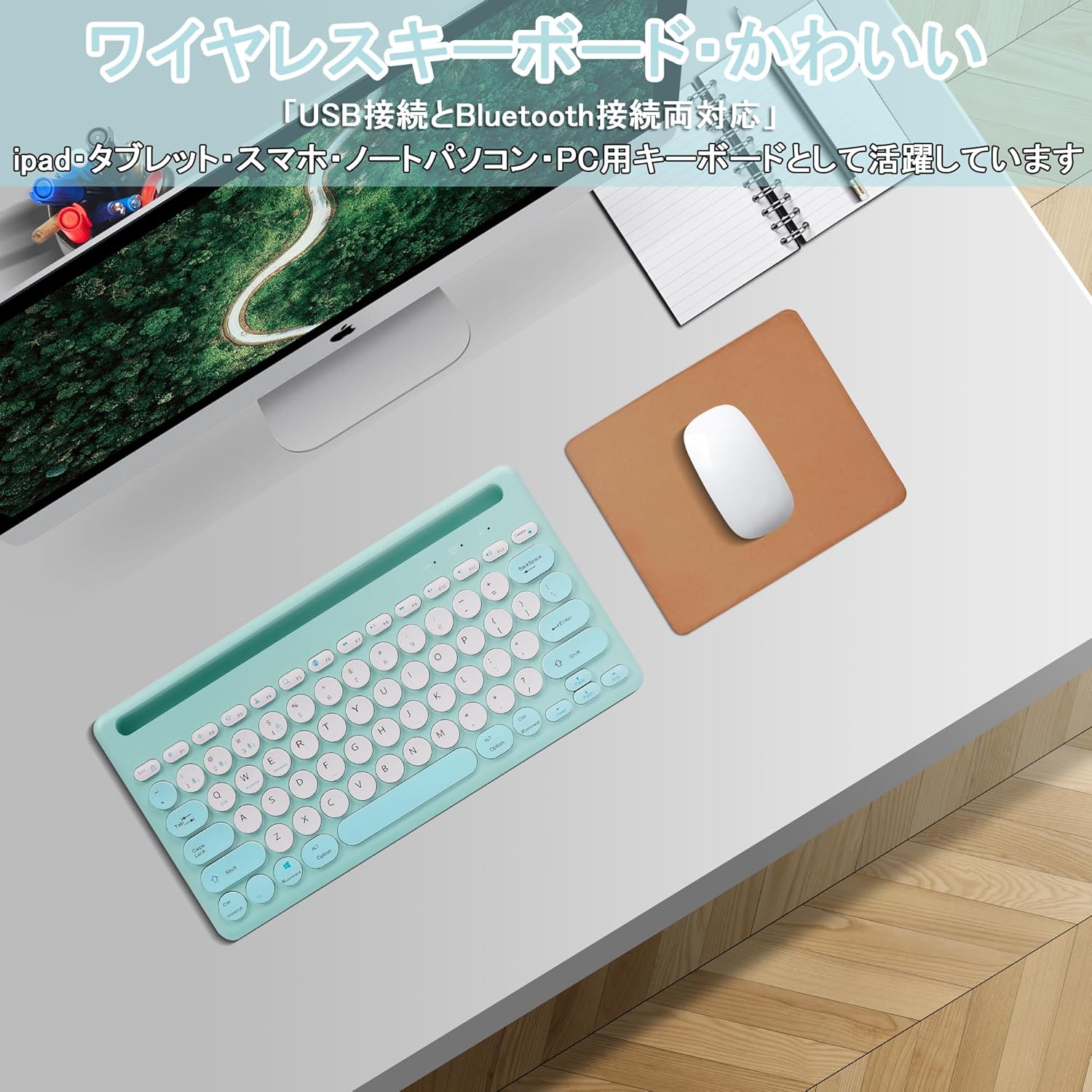
Image: The Yifeng Wireless Keyboard connected to a tablet, smartphone, and laptop, demonstrating its multi-device pairing capability.
5. Ntuziaka ọrụ
5.1. Ịgbanwe n'etiti ngwaọrụ ejikọrọ
To switch between your paired devices, simply press the corresponding connection key:
- Pịa Bluetooth 1 to switch to the first Bluetooth device.
- Pịa Bluetooth 2 to switch to the second Bluetooth device.
- Pịa Bluetooth 3 to switch to the third Bluetooth device.
- Pịa 2.4GHz key (often labeled with a '4' or '2.4G' icon) to switch to the USB wireless device.
5.2. System Compatibility Switching
The keyboard supports Windows, iOS, and Android operating systems. Use the dedicated system keys to optimize key functions for your current device:
- Pịa Fn + Q maka iOS.
- Pịa Fn + W maka gam akporo.
- Pịa Fn + E maka Windows.
5.3. Ịchaji ahụigodo
The keyboard features a built-in rechargeable lithium-ion battery. A single full charge provides approximately 30 days of continuous use.
- Connect the included USB charging cable to the charging port on the keyboard.
- Plug the other end of the USB cable into a USB power source (e.g., computer USB port, USB wall adapter).
- Ọkụ na-egosi nchaji ga-enwu n'oge ịchaji wee gbanyụọ mgbe chajịrị ya.

Image: The Yifeng Wireless Keyboard connected to a power strip via its USB charging cable, indicating the rechargeable feature.
5.4. Using the Integrated Stand
The keyboard includes an integrated stand slot at the top, designed to hold your tablet or smartphone upright. This allows for comfortable viewing and typing, making it ideal for document creation, chatting, or watching media while commenting.
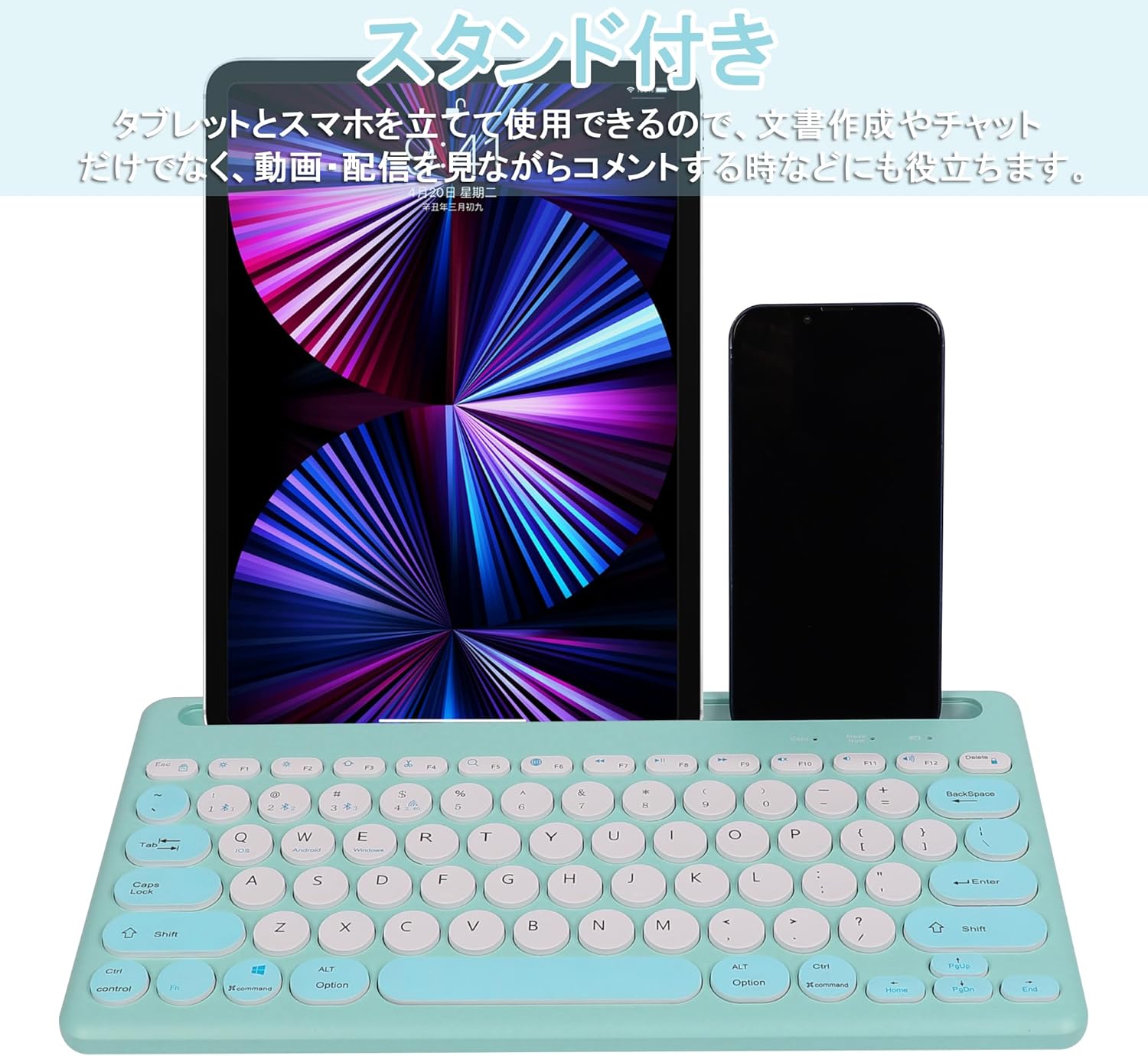
Image: The Yifeng Wireless Keyboard with a tablet and smartphone securely positioned in its integrated stand, demonstrating its utility for multi-device setups.
6. Nlekọta
- Clean the keyboard regularly with a soft, dry cloth. For stubborn dirt, a slightly damp a pụrụ iji ákwà mee ihe, na-eme ka mmiri ghara ịbanye na ahụigodo ahụ.
- Zere iji kemịkalụ siri ike ma ọ bụ ihe nchacha.
- Store the keyboard in a cool, dry place when not in use.
- The keyboard features anti-slip pads on the back for stable use. Ensure these pads are clean and intact for optimal stability.

Image: The underside of the Yifeng Wireless Keyboard, highlighting the four anti-slip pads designed for stable placement on various surfaces.
7. Nchọpụta nsogbu
7.1. Ahụigodo Anaghị ejikọta
- Lelee Ike: Gbaa mbọ hụ na agbanyere ahụigodo ma nwee ụgwọ batrị zuru oke.
- Tinyegharịa ụzọ: For Bluetooth, delete the keyboard from your device's Bluetooth list and attempt to pair again. For 2.4 GHz USB, try plugging the receiver into a different USB port.
- Gbanwee ọwa: Ensure you have selected the correct channel (Bluetooth 1/2/3 or 2.4GHz) for your device.
- Ngwaọrụ Bluetooth: Verify that Bluetooth is enabled on your device and that it is discoverable.
7.2. Igodo anaghị aza
- Ọkwa batrị: Tinyegharịa ahụigodo ma ọ bụrụ na batrị dị ala.
- Ụdị sistemụ: Ensure the keyboard is set to the correct operating system mode (Windows, iOS, Android) using Fn + Q/W/E.
- Ntinye aka: Bugharịa ahụigodo ahụ nso na ngwaọrụ gị ma pụọ na ngwaọrụ ikuku ndị ọzọ nwere ike ibute nsogbu.
7.3. Okwu Ịchaji
- Nyocha USB: Ensure the USB charging cable is securely connected to both the keyboard and the power source.
- Isi mmalite ike: Nwaa ọdụ USB ma ọ bụ ihe nkwụnye mgbidi dị iche.
- Ìhè ihe ngosi: If the charging indicator light does not turn on, the cable or power source may be faulty.
8. Nkọwapụta
| Ụdị | Yifeng |
| Nọmba nlereanya | AMWS0584A-L |
| Teknụzụ Njikọta | Bluetooth, 2.4 GHz Wireless (USB) |
| Ngwa dakọtara | Tablets, Smartphones, PCs, Laptops (Windows, iOS, Android) |
| Nhazi ahụigodo | QWERTY (US Layout) |
| Isi usoro | Mma-Switch |
| Njirimara Pụrụ Iche | Rechargeable, Integrated Stand, Multi-Pairing (4 devices) |
| Ụdị batrị | 1 Lithium Ion Battery (included) |
| Ndụ batrị | Approx. 30 days (per charge) |
| Akụkụ | 33.7 x 16.7 x 2.9 cm |
| Ibu | 820 g |
| Ngwa gụnyere | eriri USB |
9. Akwụkwọ ikike na nkwado
Ngwaahịa a na-abịa na a 1-afọ àgwà akwụkwọ ikike from the date of purchase. In case of initial defects or malfunctions occurring within the warranty period, we offer return or exchange services.
Should you encounter any issues or require assistance, please contact us directly through your purchase platform:
- Gaa na nke gị Ịtọ akụkọ ihe mere eme.
- Select the order for this product.
- Pịa na Kpọtụrụ onye na-ere.
Our support team will be happy to assist you.