
1. Okwu mmalite
The CLEYVER Meeting Track Bar is a high-definition 4K video conferencing solution designed for professional communication. It integrates an 8MP camera, advanced AI features for voice and body tracking, and a 5-microphone array with intelligent noise suppression. This device delivers full duplex HD audio and a wide 118° field of view, making it suitable for various meeting environments. This manual provides essential information for setting up, operating, maintaining, and troubleshooting your Meeting Track Bar.
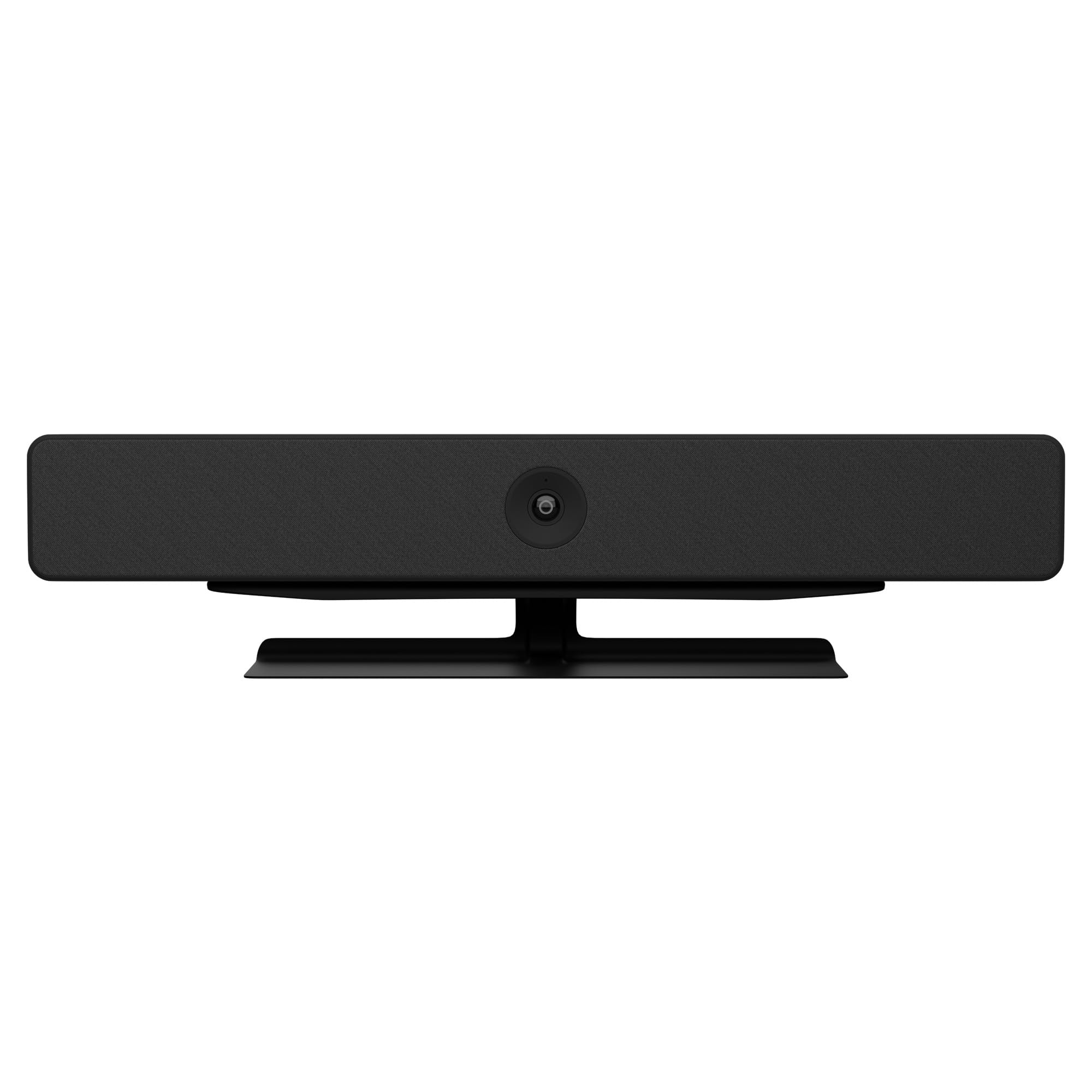
Image: The CLEYVER Meeting Track Bar, a sleek black video conferencing device with an integrated camera and speaker grille.
2. Ihe ngwugwu
Biko hụ na ihe ndị a niile dị na ngwugwu gị:
- CLEYVER Meeting Track Bar (Model: ODWCAMBAR60)
- Tiltable Base
- Njikwa anya
- USB-A ka eriri USB-C
- Ihe nkwụnye ọkụ
- Akwụkwọ ntuziaka (akwụkwọ a)
3. Nhazi
The CLEYVER Meeting Track Bar is designed for quick and simple Plug & Play installation. No specific drivers are required for most operating systems.
3.1 Nhọrọ ntinye
The device can be placed in various configurations to suit your meeting room setup:
- Ndokwa Desktọpụ: Position the bar on a flat surface, such as a table or desk, in front of your display.
- Under-Screen Mounting: Utilize the tiltable base to mount the bar directly below your meeting room display.
- Ịkwanye mgbidi: The bar can be securely mounted to a wall, typically above or below the main display.

Image: Diagram illustrating desktop, wall mount, and hanging placement options for the video conferencing bar in a meeting room setting.
3.2 Ijikọ ngwaọrụ
- Njikọ Ike: Plug the power adapter into the power input port on the back of the Meeting Track Bar, then connect it to a 220V power outlet.
- Jikọọ na Kọmputa: Use the provided USB-A to USB-C cable to connect the USB-C port on the Meeting Track Bar to an available USB-A port on your PC or Mac.
- Nkwekọrịta sistemụ: Your computer should automatically recognize the device. It will appear as a camera, microphone, and speaker option in your operating system's sound and video settings, as well as in your video conferencing software.

Foto: A nso nso view of the CLEYVER Meeting Track Bar mounted beneath a television screen, showing its integration into a meeting setup.
3.3 Ngwa ndakọrịta
The CLEYVER Meeting Track Bar is compatible with all major softphones and video conferencing platforms, including but not limited to Skype for Business, GoToMeeting, and Zoom.
4. Ntuziaka ọrụ
The Meeting Track Bar offers advanced features to enhance your conferencing experience.
4.1 Akụkụ igwefoto
- 4K HD Video: Delivers excellent 4K resolution at up to 30 frames per second for clear visuals.
- Obosara Ubi nke View: The 118° super wide-angle 8 MP lens captures a broad area, ensuring all participants are visible.
- Automatic Image Adjustment: Contrast, brightness, and white balance are automatically managed by the system for optimal video quality in varying lighting conditions.
- AI Tracking Technology: The camera utilizes AI for voice tracking and automatic participant framing, ensuring the active speaker or group is always in focus.

Image: A split image demonstrating the AI features: one panel shows speaker tracking focusing on an individual, and another shows close-up framing of multiple participants.

Image: A visual representation of the auto-framing feature, showing how the camera adjusts to include all participants within the frame.
4.2 Akụkụ ọdịyo
- Full Duplex HD Sound: Integrated 5W HQ speakers provide clear audio output.
- 5 Noise-Canceling Microphones: An array of five microphones offers intelligent noise reduction, echo cancellation, and automatic voice enhancement.
- 360° Voice Pickup: The microphones can capture voices from up to 5 meters away in a 360° radius.

Image: A close-up diagram highlighting the five omnidirectional microphones integrated into the conferencing bar, designed for clear sound capture.
4.3 Ọrụ njikwa anya
The included remote control allows for convenient management of the Meeting Track Bar's functions:
- Njikwa oku: Zaa ma kwụsị oku.
- Njikwa olu: Adjust speaker volume up or down.
- Mechie: Kpuchie ma ọ bụ mechie igwe okwu.
- Njikwa igwefoto: Gbanyụọ ma ọ bụ gbanyụọ igwefoto.
- Bugharịa: Manually zoom in or out of the camera view.
- Nsochi AI: Activate or deactivate the AI voice and body tracking feature.
- Ndozi ugboro ugboro: Switch between 50/60Hz to prevent screen flickering.
5. Nlekọta
To ensure the longevity and optimal performance of your CLEYVER Meeting Track Bar, follow these maintenance guidelines:
- Nhicha: Use a soft, dry cloth to clean the exterior of the device. For the camera lens, use a specialized lens cleaning cloth. Avoid abrasive cleaners or solvents.
- Nchekwa: Mgbe ọ naghị eji ya ogologo oge, chekwaa ngwaọrụ ahụ n'ebe dị jụụ na ebe kpọrọ nkụ na-adịghị na ìhè anyanwụ kpọmkwem na oke okpomọkụ.
- Ijikwa: Handle the device with care to avoid physical damage. Do not drop or expose it to excessive vibration.
6. Nchọpụta nsogbu
If you encounter issues with your Meeting Track Bar, refer to the following common problems and solutions:
| Nsogbu | Ihe nwere ike ime | Ngwọta |
|---|---|---|
| Enweghị mmepụta vidiyo | USB cable not connected properly; Camera not selected in software; Power issue. | Ensure USB cable is securely connected to both the bar and the computer. Verify the power adapter is connected and the device is powered on. Select the CLEYVER Meeting Track Bar as the video source in your conferencing application. |
| No audio (microphone or speaker) | Microphone/speaker not selected in software; Volume too low; Mute activated. | Select the CLEYVER Meeting Track Bar as the audio input/output device in your conferencing application and operating system settings. Check the volume levels and ensure the microphone is not muted (via remote or software). |
| AI tracking not working | Feature deactivated; Insufficient lighting; Participants too far or too many. | Ensure AI tracking is enabled via the remote control. Optimize room lighting. Ensure participants are within the recommended 5-meter range and the room size is appropriate (up to 6 participants). |
| Njikwa ime anya anaghị anabata | Batteries depleted; Obstruction between remote and bar. | Replace the batteries in the remote control. Ensure there is a clear line of sight between the remote and the Meeting Track Bar. |
| Sound only from one side (e.g., left) | Audio settings misconfigured; Device characteristic. | Check your computer's audio balance settings. While the device features integrated speakers, some users have noted a preference for external audio solutions for stereo sound. This may be a characteristic of the device's internal speaker configuration. |
7. Nkọwapụta
Detailed technical specifications for the CLEYVER Meeting Track Bar:
| Njirimara | Nkọwa |
|---|---|
| Ụdị | Cleyver |
| Aha Nlereanya | Cleyver Meeting Track Bar |
| Nọmba nlereanya | ODWCAMBAR60 |
| Agba | Nwa |
| Ụdị ngwaahịa | Video Conferencing Bar / Webcam |
| Teknụzụ Njikọta | USB |
| Mkpebi vidiyo | 4K |
| Mkpebi ka dị irè | 8 megapixels |
| Ubi nke View | 118° |
| oghere | f/2 |
| Igwe okwu | 5 omnidirectional, noise-canceling microphones |
| Anya ntụtụ olu | Up to 5 meters (360°) |
| Ndị na-ekwu okwu | Integrated HQ 5W speakers |
| Atụmatụ pụrụ iche | AI Voice & Body Tracking, Automatic Framing, Noise Suppression, Echo Cancellation, Microphone Input, USB Port |
| Akụkụ ngwaahịa (L x W x H) | 57 x 7.7 x 8.1 cm |
| Ibu ngwaahịa | 3.41 n'arọ |
| Ngwa gụnyere | Tiltable base, remote control |
| Ndozi onyonyo | Mba |
8. Akwụkwọ ikike na nkwado
8.1 Akwụkwọ ikike nke onye nrụpụta
The CLEYVER Meeting Track Bar comes with a Akwụkwọ ikike onye nrụpụta afọ 2. Akwụkwọ ikike a na-ekpuchi ntụpọ dị na ngwa na arụ ọrụ n'okpuru ojiji nkịtị. Biko dowe ihe akaebe nke ịzụrụ ihe maka akwụkwọ ikike.
8.2 Nkwado nka na ụzụ
For technical assistance, troubleshooting beyond this manual, or warranty inquiries, please contact CLEYVER customer support through their official website or the retailer where the product was purchased. Have your model number (ODWCAMBAR60) and purchase date ready when contacting support.