
1. Ngwaahịa gafereview
The havit GK59 Gaming Microphone is designed for clear audio capture during gaming, streaming, and voice communication. It features a condenser microphone for high-quality sound and a versatile design for ease of use.

Foto 1.1: N'ihu view of the havit GK59 Gaming Microphone, showcasing its main body, stand, and control buttons.
Akụkụ ndị bụ isi:
- Ọ dị mfe iji: Simple plug-and-play functionality.
- Good Performance: Delivers clear and consistent audio.
- Good Quality: Owuwu siri ike maka ojiji a pụrụ ịtụkwasị obi.
- Enwere ike ibugharị: Compact and easy to transport.
- Nkwụzigharị: Allows for flexible positioning.
2. Nhazi ntuziaka
Ihe ngwugwu 2.1
Biko lelee ngwungwu maka ihe ndị a:
- havit GK59 Gaming Microphone
- USB Njikọ USB
- Akwụkwọ ntuziaka (akwụkwọ a)
2.2 Ijikọ igwe okwu
The GK59 microphone offers versatile connectivity options for various devices.
- Njikọ USB: Connect the provided USB cable to the USB-C port on the back of the microphone and the other end to an available USB port on your computer or gaming console. The microphone is plug-and-play and should be automatically recognized by most operating systems.
- Njikọ Jack 3.5mm: For devices supporting a 3.5mm auxiliary input, connect a 3.5mm audio cable (not included) to the 3.5mm jack on the back of the microphone and to your device's audio input.
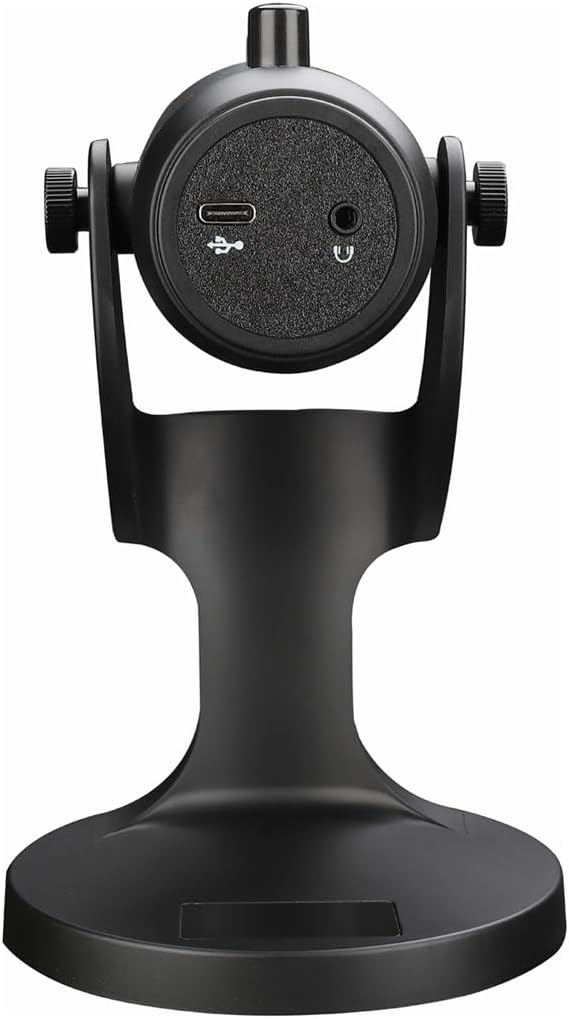
Ọgụgụ 2.1: N'azụ view of the havit GK59 Gaming Microphone, highlighting the USB-C port for data and power, and the 3.5mm headphone jack for monitoring.
After connecting, ensure the microphone is selected as the default input device in your system's sound settings or your gaming/streaming software.
3. Ntuziaka ọrụ
3.1 Njikwa ntọala
The havit GK59 features intuitive controls located on the front of the microphone body:
- Oghere bọtịnụ: Press to mute or unmute the microphone. An indicator light will typically show the mute status.
- MIC +/- Buttons: Adjust the microphone input sensitivity (gain). Press '+' to increase, '-' to decrease.
- VOL +/- bọtịnụ: Adjust the headphone output volume for monitoring. Press '+' to increase, '-' to decrease.
- ECHO +/- Buttons: Adjust the echo effect level. Press '+' to increase, '-' to decrease.
Ọgụgụ 3.1: Zuru ezu view of the microphone's control panel, including the mute button, microphone gain, volume, and echo adjustment buttons.
3.2 Adjusting Microphone Position
The microphone is equipped with an adjustable stand, allowing you to optimize its position for best sound capture and comfort.
- Gently hold the microphone body and the base of the stand.
- Tilt the microphone forward or backward to achieve the desired angle. The stand's design helps reduce vibration and abnormal sounds during use.
- Debe igwe okwu ahụ ihe dị ka sentimita 6-12 (15-30 cm) site n'ọnụ gị ka olu gị wee doo anya nke ọma.

Figure 3.2: The havit GK59 microphone demonstrating its adjustable tilt feature on the stand, designed for anti-vibration.
4. Nlekọta
4.1 Nhicha
To maintain the microphone's performance and appearance:
- Disconnect the microphone from its power source before cleaning.
- Jiri akwa dị nro ma kpọọ nkụ hichapụ elu elu.
- Ejila ihe nhicha mmiri, ihe na-eme ka aerosol dị nro, ma ọ bụ ihe mgbaze, n'ihi na ihe ndị a nwere ike imebi ihe ndị dị n'ime ma ọ bụ ihe ndị dị n'ime.
4.2 Nchekwa
When not in use, store the microphone in a cool, dry place away from direct sunlight and extreme temperatures. Protect it from dust and moisture.
5. Nchọpụta nsogbu
If you encounter issues with your havit GK59 Gaming Microphone, please refer to the following table for common problems and solutions:
| Nsogbu | Ihe nwere ike ime | Ngwọta |
|---|---|---|
| No sound input from microphone | Ejikọghị igwe okwu nke ọma Ahọpụtala ngwaọrụ ntinye na-ezighi ezi Emechiri igwe okwu | Hụ na e jikọrọ eriri USB nke ọma. Check system sound settings and select GK59 as input. Press the Mute button on the microphone to unmute. |
| Obere igwe okwu | Microphone gain too low Olu ntinye sistemụ dị oke ala | Press the 'MIC +' button on the microphone. Adjust input volume in your system's sound settings. |
| Ọdịyo gbagọrọ agbagọ ma ọ bụ nke edoghị anya | Microphone gain too high Microphone too close to mouth Mkpọtụ gburugburu ebe obibi | Press the 'MIC -' button on the microphone. Adjust microphone position (6-12 inches from mouth). Belata mkpọtụ ndabere n'ebe obibi gị. |
| No headphone monitoring sound | Ejikọtaghị ekweisi Headphone volume too low | Ensure headphones are plugged into the 3.5mm jack. Press the 'VOL +' button on the microphone. |
6. Nka na ụzụ nkọwa
Below are the technical specifications for the havit GK59 Gaming Microphone:
| Njirimara | Nkọwapụta |
|---|---|
| Ụdị | ntụpọ |
| Nọmba nlereanya | GK59 |
| Teknụzụ Njikọta | USB, 3.5 mm Jack (Auxiliary) |
| Eji akwadoro | Ịgba egwu |
| Ụkpụrụ Polar | Unidirectional |
| Ihe kpatara ụdị igwe okwu | Handheld (with desktop stand) |
| Ibu Ibu | 429 grams |
| Mgbochi | 250 ohms |
| Signgbaàmà-na-Noise ruru | 18 dB |
| Mkpọtụ egwu | 18 decibel |
| Isi Iyi Ike | Eriri eletriki (site na USB) |
| Ngwa dakọtara | Gaming Consoles, PCs |
| Akụkụ ihe (LxWxH) | 5.59 x 4.92 x 9.06 sentimita asatọ |
| Agba | Nwa |
7. Akwụkwọ ikike na nkwado
7.1 Ozi akwụkwọ ikike
The havit GK59 Gaming Microphone comes with a standard manufacturer's warranty. Please refer to the warranty card included in your product packaging or visit the official havit websaịtị maka nkọwa na usoro akwụkwọ ikike.
7.2 Nkwado ndị ahịa
For technical assistance, troubleshooting not covered in this manual, or warranty claims, please contact havit customer support through their official channels. You can find more information and contact details on the Ụlọ Ahịa Havit na Amazon ma ọ bụ onye ọrụ ha websaịtị.