
1. Okwu mmalite
This manual provides comprehensive instructions for the installation, operation, and maintenance of your SEMAITU Single Din Car Stereo. This unit features Apple CarPlay & Android Auto compatibility, a 7-inch motorized flip-out HD touchscreen, Bluetooth, Mirror Link, backup camera support, FM/USB/SWC/TF/AUX/Subwoofer connectivity, and more. Please read this manual thoroughly before use to ensure proper functionality and safety.
2. Kedu ihe dị na Igbe ahụ
Mgbe imepechara ngwugwu ahụ, biko chọpụta na ihe niile e depụtara n'okpuru nọ na ọnọdụ dị mma:
- 7 Inch HD Single Din Car Stereo
- HD azụ View Camera & Brackets & Frame
- Wire Harness & Disassembly Tool
- Backup Camera Cable & Camera Power Cable
- Onye njikwa anya
- Igwe okwu Lavalier
- Akwụkwọ ntuziaka (akwụkwọ a)

Figure 2.1: Included Accessories and Main Unit.
3. Atụmatụ igodo
- Ndị enyemaka olu: Compatible with Apple CarPlay and Android Auto for voice-activated functions like navigation, calls, messages, and music. Features built-in noise-rejecting microphones.
- IPS HD Screen: 7-inch high-definition capacitive touch screen (1024x600 resolution) supporting 1920x1080P video playback. Includes 16-band EQ audio settings.
- Mirror Link & Bluetooth: Supports screen mirroring for Android & iOS devices. Built-in Bluetooth for hands-free calling and wireless audio streaming.
- AHD n'azụ View Igwefoto: Equipped with an HD 170° viewing angle lens for wide rear visibility, night vision, and waterproof features. Automatically displays camera feed when reversing.
- Various Formats & AM/FM: Si 4755 Full band Radio with 18 FM and 12 AM station presets. Supports A2DP/AVCTP/AVDTP/AVRCP/HFP/SPP/ATT/GAP/GATT/RFCOMM/SDP/L2CAP formats.
- Motorized Flip-Out Screen: The 7-inch screen can adjust its angle from 60° to 100° and is auto-retractable.

Foto 3.1: N'ihu view of the SEMAITU Single Din Car Stereo.
4. Ntuziaka nwụnye
Before beginning installation, ensure your vehicle's battery is disconnected to prevent electrical shorts. The unit is designed to fit most vehicles with a dashboard size of 188(W)*58(H)*154(D)mm.
4.1 eserese waya
Refer to the detailed wiring diagram below for correct connections. Improper wiring can damage the unit or your vehicle's electrical system.

Figure 4.1: Wiring Method for the Car Stereo.
4.2 Nwụnye anụ ahụ
- Remove your existing car stereo and dashboard trim.
- Connect the wire harness from the new unit to your vehicle's wiring, following the diagram in Figure 4.1.
- If installing the backup camera, route the camera cable from the rear of the vehicle to the stereo unit and connect it as per the diagram.
- Secure the car stereo unit into the dashboard opening.
- Reconnect the vehicle's battery and test the unit's functionality before reassembling the dashboard trim.
5. Ntuziaka ọrụ
5.1 Apple CarPlay na gam akporo Auto
Connect your iPhone or Android phone via USB cable to enable Apple CarPlay or Android Auto. This allows access to navigation, calls, messages, and music directly from the stereo's touchscreen or via voice commands.
Video 5.1: Demonstration of Apple CarPlay and Android Auto functionality.

Figure 5.1: Apple CarPlay and Android Auto Interface.
Njikọ Enyo 5.2
The Mirror Link feature allows you to display your smartphone's screen content directly on the car stereo's display. Connect your phone via USB and follow the on-screen prompts to activate mirroring.

Figure 5.2: Mirror Link Functionality.
5.3 Njikọ Bluetooth
Pair your mobile phone with the car stereo via Bluetooth for hands-free calling and wireless audio streaming. Navigate to the Bluetooth settings on the stereo, enable Bluetooth on your phone, and select "CAR-BT" (or similar) from the available devices to pair.
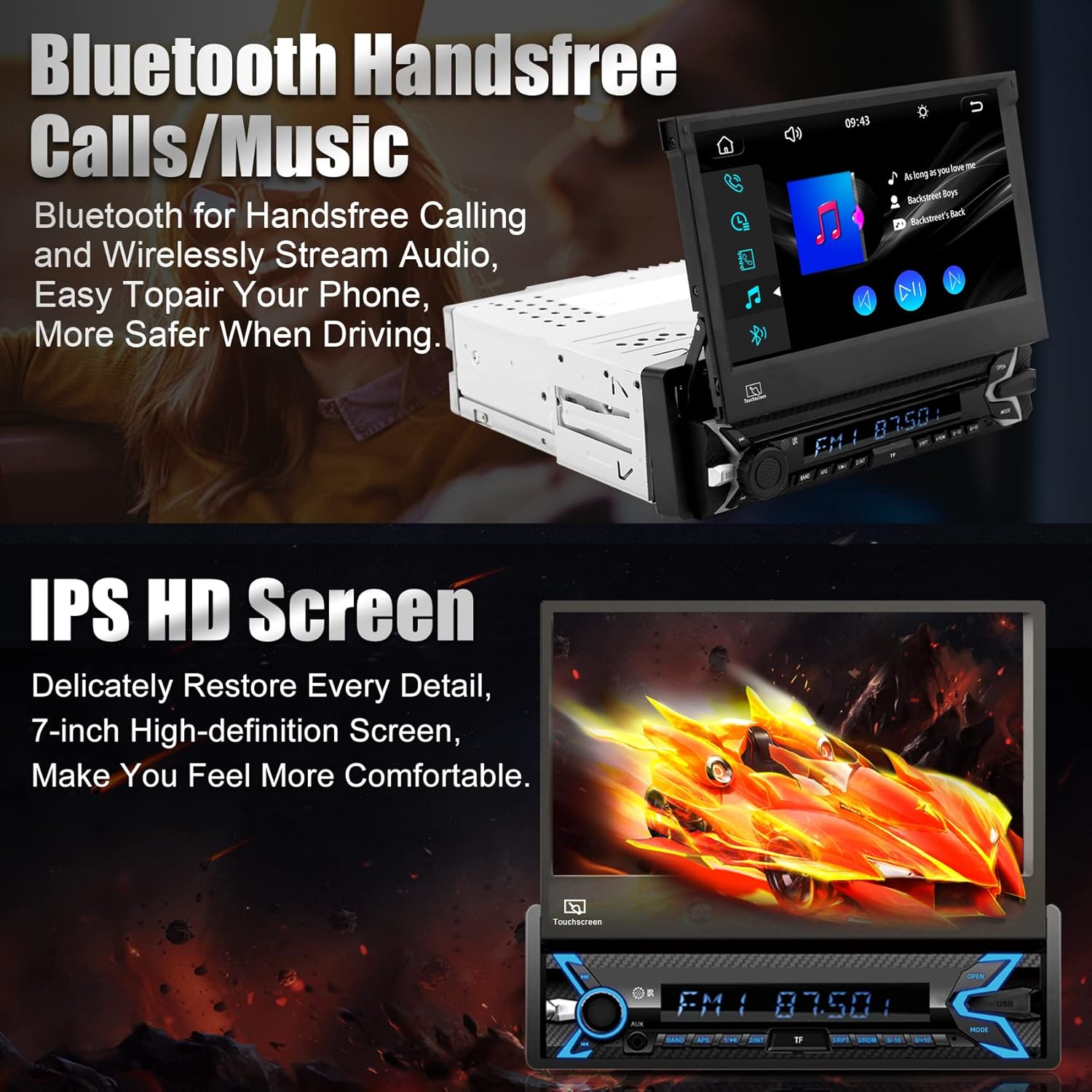
Figure 5.3: Bluetooth Hands-free Calls and Music.
5.4 Media Playback (SD/USB/AUX)
The unit supports various media inputs including TF (SD) card, USB, and AUX. Insert your media device into the corresponding port and select the input source from the main menu to play audio or video files.

Figure 5.4: Supported Media Inputs.
5.5 Redio (FM/AM)
Access the radio function to tune into FM and AM stations. The unit features a Si 4755 Full band Radio, allowing storage of up to 18 FM stations and 12 AM stations.

Figure 5.5: FM/AM Radio Interface.
5.6 Motorized Flip-Out Screen
The 7-inch screen is motorized and can be adjusted for optimal viewing angles (60° to 100°). Use the designated controls on the unit to extend, retract, or adjust the screen angle.

Figure 5.6: Motorized Flip-Out Screen Adjustment.
5.7 N'azụ View Igwefoto
When properly installed, the included AHD rear view camera automatically displays a wide-angle, high-definition view on the stereo screen when the vehicle is shifted into reverse. This feature aids in safe parking and maneuvering.

Ọgụgụ 5.7: N'azụ View Camera Display.
5.8 DSP and EQ Settings
Customize your audio experience using the Digital Sound Processor (DSP) and 16-band Equalizer (EQ) settings. Access these options through the stereo's menu to adjust sound profiles, balance, fader, and more to your preference.

Figure 5.8: DSP and EQ Settings Interface.
6. Nkọwapụta
| Njirimara | Nkọwa |
|---|---|
| Akụkụ ngwaahịa | 188 x 58 x 154 mm (7.40 x 2.28 x 6.06 inch) |
| Ibu Ibu | 4.05 pound (1.84 n'arọ) |
| Nọmba nlereanya | TH0030 (Single Din Car Stereo) |
| Nha ihuenyo | 7 inch |
| Mkpebi ihuenyo | 1024x600 HD |
| Ihe nkiri vidiyo | Supports 1920x1080P video |
| Teknụzụ Njikọta | Bluetooth, USB Type A, RCA |
| Atụmatụ pụrụ iche | Built-In Bluetooth, Touchscreen, Motorized Flip-Out Screen, Apple CarPlay, Android Auto, Mirror Link, Rear View Camera Support, SWC, TF/AUX/USB, DSP, FM/AM Radio |
| Ọnọdụ mmepụta ọdịyo | Stereo (Nhazi Ọwa Ụda Gburugburu 5.1) |
| Onye nrụpụta | SEMAITU |
7. Nchọpụta nsogbu
If you encounter issues with your SEMAITU car stereo, please refer to the following common troubleshooting steps:
- Enweghị ike: Check all power connections, including the main power wire (yellow), accessory wire (red), and ground wire (black). Ensure the vehicle's fuse for the stereo is not blown.
- Enweghị ụda: Verify speaker connections are secure and correctly wired. Check the volume level and ensure the mute function is not activated. Confirm the audio source is correctly selected.
- Ihuenyo anaghị aza: Try restarting the unit by turning off the vehicle's ignition and turning it back on. If the issue persists, a factory reset may be necessary (refer to the setup menu).
- CarPlay/Android Auto anaghị ejikọ: Ensure you are using a high-quality USB cable. Check your phone's settings for any prompts or permissions related to CarPlay/Android Auto. Try restarting both the phone and the stereo unit.
- Igwefoto ndabere anaghị egosi: Verify the camera's power and video signal connections. Ensure the reverse trigger wire is correctly connected to the vehicle's reverse light circuit.
- Okwu njikọta Bluetooth: Delete previous pairings from both the stereo and your phone. Ensure Bluetooth is enabled on both devices and that the stereo is in pairing mode.
For more detailed troubleshooting or issues not covered here, please contact SEMAITU customer support.
8. Nlekọta
To ensure the longevity and optimal performance of your car stereo, follow these maintenance guidelines:
- Na-ehicha ihuenyo: Jiri akwa dị nro, nke na-enweghị lint, jiri nwayọ hichaa ihuenyo mmetụ ahụ. Maka isi ike smudges, ntakịrị dampen akwa na mmiri ma ọ bụ ihe na-echebe ihuenyo. Zere ihe na-emebi emebi ma ọ bụ kemịkalụ siri ike.
- Nchacha izugbe: Debe unit ahụ pụọ na uzuzu na irighiri ihe. Jiri ahịhịa dị nro ma ọ bụ ikuku abịakọrọ ihicha gburugburu bọtịnụ na ọdụ ụgbọ mmiri.
- Okpomọkụ: Zere ikpughe akụkụ ahụ na oke okpomọkụ, ma ọkụ na oyi, ruo ogologo oge.
- Mmelite ngwanrọ: Lelee nke onye nrụpụta oge ụfọdụ website for any available firmware updates to improve performance and add new features.
9. Akwụkwọ ikike na nkwado
Your SEMAITU car stereo is backed by a commitment to quality. For any questions regarding installation, operation, or warranty claims, please contact SEMAITU customer support. We provide 24/7 online support to assist you.
I nwekwara ike ileba anya na PDF Ntuziaka Onye Ọrụ gọọmentị maka ozi ndị ọzọ: SEMAITU User Guide (PDF)
For direct support, please visit the SEMAITU storefront on Amazon or use the "Ask a question" feature on the product page.