
Okwu mmalite
This manual provides essential information for the safe and efficient operation of your Ulefone Power Armor 16 Pro rugged smartphone. Please read this guide thoroughly before using your device to ensure proper functionality and to maximize its features. Keep this manual for future reference.

N'ihu view of the Ulefone Power Armor 16 Pro smartphone, showcasing its display and rugged design.
Kedu ihe dị na Igbe ahụ
Chọpụta na ihe niile dị na ngwugwu ngwaahịa gị:
- Ulefone Power Armor 16 Pro Smartphone
- AC Power Charger (100~240V /US plug)
- Data Cable (100cm)
- Ihe nkiri nchekwa (Ebunyegoro ya)
- Ihe nchekwa ihuenyo iko
- SIM Needle
- Lanyard
- Akwụkwọ ntuziaka onye ọrụ ọtụtụ asụsụ
- Multi Function Instruction Card
- Charging Instruction Card
- Safety Prompt Card

Image showing the Ulefone Power Armor 16 Pro smartphone and its included accessories, such as charger, cable, and documentation.
Ngwaahịa gafereview
Familiarize yourself with the physical components and layout of your Ulefone Power Armor 16 Pro.

N'azụ view of the Ulefone Power Armor 16 Pro, highlighting the large speaker, camera module, and magnetic charging pins.
Melite
1. Ntinye kaadị SIM na kaadị MicroSD
Your device supports two Nano SIM cards and one MicroSD card simultaneously. Use the provided SIM needle to open the card tray.
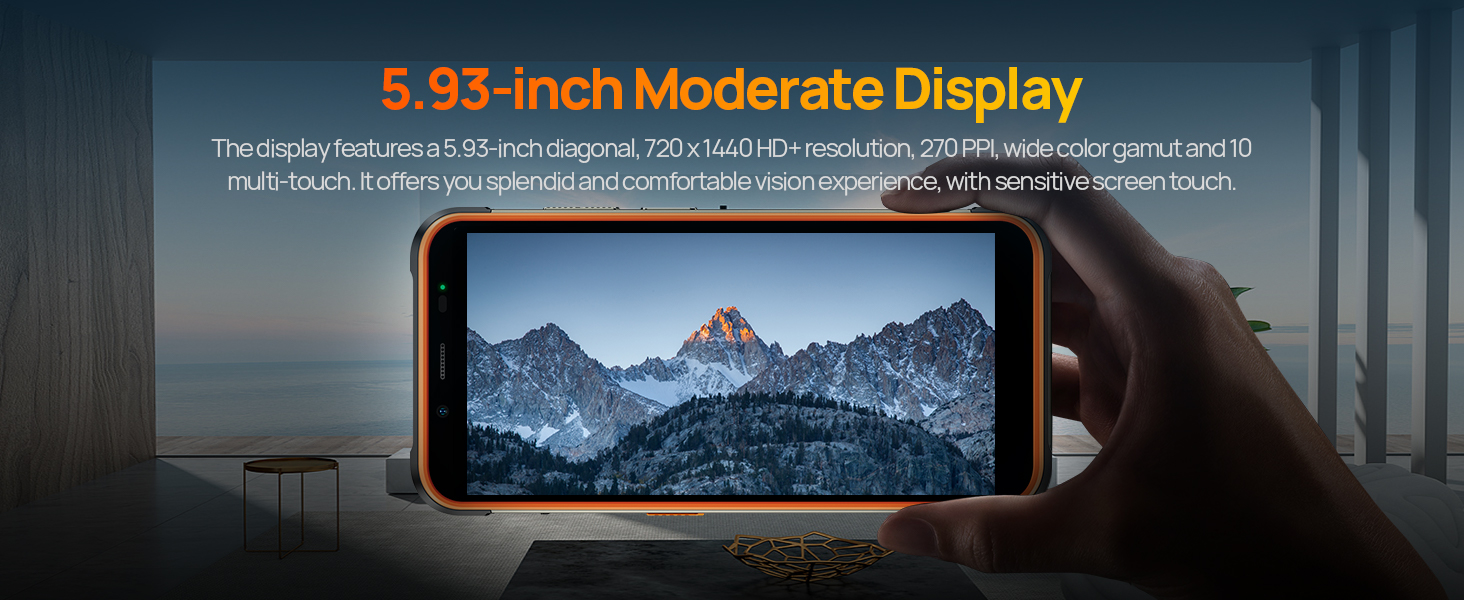
Illustration of the 3-card slot, detailing how to insert two Nano SIM cards and one MicroSD card into the Ulefone Power Armor 16 Pro.
2. Ike izizi
Press and hold the power button located on the side of the device until the Ulefone logo appears. Follow the on-screen instructions to complete the initial setup, including language selection, network connection, and Google account setup.
3. Ịchaji ngwaọrụ
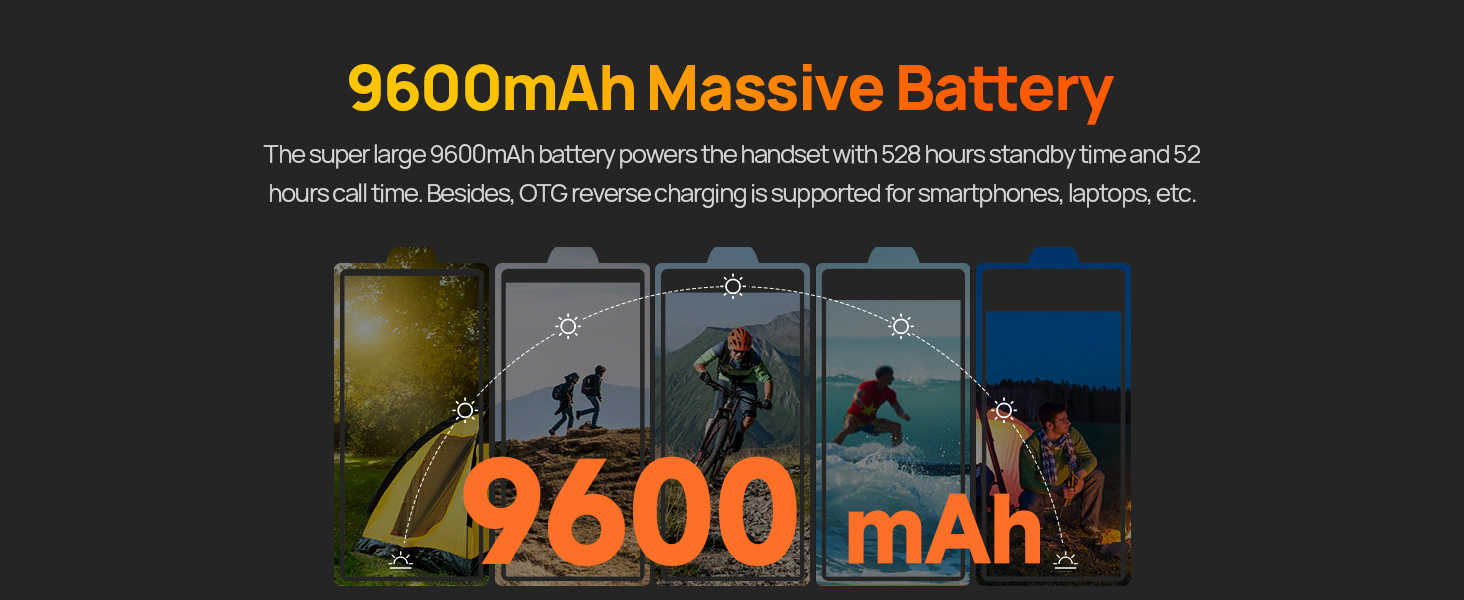
Connect the provided USB-C cable to the phone's charging port and the other end to the AC power charger. Plug the charger into a wall outlet. The device supports 18W fast charging. For convenient charging, a dock charger is available separately.
The Ulefone Power Armor 16 Pro displaying its 9600mAh battery capacity and 18W fast charging capability.
The Ulefone Power Armor 16 Pro being charged on an optional dock, illustrating the convenience of dock charging.
Ntuziaka ọrụ
1. Sistemụ arụmọrụ Android 12
Your device runs on Android 12, offering a personalized and secure user experience. Navigate through the interface using gestures and customize settings to your preference.

Various screenshots demonstrating the Android 12 operating system interface on the Ulefone Power Armor 16 Pro.
2. Ojiji igwefoto
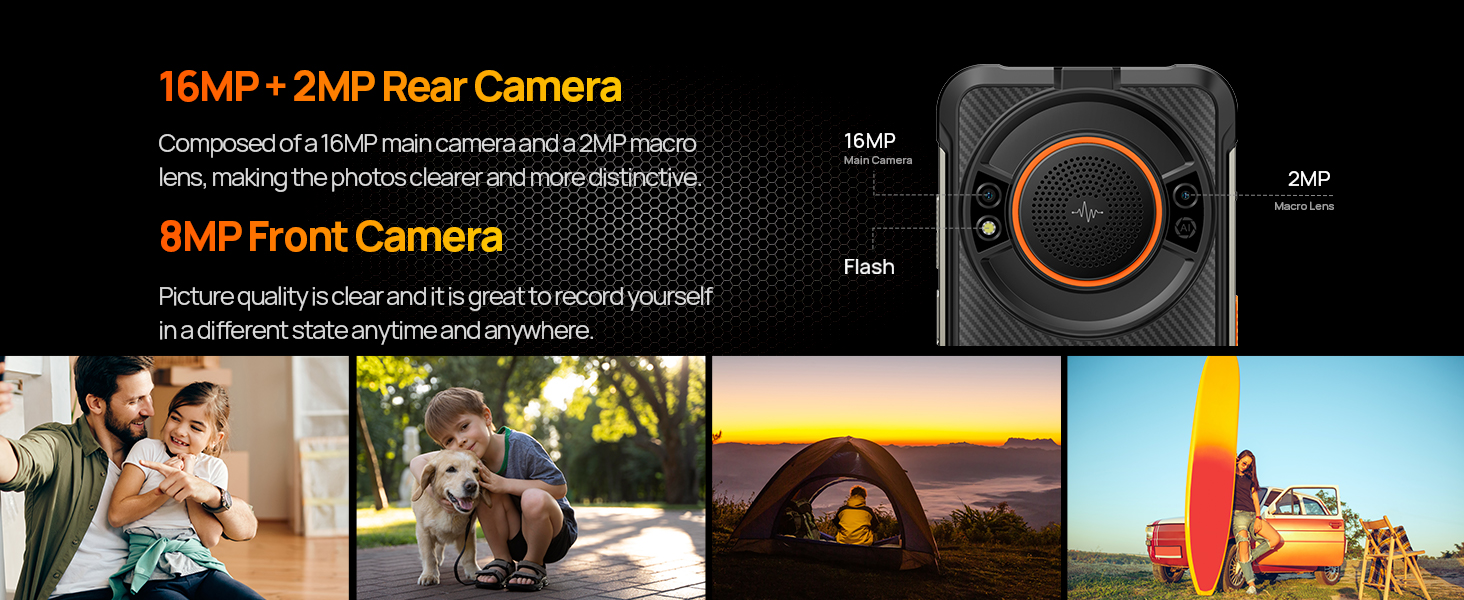
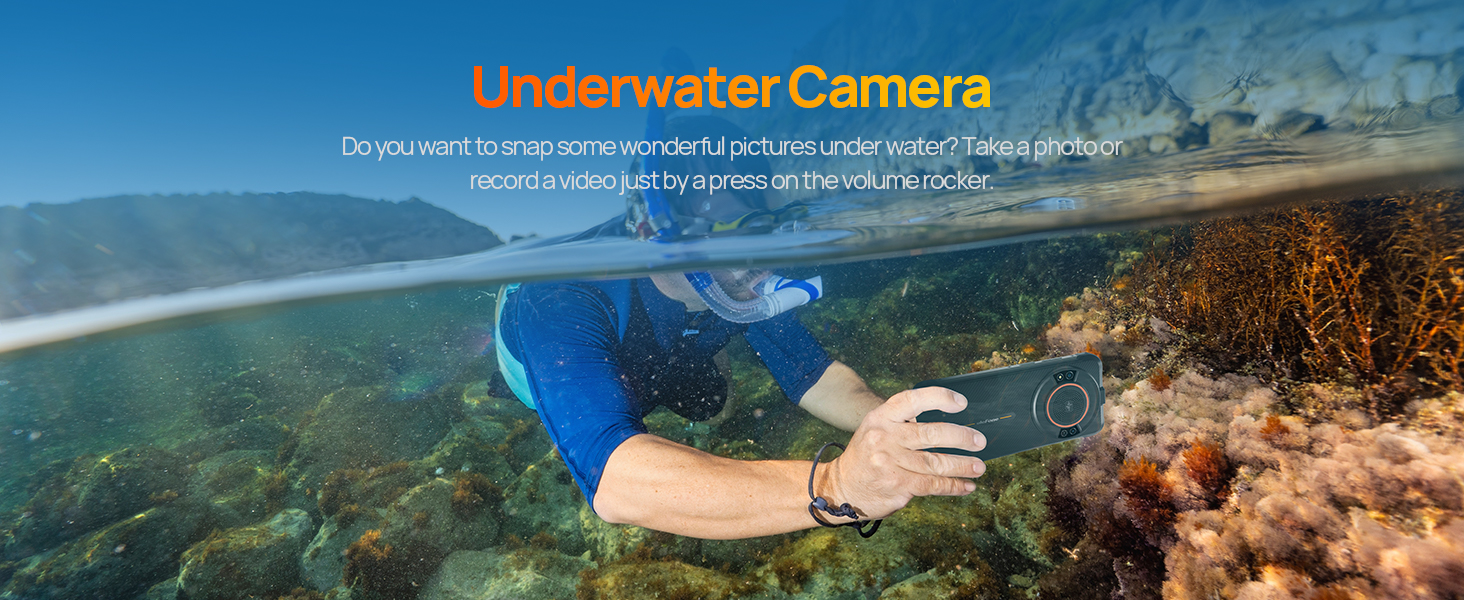
The Ulefone Power Armor 16 Pro features a 16MP rear camera and an 8MP front camera. Open the camera application to capture photos and videos. Utilize the various modes available, including underwater photography.
Details of the 16MP rear camera and 8MP front camera on the Ulefone Power Armor 16 Pro, accompanied by exampna foto.
A person using the Ulefone Power Armor 16 Pro to take photos underwater, demonstrating its waterproof camera feature.
3. Built-in Glare Flashlight
The device includes a high-brightness flashlight located at the top. Activate it for illumination in dark environments. This feature is useful for outdoor activities, emergencies, or general utility.
The Ulefone Power Armor 16 Pro's integrated flashlight illuminating a dark area, useful for various situations.
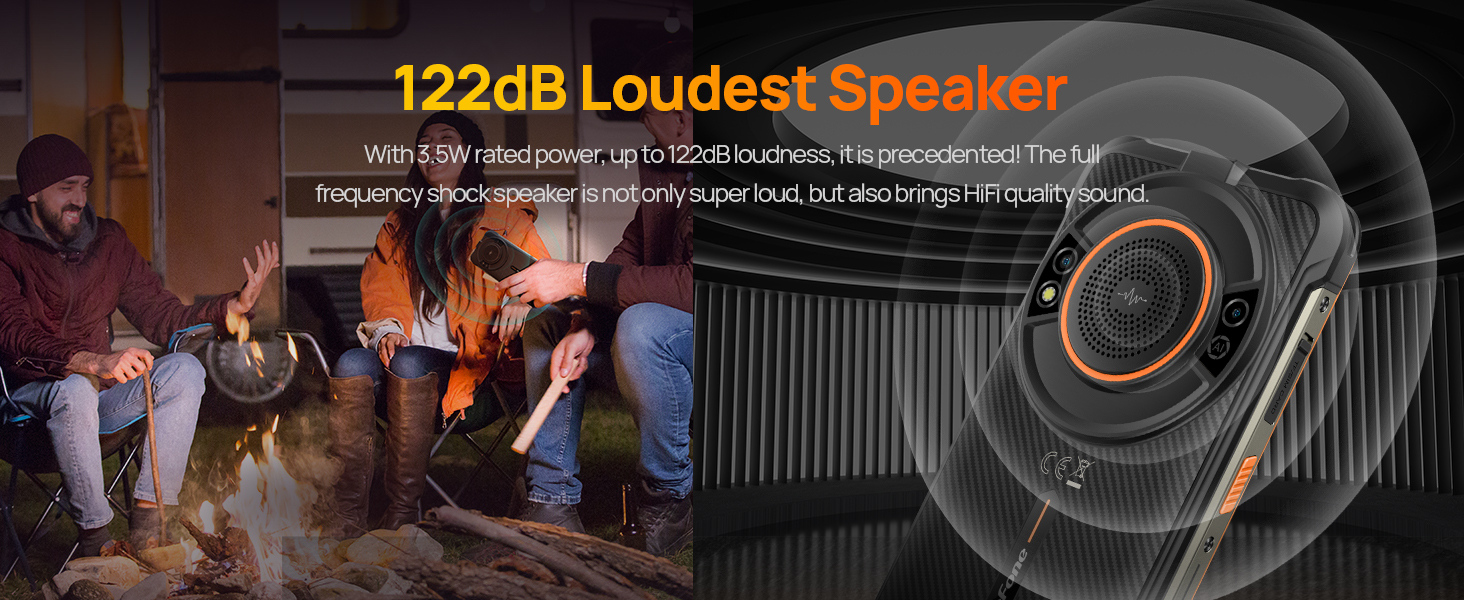
4. 122dB Loudest Speaker
The Power Armor 16 Pro features a 3.5W 122dB speaker, providing clear and loud audio output. This is ideal for outdoor use or when high volume is required.
Visual representation of the Ulefone Power Armor 16 Pro's 122dB loud speaker, emphasizing its audio capabilities.
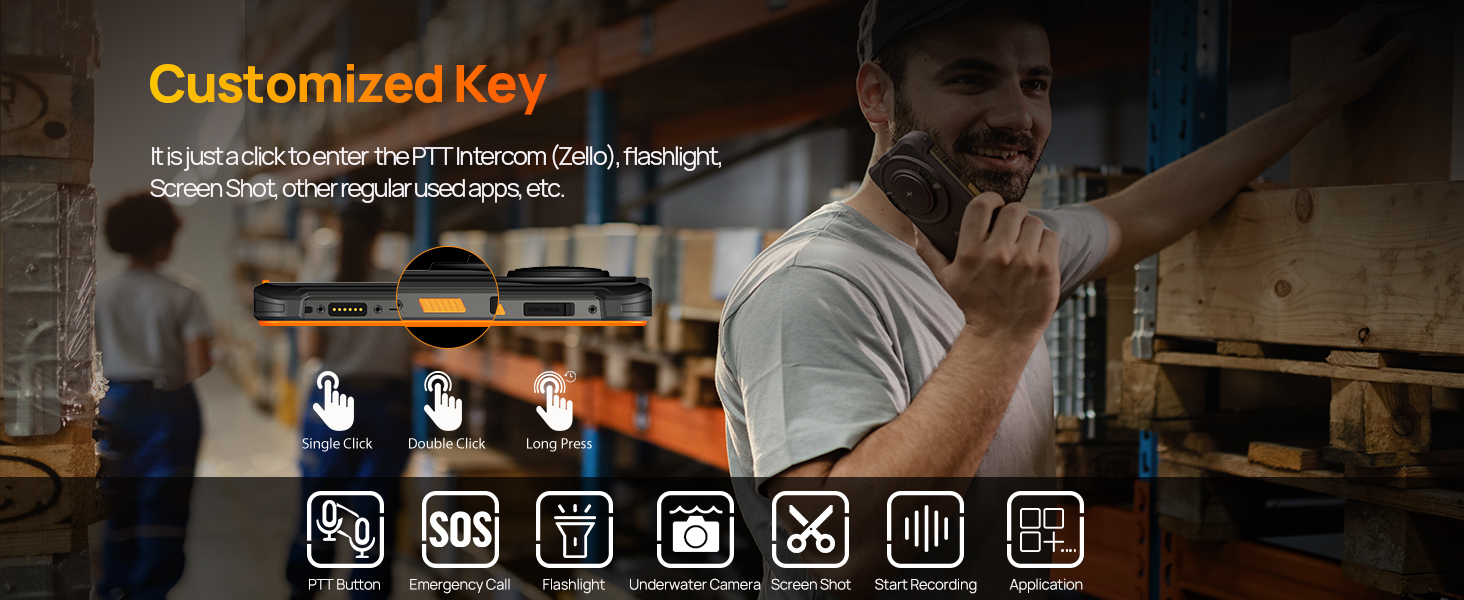
5. Customizable Key
The device includes a customizable side key. You can assign various functions to single click, double click, or long press actions, such as activating the flashlight, PTT intercom (Zello), screenshot, or opening specific applications.
An illustration detailing the customizable key on the Ulefone Power Armor 16 Pro and examples of functions that can be assigned to it.
6. uSmart Mgbasawanye Njikọ
The Power Armor 16 Pro supports uSmart Expansion accessories, such as endoscopes and microscopes (sold separately). Connect these devices via the dedicated connector for specialized tasks.
Official video demonstrating the connection and use of the Ulefone uSmart E02 Dual Camera Endoscope with the Power Armor 16 Pro smartphone.
7. Digital Toolkit
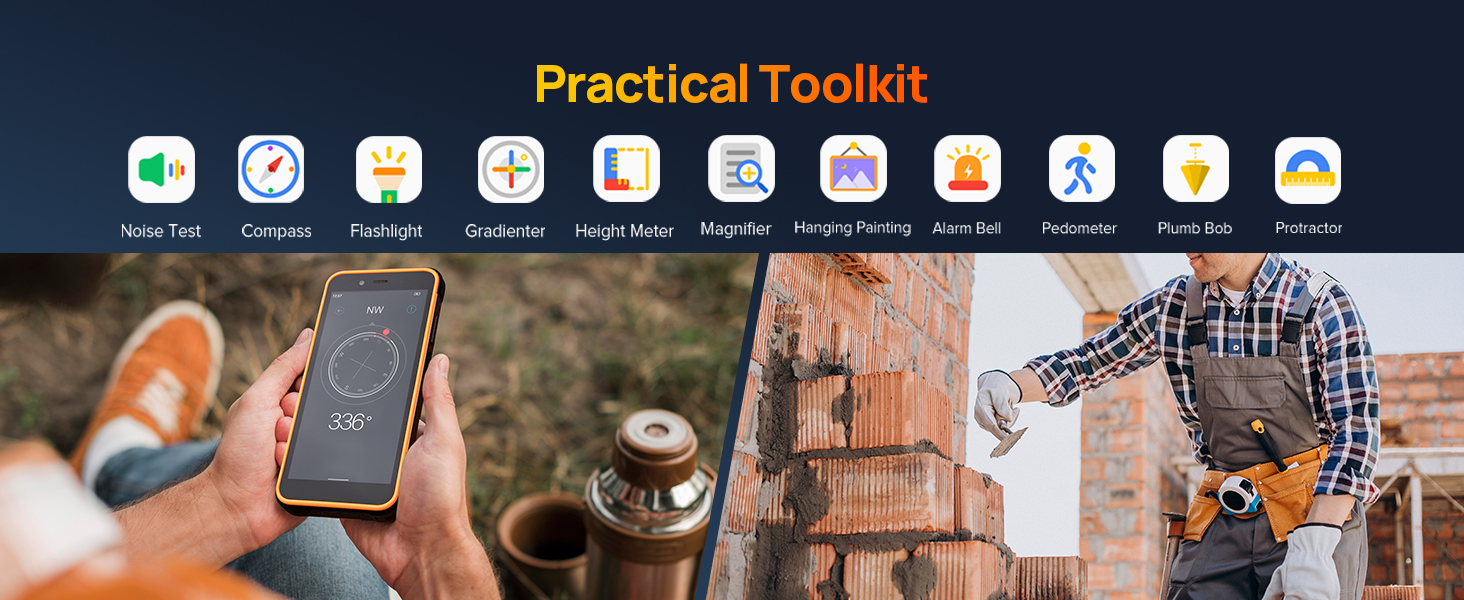
Access a suite of practical tools including Noise Test, Compass, Flashlight, Gradienter, Height Meter, Magnifier, Hanging Painting, Alarm Bell, Pedometer, Plumb Bob, and Protractor. These tools are available in the Digital Toolkit application.
The Ulefone Power Armor 16 Pro showcasing its built-in Digital Toolkit, featuring various utility applications.
8. Sistemụ igodo
The device integrates GPS, GLONASS, Beidou, and Galileo navigation systems, along with a digital compass, for accurate positioning and navigation.
The Ulefone Power Armor 16 Pro showing a map with GPS navigation, highlighting its multi-system satellite support.
Njikọta
1. 4G LTE Dual SIM
The Power Armor 16 Pro supports global 4G frequency bands and features a 3-card slot for two Nano SIM cards and one TF card. This allows for flexible network usage and expanded storage.
The Ulefone Power Armor 16 Pro displaying its 4G global network capabilities and the physical 3-card slot for SIM and storage expansion.
2. WiFi
Connect to available Wi-Fi networks for internet access. Go to Ntọala> Netwọk & ịntanetị> Wi-Fi to manage your connections.
Atụmatụ nchekwa
1. Face Unlock and Fingerprint ID
Secure your device using biometric authentication. Set up Face Unlock or Fingerprint ID in the security settings for convenient and secure access.
The Ulefone Power Armor 16 Pro illustrating its Face Unlock and Fingerprint ID security options for quick and secure device access.
2. NFC and Google Pay
The device supports NFC (Near Field Communication) for contactless payments and data transfer. Set up Google Pay to make secure transactions with your phone.
The Ulefone Power Armor 16 Pro demonstrating NFC functionality for mobile payments and public transport access.
Nlekọta
1. Ruggedness and Durability
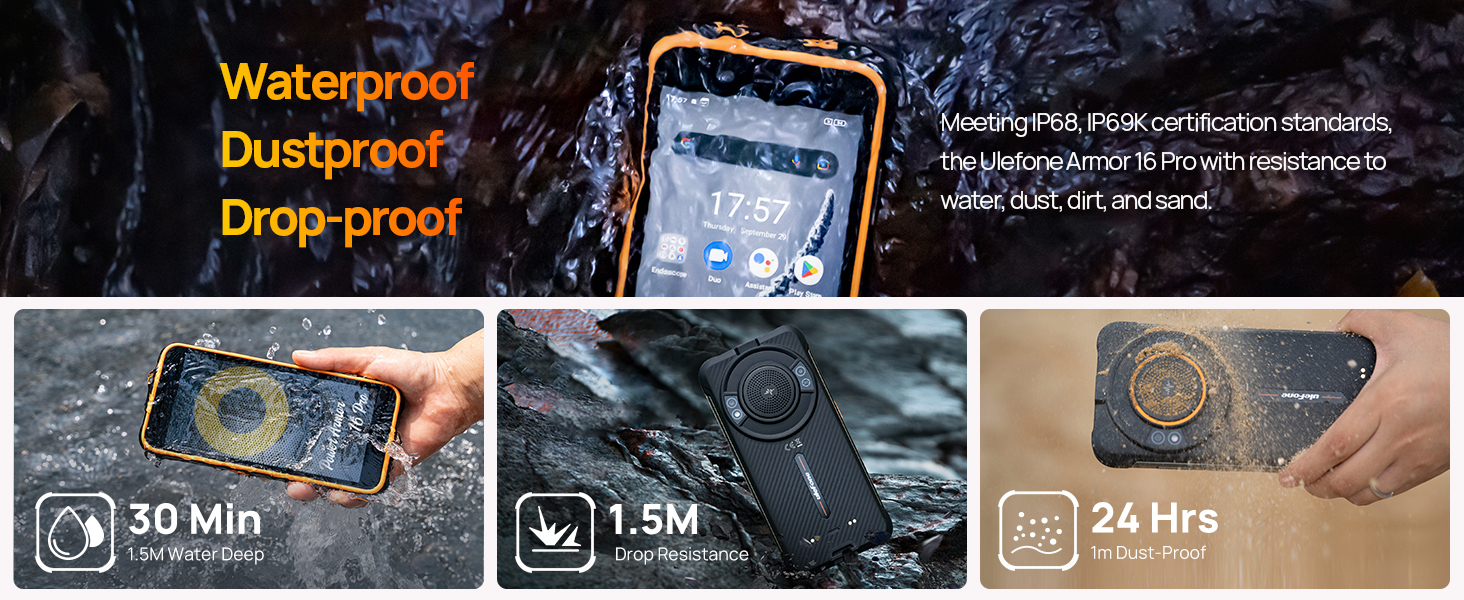
The Ulefone Power Armor 16 Pro is designed to meet IP68, IP69K, and MIL-STD-810G standards, making it waterproof, dustproof, and drop-proof. It can withstand immersion in 1.5m of water for up to 30 minutes, drops from 1.5m, and is 99% resistant to dust, dirt, and sand. It operates in temperatures from -20°C to 50°C.
The Ulefone Power Armor 16 Pro shown in various rugged scenarios, highlighting its resistance to water, dust, and drops.
2. Nlekọta batrị
To prolong battery life, avoid extreme temperatures and fully discharging the battery frequently. Use only the provided charger and cable. If the device will not be used for an extended period, charge it to about 50% before storing.
Nchọpụta nsogbu
- Ngwaọrụ anaghị agbanye: Gbaa mbọ hụ na agbagoro batrị. Jikọọ na chaja wee nwaa ọzọ.
- Ihuenyo anaghị anabata: Restart the device by holding the power button. If unresponsive, force restart by holding power and volume down buttons simultaneously for 10 seconds.
- Nsogbu netwọk: Check SIM card insertion. Verify mobile data is enabled in settings. Contact your carrier if issues persist.
- Ngwa na-akụda: Clear the cache of the problematic app (Settings > Apps > [App Name] > Storage & cache > Clear cache). If the issue continues, reinstall the app.
- Ịrụ ọrụ nwayọ: Mechie ngwa ndabere na-adịghị mkpa. Kpochapụ cache na nwa oge files. Consider a factory reset as a last resort (back up data first).
Nkọwapụta
| Njirimara | Nkọwapụta |
|---|---|
| Ụdị | Ulefone |
| Sistemụ nrụọrụ | Android 12.0 |
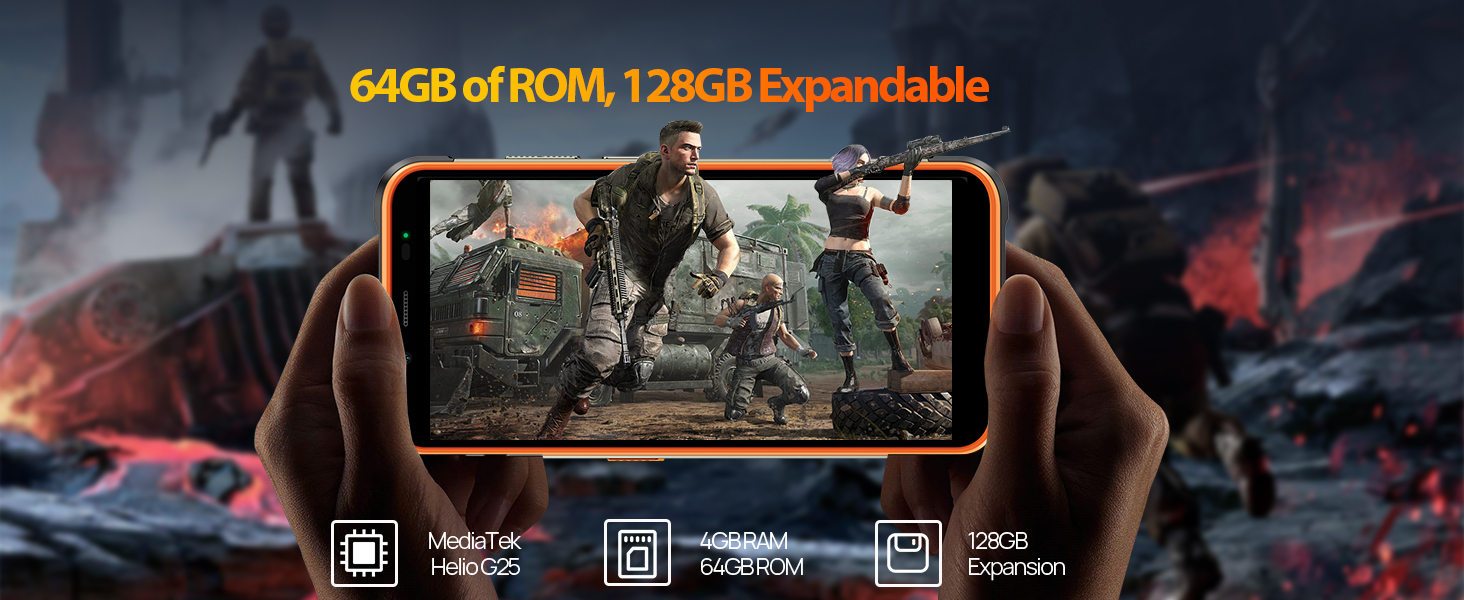
| Ebe nchekwa RAM | 4 GB |
| Ike Nchekwa ebe nchekwa | 64 GB (Expandable to 128GB) |
| Nha ihuenyo | 5.93 inch HD + |
| Aha Nlereanya | Armor 16 Pro |
| Onye na-ebu ikuku | Emechiri |
| Teknụzụ ekwentị | 4G |
| Teknụzụ Njikọta | NFC |
| Agba | Nwa |
| SIM Card Slot Count | SIM abụọ |
| Ụdị njikọ | USB Ụdị C |
| Biometric Security Feature | Nchọpụta akara mkpịsị aka |
| Nha Kaadị SIM | Nano |
| Ọkwa Nguzogide mmiri | Waterproof (IP68/IP69K) |
| Jack ekweisi | 3.5 mm |
| Mkpebi igwefoto azụ | 16 MP |
| Ike batrị | 9600 ndeamp Oge awa |
| Ụdị batrị | Lithium-ion |
| Mkpebi ịse vidiyo | 1080p |
| Ụdị ngosi | LCD |
| Display Pixel Density | 282 Pixels Per Inch (PPI) |
| Afọ Nlereanya | 2022 |
Akwụkwọ ikike na nkwado
The Ulefone Power Armor 16 Pro comes with a 1-year manufacturer's warranty. For technical support, warranty claims, or further assistance, please refer to the contact information provided in your product packaging or visit the official Ulefone websaịtị.
Ihe ngosi vidiyo ngwaahịa gọọmentịasing various features and capabilities of the Ulefone Power Armor 16 Pro smartphone.


