
1. Okwu mmalite
This manual provides detailed instructions for the setup, operation, and maintenance of your Optoma GT1080HDRx Short Throw Gaming Projector. Designed for immersive gaming and home cinema, this projector delivers bright, high-definition images with a fast response time.
2. Kedu ihe dị na Igbe ahụ
Chọpụta na ihe niile dị na nkwakọ ngwaahịa:
- Optoma GT1080HDRx Projector
- AC Power USB
- 2 x AAA batrị
- Njikwa anya
- Ntuziaka mmalite ngwa ngwa
3. Nhazi
3.1 Ndobe ihe nrụpụta
The Optoma GT1080HDRx is a short-throw projector, allowing for large images from a short distance. For example, a 120-inch image can be projected from approximately four feet away. Ensure the projector is placed on a stable, level surface or securely mounted.

Figure 3.1: Diagram illustrating short-throw projection, showing the projector placed approximately 4 feet from the screen to achieve a 120-inch image.
For optimal image geometry, position the projector directly in front of the screen. Avoid using digital keystone correction extensively, especially when using Enhanced Gaming Mode, as it can introduce input lag and image distortion.
3.2 Njikọta
Connect your video sources (gaming consoles, media players, etc.) to the projector using HDMI cables. The projector features dual HDMI inputs (1.4a 3D support).
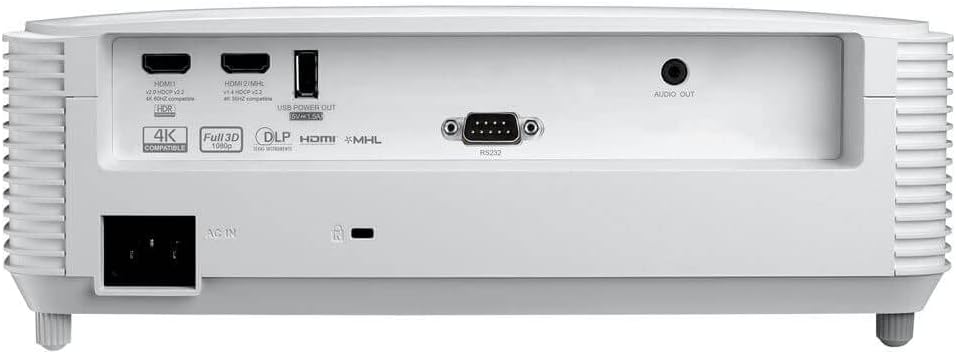
Ọgụgụ 3.2: N'azụ view of the Optoma GT1080HDRx projector, highlighting the various input and output ports, including dual HDMI, USB, and audio out.
- HDMI 1 & 2: Connect to gaming consoles, Blu-ray players, streaming devices (e.g., Google Chromecast, Amazon Fire Stick, Apple TV).
- Ọkụ USB: For powering compatible streaming devices.
- Apụọ ọdịyo: Jikọọ na sistemụ ọdịyo dị n'èzí maka ụda emelitere.
3.3 Gbanyụọ ma ọ bụ gbanyụọ
Connect the AC power cable to the projector and a power outlet. Press the power button on the projector's top panel or the remote control to turn the projector on or off.

Foto 3.3: Top view of the projector, showing the control panel with buttons for power, menu navigation, and source selection.

Figure 3.4: The remote control for the Optoma GT1080HDRx projector, featuring buttons for power, source selection, menu, and image adjustments.
3.4 Ndozi anya
Gbanwee mgbanaka lekwasịrị anya na lenzi ihe onyonyo ahụ ruo mgbe onyonyo ahụ ga-apụta ìhè ma doo anya na ihuenyo ahụ.
3.5 Ndozi onyonyo
Use the projector's menu or remote control to access image settings. Adjust keystone correction if the image is not perfectly rectangular. Note that extensive keystone correction can degrade image quality. For optimal performance, physically adjust the projector's position.
4. Ntuziaka ọrụ
4.1 Nhọrọ Isi mmalite
Press the 'Source' button on the remote control or projector to cycle through available input sources (HDMI 1, HDMI 2).
4.2 Enhanced Gaming Mode
Activate Enhanced Gaming Mode for a fast response time of 8.4ms at 1080p with a 120Hz refresh rate. This mode optimizes display for maximum contrast and vivid colors, crucial for competitive gaming. Note that some image adjustments like keystone, zoom, image shift, or edge masking may be disabled in this mode.

Figure 4.1: An image depicting a gaming scenario, illustrating the benefits of Enhanced Game Mode for responsive gameplay.
4.3 HDR (Ọnọdụ Dị Elu)
The projector supports HDR10 technology with 4K input, providing brighter whites and deeper black levels for improved detail and texture. Ensure your source device is also HDR compatible and configured correctly.

Figure 4.2: A split image demonstrating the visual difference with HDR enabled, showing enhanced contrast and color detail.
4.4 Ntọala agba
The six-segment color wheel (RYGCWB) produces accurate color with sRGB & REC. 709 color profile support. Adjust color settings via the OSD (On-Screen Display) menu to suit your viewing environment and preferences. Cinema mode is often recommended for accurate color reproduction.
5. Nlekọta
5.1 Lamp Ndụ
Onye na-eme ihe nkiri lamp has a life of up to 15,000 hours. To maximize lamp life, ensure proper ventilation and avoid frequent power cycles. Replace the lamp when its brightness significantly diminishes or if the projector indicates a lamp mperi.
5.2 Nhicha
Regularly clean the projector lens with a soft, lint-free cloth designed for optical surfaces. Use a soft brush or compressed air to remove dust from the projector's vents. Do not use abrasive cleaners or solvents.
6. Nchọpụta nsogbu
- Enweghị onyonyo:
- Gbaa mbọ hụ na agbanyere igwe nrụpụta yana eriri ọkụ jikọọ na nchekwa.
- Verify the input source is correctly selected and the source device is active.
- Check HDMI cable connections.
- Ogo Foto adịghị mma:
- Adjust the focus ring for sharpness.
- Check the resolution settings on your source device and ensure they are compatible with the projector's native resolution (1080p).
- Ensure the projection surface is clean and flat.
- Avoid excessive keystone correction.
- Enweghị ụda:
- Check the volume settings on the projector and your source device.
- If using external speakers, ensure they are properly connected to the Audio Out port and powered on.
7. Nkọwapụta
| Njirimara | Nkọwapụta |
|---|---|
| Aha Nlereanya | GT1080HDRx |
| Icha ọkụ | 3,800 Lumen |
| Mkpebi obodo | 1920 x 1080 (1080p) |
| Ngosipụta kachasị | 3840 x 2160 Pixels (4K UHD input support) |
| Ọnụọgụ ọdịiche | 50,000:1 |
| Response Time (Enhanced Gaming Mode) | 8.4ms (at 1080p 120Hz) |
| Teknụzụ Njikọta | HDMI, USB |
| Ntinye HDMI | Dual HDMI (1.4a 3D support) |
| Ndụ na-arụ ọrụ Light Source | Ruo awa 15,000 |
| Ogologo Obere Opekempe | 1.3 ụkwụ |
| Ogologo Ntuba kacha | 11.3 ụkwụ |
| Akụkụ ihe (L x W x H) | 12.4"L x 9.5"W x 4.5"H |
| Ibu Ibu | 7.7 pound |
8. Akwụkwọ ikike na nkwado
Akwụkwọ ikike: The Optoma GT1080HDRx projector comes with a 1-year limited parts and labor warranty. The lamp is covered by a 90-day warranty. Please retain your proof of purchase for warranty claims.
For technical support, service, or further information, please visit the official Optoma website or contact Optoma customer service. Contact details can typically be found on the Optoma website or in the quick start guide included with your product.