
1. Ngwaahịa gafereview
The UOGIC Magic Keyboard Case transforms your iPad into a versatile workstation, offering a comfortable typing experience, a precision trackpad, and robust protection. Its floating magnetic design allows for easy attachment and adjustment, making it ideal for various tasks and environments.

Figure 1: UOGIC Magic Keyboard Case with iPad in typing position.

Figure 2: Versatile usage scenarios of the keyboard case.
2. Ndakọrịta
This keyboard case is designed for specific iPad models. Please confirm your iPad model before use.
- iPad Pro 11" (1st, 2nd, 3rd, 4th Generation): A1980, A2013, A1934, A1979, A2228, A2068, A2230, A2231, A2301, A2459, A2460, A2377, A2759, A2435, A2761, A2762
- iPad Air 10.9" (4th, 5th Generation): A2316, A2324, A2325, A2072, A2589, A2591, A2588
Note: This product is NOT compatible with iPad 10th Generation 10.9".

Figure 3: Visual guide for compatible iPad models.
3. Nhazi ntuziaka
3.1. Ịchaji ahụigodo
- Locate the USB-C charging port on the side of the keyboard case.
- Connect the provided USB-C cable to the charging port and plug the other end into a power source (e.g., wall adapter, computer USB port).
- Ọkụ ihe ngosi chaja ga-enwu. Achaji zuru oke na-ewe ihe dị ka awa 3.
A fully charged keyboard provides up to 70 hours of continuous use or 90 days of standby time.
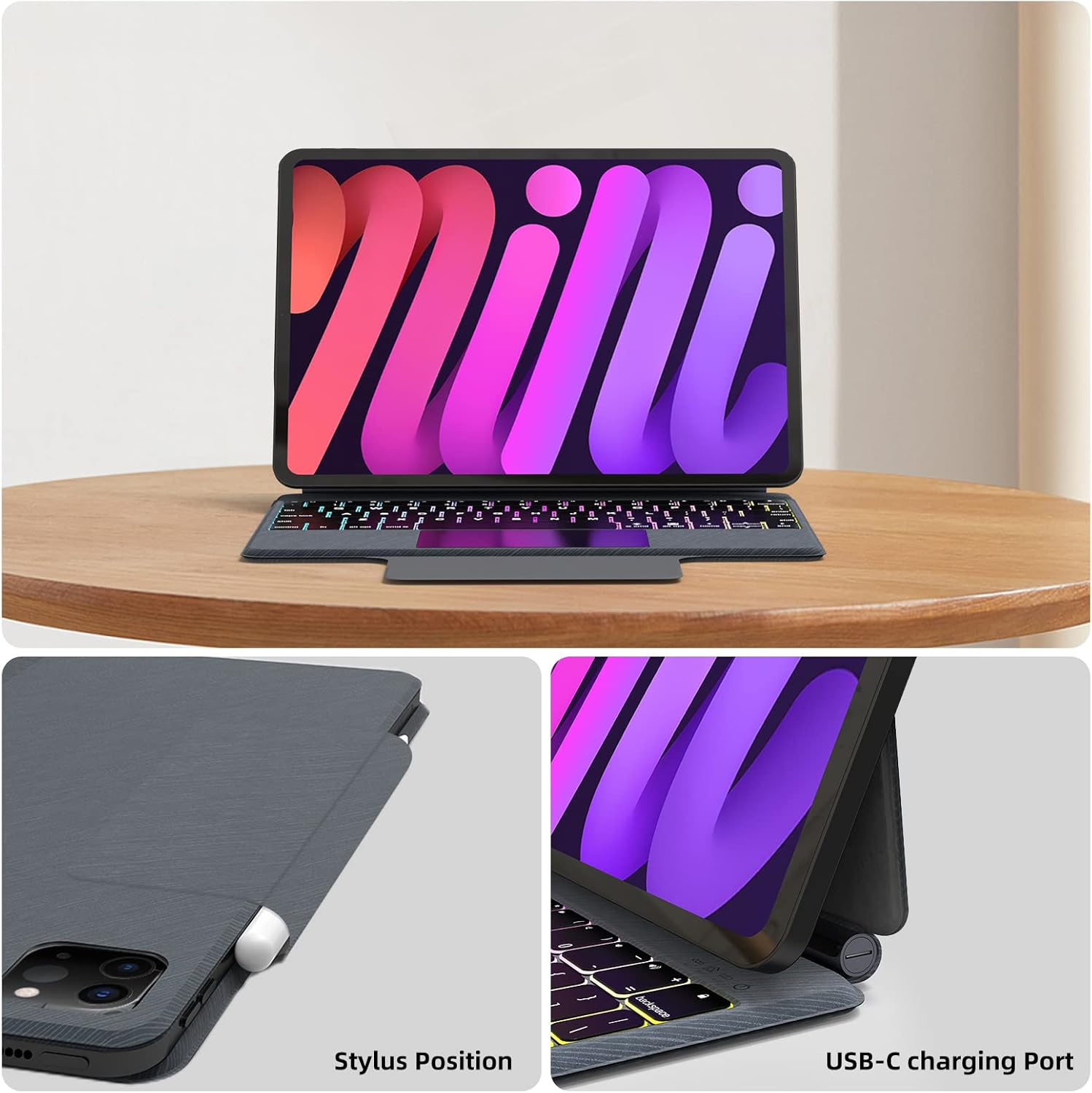
Foto nke 4: Ebe ọdụ ụgbọ mmiri chaja USB-C dị.
3.2. Ịtinye iPad gị
- Mepee igbe ahụigodo.
- Align your compatible iPad with the magnetic back panel of the case. The iPad will magnetically snap into place.
- Adjust the iPad to your desired viewing angle. The floating cantilever stand allows for flexible positioning.
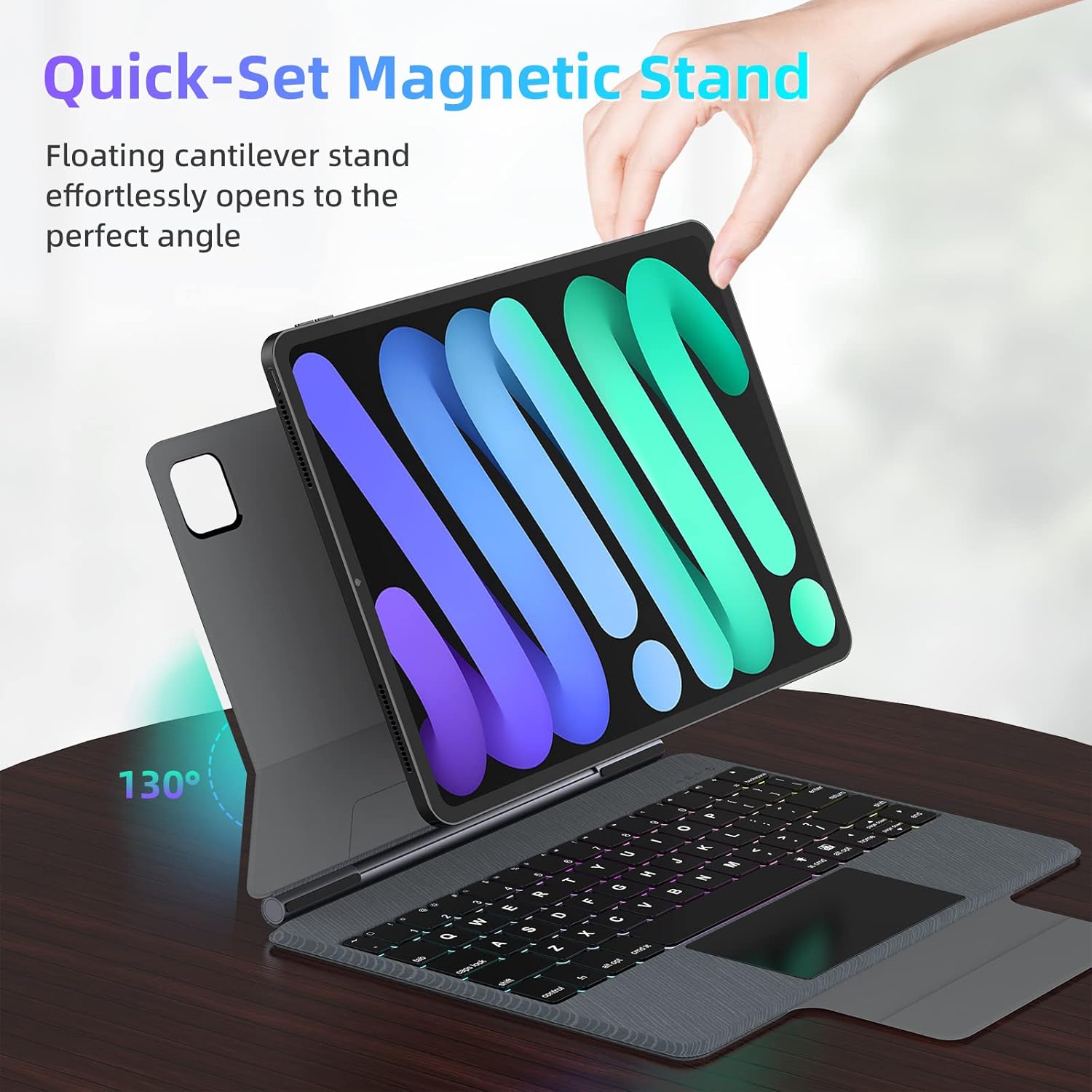
Figure 5: Floating magnetic design and adjustable stand.

Figure 6: Quick-set and folding stand mechanism.
3.3. Njikọ Bluetooth
- Gbaa mbọ hụ na agbanyere na agbanyere ahụigodo.
- Na iPad gị, gaa na Ntọala > Bluetooth.
- Gbanye Bluetooth. iPad gị ga-achọ ngwaọrụ ndị dị nso.
- Select "UOGIC Keyboard" (or similar name) from the list of available devices.
- Soro mkpali na ihuenyo ọ bụla iji mezue usoro njikọta.
4. Ntuziaka ọrụ
4.1. Ọrụ ahụigodo
- Ìhè azụ: The keyboard features 7 customizable backlight modes and 3 adjustable brightness levels. Use the dedicated backlight key (often Fn + Light icon) to cycle through modes and adjust brightness.
- Ergonomic Keys: The keys are designed for comfortable and efficient typing.
- Uzo mkpirisi: Utilize the top row of keys for quick access to iPadOS functions such as brightness, volume, and media controls.
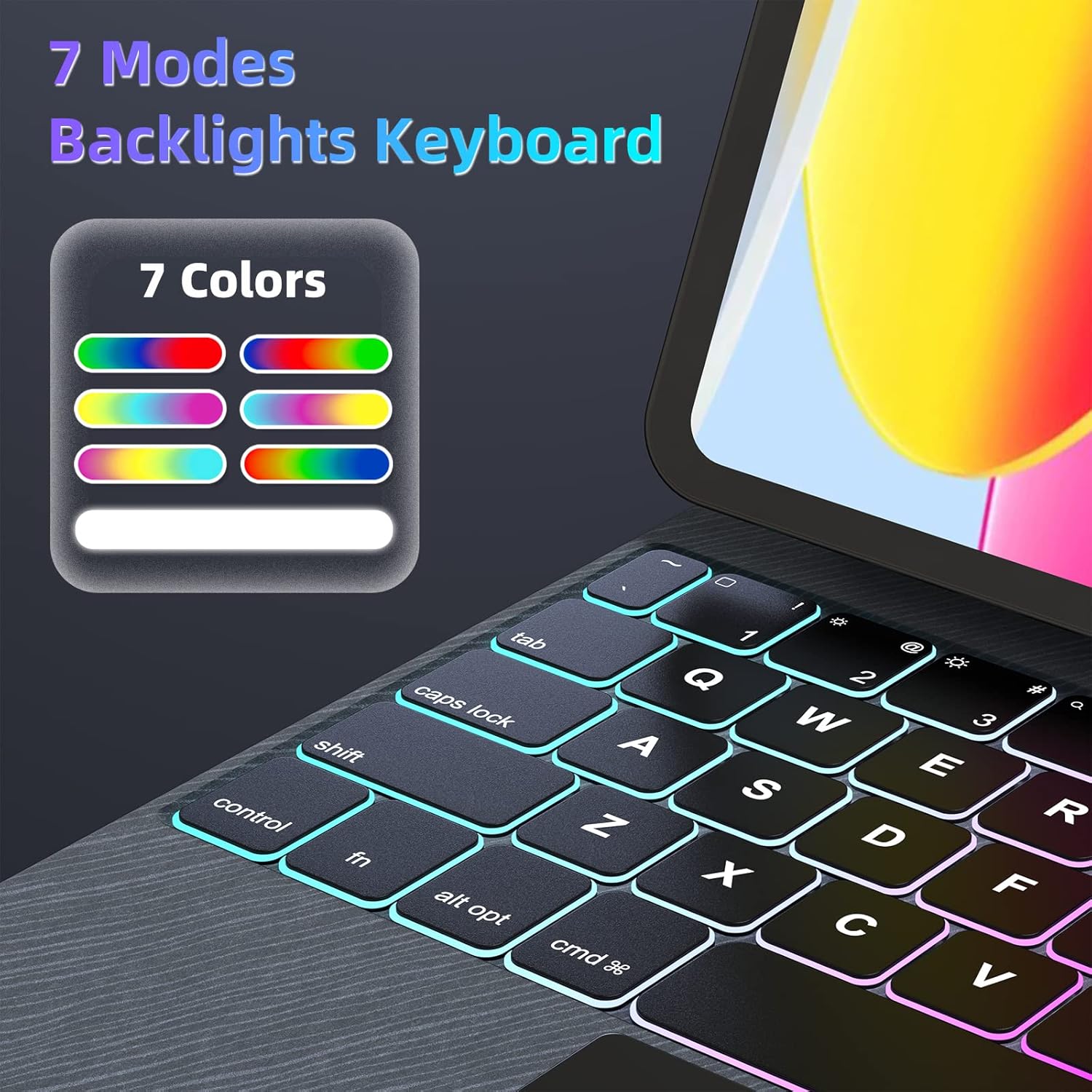
Figure 7: 7-Mode Backlight Keyboard.
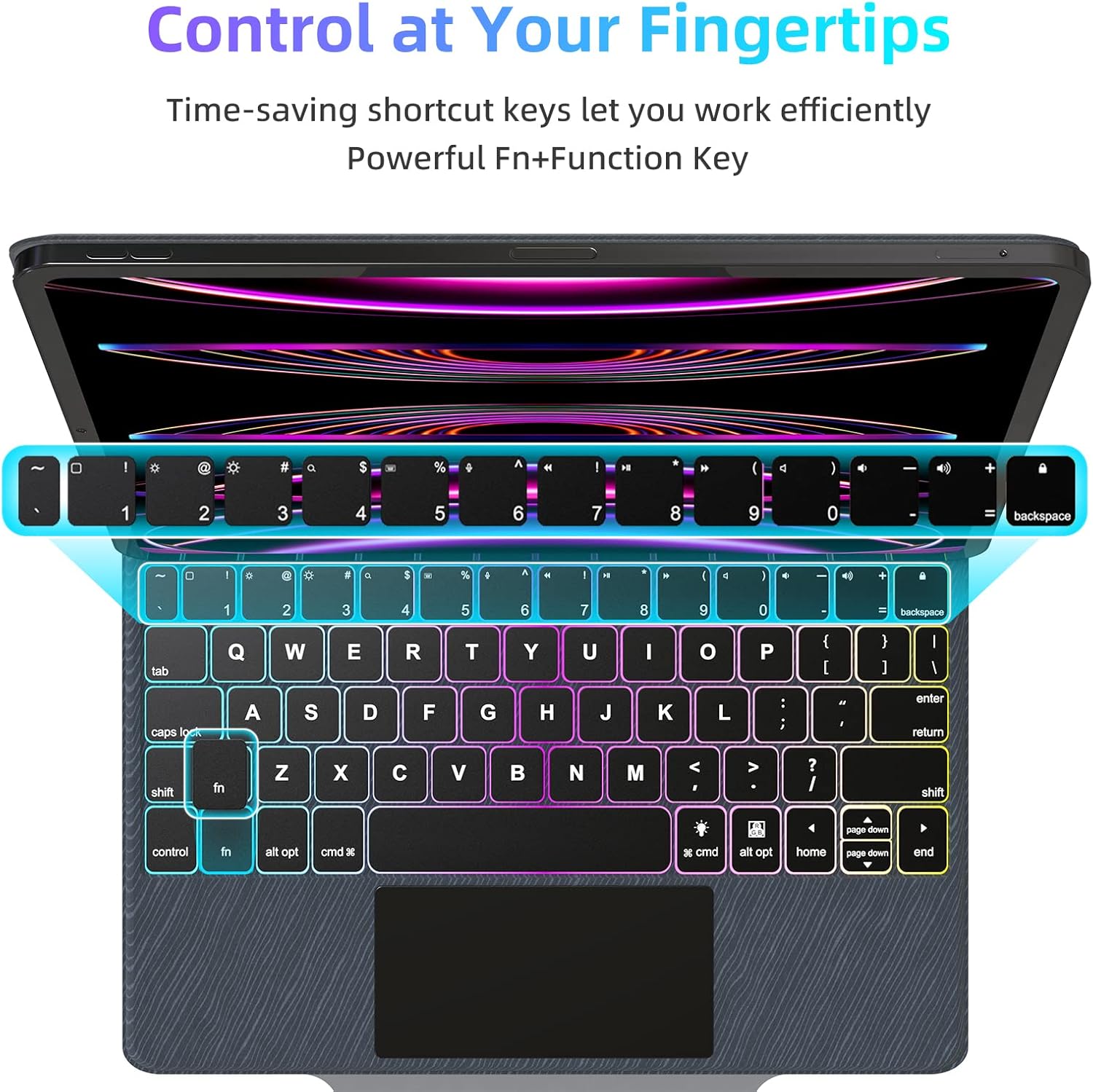
Figure 8: Keyboard shortcut keys for efficient control.

Figure 9: Scissor structure button key for tactile feedback.
4.2. Trackpad Functions
The precision trackpad supports full multi-touch gestures, enhancing navigation and productivity on your iPad.
- Naanị otu mkpịsị aka: Click/select.
- Mpịakọta Mkpịsị Aka Abụọ: Pịgharịa gaa elu/ala ma ọ bụ aka ekpe/aka nri.
- Tụọ ka ọ bụrụ mbugharị: Zoom in/out on content.
- Three-Finger Swipe Up: Gaa na ihuenyo mbụ.
- Three-Finger Swipe Up and Hold: Mepee ngwa Switcher.
- Three-Finger Swipe Left/Right: Gbanwee n'etiti ngwa mepere emepe.
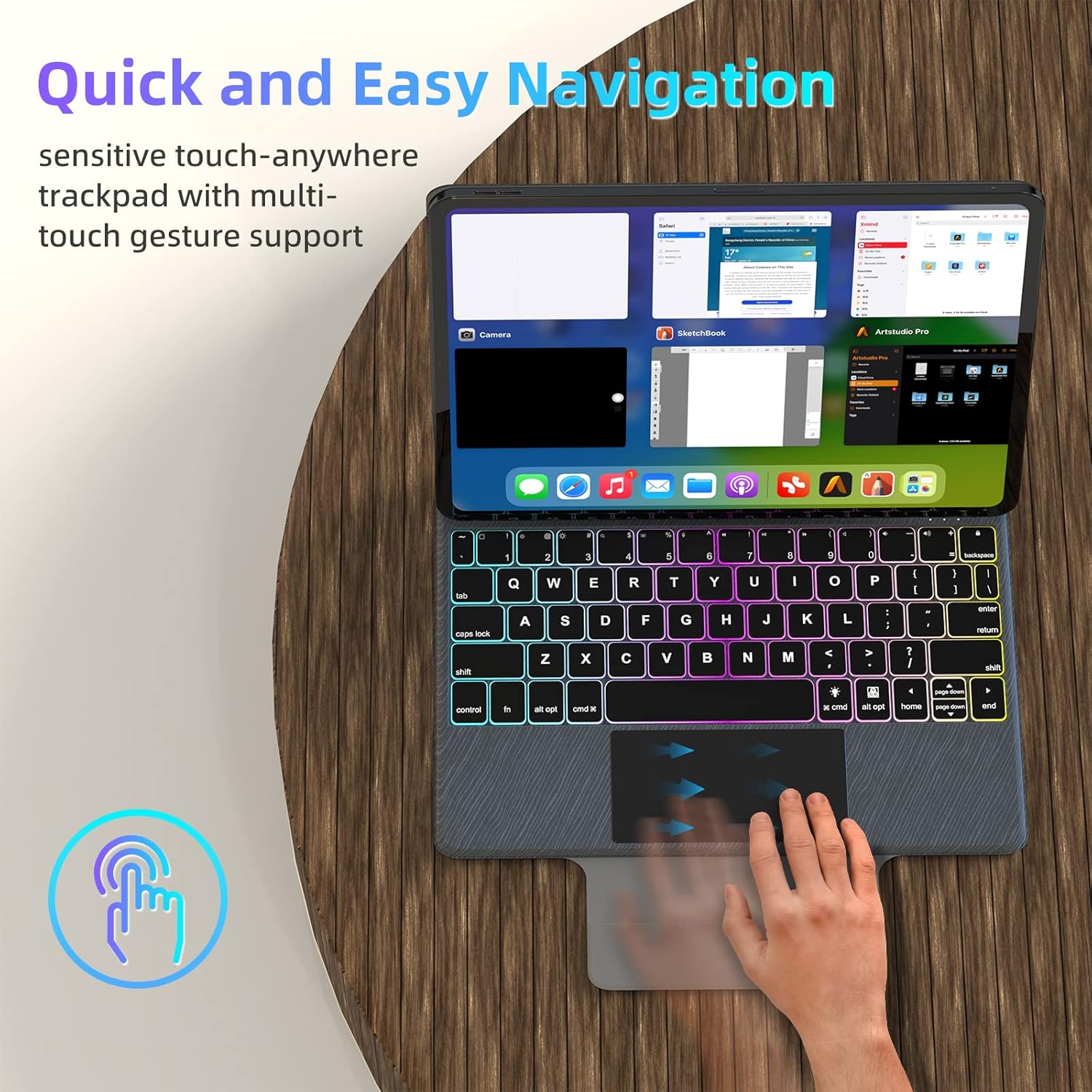
Figure 10: Multi-touch trackpad gestures.
4.3. Njikwa Ike
To conserve battery life, the keyboard case automatically enters sleep mode after 10 minutes of inactivity. It will wake up when a key is pressed or the trackpad is used.

Figure 11: Auto Sleep/Wake feature.
4.4. Stylus Position
The case includes a designated area for securely holding your stylus, ensuring it is always accessible and protected.

Figure 12: Stylus storage position.
5. Nlekọta
5.1. Nhicha
- Gently wipe the keyboard and trackpad surfaces with a soft, lint-free cloth.
- Maka unyi isi ike, ntakịrị dampen akwa na mmiri ma ọ bụ dị nwayọọ, na-adịghị abrasive Cleaner. Zere oke mmiri mmiri.
- Do not spray cleaners directly onto the keyboard or trackpad.
5.2. Nchekwa
- When not in use, fold the case to protect both the iPad and the keyboard.
- Debe akpa ahụ n'ebe dị jụụ ma kpọọ nkụ, ebe anwụ na-anaghị anwụ kpọmkwem na oke okpomọkụ dị oke njọ.
6. Nchọpụta nsogbu
6.1. Ahụigodo Anaghị ejikọta
- Gbaa mbọ hụ na agbanyere na agbanyere ahụigodo.
- Check your iPad's Bluetooth settings to confirm Bluetooth is enabled and the keyboard is listed as 'Connected'. If not, try re-pairing.
- Malitegharịa ma iPad gị na keyboard gị.
6.2. Igodo anaghị aza
- Verify the keyboard is connected via Bluetooth.
- Gbaa mbọ hụ na ahụigodo nwere ụgwọ batrị zuru oke.
- Gbalịa ịkwụsị ma jikọọ njikọ Bluetooth ahụ.
6.3. Trackpad Issues
- Ensure the trackpad surface is clean and free of debris.
- Check iPadOS settings for trackpad sensitivity and gesture configurations.
- If the trackpad is unresponsive, try restarting the keyboard and iPad.
6.4. Ìhè azụ anaghị arụ ọrụ
- Ensure the keyboard has sufficient battery charge, as backlighting consumes more power.
- Press the backlight key (often Fn + Light icon) to cycle through modes and brightness levels.
7. Nkọwapụta
| Njirimara | Nkọwa |
|---|---|
| Ụdị | UOGIC |
| Ngwa dakọtara | iPad Pro 11" (1st/2nd/3rd/4th Gen), iPad Air 10.9" (4th/5th Gen) |
| Teknụzụ Njikọta | Bluetooth, USB-C for charging |
| Nkọwa ahụigodo | Multi Functional, Scissor Structure Button Key |
| Atụmatụ pụrụ iche | Backlit (7 modes, 3 brightness), Ergonomic, Rechargeable, Multi-Touch Trackpad, Floating Magnetic Design, Auto Sleep/Wake |
| Agba | Nwa |
| Ihe onwunwe | Acrylonitrile Butadiene Styrene |
| Ibu Ibu | 2.46 pound |
| Batrị | 1 batrị lithium ion (gụnyere) |
| Ndụ batrị | Up to 70 hours continuous use, 90 days standby |
| Oge Nchaji | Ihe dị ka awa 3 |
8. Akwụkwọ ikike na nkwado
UOGIC provides a 1-year warranty covering any quality-related issues with your Magic Keyboard Case.
For any questions or concerns, our 24/7 online customer support is available to assist you. Please refer to the product packaging or the official UOGIC websaịtị maka nkọwa kọntaktị.