
1. Ozi nchekwa dị mkpa
Please read all instructions carefully before using the JIFAR H6 Projector. Keep this manual for future reference.
- Ekpuchila oghere ikuku. Hụ na ikuku zuru oke gburugburu ihe ngosi ahụ iji gbochie oke okpomọkụ.
- Elela anya ozugbo na oghere projector mgbe lamp Ọ na-agba ọkụ. Ọkụ na-egbuke egbuke nwere ike imebi anya.
- Jiri naanị ihe nkwụnye ike enyere na ihe ngosi ahụ.
- Avoid placing the projector in unstable locations or on uneven surfaces.
- Keep the projector away from water or other liquids. Do not expose it to rain or moisture.
- Wepụ ihe mkpuchi projektọ ahụ n'oge oké ifufe ma ọ bụ mgbe ejiri ya ruo ogologo oge.
- Do not attempt to repair the projector yourself. Refer all servicing to qualified service personnel.
2. Ngwaahịa gafereview
The JIFAR H6 Projector is a native 1080P projector designed for a superior viewing experience with a large screen display capability.
Ihe ngwugwu 2.1
Chọpụta na etinyere ihe niile na ngwugwu gị:
- JIFAR H6 Projector
- Akpa na-ebu
- Njikwa anya (batrị etinyeghị)
- Igwe ọkụ ọkụ
- HDMI USB
- Igwe AV
- Akwụkwọ ntuziaka (akwụkwọ a)
2.2 Ihe Ndị Na-egosi Ihe Nlereanya
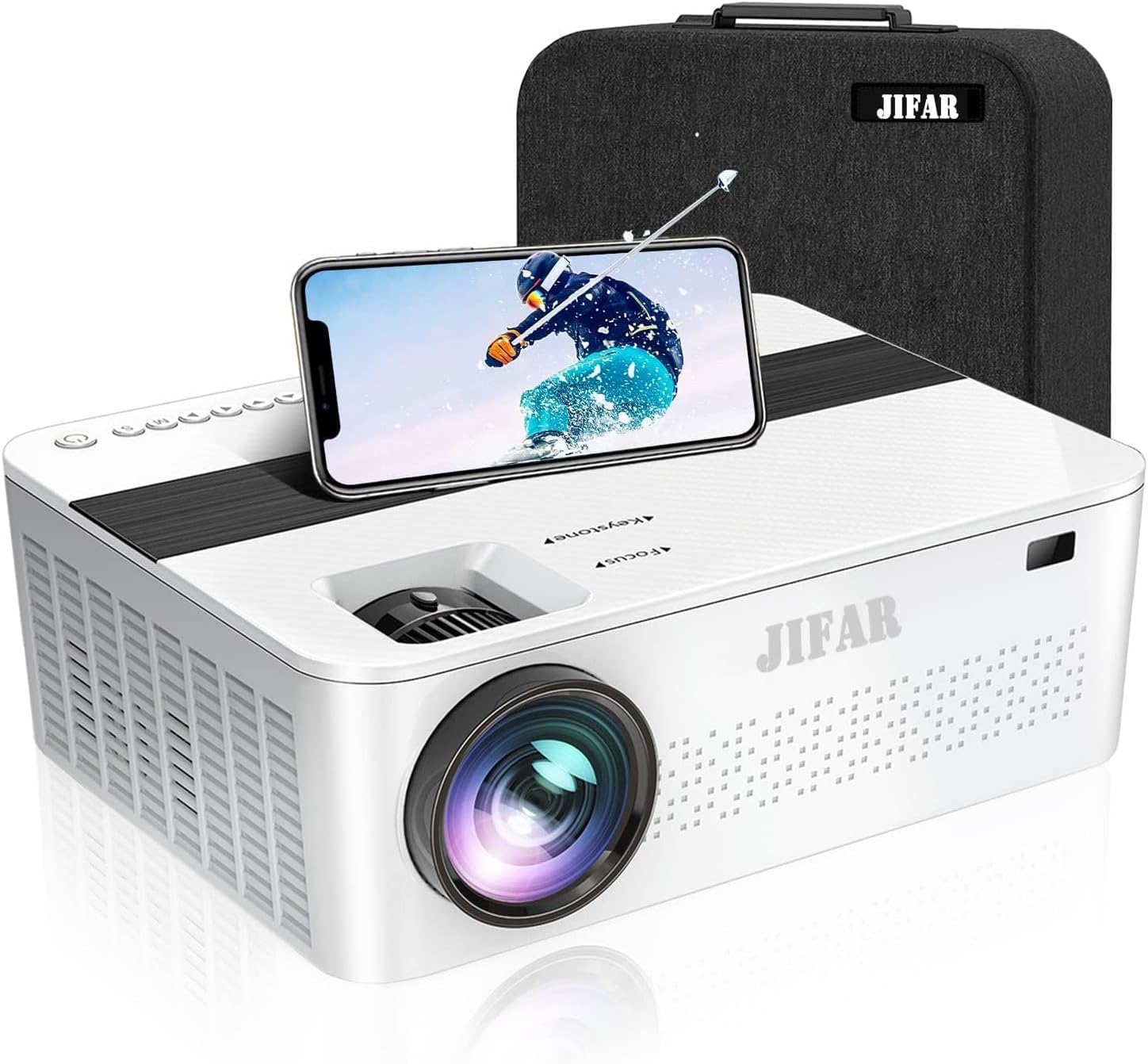
Foto 2.1: N'ihu view of the JIFAR H6 Projector, showing the lens, control panel, and a smartphone placed on top, alongside its carrying bag.

Figure 2.2: Various features of the JIFAR H6 Projector, including options for ceiling mounting (M4*10mm), efficient fan cooling, zoom capability (-50%), and integrated Hi-Fi stereo speakers.
The JIFAR H6 Projector features a robust design with multiple connectivity options and user-friendly controls. Key components include the projection lens, focus ring, keystone correction, various input ports (HDMI, USB, VGA, AV), and integrated speakers.
2.3 Atụmatụ
- Mkpebi 1080P nke obodo: Provides sharp and detailed images with a native resolution of 1920x1080.
- High Brightness & Contrast: Features 10000Lux brightness and a 10000:1 high contrast ratio for vivid projections.
- Large Screen Display: Na-akwado nha amụma site na sentimita iri atọ ruo sentimita iri abụọ.
- Njikọta sara mbara: Includes HDMI, VGA, USB, SD, AV, and TV inputs, along with audio out.
- Long LED Lamp Ndụ: Igwe ọkụ LED lamp has an impressive lifespan of up to 100,000 hours.
- Dolby Digital & 4K Video Support: Enhances audio and video experience.
- Built-in HiFi Stereo Speakers: Dual 6W speakers provide clear audio without external speakers.
- Ndozi isi okwu: Adjustable keystone for optimal image alignment.

Figure 2.3: Visual comparison illustrating the superior brightness of the JIFAR projector (10000Lux) compared to other projectors (6000Lux).
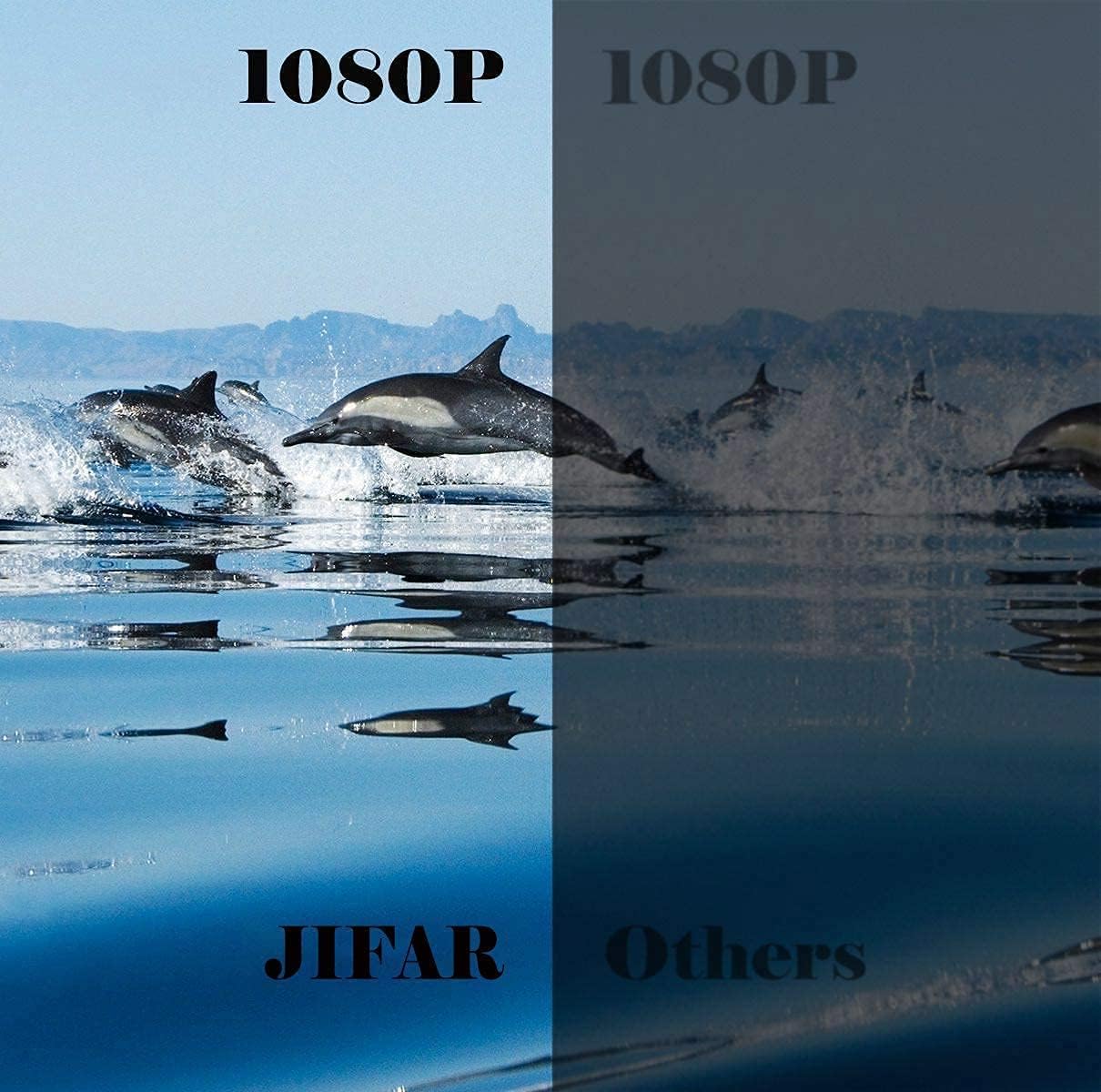
Figure 2.4: Side-by-side comparison demonstrating the enhanced clarity and detail of the JIFAR projector's native 1080P resolution.
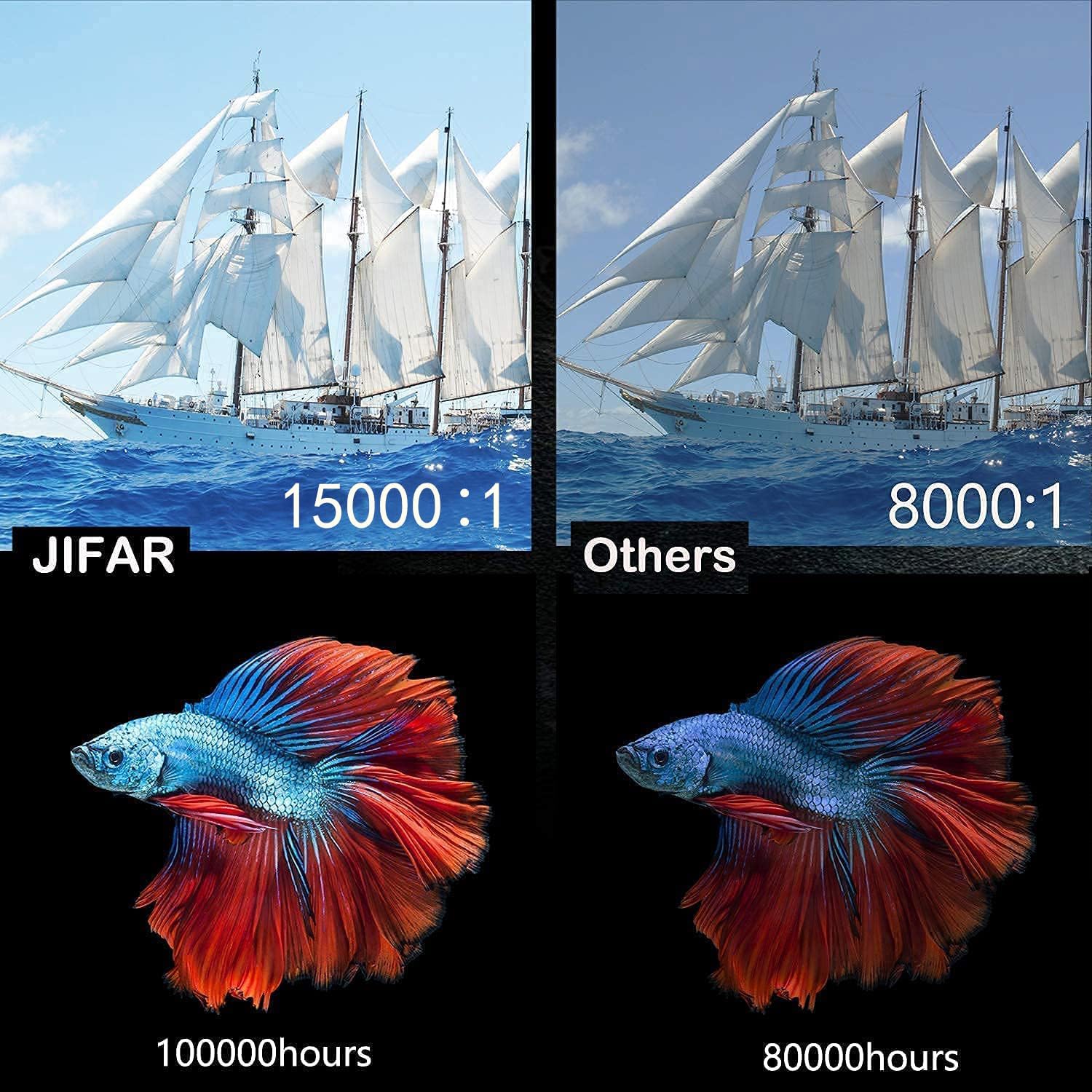
Figure 2.5: Comparison highlighting the JIFAR projector's superior contrast ratio (15000:1) and extended LED lamp life (100,000 hours) compared to typical projectors.
3. Nhazi
3.1 Ntinye
Position the projector on a stable, flat surface or mount it to the ceiling. Ensure the projector is centered with the screen for optimal image alignment. Maintain a clear path for ventilation around the projector.
- For front projection, place the projector in front of the screen.
- For rear projection, place the projector behind a translucent screen.
- For ceiling mount, use appropriate mounting hardware (M4*10mm screws) and ensure the image can be inverted in the settings.
3.2 Njikọ ike
- Jikọọ eriri ọkụ na ọdụ ụgbọ mmiri ntinye ike nke projector.
- Tinye nsọtụ nke ọzọ nke eriri ọkụ n'ime oghere ọkụ.
- Ihe ngosi ọkụ na-egosi ọkụ na projector ga-enwu.
3.3 Ngwaọrụ Ntinye Njikọta
The JIFAR H6 Projector supports various input sources:
- HDMI: Connect a computer, laptop, game console (PS3/PS4, Xbox), or streaming device (Fire Stick) using an HDMI cable.
- USB: Fanye draịvụ USB flash iji kpọọ mgbasa ozi files ozugbo.
- VGA: Connect older computers or laptops using a VGA cable.
- Nke: Connect devices like DVD players using the AV cable.
- Njikọ Smartphone: Use an HDMI adapter (not included) to connect your smartphone.
After connecting a device, ensure you select the correct input source in the projector's menu.
3.4 Mgbanwe nke Isi Ihe na Ndozi
Adjust the image clarity and shape using the rings on the projector lens:
- Mgbado aka mgbanaka: Rotate the focus ring until the projected image appears sharp and clear.
- Ndozi isi okwu: Use the keystone adjustment to correct trapezoidal distortion, ensuring the image is rectangular. This is particularly useful if the projector is not perfectly perpendicular to the screen.
4. Ntuziaka ọrụ
4.1 Gbanyụọ ma ọ bụ gbanyụọ
- Ike Na: Press the power button on the projector or the remote control. The projector will start up and display the main interface.
- Gbanyụọ: Pịa bọtịnụ ike ọzọ. Kwenye mmechi ma ọ bụrụ na kpaliri ya. Kwe ka ihe nrụpụta ahụ daa jụụ tupu ịtọpụ ya.
4.2 Menu Navigation and Input Source Selection
Use the navigation buttons on the projector or remote control to navigate the on-screen menu.
- From the main menu, select "Input Source".
- Choose the desired input (e.g., HDMI1, USB, VGA, AV) corresponding to your connected device.
- Press "OK" or "Enter" to confirm your selection.
4.3 Ntọala ọdịyo
The projector has built-in HiFi stereo speakers. You can adjust the volume using the remote control.
- Njikwa olu: Use the Volume Up/Down buttons on the remote.
- ọdịyo mpụga: For enhanced audio, connect external speakers or a sound system to the projector's audio out port.
- Dolby Digital: Ensure your audio source is compatible with Dolby Digital for optimal sound quality.
4.4 Screen Size Adjustment (Zoom)
The projector supports a screen size range of 60 to 450 inches. You can digitally adjust the screen size (zoom) via the menu.

Figure 4.1: The JIFAR H6 Projector is capable of producing a large 450-inch screen, providing an immersive viewahụmahụ.
Navigate to the "Picture" or "Display" settings in the menu to find the zoom or screen size adjustment option. This allows you to reduce the image size without moving the projector.
5. Nlekọta
Proper maintenance ensures the longevity and optimal performance of your JIFAR H6 Projector.
5.1 Ihicha oghere
Use a soft, lint-free cloth specifically designed for optical lenses. Gently wipe the lens to remove dust or smudges. Do not use abrasive cleaners or excessive force, as this can scratch the lens.
5.2 Ịhicha Ahụ Ihe Nlereanya
Wipe the exterior of the projector with a soft, dry cloth. For stubborn dirt, a slightly damp cloth can be used, but ensure no moisture enters the ventilation openings or ports.
5.3 Nchekwa
When not in use for extended periods, store the projector in its carrying bag in a cool, dry, and dust-free environment. Avoid extreme temperatures or high humidity.
6. Nchọpụta nsogbu
If you encounter issues with your JIFAR H6 Projector, refer to the following common problems and solutions:
| Nsogbu | Ihe nwere ike ime | Ngwọta |
|---|---|---|
| Ọnweghị onyonyo atụpụtara | Power cable loose; Incorrect input source; Device not connected properly. | Check power connection; Select correct input source; Reconnect input device. |
| Onyonyo na-agba agba | Agbanweghị ihe ndị a na-elekwasị anya; ihe ngosi dị nso/dị anya na ihuenyo. | Adjust the focus ring; Adjust projection distance. |
| Foto a bụ trapezoidal | Ihe ngosi onyonyo anaghị adabara na ihuenyo ahụ. | Adjust keystone correction. |
| Enweghị ụda | Volume too low; Muted; External audio device not connected/configured. | Mee ka olu dịkwuo elu; Kwụpụ ogbi; Lelee njikọ ọdịyo dị na mpụga. |
| Njikwa anya anaghị arụ ọrụ | Batrị nwụrụ anwụ/tinye na-ezighi ezi; Ihe mgbochi n'etiti remote na projector. | Dochie batrị; Gbaa mbọ hụ na anya doro anya na onye nnata IR. |
If the problem persists, please contact JIFAR customer support.
7. Nkọwapụta
Detailed technical specifications for the JIFAR H6 Projector:
| Ụdị | JIFAR |
| Nọmba nlereanya | H6 |
| Ngosipụta mkpebi | 1920 x 1080 (Ndepụta 1080P) |
| Icha ọkụ | 10000 Lux |
| Ọnụọgụ ọdịiche | 10000:1 |
| Akụkụ akụkụ | 16:9 / 4:3 |
| Nha amụma | 60-450 sentimita asatọ |
| Ọkụ Lamp Ndụ | Ruo awa iri abụọ |
| Teknụzụ Njikọta | HDMI, VGA, USB, SD, AV, TV |
| Ụdị Ọkà Okwu | Built-in HiFi Stereo (6W dual) |
| Akụkụ ngwaahịa | 12 x 9.4 x 4 sentimita asatọ |
| Ibu Ibu | 8 pound |
8. Akwụkwọ ikike na nkwado
JIFAR provides comprehensive support for your H6 Projector.
- Lifetime Professional Technical Support: JIFAR offers 7x24 hours and lifetime professional technical support for the H6 Projector.
- For any problems or inquiries, please feel free to contact JIFAR customer service at any time.
- Gaa leta onye ọrụ ahụ JIFAR Store on Amazon maka ozi ndị ọzọ na mmelite ngwaahịa.