
1. Okwu mmalite
Daalụ maka ịzụrụasing the BYINTEK R17 Pro Portable Smart 3D DLP Projector. This manual provides essential information for safe and effective use of your device. Please read it thoroughly before operation and retain it for future reference.
The BYINTEK R17 Pro is a versatile portable projector featuring Android 9.0 OS, 4K decoding support, 3D capabilities, and a built-in battery, making it ideal for various entertainment and presentation needs. It also supports multiple languages including English, Russian, Arabic, Korean, Japanese, French, German, Italian, Spanish, Chinese, Vietnamese, Polish, and Traditional Chinese.
2. Ozi nchekwa
- Elela anya ozugbo na oghere projector mgbe lamp dị na.
- Keep the projector away from water or other liquids to prevent electric shock.
- Akwụsịla oghere ikuku iji gbochie ikpo oke ọkụ.
- Jiri naanị ihe nkwụnye ọkụ nke onye nrụpụta nyere.
- Zere idobe ihe nrụpụta n'elu ebe anaghị akwụsi ike.
- Agbalịla ịkwatu ma ọ bụ rụzie ihe onyonyo ahụ n'onwe gị. Kpọtụrụ ndị ọrụ ruru eru.
- Chekwaa ihe nrụpụta ahụ n'ebe dị jụụ, kpọrọ nkụ mgbe ọ naghị eji ya.
3. Ihe ngwugwu
Biko lelee ọdịnaya ngwungwu mgbe ị na-ebupụ igbe iji hụ na ihe niile dị:
- BYINTEK R17 Pro Projector
- Ihe nkwụnye ọkụ
- Njikwa anya
- Akwụkwọ ntuziaka (akwụkwọ a)
- HDMI USB (nwere ike ịdị iche site na mpaghara)

Foto: Akụkụ zuru ezu view of the BYINTEK R17 Pro projector, highlighting its compact and portable design.
4. Ntuziaka Nhazi
4.1 Gbanyụọ/ gbanyụọ
- Njikọ Ike: Plug the power adapter into the projector's DC input port and then into a power outlet.
- Ike Na: Press the power button on the projector or the remote control. The indicator light will turn on.
- Gbanyụọ: Press the power button again. Confirm shutdown if prompted.
4.2 Placement and Projection
Position the projector on a stable, flat surface. Ensure there are no obstructions in front of the lens. The ideal projection distance ranges from 1 to 8 meters, producing a screen size of 30 to 300 inches.
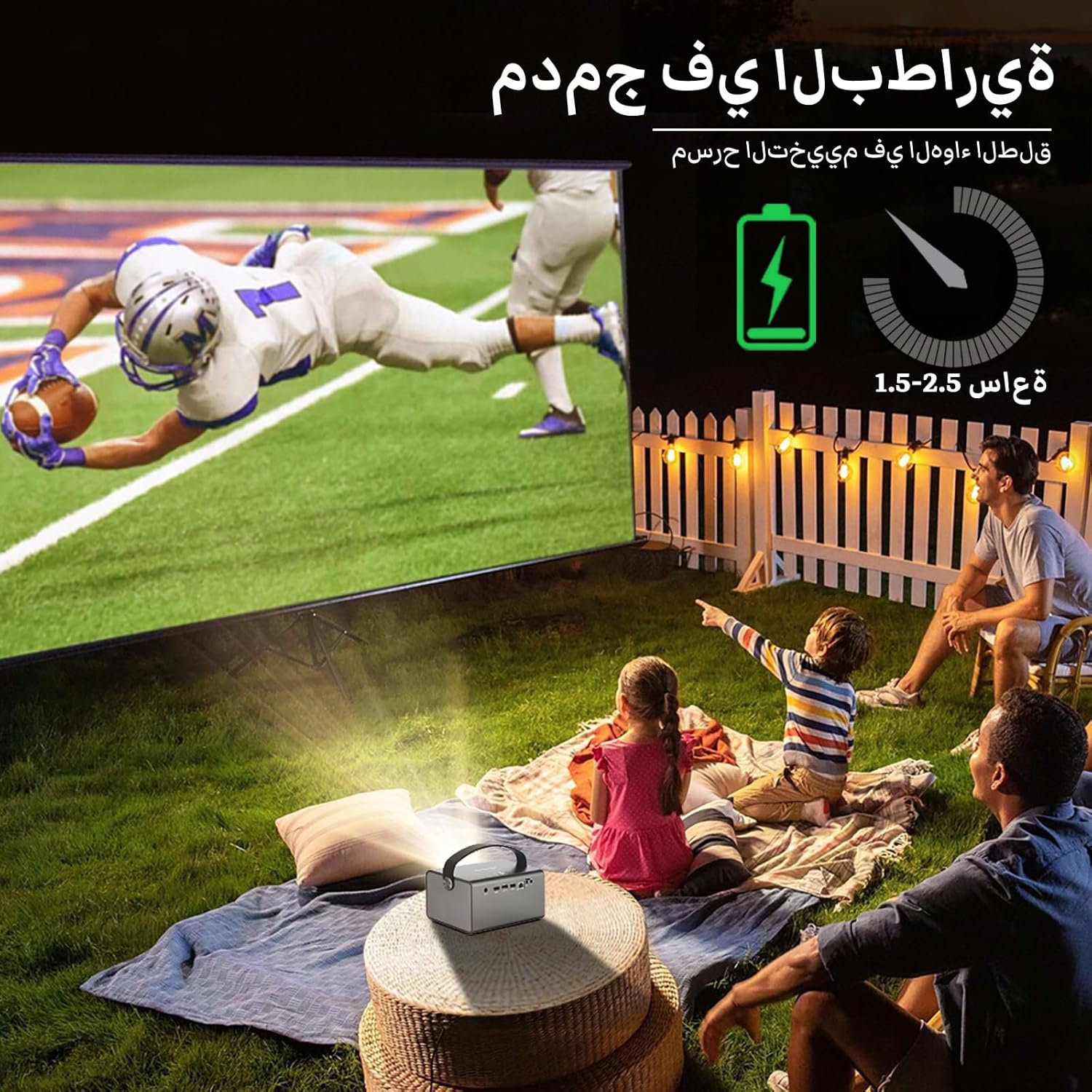
Image: The BYINTEK R17 Pro projector in an outdoor setting, demonstrating its portable use for entertainment. The image shows a football game projected onto a large screen, with people watching comfortably. This highlights the projector's battery life and suitability for outdoor events.
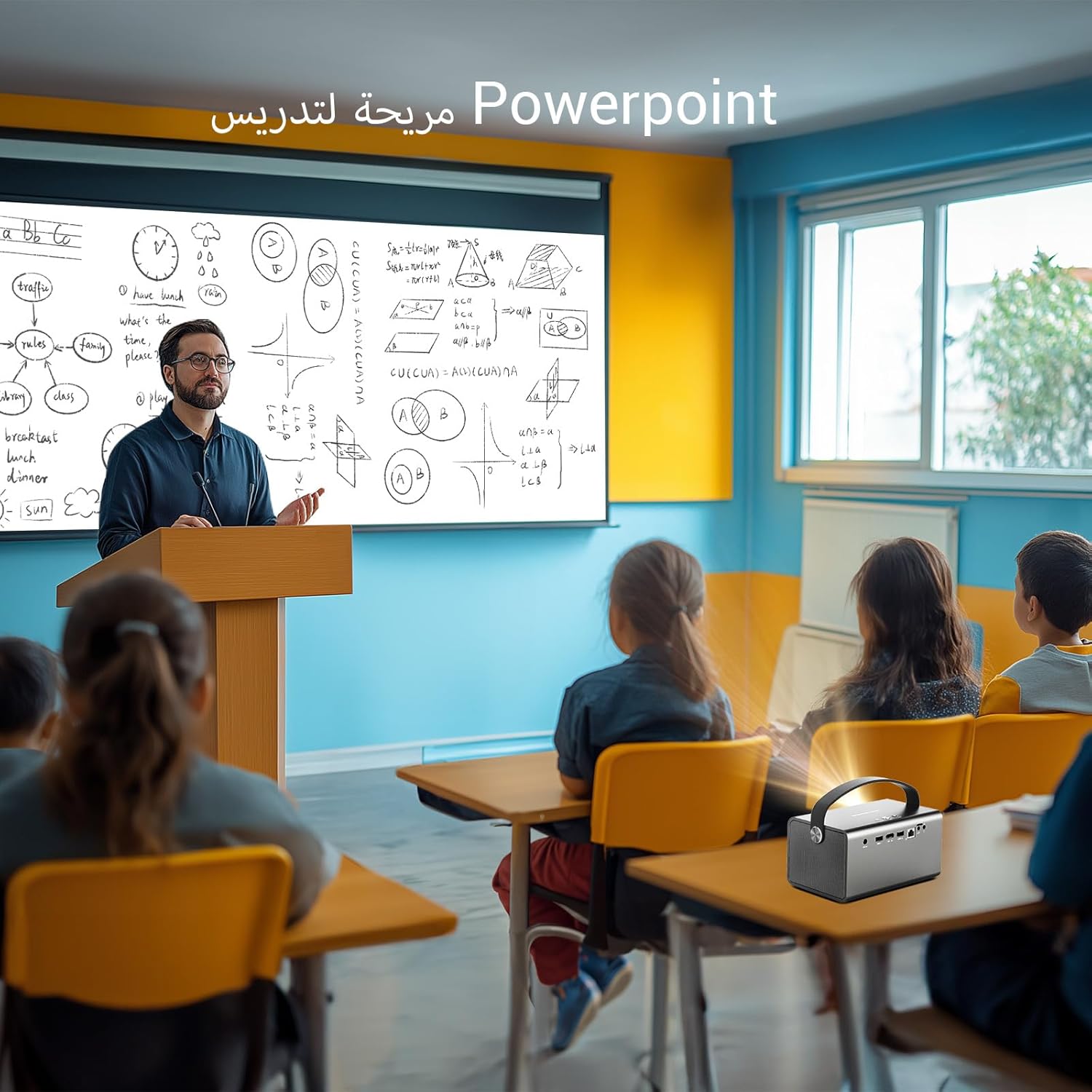
Image: The BYINTEK R17 Pro projector being used in a classroom to display a PowerPoint presentation. This illustrates its utility for educational purposes and presentations in various environments.
4.3 Ndozi Isi Ihe na Ndozi Isi Ihe
- Eletrik lekwasịrị anya: Use the remote control to adjust the focus until the image is clear.
- Ndozi nkume igodo akpaaka: The projector supports automatic vertical keystone correction.
- Ndozi isi okwu n'aka: For side projections or specific adjustments, use the manual keystone correction feature via the settings menu. This includes corner keystone correction.
5. Ọrụ
5.1 Navigating the Android 9.0 System
The BYINTEK R17 Pro runs on Android 9.0, providing a smart interface. Use the remote control or a connected air mouse to navigate through menus, launch applications, and adjust settings.
- Ihuenyo ụlọ: Access pre-installed apps and system settings.
- Ụlọ ahịa ngwa: Download additional applications for streaming, productivity, or gaming.
- Ntọala: Configure Wi-Fi, Bluetooth, display, sound, and other system preferences.
5.2 Mgbasa ozi
The projector supports various media formats and sources:
- Nchekwa USB: Connect a USB drive or SSD (up to 32GB) to play videos, music, or view foto.
- Ngụghari n'ịntanetị: Use pre-installed or downloaded streaming apps via Wi-Fi.
- Ọdịnaya 3D: The projector supports Blu-ray 3D. Ensure your 3D content and glasses are compatible.

Image: A couple enjoying a Blu-ray 3D movie projected by the BYINTEK R17 Pro. The image showcases the projector's ability to display immersive 3D content with vivid colors.
5.3 Screen Mirroring (Wi-Fi Display)
Mirror your smartphone, tablet, or computer screen wirelessly to the projector using Airplay, Miracast, or DLNA (Eshare app is pre-installed).
- Ensure both your device and the projector are connected to the same Wi-Fi network.
- Open the Eshare app on the projector.
- On your mobile device, activate screen mirroring (e.g., Airplay for iOS, Smart View/Screen Cast for Android).
- Select the projector from the list of available devices.

Image: The BYINTEK R17 Pro projector wirelessly displaying a racing game from a smartphone. This demonstrates the screen mirroring feature for gaming and mobile content.
6. Njikọta
The BYINTEK R17 Pro offers multiple connectivity options:
- HDMI2.0: Connect external devices like game consoles (e.g., PS4), computers, Blu-ray players, or TV boxes. Supports up to 4K input.
- USB 2.0 / USB 3.0: For connecting USB storage devices, external mice, game controllers, or 2.4GHz air mice.
- Apụọ ọdịyo: Jikọọ ọkà okwu mpụga ma ọ bụ ekweisi maka ọdịyo emelitere.
- Wi-Fi (2.4GHz/5GHz): For internet access and wireless screen mirroring.
- Bluetooth Bluetooth: For connecting Bluetooth speakers, headphones, or other compatible accessories.
7. Nlekọta
7.1 Ihicha oghere
Use a soft, lint-free cloth specifically designed for optical lenses. Do not use abrasive cleaners or excessive force, as this can scratch the lens.
7.2 Ịhicha Ahụ Ihe Nlereanya
Wipe the exterior of the projector with a soft, dry cloth. Avoid using chemical cleaners that may damage the finish.
7.3 Nchekwa
When not in use for extended periods, store the projector in its original packaging or a protective case in a cool, dry, dust-free environment.
8. Nchọpụta nsogbu
| Nsogbu | Ihe nwere ike ime | Ngwọta |
|---|---|---|
| Ọnweghị onyonyo egosiri | Power not connected; input source incorrect; lens cap on. | Check power connection; select correct input source (HDMI, USB, etc.); remove lens cap. |
| Onyonyo na-agba agba | Focus not adjusted; projector too far/close. | Adjust electric focus using the remote; reposition the projector within optimal distance. |
| Ihe onyonyo agbagọ (ọdịdị trapezoid) | Keystone correction needed. | Use auto or manual keystone correction in settings. |
| Enweghị ụda | Volume too low; external speakers not connected/configured; audio output muted. | Increase volume; check external speaker connection; unmute audio. |
| Nsogbu njikọ Wi-Fi | Incorrect password; out of range; router issues. | Verify password; move closer to router; restart router and projector. |
| Ihe ngosiputa ahụ gbanyụrụ na mberede | Ọkụ oke; obere batrị. | Ensure ventilation is clear; charge the battery or connect to power. |
9. Nkọwapụta
| Njirimara | Nkọwa |
|---|---|
| Ụdị | BYINTEK |
| Nlereanya | R17 Pro |
| Igwe ọkụ ọkụ | TI 0.47 inch DMD WVGA |
| Isi Iyi Ìhè | OSRAM RGB 3LED |
| Ndụ Ìhè | awa 50,000 |
| Icha ọkụ | 750 ANSI Oghere |
| Ọnụọgụ ọdịiche | 10,000:1 |
| Mkpebi obodo | 1280 x 800 (supports up to 4K input) |
| Akụkụ akụkụ | 16:10 / 16:9 / 4:3 |
| Gbanyụọ-axis | 100% |
| Tufu Ratio | 1.2:1 |
| Nha amụma | 30-300 sentimita asatọ |
| Ogologo amụma | Mita 1 - 8 |
| Ụdị elekwasị anya | Electric Motor Focus |
| Bugharịa | Remote Electric Zoom |
| Keystone Ndozi | Auto/Manual Vertical, Manual Corner |
| Sistemụ nrụọrụ | Android 9.0 |
| CPU | MTK Contex A53 Quad-core |
| GPU | Mali-G52 |
| RAM | 2GB DDR3 |
| ROM | 32GB EMMC |
| Wi-Fi | Abụọ-band 2.4GHz / 5GHz |
| Bluetooth | Bluetooth 5.0 |
| Ngosipụta Wi-Fi | Airplay, Miracast, DLNA (Eshare pre-installed) |
| Batrị | Built-in 11.1V 5200mAh (15600mAh equivalent) Lithium-ion, 1.5-2.5 hours life |
| Ndị na-ekwu okwu | 2 x 5W Ndị na-ekwu okwu stereo |
| Ntinye ọdụ ụgbọ mmiri | HDMI 2.0 (supports 4K input), USB 2.0, USB 3.0 |
| Ọdụ ụgbọ mmiri mmepụta | Apụọ ọdịyo |
| Akụkụ ngwaahịa | 19.3 x 12.3 x 10 cm |
| Ibu Ibu | 2.34 n'arọ |
| Atụmatụ pụrụ iche | Auto Focus, Built-in Wi-Fi Receiver, Built-in 3D Display, Portable, Built-in Speaker |
10. Akwụkwọ ikike & Nkwado
BYINTEK products come with a standard manufacturer's warranty. Please refer to the warranty card included in your package for specific terms and conditions. For technical support, service, or warranty claims, please contact BYINTEK customer service or visit the official BYINTEK websaịtị.
BYINTEK has a service center in Saudi Arabia to provide professional after-sales service. For more information, please visit the BYINTEK Store on Amazon.