
Okwu mmalite
The Keychron C2 is a full-size (104-key) wired mechanical keyboard designed for both Mac and Windows operating systems. It features durable Red mechanical switches and retro-colored ABS keycaps, providing a comfortable and responsive typing experience. This manual provides essential information for setting up, operating, maintaining, and troubleshooting your Keychron C2 keyboard.

Image: The Keychron C2 Full Size Wired Mechanical Keyboard connected to a computer setup.
Ihe ngwugwu
Gbaa mbọ hụ na ihe niile dị na ngwugwu:
- Keychron C2 Full Size Wired Mechanical Keyboard
- USB-C na eriri USB-A
- Onye na-adọkpụ igodo
- Mgbakwunye igodo maka sistemụ arụmọrụ Mac na Windows
Melite
- Jikọọ ahụigodo: Plug the USB-C end of the provided cable into the keyboard's USB-C port and the USB-A end into an available USB port on your computer. The keyboard is a wired-only device and does not require batteries.
- Select Operating System Mode: Locate the operating system switch on the back or side of the keyboard. Slide the switch to the appropriate position for your computer (Mac or Windows). This ensures correct function key mapping.
- Dezie akụkụ ahụigodo: The keyboard features 2-level adjustable feet. Flip out the feet on the underside of the keyboard to achieve your preferred typing angle for ergonomic comfort.
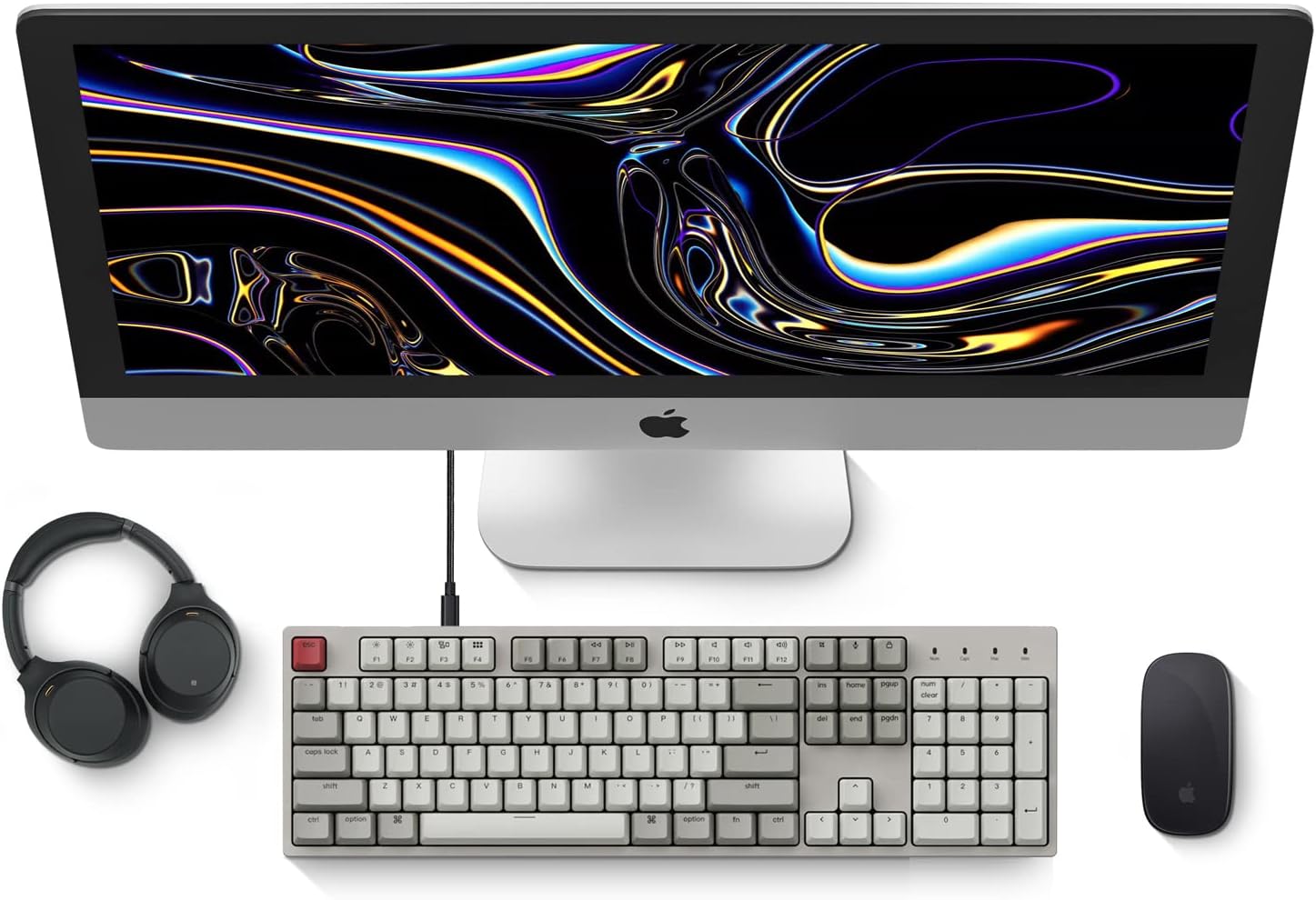
Image: Diagram showing compatibility with Mac and Windows operating systems.

Foto: Akụkụ view of the Keychron C2 keyboard illustrating the adjustable feet for angle customization.
Ntuziaka ọrụ
Ọrụ ndị bụ isi
- Na-ede: The keyboard features a standard 104-key full-size layout.
- Igodo mgbasa ozi: The top row of function keys (F1-F12) includes multimedia controls. These functions are optimized for Mac but are also compatible with Windows.
- Siri/Cortana Key: A dedicated key is provided for activating Siri (on Mac) or Cortana (on Windows).
Ndochi mkpịsị ugodi
The Keychron C2 comes with extra keycaps for both Mac and Windows layouts. To replace keycaps:
- Use the provided keycap puller to gently remove the desired keycap by hooking it onto the keycap and pulling upwards.
- Hazie okpu igodo ọhụrụ ahụ na ogwe aka mgba ọkụ ahụ wee pịa ala nke ọma ruo mgbe ọ pịnyere n'ọnọdụ ya.

Foto: nso nso view of the Keychron Red mechanical switches beneath removed keycaps.
Nlekọta
- Nhicha: Na-ehicha ahụigodo gị mgbe niile iji gbochie uzuzu na ihe mkpofu ịba ụba. Jiri ahịhịa dị nro ma ọ bụ ikuku a kpọchiri akpọchi wepụ ihe ndị dị n'etiti mkpuchi igodo. Maka nhicha elu, jiri obere damp, ákwà na-enweghị lint. Zere kemịkalụ siri ike.
- Nlekọta isi igodo: While durable, avoid excessive force when removing or installing keycaps to prevent damage to the keycap stems or switches.
- Njikwa USB: Ensure the USB-C cable is not bent sharply or placed under heavy objects to prolong its lifespan.

Image: Close-up of the ABS keycaps on the Keychron C2 keyboard.
Nchọpụta nsogbu
- Ahụigodo Anaghị aza:
- Check the USB-C cable connection at both the keyboard and the computer. Ensure it is securely plugged in.
- Gbalịa ijikọ ahụigodo na ọdụ ụgbọ USB dị iche na kọmputa gị.
- Verify that the operating system switch on the keyboard is set correctly (Mac/Windows).
- Malitegharịa ekwentị gị na kọmputa.
- Igodo ndị a kapịrị ọnụ anaghị arụ ọrụ:
- Carefully remove the non-functional keycap using the keycap puller. Inspect the mechanical switch for any visible damage or debris.
- Clean around the switch with compressed air.
- Re-seat the keycap firmly.
- Incorrect Key Output:
- Ensure the operating system switch is set to the correct mode for your computer.
- Check your computer's keyboard settings to ensure the correct layout is selected.
Nkọwapụta
| Njirimara | Nkọwa |
|---|---|
| Ụdị | Keychron |
| Aha Nlereanya | Keychron C2 |
| Nọmba nlereanya | HS-C2K1Z |
| Teknụzụ Njikọta | USB-C (nwere eriri) |
| Ngwa dakọtara | Laptọọpụ, PC |
| Ezinụlọ Sistemu Ọrụ Dakọtara | MacOS, Windows |
| Ọnụọgụ igodo | 104 |
| Ngbanwe Ụdị | Linear (Red Switch) |
| Ihe mkpuchi igodo | ABS (Acrylonitrile Butadiene Styrene) |
| Nhazi ahụigodo | QWERTY |
| Njirimara Pụrụ Iche | Backlit (Single Color) |
| Ibu Ibu | 5390 grams |
| Isi Iyi Ike | Igwe ọkụ eletrik |
Akwụkwọ ikike na nkwado
For warranty information, technical support, or further assistance, please visit the official Keychron website or contact Keychron customer service. Details regarding product registration and specific warranty terms can be found through official Keychron channels.