
Okwu mmalite
The LINQ 9-Port Pro Studio USB-C Docking Station (Model LQ48020) is a versatile multiport hub designed to expand connectivity and storage for your USB-C enabled devices. This device integrates multiple essential ports and an NVMe M.2 SSD enclosure into a single, compact unit, providing high-speed data transfer, video output, network connectivity, and power delivery.

Foto 1: gafereview of the LINQ 9-Port Pro Studio USB-C Docking Station with connected devices, highlighting its various ports and features.
Melite
Follow these steps to set up your LINQ 9-Port Pro Studio USB-C Docking Station:
- Jikọọ na ngwaọrụ nnabata: Plug the integrated USB-C cable from the docking station into a compatible USB-C port on your laptop, tablet, or other host device. Ensure the USB-C port on your host device supports DisplayPort Alternate Mode (Alt Mode) and Power Delivery for full functionality.
- Njikọ Ike (Nhọrọ mana akwadoro): For optimal performance and to charge your host device, connect a USB-C Power Delivery (PD) charger (up to 100W) to the docking station's USB-C PD input port.
- Nwụnye NVMe M.2 SSD:
- Carefully open the NVMe enclosure cover on the docking station.
- Insert your NVMe M.2 SSD into the designated slot. Ensure it is properly seated.
- Secure the SSD with the provided fastener (if applicable).
- Close the enclosure cover securely.

Foto 2: Installation of an NVMe M.2 SSD into the docking station's dedicated enclosure.
- Ngwa njikọ: Connect your desired peripherals (monitor, keyboard, mouse, Ethernet cable, SD card, USB drives) to the corresponding ports on the docking station.
Ntuziaka ọrụ
The docking station provides a variety of ports for enhanced functionality:
- USB-C Power Delivery (PD) Port: Connect your USB-C power adapter to this port to charge your host device (up to 100W) and power the docking station simultaneously.
- Ọdụ ụgbọ mmiri HDMI 2.0: Connect an HDMI cable from this port to an external monitor or display for video output up to 4K resolution at 60Hz.
- USB 3.2 Gen 2 ọdụ ụgbọ mmiri: Utilize the USB-A and USB-C data ports for connecting external storage devices, keyboards, mice, or other USB peripherals. These ports support data transfer speeds up to 10 Gigabits per second (10Gbps).
- 2.5Gbps Multi-Gigabit Ethernet Port: Connect an Ethernet cable to this port for a stable and high-speed wired network connection, supporting speeds up to 2.5 Gigabits per second (2.5Gbps).
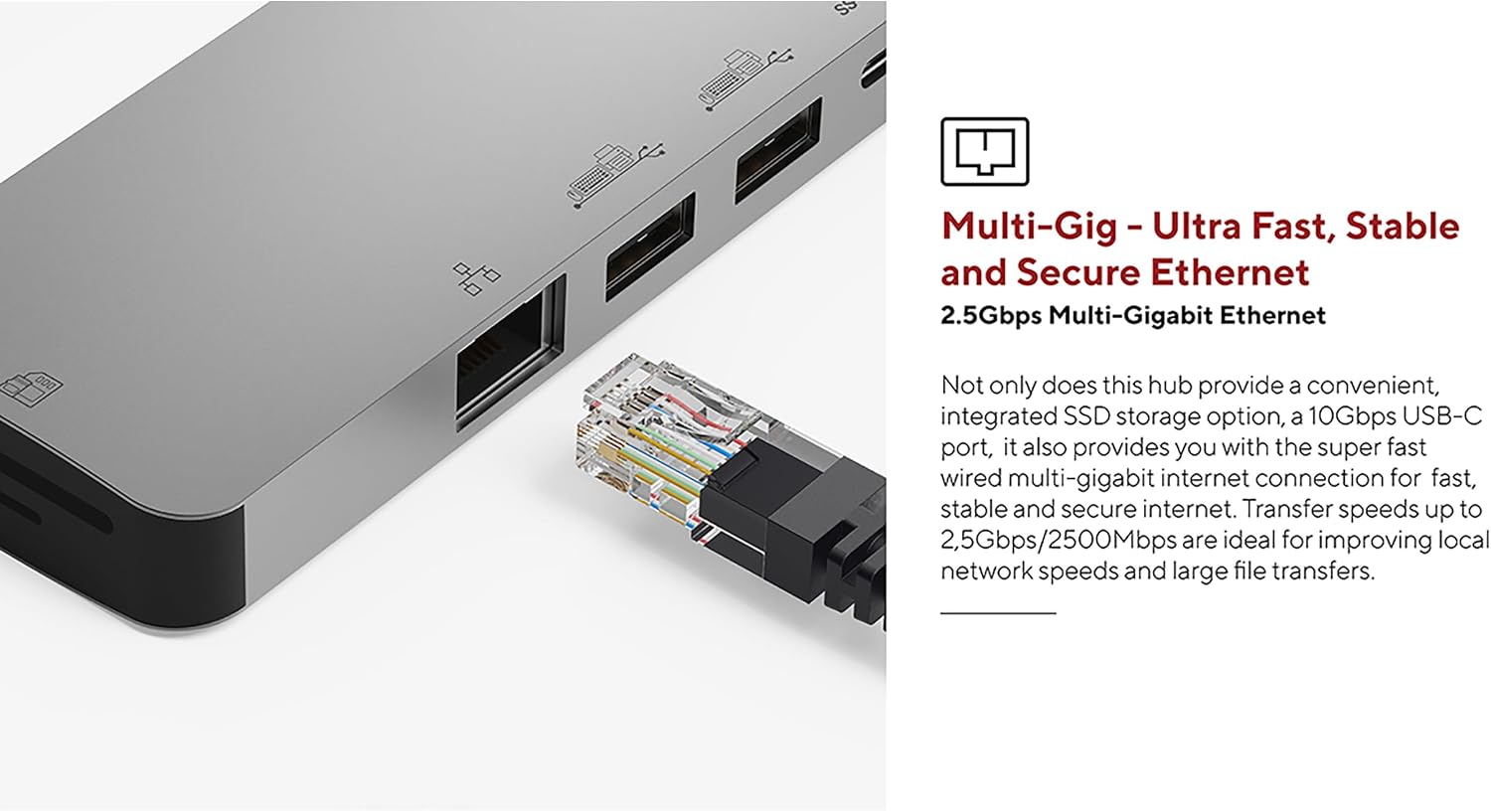
Foto 3: The 2.5Gbps Multi-Gigabit Ethernet port for high-speed wired network access.
- UHS-II SD 4.0 Card Reader: Insert an SD card into the card reader slot for fast data transfer, supporting speeds up to 300MB/s. This is ideal for photographers and videographers.

Foto 4: The UHS-II SD 4.0 Card Reader for high-speed memory card access.
- NVMe M.2 SSD Enclosure: The integrated NVMe M.2 SSD enclosure allows you to expand your storage with an NVMe SSD, providing data transfer speeds up to 10Gbps. This is suitable for fast backups and quick access to large files.

Foto 5: The docking station in use, demonstrating multiple connected peripherals.
Nlekọta
Iji hụ na ogologo ndụ na arụmọrụ kacha mma nke ọdụ ụgbọ mmiri gị, soro ntuziaka mmezi ndị a:
- Nhicha: Use a soft, dry, anti-static cloth to clean the exterior of the docking station. Avoid using liquid cleaners or solvents, as they may damage the finish or internal components.
- Nchekwa: Mgbe ị na-ejighị ya, debe ebe a na-adọba ụgbọala n'ebe dị jụụ ma kpọọ nkụ, ebe anwụ na-anaghị apụta kpọmkwem ma ọ bụ oke okpomọkụ.
- Igwe ikuku: Ensure the docking station has adequate airflow around it during operation to prevent overheating, especially when multiple high-power devices or an NVMe SSD are in use.
- Nlekọta USB: Avoid bending or twisting the integrated USB-C cable excessively. Always grasp the connector when plugging or unplugging to prevent damage to the cable or port.
Nchọpụta nsogbu
Ọ bụrụ na ị hụ nsogbu na ọdụ docking gị, lee nsogbu na ngwọta ndị a na-ahụkarị:
- Enweghị mmepụta ihe ngosi:
- Ensure your host device's USB-C port supports DisplayPort Alt Mode.
- Check that the HDMI cable is securely connected to both the docking station and the monitor.
- Verify the monitor input source is set correctly (e.g., HDMI 1, HDMI 2).
- Try connecting the monitor directly to your host device (if possible) to rule out monitor or cable issues.
- Achọpụtaghị ngwaọrụ USB:
- Ensure the docking station is properly connected to your host device.
- Try connecting the USB device to a different port on the docking station.
- Connect the USB device directly to your host device to confirm it is functional.
- If using high-power USB devices, ensure a power adapter is connected to the docking station's PD port.
- Ọsọ mbufe data dị nwayọ:
- Ensure your connected devices and cables support the advertised speeds (e.g., USB 3.2 Gen 2 for 10Gbps).
- Verify that your host device's USB-C port supports the necessary bandwidth.
- Avoid using excessively long or low-quality cables.
- Okwu njikọ netwọkụ:
- Check the Ethernet cable connection to both the docking station and your router/modem.
- Verify that your network drivers are up to date on your host device.
- Test your Ethernet cable and network connection with another device if possible.
- NVMe SSD Not Detected:
- Ensure the NVMe SSD is correctly installed and seated firmly in its slot.
- Check your operating system's disk management utility to see if the drive is detected but uninitialized or unformatted.
- Ensure the SSD is an NVMe M.2 drive; SATA M.2 SSDs are not supported.
Nkọwapụta
| Njirimara | Nkọwapụta |
|---|---|
| Nọmba nlereanya | LQ48020 |
| Akụkụ (L x W x H) | 21.5 x 8 x 21.5 cm (approx. 4.6 x 7.92 x 0.95 cm for main unit) |
| Ibu | 119 grams |
| Ihe onwunwe | Aluminom |
| Agba | Agba ntụ |
| Mgbakọta ọdụ ụgbọ mmiri | 9 |
| Njikọ USB-C | 1 (integrated cable) |
| Nnyefe ike USB-C | Ruo 100W |
| HDMI mmepụta | 4K @ 60Hz (HDMI 2.0) |
| Ọdụ data USB | Multiple (USB-A, USB-C) |
| Ọsọ nfefe data USB | 10 Gigabits per second (USB 3.2 Gen 2) |
| Ọdụ ụgbọ mmiri Ethernet | 2.5Gbps Multi-Gigabit |
| Onye na-agụ kaadị | UHS-II SD 4.0 (up to 300MB/s) |
| NVMe M.2 SSD Mkpuchi | Yes, up to 10Gbps (does not support SATA SSD) |
| Sistemu eji arụ ọrụ dakọtara | Linux (and generally macOS, Windows with USB-C Alt Mode support) |
Akwụkwọ ikike na nkwado
This LINQ 9-Port Pro Studio USB-C Docking Station comes with a Akwụkwọ ikike onye nrụpụta afọ 2.
For technical support, warranty claims, or further assistance, please contact your retailer or visit the official LINQ websaịtị maka ozi kọntaktị.