
1. Okwu mmalite
This manual provides instructions for the installation, operation, and maintenance of the Tongou Smart WiFi DIN Rail Switch (Model: With Power Monitoring 16A). This device allows you to convert conventional small appliances into smart, remotely controllable objects via the Tuya or Smart Life application, and offers comprehensive energy consumption monitoring.
2. Ozi nchekwa
Ịdọ aka ná ntị: Electrical installation should only be performed by a qualified electrician. Ensure power is disconnected before installation to prevent electric shock.
- Voltage ọrụtage: AC 90-240V, 50/60Hz. Ensure your electrical system matches these specifications.
- The device is designed for 1-way circuits and a maximum current rating of 16 Amps. Agafela ọkwa a.
- This switch is not a circuit breaker. It does not provide short-circuit or overload protection. Install it after a differential switch for proper protection.
- The product is made from flame-retardant PA66 material with good conductivity copper contacts (Silver Relay Contacts) for enhanced safety and high-temperature resistance.
- International Protection Rating: IP20. This device is not waterproof and should not be exposed to moisture.
3. Ngwaahịa gafereview
The Tongou Smart WiFi DIN Rail Switch is a compact device designed for integration into your electrical panel. It enables smart control and energy monitoring for connected appliances.
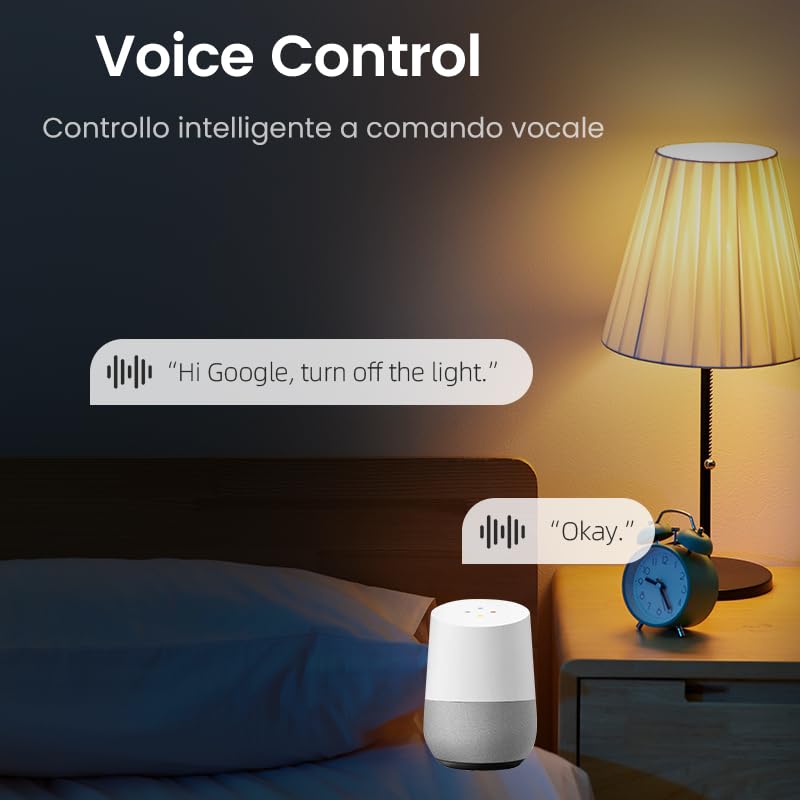
Foto 3.1: N'ihu view of the Tongou Smart WiFi DIN Rail Switch.
Akụkụ ndị bụ isi:
- Njikwa anya: Control appliances via the Tuya or Smart Life app from anywhere.
- Nleba anya ike: Real-time display and historical recording of current, voltage, power, and total energy consumption.
- Njikwa olu: Dakọtara na Amazon Alexa na Google Assistant maka ọrụ na-enweghị aka.
- Ụdị ngụ oge: Includes timer, countdown, cycle timing, and astronomical timing functions.
- Nwụnye dị mfe: Designed for quick wiring and DIN rail mounting.
4. Nkọwapụta
| Oke | Uru |
|---|---|
| Nọmba nlereanya | With Power Monitoring 16A |
| Nrụ ọrụ Voltage | AC 90-240V, 50/60Hz |
| Ogo dị ugbu a | 16 Amps |
| Wattage | 3840 watts (Max) |
| Ụdị ọrụ | ON-Gbanyụọ |
| Protocol Njikọta | Wi-Fi (2.4GHz) |
| Usoro njikwa | App (Tuya/Smart Life), Voice (Alexa/Google Assistant) |
| Akụkụ (L x W x H) | 9 x 2 x 8 cm |
| Ibu Ibu | 110 g |
| Ụdị njedebe | Ịghasa |
| Circuit .dị | 1-ụzọ |
| Ogo nchekwa mba ụwa | IP20 |
| Nleba okpomọkụ | 80 Ogo Celsius |
| Ngwa kọntaktị | Silver Relay Contacts |
| Agba | Agba ntụ |
5. Nhazi
5.1. Nwụnye
The Tongou Smart WiFi Switch is designed for DIN rail mounting. Follow these steps for safe installation:
- Kwụpụ ike: Before starting any electrical work, ensure the main power supply to the circuit is turned off at the circuit breaker. Verify with a voltagọ bụ onye nyocha.
- Ugwu mgbanaka: Clip the smart switch onto a standard DIN rail within your electrical panel.
- Wiring: Connect the live (L) and neutral (N) wires to the designated terminals on the switch. The switch is a 1P (single pole) device, meaning it switches only the phase (live) wire. It requires a permanent neutral connection. This device should be installed after a differential switch for proper protection against short circuits, overloads, and leakage. Use a screwdriver to easily tighten and loosen the screw terminals.
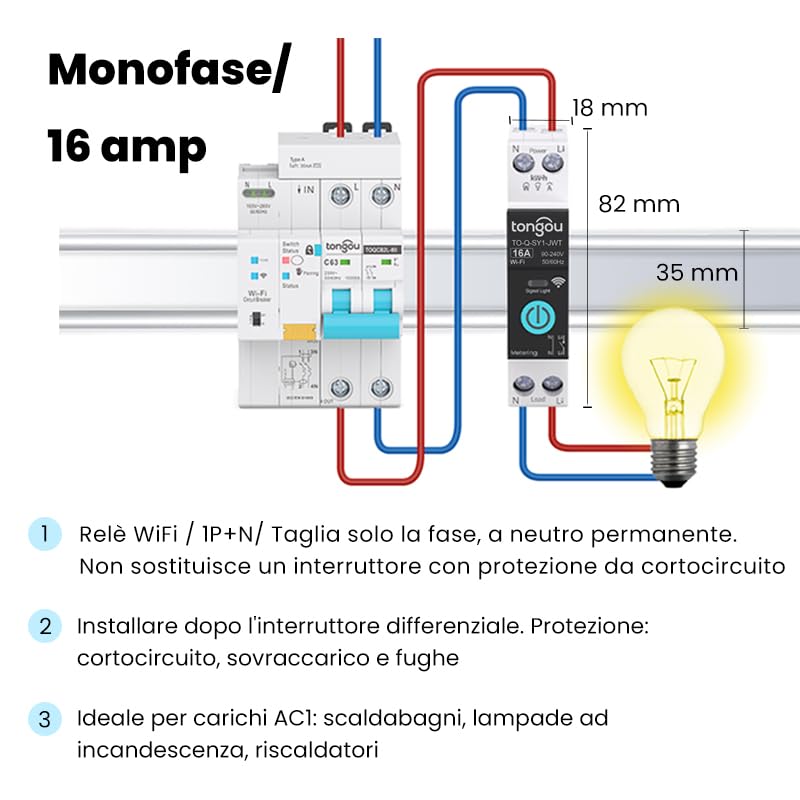
Figure 5.1: Wiring diagram for the Tongou Smart WiFi DIN Rail Switch. Connect the phase (L) and neutral (N) wires as indicated. This switch is for single-phase systems and handles up to 16 Amps. It should be installed after a differential switch for safety.
Mara: This switch is ideal for AC loads such as water heaters, incandescent lamps, and heaters.
5.2. App Pairing
To control the switch remotely, you need to pair it with the Tuya Smart or Smart Life app.
- Budata ngwa: Download the "Smart Life" or "Tuya Smart" app from the App Store (iOS) or Google Play Store (Android).
- Debanye aha/Banye: Mepee ngwa ahụ wee debanye aha maka akaụntụ ọhụrụ ma ọ bụ banye ma ọ bụrụ na ịnweelarị otu.
- Tinye ngwaọrụ: Ensure your smartphone is connected to a 2.4 GHz Wi-Fi network. Power on the smart switch. The Wi-Fi indicator on the switch should be blinking rapidly (refer to the switch's LED indicator guide for pairing mode). In the app, tap "+" or "Add Device" and select the appropriate device type (e.g., "Switch (Wi-Fi)").
- Kwenye ụkpụrụ njikọta: Confirm the indicator light is blinking rapidly in the app.
- Tinye nkọwa Wi-Fi: Tinye paswọọdụ netwọk Wi-Fi 2.4 GHz gị.
- Jikọọ: The app will begin connecting to the device. Once connected, you can rename the switch and assign it to a room.
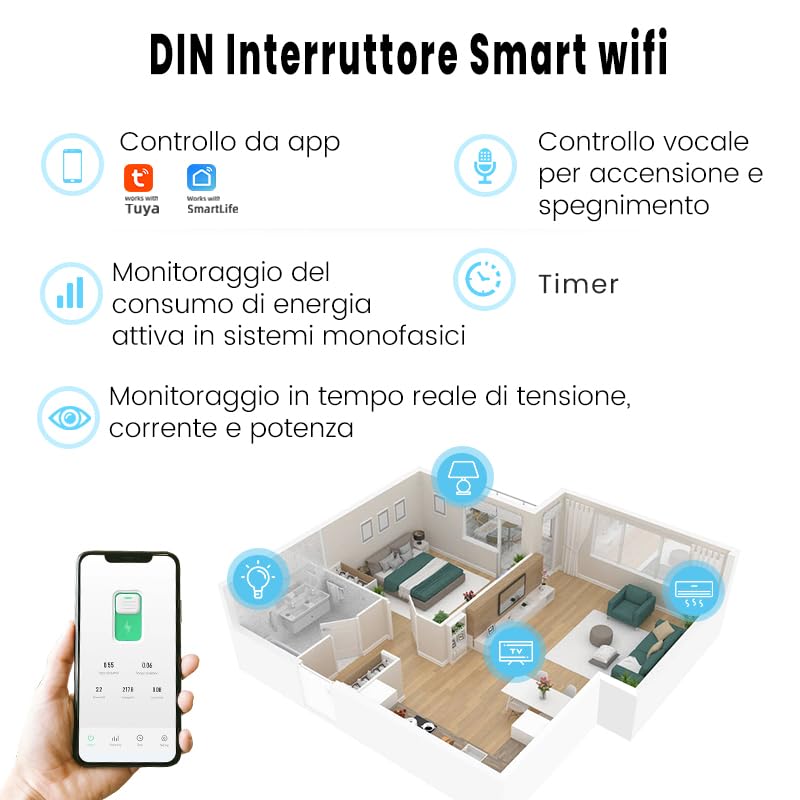
Nyocha 5.2: N'eluview of the smart switch features, including control via Tuya/Smart Life app, voice control, energy monitoring, and timer functions.
6. Ntuziaka ọrụ
6.1. Njikwa akwụkwọ ntuziaka
The switch features a physical button on its front panel. Press this button once to manually turn the connected appliance ON or OFF.
6.2. Njikwa ngwa
After successful pairing, open the Tuya Smart or Smart Life app. Select your switch from the device list. You can then:
- Toggle the switch ON/OFF remotely.
- Access energy consumption data.
- Set up schedules and timers.
- Configure automation rules.
6.3. Njikwa olu
The switch is compatible with Amazon Alexa and Google Assistant. To enable voice control:
- Link your Tuya Smart or Smart Life account to your Amazon Alexa or Google Home app.
- Discover devices in your voice assistant app.
- Use voice commands such as: "Alexa, turn on [Device Name]" or "Hey Google, turn off [Device Name]".

Ọgụgụ 6.1: Ọpụample of using voice commands with a smart assistant to control the switch.
6.4. Ọrụ ngụ oge
The app provides various timer modes to automate your appliances:
- Schedule Timer: Set specific ON/OFF times for different days of the week.
- Ngụda oge: Set a duration after which the switch will turn ON or OFF.
- Cycle Timing: Configure repetitive ON/OFF cycles.
- Astronomical Timing: Automate based on sunrise and sunset times in your location.
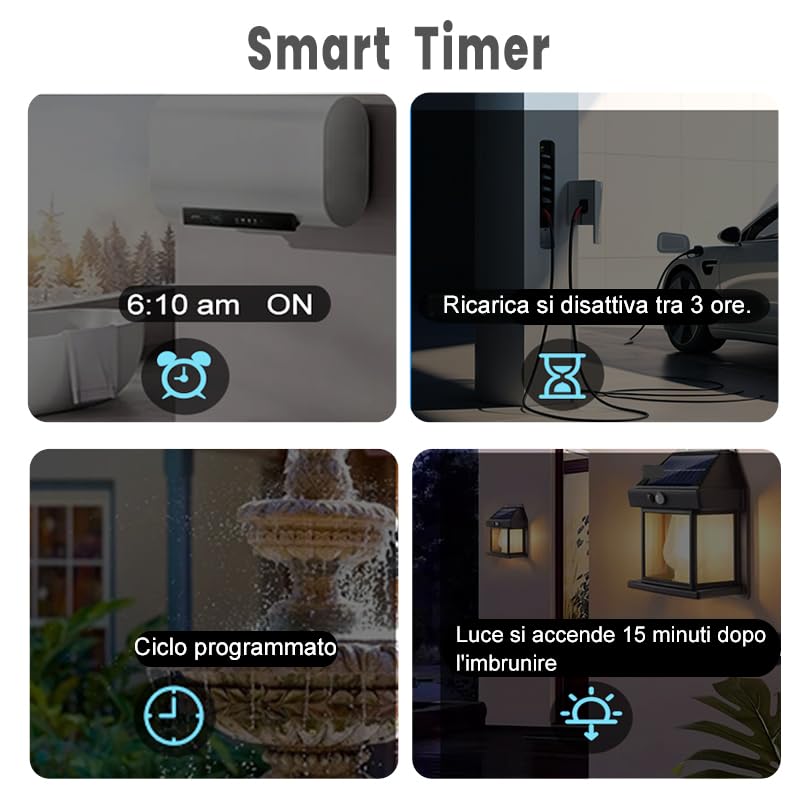
Figure 6.2: Visual representation of various smart timer functions available in the app.
6.5. Nleba anya ike
The switch provides real-time and historical energy consumption data. Access this feature within the app to:
- View real-time load current, voltage, na ike.
- Review historical power consumption records by hour, day, month, and year.
- Analyze energy usage patterns to optimize consumption.
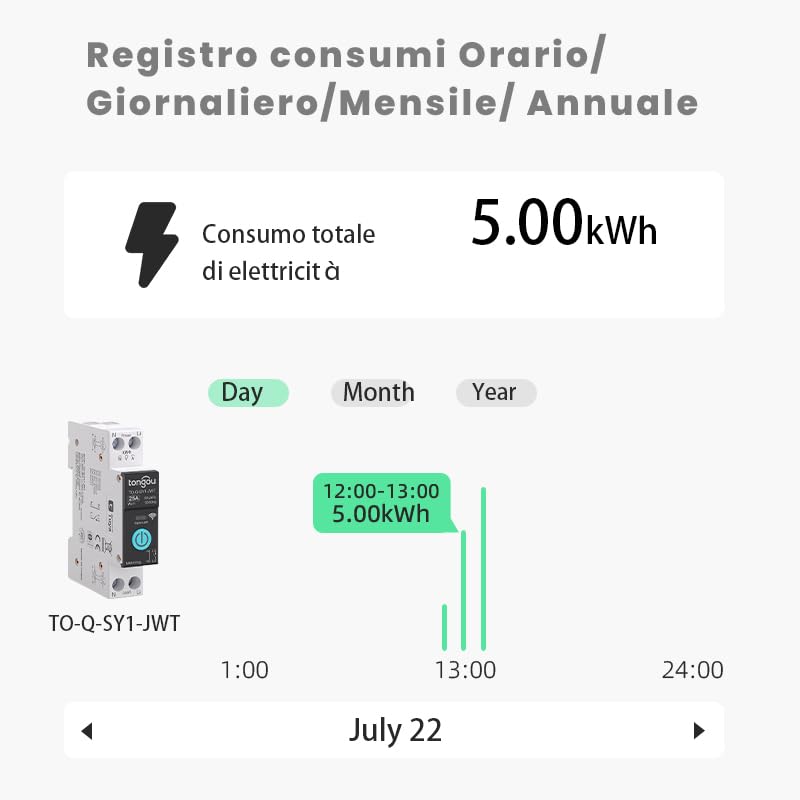
Ọgụgụ 6.3: Ọpụample of the energy consumption log interface, displaying total electricity consumption over various time periods.
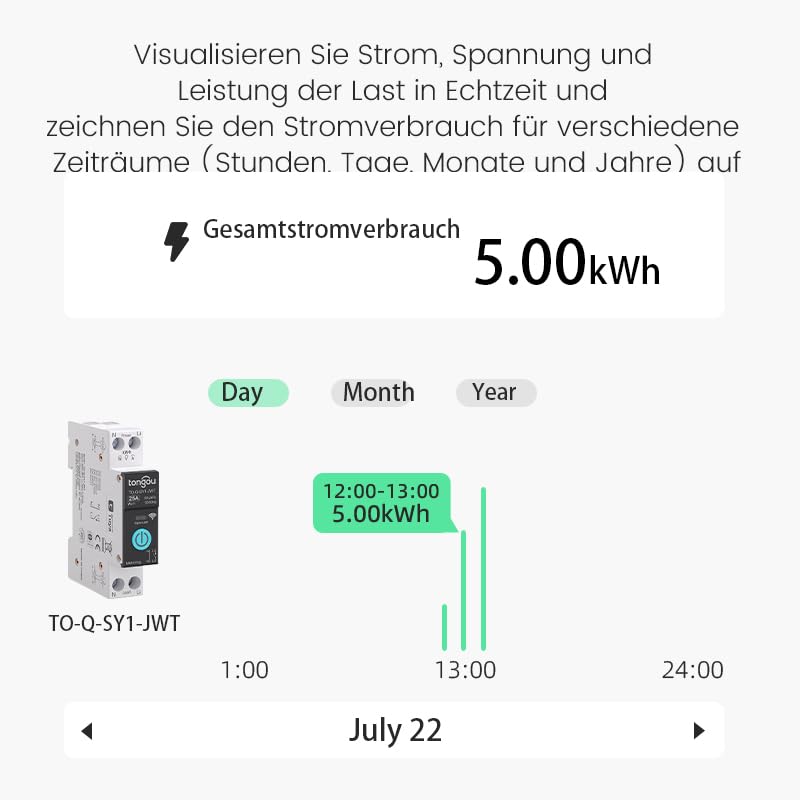
Figure 6.4: Real-time visualization of current, voltage, and power load, with historical consumption records.
7. Nlekọta
The Tongou Smart WiFi Switch requires minimal maintenance. Follow these guidelines:
- Nhicha: Ensure the device is powered off before cleaning. Use a dry, soft cloth to wipe the exterior. Do not use liquid cleaners or solvents.
- Mmelite femụwe: Periodically check the Tuya Smart or Smart Life app for available firmware updates for your device. Updates can improve performance and add new features.
- Ọnọdụ gburugburu: Operate the device within its specified temperature range (up to 80°C) and avoid humid environments.
8. Nchọpụta nsogbu
| Nsogbu | Ihe nwere ike ime | Ngwọta |
|---|---|---|
| Ngwaọrụ anaghị ejikọta na Wi-Fi. | Incorrect Wi-Fi password, 5GHz Wi-Fi network, device too far from router, Wi-Fi signal interference. |
|
| App control is unresponsive. | No internet connection on phone or switch, app glitch. |
|
| Njikwa olu anaghị arụ ọrụ. | Ejikọghị akaụntụ, achọpụtaghị ngwaọrụ, iwu na-ezighi ezi. |
|
| Energy monitoring data is inaccurate or missing. | Improper wiring, device malfunction. |
|
9. Akwụkwọ ikike na nkwado
For warranty information, please refer to the documentation provided with your purchase or contact your retailer. For technical support or further assistance, please contact HIVAGI INTERNATIONAL, the importer and packer of this product.
- Onye mbubata/ebu: HIVAGI INTERNATIONAL
- Websaịtị: www.hivagi.in
- Nlekọta ndị ahịa: +91 90232 97428