
Okwu mmalite
Thank you for choosing the Glorious Gaming Model O Wireless Mouse. This manual provides essential information for setting up, operating, maintaining, and troubleshooting your new gaming mouse. Designed for competitive gaming, the Model O Wireless combines a superlight honeycomb design with lag-free 2.4GHz wireless technology and customizable RGB lighting to enhance your gaming experience.
Njirimara ngwaahịa
- Superlight Design: Weighing only 69 grams, the honeycomb shell reduces weight while maintaining structural integrity and improving airflow.
- Lag-Free 2.4GHz Wireless: Experience ultra-low wireless latency for responsive and crisp clicks, ensuring no unexpected double-clicking.
- Ndụ batrị agbatịkwuru: Up to 71 hours of playtime with RGB lighting off, allowing for prolonged gaming sessions without frequent recharging.
- Wired & Wireless Modes: Includes a flexible USB-C Ascended charging cable for continuous performance even while charging.
- Ambidextrous Shape: Ergonomically designed for comfortable use by both left and right-handed users.
- Ọkụ RGB nwere ike ịhazi ya: Personalize your mouse with various lighting effects and colors via the Glorious CORE software.
- High-Precision Optical Sensor: Equipped with a Glorious BAMF sensor, offering up to 19,000 DPI and 400 IPS tracking speed for pinpoint accuracy.
- Mgbanwe Ndị Na-adịgide Adịgide: Features switches rated for 80 million clicks, ensuring long-lasting performance.
- G-Skates Premium PTFE Mouse Feet: Provides smooth gliding across any surface with minimal friction.

Foto: N'elu-ala view of the Glorious Model O Wireless Gaming Mouse, showcasing its honeycomb shell and vibrant RGB lighting.
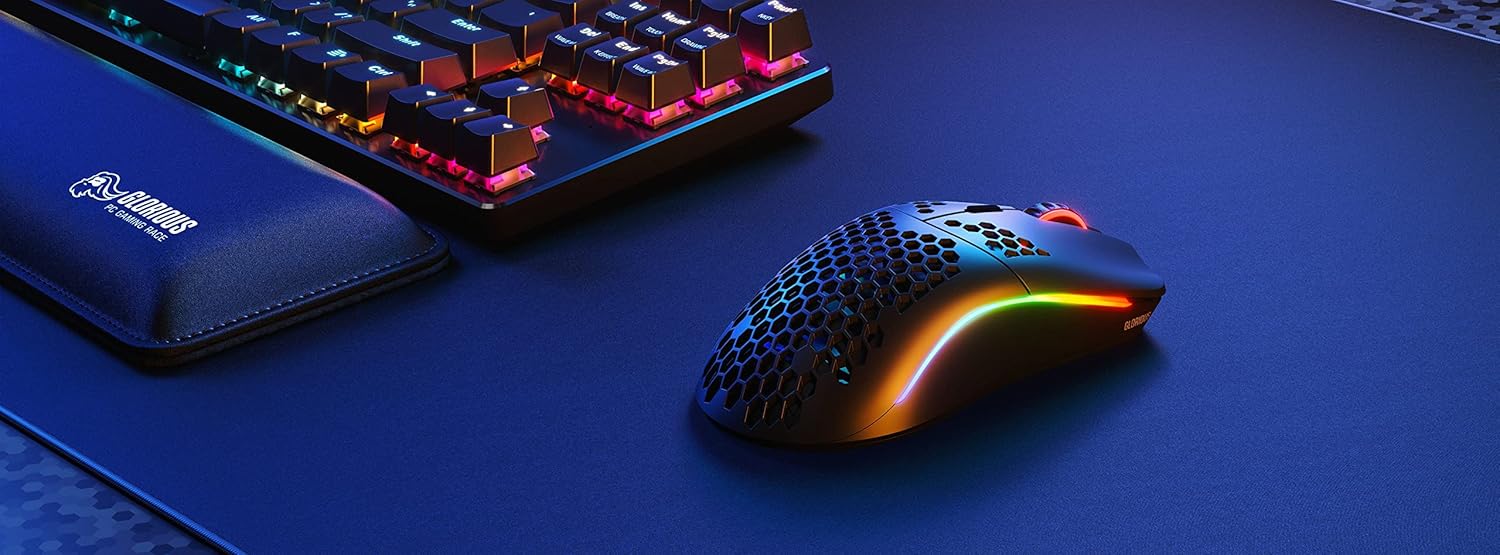
Image: Technical diagram illustrating the dimensions and key specifications of the Glorious Model O Wireless Gaming Mouse.
Melite
- Unboxing: Carefully remove the mouse, USB-C Ascended charging cable, and wireless dongle from the packaging.
- Connect Wireless Dongle: Plug the 2.4GHz wireless USB dongle into an available USB port on your computer.
- Ike Na Òké: Locate the power switch on the underside of the mouse and slide it to the 'ON' position. The mouse should automatically connect to the dongle.
- Ụgwọ Mmalite (Nhọrọ): For optimal performance, it is recommended to fully charge the mouse before first use. Connect the USB-C Ascended cable to the front of the mouse and the other end to a USB port on your computer or a USB charger.
- Install Glorious CORE Software: Download and install the Glorious CORE software from the official Glorious websaịtị (www.gloriousgaming.com/pages/glorious-core) to customize settings, RGB lighting, and button assignments.
Video: A seller demonstrates the unboxing and initial setup of the Glorious Model O Wireless mouse, highlighting its lightweight design and flexible cable.
Ntuziaka ọrụ
The Glorious Model O Wireless mouse features 6 programmable buttons for versatile control during gaming and general use.
- Left Click (Button 1): Bọtịnụ ihe omume mbụ.
- Right Click (Button 2): Bọtịnụ ihe omume nke abụọ.
- Scroll Wheel Click (Button 3): Often used for middle-click functions or opening new tabs.
- DPI Button (Button 4): Cycles through preset DPI settings. Default settings can be customized via Glorious CORE.
- Side Buttons (Buttons 5 & 6): Typically used for forward/backward navigation in browsers or assigned to in-game actions. These are fully programmable.
For advanced customization of button functions, macros, and DPI levels, refer to the Glorious CORE software.
Nhazi
The Glorious Model O Wireless offers extensive customization options through the Glorious CORE software:
- RGB ọkụ: Choose from various effects (e.g., Seamless Breathing, Glorious Mode, Single Color) and adjust brightness and speed. You can set different lighting for wired and wireless modes.
- Ntọala DPI: Mepụta ma chekwaa ọtụtụ DPI profiles, allowing you to switch sensitivity on the fly using the dedicated DPI button.
- Ọrụ bọtịnụ: Remap any of the 6 buttons to perform mouse functions, keyboard commands, custom macros, or multimedia controls.
- Ọnụego ntuli aka: Adjust the polling rate (up to 1000 Hz) for optimal responsiveness.
- Lift-Off Distance (LOD): Fine-tune the distance at which the sensor stops tracking when the mouse is lifted.

Image: Screenshot of the Glorious CORE software, displaying options for customizing RGB lighting effects and colors for the mouse.
Nlekọta
- Nhicha: Use a soft, dry cloth to wipe down the mouse. For the honeycomb shell, a can of compressed air can help remove dust and debris. Avoid using harsh chemicals or abrasive materials.
- Nlekọta USB: Handle the Ascended cable gently to prevent fraying or damage. Avoid sharp bends or excessive pulling.
- Nchekwa: Mgbe ejighị ya, chekwaa òké na ebe dị ọcha, kpọrọ nkụ pụọ na oke okpomọkụ.
Nchọpụta nsogbu
| Okwu | Ngwọta enwere ike |
|---|---|
| Òké anaghị aza (ikuku) | Ensure the mouse is powered on and the wireless dongle is securely plugged into a USB port. Try a different USB port. Re-pair the mouse if necessary (refer to Glorious CORE software for pairing instructions). |
| Òké anaghị aza (Ejikọrọ) | Gbaa mbọ hụ na ejikọrọ eriri USB-C na nchekwa ma òké na kọmputa. Gbalịa ọdụ ụgbọ USB dị iche. |
| Lag or stuttering | Ensure the mouse is fully charged. Reduce wireless interference by moving the dongle closer to the mouse or away from other wireless devices. Update mouse firmware via Glorious CORE. |
| RGB ọkụ anaghị arụ ọrụ | Check RGB settings in Glorious CORE. Ensure brightness is not set to 0. Update mouse firmware. |
| Bọtịnụ anaghị arụ ọrụ nke ọma | Verify button assignments in Glorious CORE. Reset to default settings if needed. Update mouse firmware. |
Nkọwapụta
| Njirimara | Nkọwa |
|---|---|
| Ụdị | Ebube |
| Nlereanya | Model O Ikuku |
| Agba | Matte Black |
| Njikọta | 2.4GHz Wireless, USB-C Wired |
| Sensọ | Glorious BAMF Optical Sensor |
| DPI | Ruo 19,000 |
| Ọsọ Nlekota (IPS) | 400 |
| Ọnụego ntuli aka | 1000 Hz (Dual Wired/Wireless) |
| Click Latency | 2.08ms (Internal Testing) |
| Ibu | 69 grams (+/- 1.5g) |
| Ndụ batrị | Up to 71 Hours (RGB off) |
| Bọtịnụ | 6 (nwere ike ime mmemme) |
| Ntuzi aka | Ambidextrous |
| Ụkwụ òké | G-Skates Premium PTFE |
| Ngwa dakọtara | Windows, Mac, Linux |
Akwụkwọ ikike na nkwado
The Glorious Gaming Model O Wireless Mouse comes with a Akwụkwọ ikike nwere oke ụbọchị 90. For warranty claims or technical support, please visit the official Glorious Gaming websaịtị ma ọ bụ kpọtụrụ ndị ahịa ha ọrụ. Debe ihe akaebe nke ịzụrụ ihe maka nkwado akwụkwọ ikike.
Video: A seller provides a quick overview of the Glorious Model O Wireless mouse, highlighting its features and suitability for gaming.