
1. Okwu mmalite
The Zenwire Portable External CD/DVD Drive with SD Card Reader and USB-C Hub (Model SY885) is a versatile 4-in-1 device designed to enhance your computer's capabilities. It functions as a CD/DVD player and recorder, an SD card reader, and a USB hub. This device features USB 3.0 for fast data transfer and offers Plug & Play functionality, eliminating the need for driver installation. Its compact design makes it suitable for both stationary and mobile use, providing convenient data and multimedia management across various operating systems.
2. Ihe ngwugwu
Chọpụta na ihe niile dị na ngwugwu:
- Zenwire Portable External CD/DVD Drive (Model SY885)
- USB-A ka eriri USB-C
- USB-A na eriri USB-A
- Akwụkwọ ntuziaka onye ọrụ
- Ihe nkwụnye kaadị SD
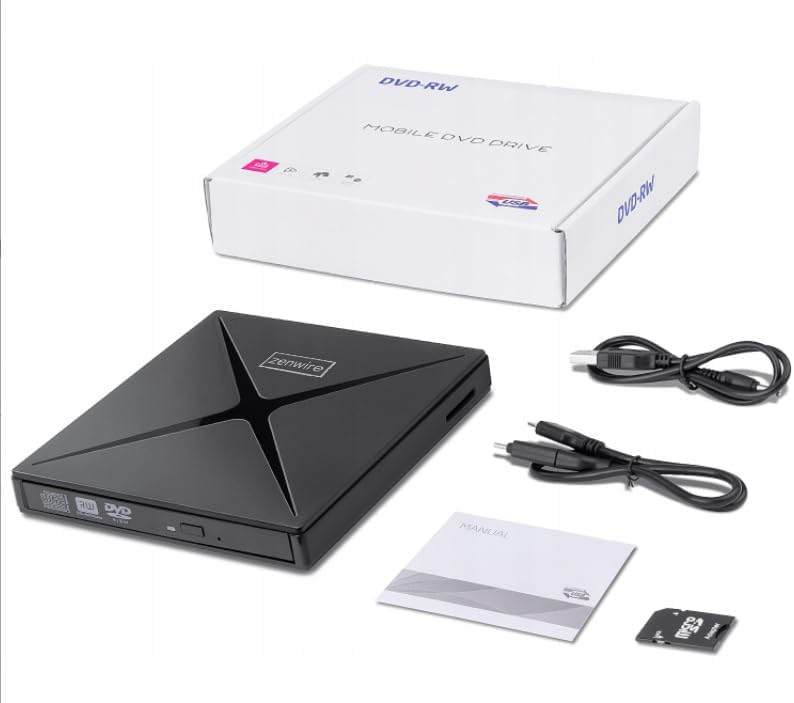
Ọgụgụ 2.1: Ihe ngwugwu
3. Ngwaahịa gafereview
The Zenwire SY885 combines multiple functionalities into one compact device. It features a CD/DVD drive, an SD card reader, and two USB ports for expanded connectivity.
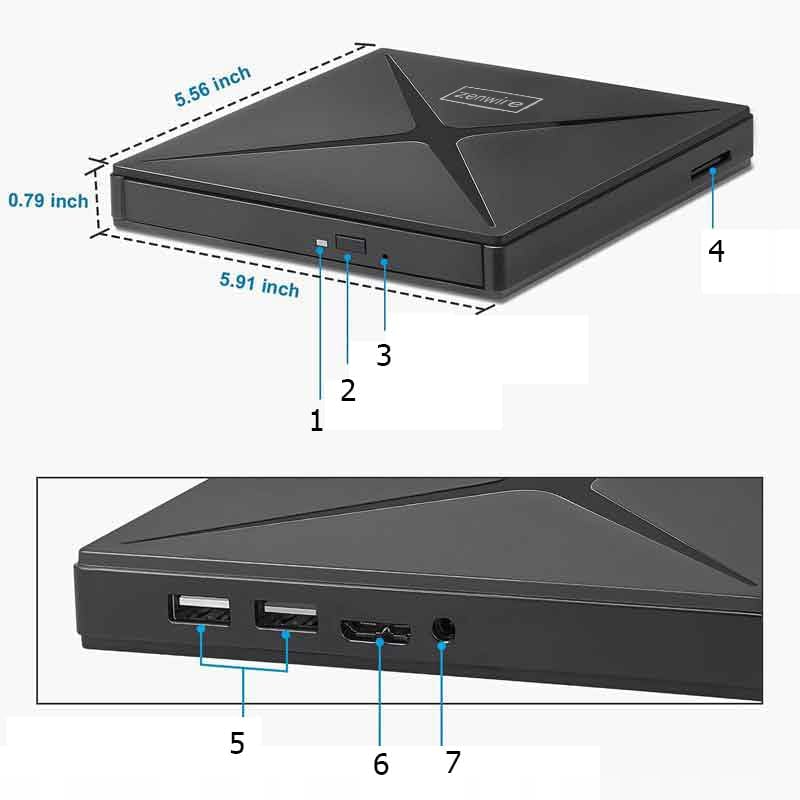
Figure 3.1: Device Ports and Features
- Bọtịnụ Wepụ: Press to open the disc tray.
- Ìhè ihe ngosi: Illuminates when the device is powered on or active.
- Ọdụ ụgbọ mmiri USB-A (2x): For connecting USB peripherals.
- Oghere kaadị SD: For inserting SD and Micro SD cards (with adapter).
- Ọdụ USB-C: Main connection to your computer.

Foto nke 3.2: Nha Ngwaọrụ
4. Nhazi
The Zenwire SY885 features Plug & Play functionality, requiring no driver installation for most operating systems.
4.1 Ijikọ ngwaọrụ
- Connect the provided USB-C cable to the USB-C port on the Zenwire drive.
- Connect the other end of the USB-C cable to an available USB-C port on your computer. If your computer only has USB-A ports, use the provided USB-A to USB-A cable and connect it to a USB-A port on your computer.
- The indicator light on the drive will illuminate, confirming power. Your operating system should automatically detect and configure the device.

Figure 4.1: Connecting the Drive to a Laptop
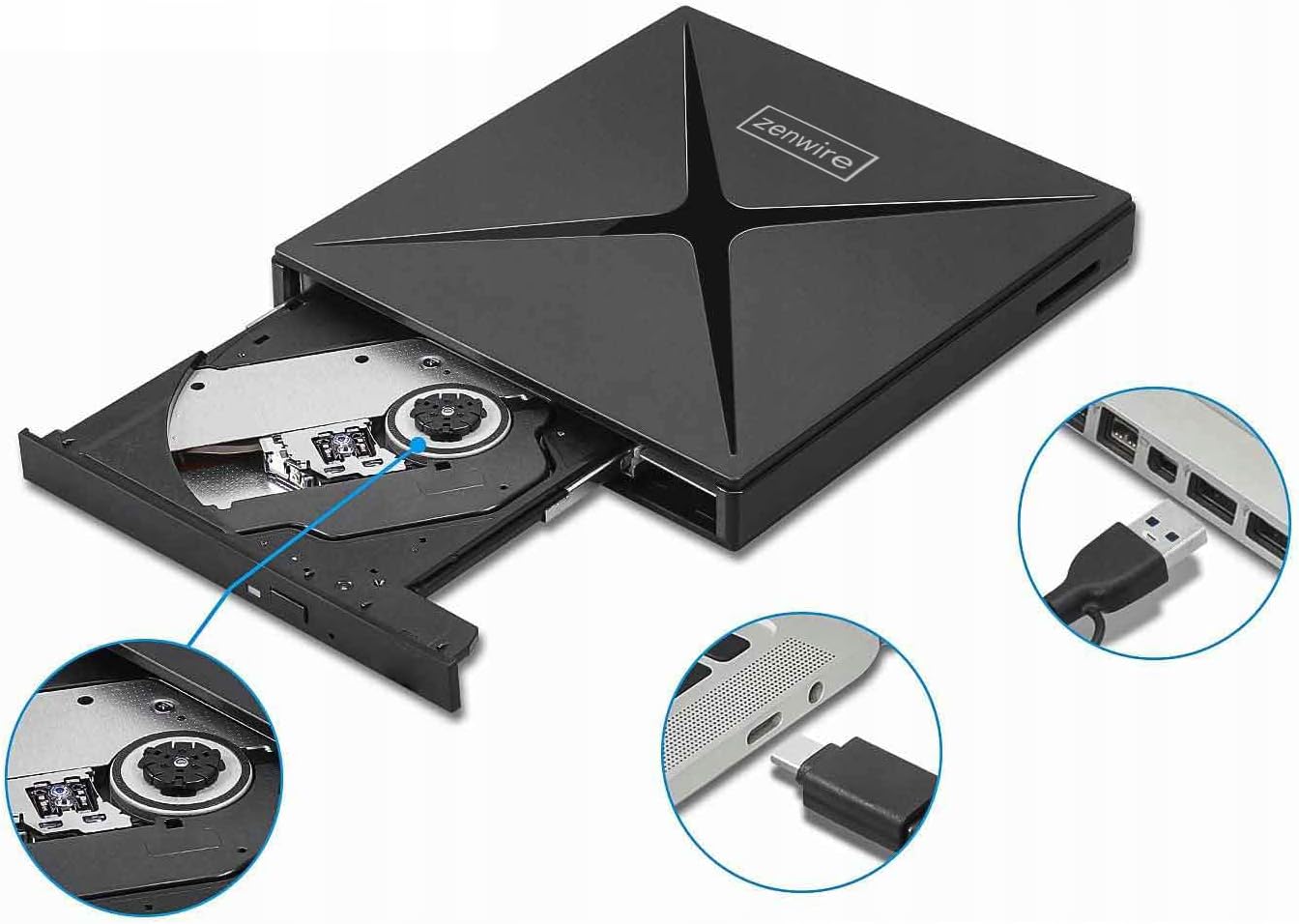
Figure 4.2: USB-A and USB-C Connection Options
5. Ntuziaka ọrụ
5.1 Using the CD/DVD Drive
- Ensure the drive is connected to your computer.
- Press the Eject button on the front of the drive to open the disc tray.
- Jiri nlezianya tinye CD ma ọ bụ DVD n'elu tray ahụ, hụ na ọ dị n'etiti.
- Jiri nwayọọ tụgharịa traị ahụ azụ n'ime draịva ahụ ruo mgbe ọ pịrị emechi.
- Your computer's operating system should detect the disc. You can then access its contents through File Explorer (Windows) ma ọ bụ Finder (Mac).
- To eject the disc, press the Eject button again or use the software eject function in your operating system.
5.2 Using the SD Card Reader
- Ensure the drive is connected to your computer.
- Insert an SD card directly into the SD card slot on the side of the drive. For Micro SD cards, use the provided SD card adapter.
- Tinye kaadị ahụ ruo mgbe ọ pịrị n'ime ebe.
- Your computer will recognize the SD card as a removable storage device.
- To safely remove the SD card, eject it through your operating system's software function before physically pulling it out.
5.3 Using the USB Hub
- Ensure the drive is connected to your computer.
- Connect USB peripherals such as a mouse, keyboard, USB flash drive, or external hard drive to the two USB-A ports on the side of the Zenwire drive.
- The connected devices will function as if they were directly connected to your computer.

Figure 5.1: Data Transfer via the Drive
6. Ndakọrịta
The Zenwire SY885 is designed for broad compatibility with various operating systems and computer types.
- Sistemu eji arụ ọrụ: Windows 11/10/8/8.1/7/Vista/XP, Mac OS (10.14 Mojave or higher), Linux.
- Ngwaike Platform: Laptops, Desktop PCs, All-in-One PCs.

Onyonyo 6.1: Ndakọrịta sistemụ arụmọrụ

Figure 6.2: Device Compatibility with Various Computers
7. Nlekọta
To ensure the longevity and optimal performance of your Zenwire SY885, follow these maintenance guidelines:
- Nhicha: Use a soft, dry cloth to clean the exterior of the drive. Do not use liquid cleaners or abrasive materials. For the disc tray, use a specialized CD/DVD lens cleaner if necessary, following its instructions.
- Nchekwa: Store the drive in a cool, dry place away from direct sunlight and extreme temperatures. When not in use, keep the disc tray closed to prevent dust accumulation.
- Ijikwa: Handle the drive carefully to avoid physical damage. Do not drop or expose it to excessive force.
- Nlekọta diski: Always use clean, scratch-free CDs and DVDs. Avoid touching the data surface of discs.
8. Nchọpụta nsogbu
If you encounter issues with your Zenwire SY885, refer to the following common problems and solutions:
| Nsogbu | Ihe nwere ike ime | Ngwọta |
|---|---|---|
| Drive not detected by computer | Loose connection, insufficient power, incompatible USB port. | Ensure the USB cable is securely connected to both the drive and the computer. Try a different USB port on your computer. Ensure the USB port provides sufficient power (e.g., a direct port on the computer, not an unpowered hub). |
| Disc not reading/writing | Dirty or scratched disc, incorrect disc type, drive lens dirty. | Clean the disc with a soft cloth. Try a different disc. Ensure the disc type is supported (CD-R, CD-RW, DVD-R, DVD-RW). Consider using a CD/DVD lens cleaner. |
| Ahụbeghị kaadị SD | Card not inserted correctly, damaged card, incompatible card format. | Reinsert the SD card firmly. Try a different SD card. Ensure the card is not locked (write-protected). Check if the card format is supported by your operating system. |
| USB peripherals not working via hub | Insufficient power, faulty peripheral, drive not fully connected. | Ensure the main drive is properly connected and receiving power. Try connecting the peripheral directly to the computer. Some high-power devices may require a powered USB hub. |
| Ọsọ mbufe data dị nwayọ | Connected to USB 2.0 port, system overload. | Ensure the drive is connected to a USB 3.0 or USB-C port on your computer for optimal speeds. Close unnecessary applications to free up system resources. |
9. Nkọwapụta
| Njirimara | Nkọwa |
|---|---|
| Nọmba nlereanya | SY885 |
| Ụdị | Zenwire |
| Ngwaọrụ Akụrụngwa | USB 2.0, USB Type C |
| Optical Memory Write Speed | 12x |
| Optical Memory Read Speed | 8X DVD |
| Ọsọ mbufe data | 60 Megabits per second (USB 3.0) |
| Platform | Laptọọpụ, Desktop PC |
| Ihe onwunwe | Drive + SD Card Reader + USB-C Hub |
| Ndakọrịta sistemụ arụmọrụ | Windows 11/10/8/8.1/7/Vista/XP, macOS 10.14 Mojave or higher, Linux |
| Akụkụ (ihe dị ka.) | 15cm x 14cm x 1.8cm (5.91in x 5.56in x 0.79in) |
10. Akwụkwọ ikike na nkwado
Zenwire products are designed for reliability and performance. For warranty information and technical support, please refer to the documentation included with your purchase or visit the official Zenwire websaịtị. Debe ihe akaebe nke ịzụrụ maka akwụkwọ ikike.