
1. Okwu mmalite
This manual provides essential information for the proper installation, operation, and maintenance of your SUNMI T2s Lite 15.6-inch Android Point of Sale (POS) system. Please read this manual thoroughly before using the device to ensure optimal performance and safety. Keep this manual for future reference.
2. Ozi nchekwa
- Ewepụla ngwaọrụ ahụ na oke okpomọkụ, iru mmiri, ma ọ bụ ìhè anyanwụ kpọmkwem.
- Zere idobe ma ọ bụ idobe ngwaọrụ ahụ na mmetụta siri ike.
- Use only the power adapter supplied with the device. Using an incorrect adapter may cause damage or fire.
- Anwala ịkwasa ma ọ bụ rụkwaa ngwaọrụ n'onwe gị. Rụtụ aka na ndị ọrụ ruru eru.
- Debe ngwaọrụ ahụ na mmiri ma ọ bụ mmiri mmiri ndị ọzọ.
- Gbaa mbọ hụ na ikuku ikuku dị na gburugburu ngwaọrụ mgbe ọ na-arụ ọrụ.
3. Ihe ngwugwu
Chọpụta na ihe niile dị na ngwugwu:
- SUNMI T2s Lite POS Terminal
- Ihe nkwụnye ọkụ
- Igwe ọkụ ọkụ
- Ntuziaka mmalite ngwa ngwa (ọ bụrụ na ọdabara)
- Kaadị akwụkwọ ikike (ọ bụrụ na ọdabara)
Ọ bụrụ na ihe ọ bụla efuo ma ọ bụ mebie, biko kpọtụrụ onye na-ere ahịa gị ozugbo.
4. Ngwaahịa gafereview
The SUNMI T2s Lite is an integrated Android-based POS system designed for retail environments. It features a 15.6-inch capacitive touchscreen display and various connectivity options.
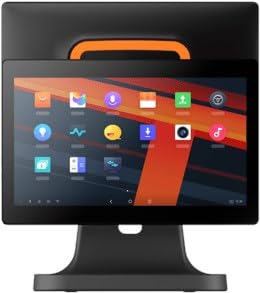
Foto 4.1: N'ihu view of the SUNMI T2s Lite POS system. This image displays the main 15.6-inch touchscreen, which is the primary interface for operating the device. The design is compact and suitable for various retail settings.
Ngwa 4.1 igodo
- Ngosipụta Ihuenyo Mmetụ Aka nke 15.6-inch: High-resolution (1920x1080) capacitive touch interface.
- Bọtịnụ ike: Located typically on the side or rear for turning the device on/off.
- ọdụ ụgbọ mmiri USB: For connecting peripherals such as barcode scanners, external printers, or cash drawers.
- Njikọ Ethernet: Maka njikọta netwọk wired.
- Ntinye ike: Maka ijikọ nkwụnye ọkụ.
- Igwefoto ihu: For specific applications requiring image capture.
5. Nhazi
5.1 Mwepu na ntinye
- Jiri nlezianya wepụ ngwaọrụ ahụ na ihe niile dị na ngwugwu ahụ.
- Place the POS terminal on a stable, flat surface in a well-ventilated area.
- Ensure there is sufficient space around the device for cable connections and heat dissipation.
5.2 Ijikọ ike
- Jikọọ eriri ọkụ na nkwụnye ọkụ.
- Plug the power adapter into the power input port on the back of the SUNMI T2s Lite.
- Tinye nsọtụ nke ọzọ nke eriri ọkụ n'ime oghere eletrik gbadoro ụkwụ.
5.3 Initial Boot and Network Connection
- Press and hold the power button until the screen lights up. The device will boot into the Android operating system.
- Follow the on-screen prompts for initial setup, including language selection and time zone.
- Njikọ Wi-Fi: Gaa na Ntọala> Netwọk & ịntanetị> Wi-Fi, select your network, and enter the password.
- Njikọ Ethernet: Connect an Ethernet cable from your router/switch to the Ethernet port on the device. The device should automatically connect to the wired network.
5.4 Njikọta Peripherals
- Ngwa USB: Plug USB peripherals (e.g., barcode scanner, external printer, cash drawer) into the available USB ports. The system will typically recognize them automatically.
- Ngwaọrụ Bluetooth: Gaa na Ntọala > Ngwaọrụ ejikọrọ > Bluetooth, enable Bluetooth, and pair with your desired device.
6. Ntuziaka ọrụ
6.1 Gbanyụọ/ gbanyụọ
- Iji gbanye: Pịa ma jide bọtịnụ ike ruo mgbe ihuenyo gosipụtara.
- Iji gbanyụọ: Press and hold the power button until a power menu appears. Select "Power off" and confirm. Alternatively, a short press of the power button will put the device to sleep.
6.2 Ojiji Ihuenyo Mmetụ Aka
- Kpatụ: To select an item or activate a button.
- Kpatụ ma jide: To open context menus or drag items.
- Mịpụta: To scroll through lists or navigate between screens.
- Tụọ-gaa-mbugharị: Ka ibubata ma ọ bụ pụta na onyonyo ma ọ bụ web ibe.
6.3 Nsorogharị sistemụ arụmọrụ gam akporo
- Ihuenyo ụlọ: The central hub for your applications and widgets.
- Drawer ngwa: Nweta ngwa niile arụnyere.
- Ogwe ngosi: Si n'elu ihuenyo gaa ala view ọkwa na ntọala ngwa ngwa.
- Ntọala: Configure Wi-Fi, Bluetooth, display, sound, and other system options.
6.4 Basic POS Functions
The specific POS functions will depend on the software application installed on your device. Refer to the documentation provided with your POS software for detailed instructions. Generally, you will:
- Launch your POS application from the home screen or app drawer.
- Jiri nzere njirimara gị banye.
- Process transactions using the touchscreen and connected peripherals (e.g., scanning items, accepting payments).
- Print receipts if an external or integrated printer is configured.
7. Nlekọta
7.1 Na-ehicha ngwaọrụ
- Gbanyụọ ma wepụ ngwaọrụ ahụ mgbe niile tupu ihicha ya.
- Jiri akwa dị nro na-enweghị ntụpọ dampened with water or a mild, non-abrasive cleaner to wipe the screen and exterior surfaces.
- Afesala mmiri mmiri ozugbo na ngwaọrụ ahụ.
- Zere iji kemịkalụ siri ike, ihe mgbaze, ma ọ bụ ihe na-emebi emebi.
7.2 Mmelite ngwanrọ
Regularly check for and install system and application updates to ensure optimal performance, security, and access to new features. You can usually find system updates in Ntọala> Sistemu> Mmelite sistemụ.
7.3 Nchekwa
When not in use for extended periods, store the device in a cool, dry place, away from direct sunlight and extreme temperatures. If storing for a long time, ensure the battery is charged to about 50% to prolong its lifespan.
8. Nchọpụta nsogbu
Nkebi a na-eleba anya na nsogbu ndị ị na-enwekarị. Maka nsogbu ndị siri ike karị, kpọtụrụ ndị ọrụ nkwado ndị ahịa.
- Device will not power on:
- Gbaa mbọ hụ na ejikọrọ ihe nkwụnye ọkụ ahụ na ngwaọrụ yana oghere ọkụ na-arụ ọrụ.
- Nyochaa na ntinye ọkụ na-arụ ọrụ.
- Gbalịa ijide bọtịnụ ike maka 10-15 sekọnd ịmanye ịmalitegharịa.
- Touchscreen is unresponsive:
- Malitegharịa ngwaọrụ ahụ.
- Ensure the screen is clean and free of debris or liquids.
- Network connection issues (Wi-Fi/Ethernet):
- Check if the Wi-Fi is enabled and you are connected to the correct network with the right password.
- For Ethernet, ensure the cable is properly connected and your router/switch is working.
- Malitegharịa ekwentị rawụta/modem gị.
- Peripherals (e.g., printer, scanner) not working:
- Hụ na njikọ dị n'akụkụ ahụ dị mma na ọdụ ụgbọ mmiri kwesịrị ekwesị.
- Check if the peripheral has its own power supply and is turned on.
- Verify that the necessary drivers or software for the peripheral are installed and configured within your POS application.
9. Nkọwapụta
The following are key technical specifications for the SUNMI T2s Lite:
| Njirimara | Nkọwapụta |
|---|---|
| Ụdị | SUNMI |
| Onye nrụpụta | Sunmi |
| Mkpebi ngosi ala ala | 1920x1080 pikselụ |
| Teknụzụ Njikọta | Bluetooth, Ethernet, USB, WLAN |
| Nkọwa igwefoto | Ihu ihu |
| ASIN | B0B53FLFT8 |
10. Akwụkwọ ikike na nkwado
The SUNMI T2s Lite POS system comes with a standard manufacturer's warranty. Please refer to the warranty card included in your package for specific terms and conditions, including warranty period and coverage details.
For technical support, service, or warranty claims, please contact your authorized SUNMI dealer or the customer support channel specified in your purchase documentation. Ensure you have your product model number (T2s Lite) and ASIN (B0B53FLFT8) ready when contacting support.