
1. Okwu mmalite
Thank you for choosing the PRIXTON Cinema Mini Projector. This compact and versatile projector is designed to provide an immersive viewing experience for movies, games, and presentations. Its multiple connectivity options and portable design make it ideal for various environments. Please read this manual carefully before using the projector to ensure proper operation and to maximize its lifespan.
2. Ozi nchekwa
- Ịnye ọkụ: Jiri naanị ihe nkwụnye ike akọwapụtara. Hụ na vol ahụ dị.tage is compatible with your region.
- Igwe ikuku: Ekpuchila oghere ikuku. Hụ na oghere zuru oke gburugburu ihe ngosi ahụ maka ikuku ikuku kwesịrị ekwesị iji gbochie oke okpomọkụ.
- Nchekwa anya: Elela anya ozugbo na oghere projector mgbe lamp Ọ na-agba ọkụ. Ọkụ na-egbuke egbuke nwere ike imebi anya.
- Mmiri na mmiri: Keep the projector away from water, rain, and excessive humidity. Do not operate with wet hands.
- Nhicha: Disconnect the power before cleaning. Use a soft, dry cloth. Avoid liquid cleaners.
- Nkwanye: Place the projector on a stable, flat surface. Avoid placing it in direct sunlight or near heat sources.
- Ụmụaka: Keep the projector and its accessories out of reach of children.
3. Ihe ngwugwu
Biko lelee na ihe niile dị na ngwugwu gị:
- PRIXTON Cinema Mini Projector
- Njikwa anya
- Ihe nkwụnye ọkụ
- Akwụkwọ ntuziaka onye ọrụ
4. Ngwaahịa gafereview
Familiarize yourself with the various parts of your PRIXTON Cinema Mini Projector.
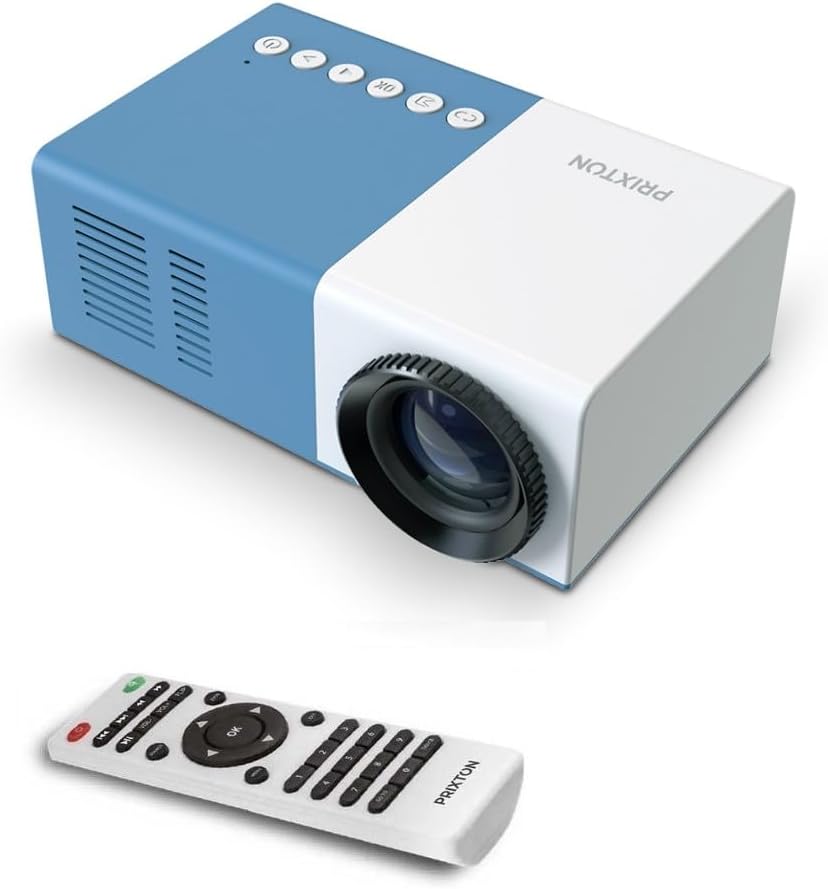
Foto 4.1: Ihu na Top View of the PRIXTON Cinema Mini Projector with its remote control. The projector is blue and white, showing the lens, control buttons, and the included remote.
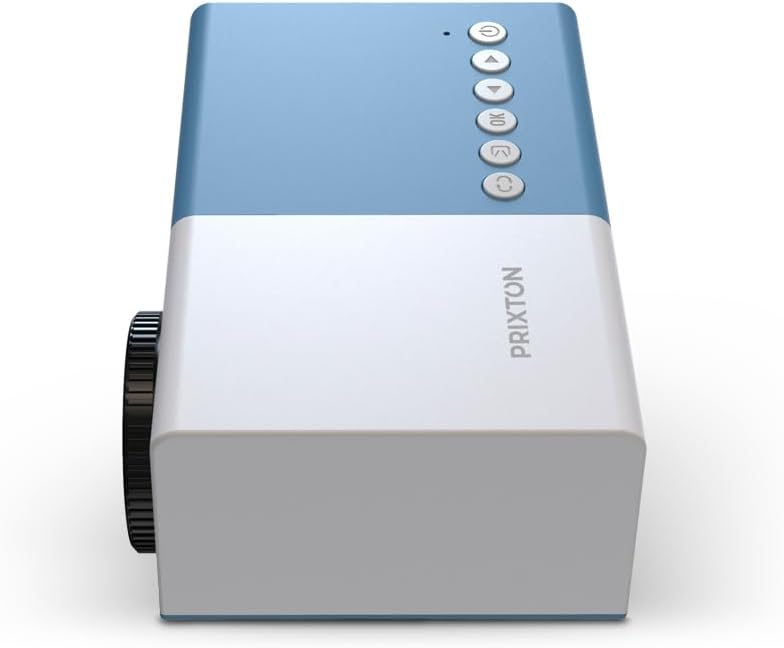
Foto 4.2: N'elu view of the projector, highlighting the control buttons (Power, Menu, OK, Navigation) and the focus wheel on the side.
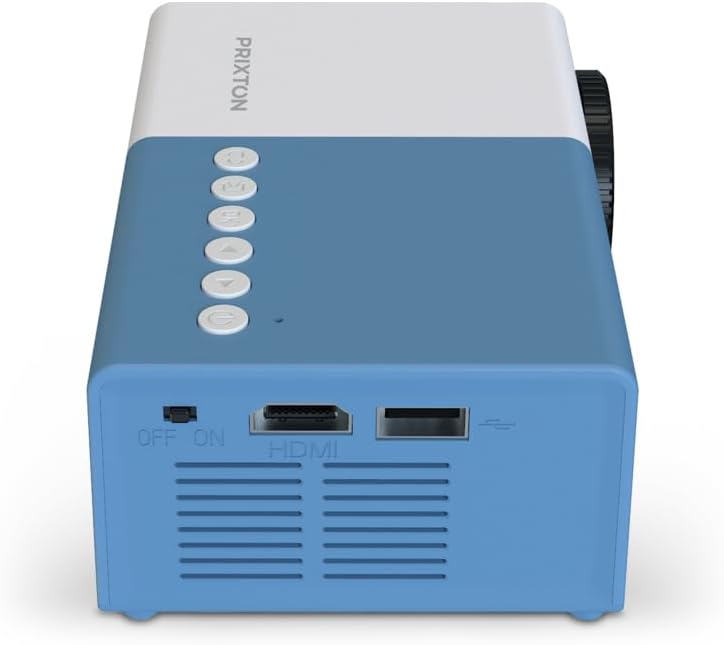
Foto 4.3: N'azụ view of the projector, showing the power switch, HDMI port, USB port, and ventilation grilles.

Foto 4.4: Akụkụ view of the projector, displaying the MicroSD card slot, AV In port, and additional ventilation.
Ngwa:
- oghere: Na-arụ ọrụ onyonyo na ihuenyo.
- Wheel lekwasịrị anya: Na-edozi nchapụta onyonyo.
- bọtịnụ njikwa: Power, Menu, OK, and navigation buttons for on-device control.
- Ike mgba ọkụ: Gbanyụọ ma ọ bụ gbanyụọ projector.
- Ọdụ ụgbọ mmiri HDMI: Connects to devices like laptops, streaming sticks, and game consoles.
- Ọdụ ụgbọ mmiri USB: Maka ịkpọghachi mgbasa ozi sitere na draịva USB.
- Oghere MicroSD: For media playback from MicroSD cards.
- AV n'ime: Connects to older devices using an AV cable.
- Ọkà okwu agbakwunyere: Na-enye mmepụta ọdịyo.
5. Nhazi
5.1 Njikọ ike
- Jikọọ ihe nkwụnye ọkụ na ọdụ ụgbọ mmiri ntinye ike nke projector.
- Tinye nkwụnye ọkụ n'ime oghere mgbidi.
- Flip the power switch on the projector to the 'ON' position. The power indicator light should illuminate.
5.2 Placement and Projection
Place the projector on a stable surface, ensuring the lens is facing the projection surface (wall or screen).

Foto 5.1: Illustration of projection distance and screen size. The projector can project images between 24 and 60 inches, with a maximum distance of 2 meters from the surface.
- For optimal image quality, ensure the room is dark.
- The projector can display images from 24 inches to 60 inches.
- The optimal projection distance is up to 2 meters (approximately 6.5 feet). Adjust the distance to achieve your desired screen size.
6. .rụ ọrụ
6.1 Gbanyụọ ma ọ bụ gbanyụọ
- Iji gbanye: After connecting power, press the Power button on the projector or the remote control.
- Iji gbanyụọ: Press the Power button again. Confirm shutdown if prompted.
6.2 Ndozi anya
After powering on, the image may appear blurry. Use the focus wheel located on the side of the projector to sharpen the image until it is clear.
6.3 Nhọrọ Isi mmalite
To select an input source (HDMI, USB, MicroSD, AV):
- Press the 'Source' or 'Input' button on the remote control or the projector.
- Use the navigation buttons to highlight your desired input source.
- Press 'OK' to confirm your selection.
7. Njikọta
The PRIXTON Cinema Mini Projector offers multiple ways to connect your devices.
7.1 HDMI Njikọ
Connect devices such as laptops, streaming sticks (e.g., Chromecast, Fire TV Stick), game consoles, or Blu-ray players using an HDMI cable.
- Connect one end of the HDMI cable to your device and the other end to the HDMI port on the projector.
- Select 'HDMI' as the input source (refer to Section 6.3).
7.2 USB and MicroSD Playback
The projector supports direct media playback from USB drives and MicroSD cards.
- Insert your USB drive into the USB port or your MicroSD card into the MicroSD slot.
- Select 'USB' or 'MicroSD' as the input source.
- Chọgharịa site na files using the remote control and select the media you wish to play.
7.3 AV In Connection
For older devices that use composite video and stereo audio (RCA), connect them via the AV In port.
- Connect the AV cable from your device to the AV In port on the projector.
- Select 'AV' as the input source.
8. Mmepụta ọdịyo
The projector features an integrated stereo speaker, providing audio for your content. Volume can be adjusted using the remote control.

Foto 8.1: The PRIXTON Cinema Mini Projector in use, projecting content in a living room environment, demonstrating its portability and ease of setup for home entertainment.
9. Nlekọta
9.1 Ihicha oghere
Use a soft, lint-free cloth specifically designed for optical lenses. Do not use abrasive cleaners or excessive force, as this can scratch the lens.
9.2 Ịhicha Ahụ Ihe Nlereanya
Wipe the exterior of the projector with a soft, dry cloth. Avoid using chemical cleaners that may damage the finish.
9.3 Mgba ikuku
Regularly check that the ventilation grilles are free from dust and debris to ensure proper heat dissipation and prevent overheating.
9.4 Nchekwa
When not in use, store the projector in a cool, dry place, away from direct sunlight and extreme temperatures. If possible, use the original packaging or a protective case.
10. Nchọpụta nsogbu
Ọ bụrụ na ị hụ nsogbu na ihe ngosi gị, lee nsogbu na ngwọta ndị a na-ahụkarị.
| Nsogbu | Ihe nwere ike ime | Ngwọta |
|---|---|---|
| Enweghị onyonyo na ihuenyo | No power; Incorrect input source; Cable not connected. | Check power connection and switch; Select correct input source; Ensure HDMI/AV/USB cable is securely connected. |
| Onyonyo na-agba agba | Focus not adjusted; Projector too close/far. | Adjust the focus wheel; Adjust projection distance. |
| Enweghị ụda | Volume too low; Muted; Source device audio issue. | Increase volume; Unmute projector; Check audio settings on source device. |
| Njikwa anya anaghị arụ ọrụ | Batteries low/dead; Obstruction; Remote not aimed at sensor. | Replace batteries; Remove obstructions; Aim remote directly at the projector's IR sensor. |
| Projector na-ekpo ọkụ ma mechie | Blocked ventilation; Prolonged use. | Ensure vents are clear; Allow projector to cool down; Operate in a well-ventilated area. |
11. Nkọwapụta
Technical specifications for the PRIXTON Cinema Mini Projector.
| Njirimara | Nkọwapụta |
|---|---|
| Ụdị | Prixton |
| Nọmba nlereanya | Cinema Mini |
| Agba | Acha anụnụ anụnụ |
| Teknụzụ amụma | Ikanam |
| Mkpebi obodo | QVGA 320 x 240 |
| Mkpebi akwadoro | Up to Full HD (1920 x 1080) |
| Icha ọkụ | Lumen 900 (15 ANSI Lumens) |
| Nha amụma | 24"-60" |
| Ogologo amụma | Ruo mita 2 |
| Njikọta | HDMI, USB, MicroSD, AV In |
| Mmepụta ọdịyo | Ọkà okwu Stereo agbakwunyere |
| Atụmatụ pụrụ iche | Dị fechaa, enwere ike ibugharị |
| Ngwa gụnyere | Njikwa anya |
12. Akwụkwọ ikike na nkwado
For warranty information, please refer to the documentation provided at the time of purchase or contact your retailer. Information regarding spare parts availability and software updates is not available in this manual. For further assistance or technical support, please visit the official PRIXTON websaịtị ma ọ bụ kpọtụrụ ndị ahịa ha ọrụ.