
1. Okwu mmalite
Thank you for choosing the Wiko T50 smartphone. This manual provides essential information on how to set up, operate, and maintain your device. Please read this manual carefully before using your Wiko T50 to ensure proper functionality and safety.
2. Ozi nchekwa
Always follow basic safety precautions when using your Wiko T50 to reduce the risk of injury, electric shock, fire, or damage to the device.
- Ewepụla ngwaọrụ ahụ na oke okpomọkụ, ìhè anyanwụ kpọmkwem, ma ọ bụ oke iru mmiri.
- Use only Wiko-approved chargers and accessories.
- Zere idobe ma ọ bụ idobe ngwaọrụ ahụ na mmetụta siri ike.
- Anwala ịkwasa ma ọ bụ rụkwaa ngwaọrụ n'onwe gị. Rụtụ aka na ndị ọrụ ruru eru.
- Debe ngwaọrụ ahụ ka ọ ghara iru ihe ndị na-eme pacemaker na ngwaọrụ ahụike ndị ọzọ.
3. Ihe ngwugwu
Ensure all items are present in your Wiko T50 package:
- Wiko T50 Smartphone
- chaja
- Lithium Polymer Battery (pre-installed or included)
- Akwụkwọ ntuziaka (akwụkwọ a)
4. Ngwaahịa gafereview
Familiarize yourself with the physical features of your Wiko T50 smartphone.
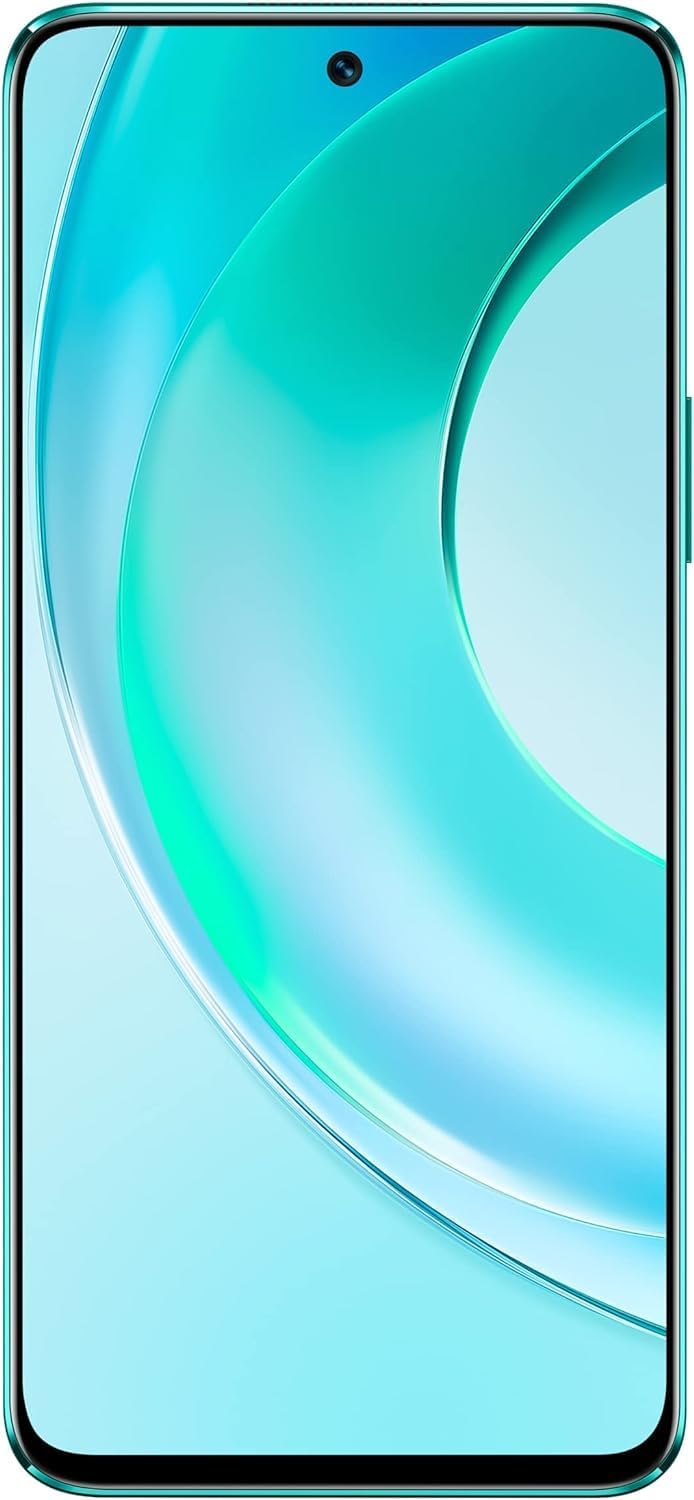
Foto 4.1: N'ihu view of the Wiko T50 smartphone, showcasing its large display and front camera.

Foto 4.2: N'azụ view of the Wiko T50 smartphone in Aqua Green, highlighting the triple camera module and Wiko branding.

Foto 4.3: Akụkụ aka nri view of the Wiko T50 smartphone, showing the power button and volume rocker.

Foto 4.4: Akụkụ aka ekpe view of the Wiko T50 smartphone, showing the SIM tray.
Isi ihe:
- Ngosipụta: 6.6-inch FHD+ borderless display for immersive viewing.
- Igwefoto: 64MP AI Triple Camera system on the rear, featuring a 120-degree ultra-wide angle lens. Front camera for selfies and video calls.
- Bọtịnụ: Power button and volume rocker located on the right side for easy access.
- ọdụ ụgbọ mmiri: USB port for charging and data transfer.
- Tray SIM: Dual SIM support for flexible connectivity.
5. Nhazi
5.1 Itinye Kaadị SIM
- Chọta tray SIM dị n'akụkụ aka ekpe nke ngwaọrụ ahụ.
- Jiri ngwaọrụ ejector SIM enyere ka imepe traị.
- Carefully place your Nano-SIM cards into the designated slots. Ensure the gold contacts are facing down.
- Jiri nwayọ pịa tray SIM ahụ n'ime oghere ahụ ruo mgbe ọ pịrị aka n'ebe ọ nọ.
5.2 Ịchaji batrị
- Connect the charger to the USB port at the bottom of your Wiko T50.
- Tinye chaja n'ime oghere ọkụ.
- The device supports 40W fast charging. The battery indicator on the screen will show charging progress.
- Ozugbo chajachara, kwụpụ chaja.
5.3 Gbanyụọ/ gbanyụọ
- Iji gbanye: Press and hold the Power button on the right side until the Wiko logo appears.
- Iji gbanyụọ: Pịa ma jide Ike bọtịnụ, wee họrọ 'Power gbanyụọ' si nhọrọ na ihuenyo.
6. .rụ ọrụ
6.1 Basic Navigation (Android 11.0)
- Ihuenyo mmetụ aka: Jiri mmegharị aka dịka ịpịa, ịpịa, ịpịa-iji-bugharịa ngwaọrụ ahụ.
- Ihuenyo ụlọ: Ebe etiti maka ngwa na wijetị gị.
- Amamọkwa: Si n'elu ihuenyo gaa ala view ọkwa na ntọala ngwa ngwa.
- Drawer ngwa: Si na ala ihuenyo pịgharịa ka ị nweta ngwa niile arụnyere.
6.2 Ojiji igwefoto
Your Wiko T50 features a 64MP AI Triple Camera system.
- Mepee ngwa Igwefoto site na ihuenyo mbụ gị ma ọ bụ drọwa ngwa.
- Họrọ ụdị ịchọrọ (Foto, Vidiyo, Foto, Pro, wdg).
- Pịa bọtịnụ mkpọchi iji seta foto ma ọ bụ malite/kwụsị ịdekọ vidiyo.
- Switch between the main lens and the 120-degree ultra-wide lens for different perspectives.
6.3 Njikọta
- Wi-Fi: Go to Settings > Network & internet > Wi-Fi to connect to available Wi-Fi networks.
- Bluetooth: Go to Settings > Connected devices > Connection preferences > Bluetooth to pair with Bluetooth devices.
- Data Mkpanaka (4G LTE): Hụ na kaadị SIM gị na-arụ ọrụ ma gbanye data ekwentị na Ntọala > Netwọk na ịntanetị > Netwọk mkpanaaka.
- USB: Connect your device to a computer using a USB cable for file nyefe ma ọ bụ ịchaji.
7. Nlekọta
- Nhicha: Jiri ákwà dị nro, nke na-enweghị lint hichaa ihuenyo na ahụ nke ngwaọrụ ahụ. Zere iji kemịkalụ siri ike ma ọ bụ ihe ndị na-emebi emebi.
- Mmelite ngwanrọ: Lelee ma wụnye mmelite ngwanrọ mgbe niile iji hụ na arụmọrụ na nchekwa kacha mma. Gaa na Ntọala> Sistemu> Mmelite sistemụ.
- Nlekọta batrị: Iji mee ka batrị dị ogologo, zere iwepụ batrị ahụ mgbe niile. Chajie ngwaọrụ ahụ tupu ọkwa batrị adalata nke ukwuu.
- Njikwa nchekwa: Na-ekpochapụ oge ụfọdụ na-adịghị mkpa files and apps to free up storage space and maintain device speed.
8. Nchọpụta nsogbu
Nke a bụ ngwọta maka nsogbu nkịtị ị nwere ike ihu:
| Nsogbu | Ngwọta |
|---|---|
| Ngwaọrụ anaghị agbanwu ọkụ | Gbaa mbọ hụ na agbagoro batrị. Jikọọ chaja wee chere nkeji ole na ole tupu ị nwaa ịgbanye ọzọ. |
| Batrị na-agbapụ ngwa ngwa | Mechie ngwa ndị a na-ejighị, belata ìhè ihuenyo, gbanyụọ Wi-Fi/Bluetooth mgbe a naghị eji ya. Lelee maka ọrụ ngwa ndabere. |
| Enweghị ike ijikọ na Wi-Fi | Restart your Wi-Fi router and the phone. Ensure you have entered the correct Wi-Fi password. |
| Ngwa na-akụkpọ ma ọ bụ na-ajụ oyi | Restart the device. Clear the cache of the problematic app (Settings > Apps > [App Name] > Storage & cache > Clear cache). |
| Enweghị mgbama netwọkụ | Ensure SIM card is properly inserted. Check if airplane mode is off. Try restarting the device. Contact your network provider if the issue persists. |
9. Nkọwapụta
Detailed technical specifications for the Wiko T50 smartphone:
| Njirimara | Nkọwapụta |
|---|---|
| Aha Nlereanya | T50 |
| Nọmba Nlereanya ihe | W-P861-03 |
| Sistemụ nrụọrụ | Android 11.0 |
| Ogo RAM arụnyere | 6 GB |
| Ike Nchekwa ebe nchekwa | 128 GB |
| Ụdị CPU | Snapdragon |
| Ọsọ CPU | 2 GHz |
| Nha ihuenyo | 6.6 sentimita asatọ |
| Mkpebi | 1080 x2400 |
| Ọnụego ume ọhụrụ | 60 Hz |
| Agba | Aqua Green |
| Ogo ike batrị | 4000 mAh (unspecified rating) |
| Ụdị Ihe | Ogwe |
| Teknụzụ nzikọrịta ozi ikuku | Cellular |
| Teknụzụ Njikọta | Bluetooth, Wi-Fi, USB |
| GPS | GLONASS |
| Atụmatụ igwefoto ndị ọzọ | N'azụ |
| Device Interface_Primary | Microphone, Touchscreen |
| Ibu Ibu | 260 g |
| Akụkụ ngwugwu | 27.8 x 24.4 x 10.2 cm |
| Ụbọchị mbụ dị | Mee 15, 2022 |
10. Akwụkwọ ikike na nkwado
Wiko provides a limited warranty for its products. Please refer to the warranty card included with your purchase for specific terms and conditions. For technical support, service, or further inquiries, please visit the official Wiko websaịtị ma ọ bụ kpọtụrụ ndị ahịa ha ọrụ.
Debe ihe akaebe nke ịzụrụ ihe maka akwụkwọ ikike.