
SEMAITU TH001
SEMAITU Double Din Car Stereo User Manual
Nlereanya: TH001
1. Okwu mmalite
Thank you for choosing the SEMAITU Double Din Car Stereo. This advanced car multimedia system is designed to enhance your driving experience with seamless smartphone integration, superior audio quality, and convenient features. This manual provides detailed instructions for installation, operation, maintenance, and troubleshooting to ensure optimal performance and longevity of your device.
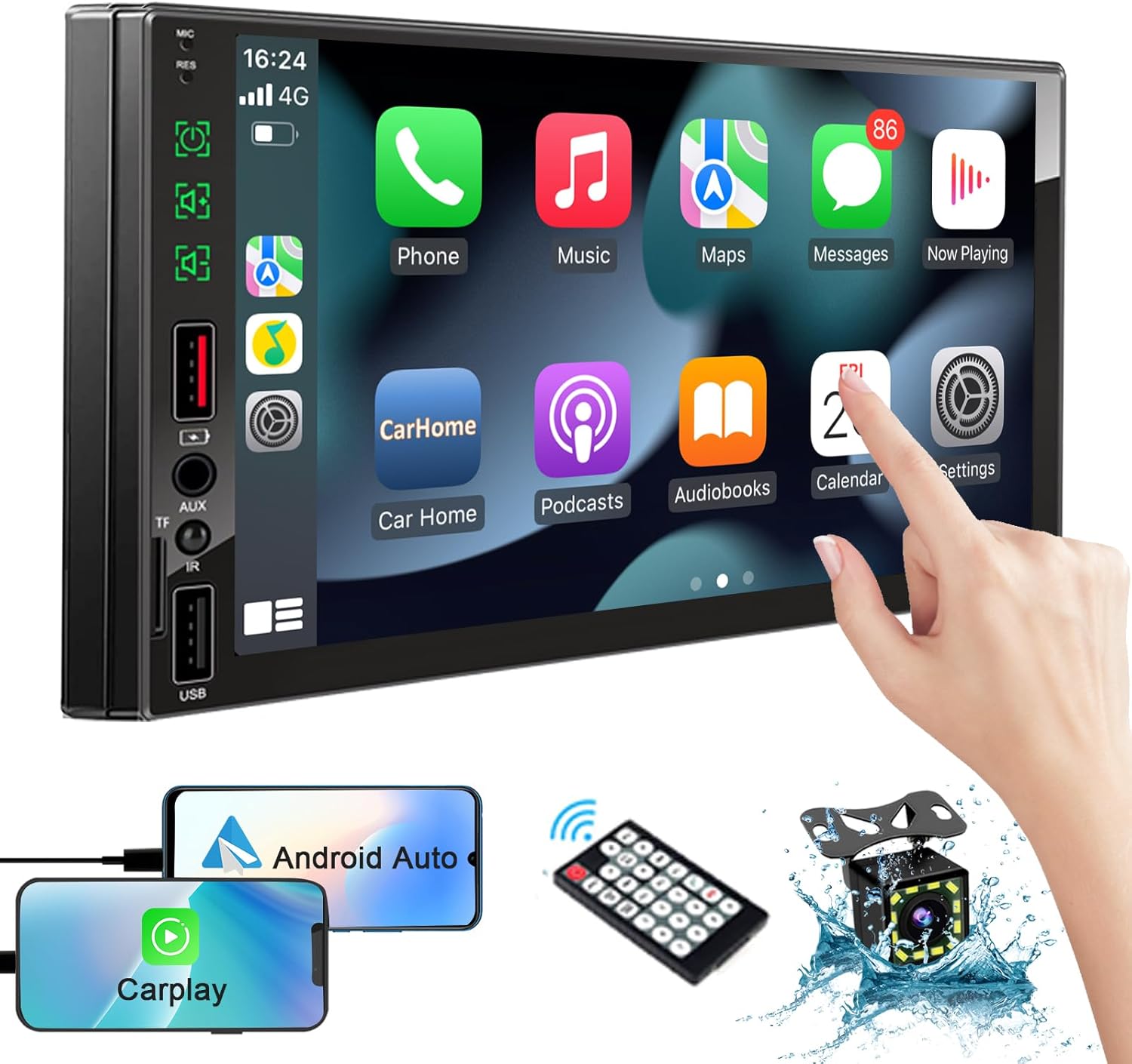
Image: The SEMAITU Double Din Car Stereo unit, remote control, backup camera, and smartphone mirroring examples.
2. Kedu ihe dị na Igbe ahụ
Biko chọpụta na agụnyere ihe niile edepụtara n'okpuru na ngwugwu gị:
- 7 Inch HD Double Din Car Stereo
- HD azụ View Camera & Brackets & Frame
- Wire Harness & Disassembly Tool
- Backup Camera Cable & Camera Power Cable
- Onye njikwa anya
- Igwe okwu Lavalier
- Akwụkwọ ntuziaka (akwụkwọ a)
3. Ntọala na nwụnye
Professional installation is highly recommended for this product. Incorrect wiring can cause damage to the unit or your vehicle's electrical system. Always disconnect the vehicle's battery before beginning installation.
3.1. Wiring Diagram Overview
Refer to the detailed wiring diagram provided with your unit for specific connections. Key connections typically include:
- Ike Waya: Constant 12V (Yellow), Accessory 12V (Red), Ground (Black).
- Wires ọkà okwu: Connect to your vehicle's speakers (e.g., White/White-Black for Front Left, Gray/Gray-Black for Front Right, Green/Green-Black for Rear Left, Purple/Purple-Black for Rear Right).
- Ntinye igwefoto: RCA video input for the backup camera.
- Ntugharị azụ: Wire to detect when the vehicle is in reverse gear for automatic camera display.
- Antenna: Connect your vehicle's radio antenna.
- USB/TF Ports: For media playback and smartphone connection.

Image: The car stereo displaying a quick response interface, indicating smooth operation.
3.2. Ịkwanye Unit
Secure the double din unit into your vehicle's dashboard opening using the provided mounting brackets and screws. Ensure it is firmly in place to prevent vibrations and movement.
4. Ntuziaka ọrụ
4.1. Voice Assistants (Apple CarPlay & Android Auto)
Connect your compatible iPhone or Android smartphone via USB to enable Apple CarPlay or Android Auto. This allows you to access navigation, make calls, send messages, and play music using voice commands or the stereo's touchscreen interface.
- Apple CarPlay: Connect your iPhone using a certified USB cable. The CarPlay interface will automatically launch on the stereo screen.
- Android Auto: Connect your Android phone using a certified USB cable. Ensure Android Auto is installed on your phone. The interface will launch automatically.
- Njikwa olu: Use the built-in microphone to activate Siri or Google Assistant for hands-free operation.

Image: In-car view of the stereo displaying Apple CarPlay and Android Auto interfaces, with icons for voice assistant, call, GPS, music, messages, and more apps.
4.2. Bluetooth System
The integrated Bluetooth system allows for wireless audio streaming and hands-free calling.
- Na-ejikọta: Go to the Bluetooth settings on the stereo and your smartphone. Chọọ maka available devices and select 'SEMAITU TH001' (or similar name) to pair.
- Oku na-anaghị aka: Once paired, you can make and receive calls directly through the stereo. The built-in microphone ensures clear communication.
- Ngụgharị ọdịyo: Play music from your smartphone wirelessly through the car stereo.

Image: The car stereo displaying a music interface with voice command bubbles for
Ask a question about this manual
Ask about setup, troubleshooting, compatibility, parts, safety, or missing instructions. Manuals+ will review the question and use this page’s manual context to help answer it.