
1. Okwu mmalite
This manual provides detailed instructions for the Minno Maverick A10 Rugged 10-inch Android 10 Tablet. It covers initial setup, operation, maintenance, and troubleshooting to ensure optimal performance and longevity of your device. Please read this manual thoroughly before using the tablet.
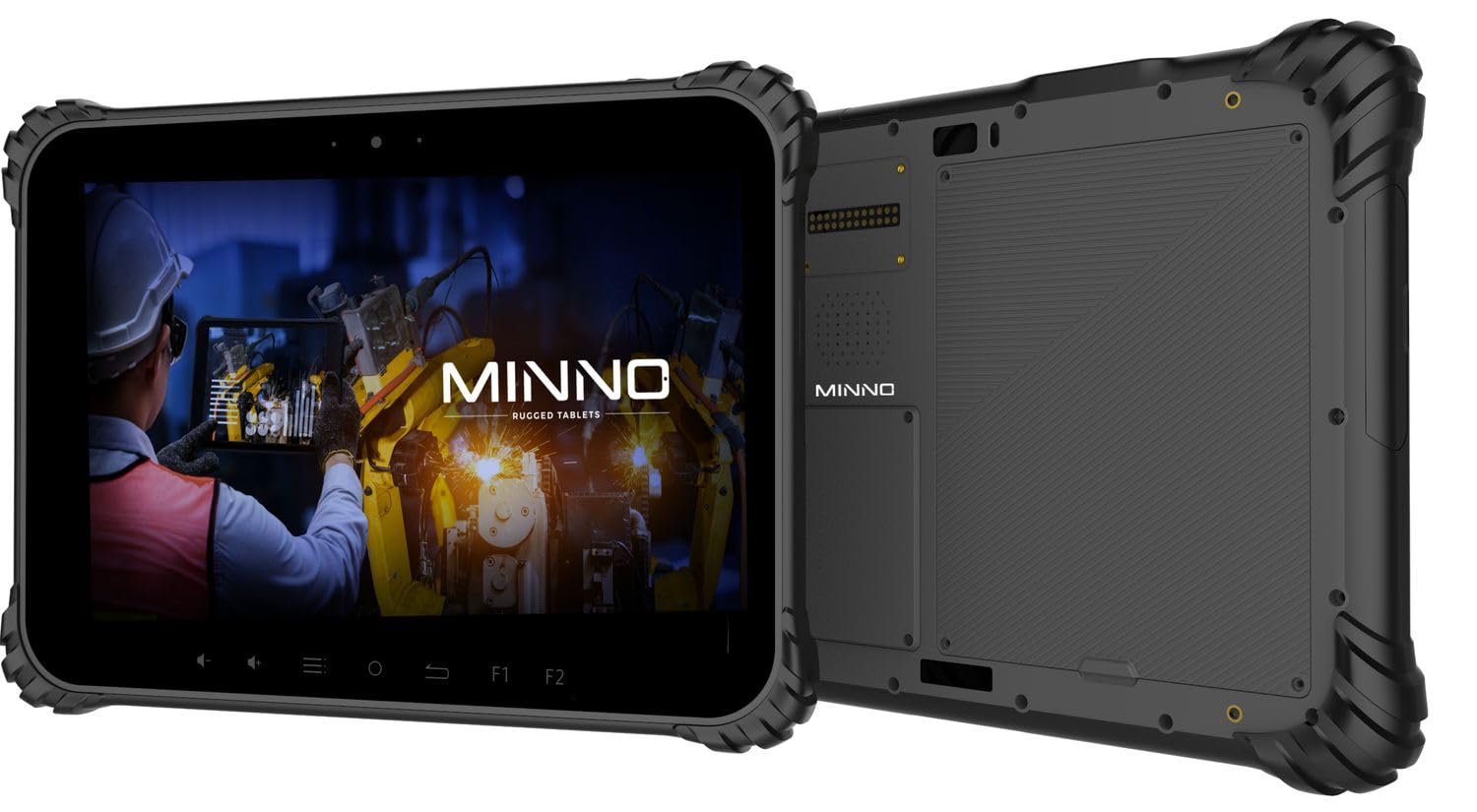
Figure 1.1: Minno Maverick A10 Rugged Tablet
2. Ihe ngwugwu
Chọpụta na ihe niile dị na ngwugwu:
- Minno Maverick A10 Rugged Android Tablet
- Ihe nkwụnye ọkụ
- Aka nkenke
- Hand Strap (pre-installed)
3. Ngwaọrụ gafereview
3.1 Atụmatụ
- Nhazi siri ike: IP67 dust and waterproof, MIL-STD-810H certified for drop, shock, and vibration resistance.
- Ngosipụta: 10-inch sunlight-readable touchscreen.
- Arụmọrụ: Android 10 operating system, 4GB RAM, 64GB internal storage.
- Njikọta: LTE (unlocked for AT&T & T-Mobile), Wi-Fi, Bluetooth, NFC, GPS.
- Batrị: 11,700 mAh swappable battery for extended use.
- Igwefoto: 13 MP rear camera, 5 MP front camera.
- Bọtịnụ anụ ahụ: Dedicated buttons for easy access to functions.

Figure 3.1: Minno Maverick A10 with core specifications
3.2 Physical Buttons and Ports
The tablet features physical buttons for common functions and easy access, even in demanding environments.

Figure 3.2: Tablet cameras and easy access buttons
- Bọtịnụ ike: Dị n'akụkụ, eji ya eme ihe iji gbanye/gbanyụọ ma ọ bụ teta/hie ụra na ngwaọrụ ahụ.
- Elu elu/ala: Na-edozi olu ọdịyo.
- Function Buttons (F1, F2): Customizable buttons for quick access to specific applications or features.
- Bọtịnụ nloghachi: Na-agagharị azụ na ihuenyo gara aga.
- Bọtịnụ ụlọ: Na-alaghachi na ihuenyo ụlọ.
- Bọtịnụ menu: Accesses application options or recent apps.
- ọdụ ụgbọ mmiri USB: Maka ịchaji na ịnyefe data.
- Ọdụ ụgbọ mmiri ekpuchiri: Designed to protect against dust and water ingress.
4. Mbido Mbido
4.1 Ịchaji batrị
Before first use, fully charge the tablet battery. Connect the provided power adapter to the tablet's charging port and plug it into a power outlet. The charging indicator will show the charging status.
4.2 Gbanyụọ/ gbanyụọ
- Iji gbanye: Press and hold the Power button until the Minno logo appears on the screen.
- Iji gbanyụọ: Pịa ma jide bọtịnụ Ike ruo mgbe menu nhọrọ ike pụtara. Họrọ "Gbanyụọ ọkụ" wee gosi.
- Ịrahụ Ụra/Teta: Briefly press the Power button to put the tablet into sleep mode or wake it up.
4.3 Nhazi izizi
Ozugbo agbanyere ya na mbụ, soro ntuziaka ndị dị na ihuenyo iji mezue ntọala mbụ, gụnyere:
- Nhọrọ asụsụ
- Njikọ netwọk Wi-Fi
- Google account setup
- Ntọala ụbọchị na oge
4.4 Installing SIM/SD Card
The tablet supports a SIM card for LTE connectivity and an SD card for expanded storage. Locate the covered slot on the side of the tablet. Carefully open the cover, insert the SIM card and/or SD card into their respective slots, ensuring correct orientation. Close the cover securely to maintain IP67 rating.
5. Basic Ọrụ
5.1 Nsoro Ihuenyo Mmetụ Aka
The 10-inch display is a multi-touch screen. Use standard Android gestures:
- Kpatụ: Họrọ otu ihe ma ọ bụ mepee ngwa.
- Kpatụ ma jide: Nweta menu onodu okirikiri ma ọ bụ bugharịa akara ngosi.
- Mịpụta: Pịgharịa gaa na ndepụta ma ọ bụ gbanwee n'etiti ihuenyo.
- Tụọ-gaa-mbugharị: Bugharịa ma ọ bụ pụta na onyonyo na web ibe.
5.2 Njikọta
- Wi-Fi: Gaa na Ntọala> Netwọk & ịntanetị> Wi-Fi iji jikọọ na netwọk dị.
- LTE: Ensure a valid SIM card is installed. Go to Settings > Network & internet > Mobile network to enable mobile data.
- Bluetooth: Gaa na Ntọala > Ngwaọrụ ejikọrọ > Bluetooth iji jikọọ ya na ngwa Bluetooth.
6. Advanced Atụmatụ
6.1 Ojiji igwefoto
The tablet is equipped with a 13 MP rear camera and a 5 MP front camera. Open the Camera application to capture photos and videos. Adjust settings such as flash, timer, and mode within the app.
6.2 GPS igodo
The integrated GPS module allows for location tracking and navigation. Ensure location services are enabled in Settings > Location for optimal performance with mapping applications.
6.3 NFC Functionality
NFC (Near Field Communication) allows for short-range wireless communication. Enable NFC in Settings > Connected devices > Connection preferences > NFC to use features like contactless payments or quick data sharing with compatible devices.
7. Nlekọta na nlekọta
7.1 Na-ehicha mbadamba nkume
Use a soft, lint-free cloth to clean the screen and body of the tablet. For stubborn marks, slightly dampJiri mmiri ma ọ bụ ihe e ji asa ákwà kpuchie ákwà ahụ. Zere kemịkalụ siri ike ma ọ bụ ihe ndị na-emebi ihe.
7.2 Nlekọta batrị
The tablet features a swappable 11,700 mAh battery. To maximize battery life:
- Zere oke okpomọkụ.
- Awụpụla batrị ahụ nke ọma mgbe niile.
- Jiri naanị ihe nkwụnye ọkụ enyere.
- If replacing the battery, ensure it is an official Minno replacement part.
7.3 Nchekwa gburugburu ebe obibi
The Minno Maverick A10 is designed for harsh environments with IP67 and MIL-STD-810H certifications.

Figure 7.1: IP67 Dustproof and Spillproof Protection

Figure 7.2: MIL-STD-810H Certified Durability
- Ogo IP67: Provides protection against dust ingress and immersion in water up to 1 meter for 30 minutes. Ensure all port covers are securely closed.
- MIL-STD-810H: Certified to resist drops up to 4 feet, withstand prolonged intense vibrations, and operate in extreme temperatures from -4°F to 150°F.
8. Nchọpụta nsogbu
If you encounter issues with your Minno Maverick A10, refer to the following common solutions:
| Nsogbu | Ngwọta enwere ike |
|---|---|
| Mbadamba ụrọ anaghị arụ ọrụ | Ensure the battery is charged. Connect the power adapter and try again. If the battery is swappable, ensure it is correctly seated. |
| Ihuenyo mmetụ anaghị anabata | Restart the tablet by holding the power button. If the issue persists, perform a factory reset (data will be lost). |
| Enweghị ike ijikọ na Wi-Fi | Check if Wi-Fi is enabled in settings. Restart your router. Ensure you are entering the correct password. |
| LTE/Mobile data not working | Ensure a valid SIM card is properly inserted. Check mobile data settings and APN configurations. Contact your service provider. |
| Applications are crashing | Clear the cache of the problematic application (Settings > Apps > [App Name] > Storage & cache). Update the app or the Android system. |
9. Nkọwapụta
Detailed technical specifications for the Minno Maverick A10 Rugged Tablet:
| Njirimara | Nkọwapụta |
|---|---|
| Nọmba nlereanya | A10Z03001 |
| Sistemụ nrụọrụ | Android 10 |
| Nha ihuenyo | 10 sentimita asatọ |
| Mkpebi ihuenyo | 1280x800 (Max: 1920x1200 Pixels) |
| RAM | 4 GB |
| Nchekwa nke ime | 64 GB |
| Akara nhazi | MediaTek |
| Ụdị ikuku | 802.11ac (Wi-Fi), Bluetooth, NFC, GPS, 4G LTE |
| N'azụ Webcam mkpebi | 13 MP |
| Mkpebi igwefoto n'ihu | 5 MP |
| Batrị | 11,700 mAh Lithium-ion polymer (swappable) |
| Ibu Ibu | 3.89 pound |
| Akụkụ ngwaahịa | 10 x 1 x 8 sentimita asatọ |
| Agba | Nwa |
| Durability Certifications | IP67, MIL-STD-810H |
10. Akwụkwọ ikike na nkwado
10.1 Ozi akwụkwọ ikike
Minno warrants its products to be free from material and workmanship defects for afọ 2 from the date of purchase. This warranty covers manufacturing defects under normal use. It does not cover damage caused by misuse, accidents, unauthorized modifications, or natural disasters.
10.2 Nkwado ndị ahịa
For technical assistance, warranty claims, or further inquiries, please contact Minno customer support through the official Minno website or your point of purchase. Have your model number (A10Z03001) and purchase date ready when contacting support.