
1. Okwu mmalite
This manual provides detailed instructions for the setup, operation, maintenance, and troubleshooting of your YiBiChin Universal Replacement Remote Control, Model RU-12. This remote is designed to work seamlessly with various Roku Built-in TV models.
2. Ngwaahịa gafereview
The YiBiChin RU-12 is a dedicated infrared (IR) replacement remote control for Roku Built-in TVs. It offers direct access to popular streaming services through its 12 shortcut buttons.
2.1 Atụmatụ
- No programming or pairing required.
- Compatible with a wide range of Roku Built-in TVs.
- 12 dedicated shortcut buttons for popular streaming apps: NETFLIX, Prime Video, Roku Channel, Disney+, Sling, Hulu, VUDU, YouTube, ESPN+, Fan-NOW, Google Play, and Spotify.
- Infrared (IR) technology for reliable control.
2.2 ndakọrịta
This remote is compatible with the following Roku Built-in TV brands:
- TCL Roku TV
- Hisense RokuTV
- ONN Roku TV
- INSIGNIA Roku TV
- SHARP Roku TV
- Hitachi Roku TV
- Philips RokuTV
- Westinghouse Roku TV
- Mmewere Roku TV
- And other Roku Built-in TV models.
2.3 Important Incompatibilities
This remote is NOT compatible with:
- Roku Stick devices.
- Roku Player devices without an IR receiver.
- Any Roku player/box that does not have an IR receiver.
- This is an infrared (IR) remote; it does not feature a pairing button, microphone for voice control, or a headphone jack. It is not an RF (Radio Frequency) model.

Foto 1: Ihu, akụkụ, na azụ views of the YiBiChin RU-12 remote control. The remote is black with blue navigation buttons and various colored shortcut buttons.

Image 2: Visual guide indicating that the remote is compatible with Roku players/boxes that have an IR receiver (labeled 'YES') and incompatible with Roku Built-in TVs, Roku Sticks, and Roku Players without an IR receiver (labeled 'NO').
3. Nhazi
Setting up your YiBiChin RU-12 remote control is straightforward and requires no complex programming.
3.1 Ntinye batrị
- Chọta ebe batrị dị n'azụ nke njikwa anya.
- Slide mepee mkpuchi batrị batrị.
- Insert two (2) AAA batteries, ensuring the correct polarity (+ and -) as indicated inside the compartment.
- Mechie mkpuchi nke batrị batrị nke ọma.
Mara: Batteries are not included with the remote control.
3.2 Ojiji mbụ
Once batteries are installed, the remote is ready for immediate use. No programming or pairing is necessary. Simply point the remote at your Roku Built-in TV and begin operating it.

Image 3: The remote control being used with a television, highlighting that no setup or programming is required after battery installation.
4. Ntuziaka ọrụ
Familiarize yourself with the buttons on your YiBiChin RU-12 remote control for optimal use.
4.1 Standard Controls
- Power (N/P buttons): Gbanyụọ ma ọ bụ gbanyụọ TV gị.
- Navigation Pad (Up, Down, Left, Right arrows): Na-agagharị site na menu na nhọrọ.
- OK bọtịnụ: Na-akwado nhọrọ.
- Bọtịnụ azụ: Na-alaghachi na ihuenyo gara aga ma ọ bụ menu.
- Bọtịnụ ụlọ: Na-alaghachi na ihuenyo ụlọ Roku.
- Kpọọ/Kwụsịtụ, Gaa n'ihu ngwa ngwa, laghachi azụ: Na -ejikwa ọkpụkpọ mgbasa ozi.
- Asterisk (*) Button: Accesses options or settings within certain apps.
- Refresh/Replay Button: Replays the last few seconds of content.
4.2 bọtịnụ ụzọ mkpirisi
The remote features 12 dedicated shortcut buttons for quick access to popular streaming applications:
- NETFLIX
- Vidiyo kacha mma
- Ọwa Roku
- Disney +
- èbè
- Hulu
- VUDU
- YouTube
- ESPN+
- Fan-NOW
- Google Play
- Spotify
Simply press the desired shortcut button to launch the corresponding application directly.

Image 4: Visual confirmation that the remote does not include features such as voice search, an earphone jack, or a pairing button.
5. Nlekọta
Proper care and maintenance will ensure the longevity of your remote control.
5.1 Nhicha
To clean the remote, gently wipe it with a soft, dry cloth. Avoid using liquid cleaners, solvents, or abrasive materials, as these can damage the remote's surface or internal components.
5.2 nnọchi batrị
Dochie batrị mgbe nzaghachi remote ahụ na-adịghị mma ma ọ bụ kwụsị ịrụ ọrụ. Gbanwee batrị AAA abụọ ahụ n'otu oge na nke ọhụrụ. Ejikọtala batrị ochie na nke ọhụrụ, ma ọ bụ ụdị batrị dị iche iche.
5.3 Nchekwa
When not in use for extended periods, it is recommended to remove the batteries to prevent leakage and potential damage to the remote.
6. Nchọpụta nsogbu
If you encounter issues with your remote control, please refer to the following troubleshooting steps:
- Remote anaghị aza:
- Ensure the batteries are correctly installed with the proper polarity.
- Jiri batrị AAA ọhụrụ dochie batrị ochie.
- Check for any obstructions between the remote and your TV's IR receiver. Ensure a clear line of sight.
- Confirm that your TV is a Roku Built-in TV and not a Roku Stick or a Roku Player without an IR receiver.
- No voice control/headphone jack: This remote is an IR remote and does not support voice control, a headphone jack, or a pairing function. These are not malfunctions but inherent design characteristics.
- Shortcut buttons not working: Ensure your TV is powered on and connected to the internet for streaming apps to function correctly.
If problems persist after following these steps, please contact customer support.
7. Nkọwapụta
| Ụdị | YiBiChin |
| Nọmba nlereanya | RU-12 |
| Agba | Nwa |
| Teknụzụ Njikọta | Infrared (IR) |
| Atụmatụ pụrụ iche | No programming or setup required |
| Ngwa dakọtara | Roku Built-in TVs |
| Batrị achọrọ | 2 x AAA (anaghị etinye ya) |
| Oke kacha | 10 mita |
| Ọnụọgụ bọtịnụ | Standard controls + 12 shortcut buttons |
| Akụkụ (Ihe dị ka) | Ogologo: 13.9 cm (5.5 sentimita) Ogologo: 4.1 cm (1.6 sentimita asatọ) Thickness: 2.1 cm (0.8 inches) |
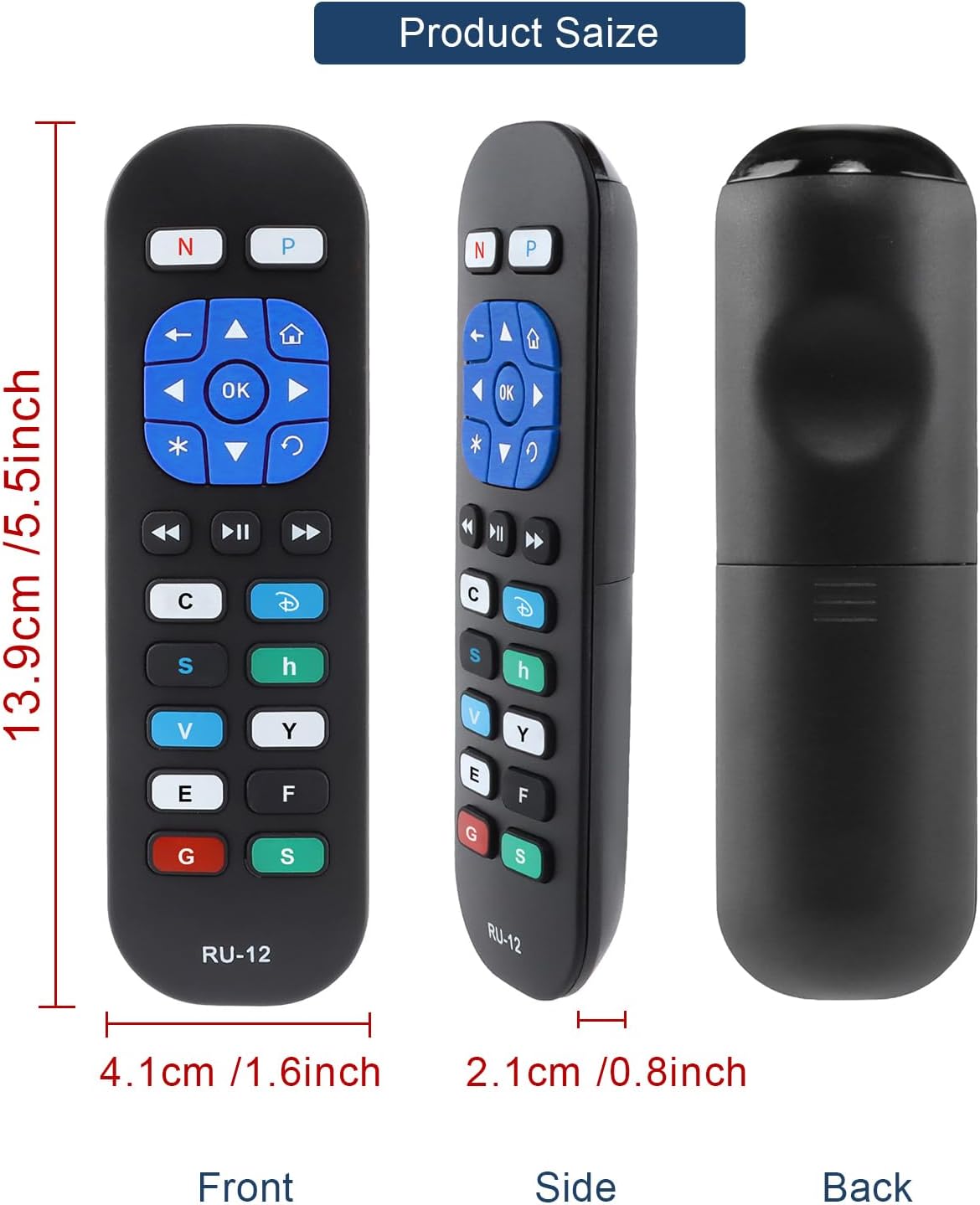
Image 5: Detailed dimensions of the remote control, indicating its length, width, and thickness.
8. Akwụkwọ ikike Ozi
Specific warranty details for the YiBiChin RU-12 Universal Replacement Remote Control are not provided in the product information. Please refer to your purchase documentation or contact the seller for any warranty-related inquiries.
9. Nkwado
For any questions regarding your YiBiChin RU-12 remote control, whether before purchase or during use, please do not hesitate to contact our customer support team. We aim to respond to all inquiries within 24 hours.
Ozi mkpọtụrụ: Please refer to the seller's contact details on your purchase platform or documentation.