
Nasuque B09XQL2NJY
Nasuque Bluetooth Keyboard User Manual
Model: B09XQL2NJY
Akara: Nasuque
Okwu mmalite
Thank you for choosing the Nasuque Bluetooth Keyboard. This wireless, rechargeable, and ultra-slim keyboard is designed for seamless compatibility with Mac OS and iOS devices, including MacBook Pro/Air, iMac, iPhone, and iPad Pro/Air/Mini. Featuring a full-size layout with a numeric keypad and a stable scissor mechanism beneath each key, it offers a comfortable and precise typing experience. Its multi-device capability allows you to connect and switch between up to three devices effortlessly.

Image: The Nasuque Bluetooth Keyboard in silver, showcasing its full layout and slim profile.
Ihe ngwugwu
Biko hụ na ihe niile dị na ngwugwu gị:
- Nasuque Bluetooth Keyboard
- Igwe nchaji USB
- Dust Cover (Silicone protector)
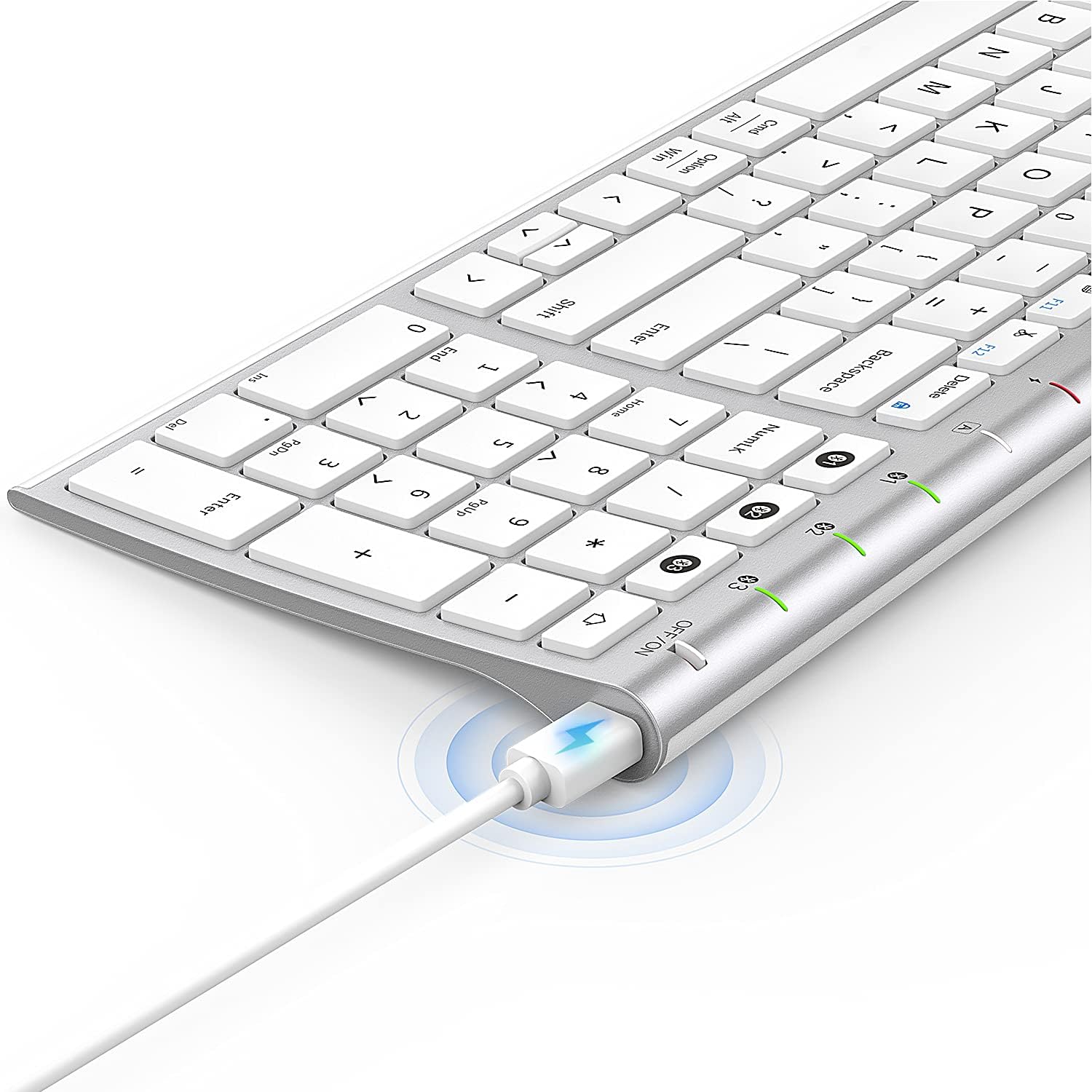
Image: The included USB charging cable, used to recharge the keyboard's built-in battery.
Ntọlite & Njikọta
Ịgbanyụ/ Gbanyụọ
Locate the ON/OFF switch on the top right side of the keyboard. Slide the switch to the "ON" position to power on the keyboard. Slide it to "OFF" when not in use to conserve battery.
Ịchaji ahụigodo
The keyboard features a built-in rechargeable lithium battery. Connect the included USB charging cable to the charging port on the keyboard and the other end to a USB power source (e.g., computer USB port, USB wall adapter). The charging indicator light will illuminate during charging and turn off when fully charged.
Ngwakọta ọtụtụ ngwaọrụ Bluetooth
This keyboard supports connection with up to three devices simultaneously. Follow these steps to pair your devices:
- Gbaa mbọ hụ na agbanyere ahụigodo.
- Pịa Fn key and one of the Bluetooth channel keys (1, 2, ma ọ bụ 3) simultaneously to select a channel. For first-time pairing, choose an unused channel.
- Pịa ogologo Fn key and the selected Bluetooth channel key (1, 2, ma ọ bụ 3) for 3-5 seconds until the corresponding channel indicator light (01, 02, ma ọ bụ 03) starts blinking rapidly. This indicates the keyboard is in pairing mode.
- On your device (MacBook, iMac, iPhone, iPad, etc.), go to Bluetooth settings and enable Bluetooth.
- Chọọ maka available devices. The keyboard will appear as "Nasuque Keyboard" or similar. Select it to connect.
- Once connected, the indicator light will stop blinking and remain solid for a few seconds before turning off.
- Repeat these steps for up to two additional devices using the other Bluetooth channels.
To switch between paired devices, simply short press the Fn key and the corresponding Bluetooth channel key (1, 2, ma ọ bụ 3).
Ihe achọrọ sistemụ: Compatible with Mac OS X 10.12 or higher and Bluetooth 4.0 or higher.

Image: The keyboard's top right corner showing the three Bluetooth channel indicators (01, 02, 03) for multi-device pairing.

Image: An illustration demonstrating the keyboard's ability to easily switch between a laptop, tablet, and smartphone.
Video: A demonstration of the Nasuque Bluetooth Keyboard's multi-device connectivity and ease of use with various Apple devices.
Ntuziaka ọrụ
Igodo ọrụ
The keyboard features a row of function keys (F1-F12) that perform various system functions when pressed in combination with the Fn key. These include media controls (play/pause, volume), brightness adjustment, and other shortcuts common to Mac OS.
Nọmba Nọmba
The integrated numeric keypad provides convenient data entry for numbers and calculations. Ensure the Num Lock key is active if needed for specific applications.

Foto: A nso nso view of the keyboard's compact full-size layout, highlighting the numeric keypad.
Ahụmịhe ntinye akwụkwọ
The keyboard utilizes a stable scissor mechanism beneath each key, providing a responsive and comfortable typing experience with a low profile.
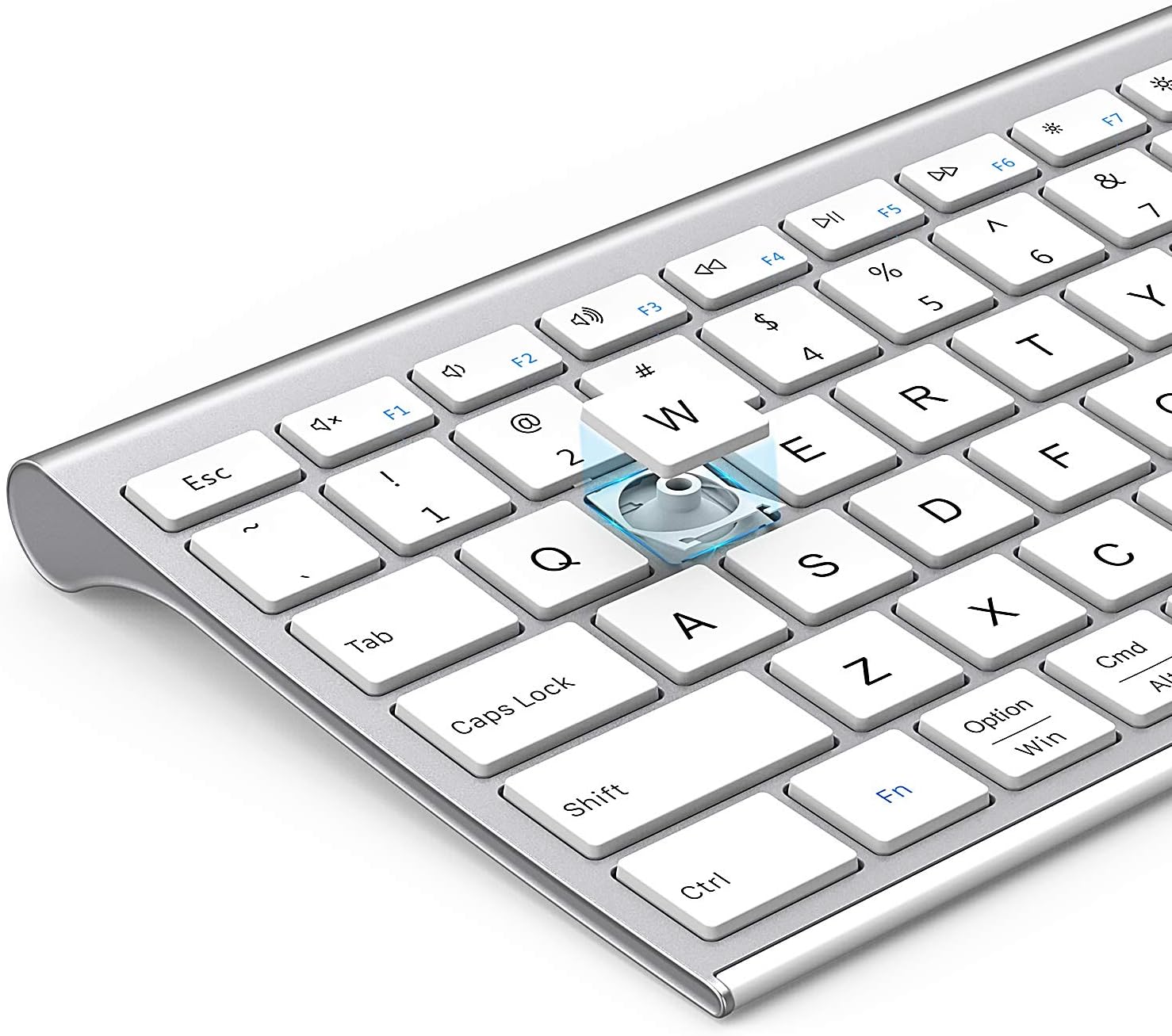
Foto: Ihe gbawara view of a keycap, illustrating the underlying scissor mechanism for stable and precise typing.
Nlekọta
Iji hụ na ogologo ndụ na ezigbo arụmọrụ nke ahụigodo gị, soro ntuziaka mmezi ndị a:
- Nhicha: Jiri akwa dị nro, kpọrọ nkụ, akwa na-enweghị lint, hichapụ elu nke ahụigodo. Maka unyi isi ike, ntakịrị dampen akwa na mmiri ma ọ bụ a nwayọọ ihicha ngwọta. Zere oke mmiri mmiri.
- Mkpuchi uzuzu: Utilize the included silicone dust cover when the keyboard is not in use to protect it from dust, spills, and debris.
- Nchekwa: Chekwaa ahụigodo ahụ n'ebe dị jụụ, kpọrọ nkụ pụọ na ìhè anyanwụ kpọmkwem na oke okpomọkụ.
- Zere Mmiri mmiri: Do not expose the keyboard to liquids. In case of accidental spills, immediately power off the keyboard and allow it to dry completely before use.
Nchọpụta nsogbu
If you encounter issues with your Nasuque Bluetooth Keyboard, please refer to the following common solutions:
| Nsogbu | Ihe nwere ike ime | Ngwọta |
|---|---|---|
| Keyboard does not connect or is not detected. | Keyboard is off, low battery, not in pairing mode, or device Bluetooth is off. |
|
| Igodo anaghị aza ma ọ bụ dee na ezighi ezi. | Low battery, connection interference, or software issue. |
|
| Difficulty switching between devices. | Incorrect key press or device not properly paired to selected channel. |
|
Nkọwapụta
| Njirimara | Nkọwa |
|---|---|
| Nlereanya | B09XQL2NJY |
| Njikọta | Bluetooth (Multi-device support for up to 3 devices) |
| Ndakọrịta | Mac OS X 10.12 or higher, Bluetooth 4.0 or higher (MacBook Pro/Air, iMac, iPhone, iPad Pro/Air/Mini) |
| Akụkụ (L x W x H) | 14.41 x 4.92 x 0.64 sentimita asatọ |
| Ibu | 1.12 pound |
| Batrị | Batrị Lithium nwere ike ibugharị |
| Ogologo ọrụ | Ruo mita 8 (ụkwụ 26) |
| Isi usoro | Mmasị-mgbanwe |

Image: Diagram illustrating the precise dimensions of the Nasuque Bluetooth Keyboard.
Akwụkwọ ikike & Nkwado
For warranty information, technical support, or any inquiries regarding your Nasuque Bluetooth Keyboard, please contact the manufacturer directly through the retailer's platform or the contact information provided with your purchase. Please retain your proof of purchase for warranty claims.
Ask a question about this manual
Ask about setup, troubleshooting, compatibility, parts, safety, or missing instructions. Manuals+ will review the question and use this page’s manual context to help answer it.