
1. Okwu mmalite
The PEKOKO LBX1000 Plus Industrial Inkjet Printer is designed for high-speed, precise marking on various materials. It supports printing text, numbers, manufacturing/expiry dates, time, MRP, QR codes, barcodes, logos, and graphics, making it suitable for diverse industrial applications.
Akụkụ ndị bụ isi:
- Versatile Substrate Compatibility: Prints on porous, semi-porous, and non-porous materials such as glass, plastics, metal, concrete, pipes, and cardboard.
- Integrated Counters: Equipped with built-in counters for automatic marking of date, time, lot, and batch codes.
- Intelligent Operating System: Features an embedded intelligent operating system supporting variable databases from a USB flash disk for external data printing.
- Multi-Color Ink Support: Compatible with black, white, yellow, blue, red, green, and invisible inks.
- Multi-Language Interface: Supports English, Spanish, Portuguese, Italian, Russian, Turkish, Arabic, Korean, Simplified Chinese, and Traditional Chinese. Custom languages can be added as logo files.
- High-Resolution Touch Screen: Features a 4.3-inch color touch screen with 600dpi high-resolution printing capabilities.
- Ịrụ ọrụ nke ọma: Powered by a Quad-core CPU for smooth operation.
- Njikọta: Includes a network port (customizable) and supports external USB flash disk.
- Atụmatụ nchekwa: Equipped with an alarm system.

Figure 1: PEKOKO LBX1000 Plus Industrial Inkjet Printer.
2. Nhazi ntuziaka
Follow these steps to set up your PEKOKO LBX1000 Plus Industrial Inkjet Printer:
- Iwepu: Carefully unpack all components from the packaging. Ensure you have the printer unit, printhead, power adapter, synchronizer, photoelectric sensor, bracket, tools, and the aluminum alloy flight case.
- Ịkwanye: Mount the printer unit and printhead securely onto your production line or workstation using the provided bracket. Adjust the position for optimal printing alignment.
- Njikọ ike: Connect the power adapter to the designated power interface on the printer unit.
- Printhead Connection: Connect the printhead cable to the printhead interface on the printer unit.
- Njikọ ihe mmetụta: Connect the synchronizer and photoelectric sensor cables to their respective ports on the printer unit. These sensors help in precise timing and detection of items for printing.
- Ike izizi: Ensure all connections are firm and secure before plugging the power adapter into an electrical outlet and powering on the device.
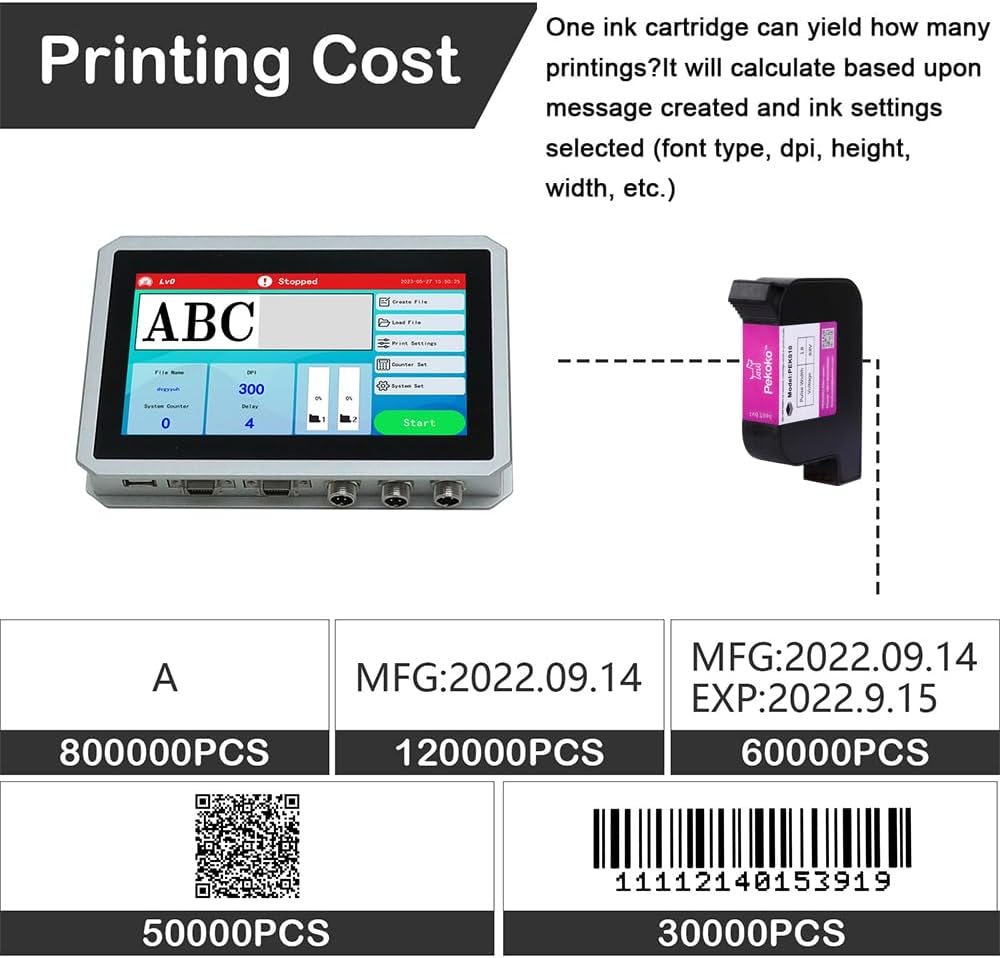
Figure 2: Diagram showing the various connection points on the printer unit, including power, printhead, USB, and sensor interfaces.
Nhazi vidiyo:
Video 1: This video demonstrates the components included in the package and provides an overview of the initial setup for the online batch coding machine.
3. Ntuziaka ọrụ
This section details the operational aspects of your PEKOKO LBX1000 Plus printer.
3.1 Power On and Interface
Press the power button to start the system. The 4.3-inch color touch screen will display the main operating interface, providing intuitive control over all printer functions.

Figure 3: The 7-inch Smart Touch LCD screen provides a comfortable and easy-to-operate interface, powered by a Quad-core CPU for smooth system performance.
3.2 Variable Data Printing
The printer supports dynamic variable data printing. You can print variable text, QR codes, barcodes, and serial numbers. The system allows for external variable database printing directly from a USB flash disk.

Figure 4: Screen interface demonstrating the variable data printing function, including database support for text, QR codes, barcodes, and serial numbers.
3.3 Content Editing and Multiplexing
Use the touch screen to create or edit your printing content. The system supports various font types, including solid and bitmap fonts, and allows importing Chinese and English characters. You can also generate numbers, dates, QR codes, barcodes, and 1-8 variable serial numbers. Adjust the size and position of content directly on the screen.

Figure 5: The screen interface for editing and multiplexing printing content, showing options for text input, fonts, dates, QR codes, and barcodes.
3.4 Large Capacity Storage
The printer features 8GB RAM, capable of storing up to 10,000,000 data entries. You can edit files and data directly on the machine at any time without needing to connect to a PC.

Figure 6: An image of a circuit board, illustrating the internal large capacity storage of the printer.
3.5 Nhọrọ asụsụ
To change the operating language, navigate to the system settings menu on the touch screen. Select your preferred language from the list of supported options, including English, Spanish, Portuguese, Italian, Russian, Turkish, Arabic, Korean, Simplified Chinese, and Traditional Chinese.
3.6 Printing Process and Applications
Once your content is prepared, place the items to be printed on the conveyor belt or in position for the printhead. Initiate the print job from the touch screen. The printer will automatically mark items as they pass the printhead, ensuring high-speed and accurate coding.

Ọgụgụ 7: Ọpụamples of various applications including packing cartons, medicine bottles, wood, food packaging, PET bottles, cement bags, PVC pipes, eggs, ceramic, and plastic bottles.
Vidio arụ ọrụ:
Video 2: Demonstrates continuous inkjet technology in action.
Video 3: Shows the industrial online inkjet printer applying batch date codes on plastic surfaces.
Video 4: Illustrates the online inkjet printer with a paging machine for batch number printing.
Video 5: Demonstrates online inkjet printing of batch codes on carton boxes for medicine.
Video 6: Shows the online inkjet printer functioning as a date coder.
Video 7: Features the PEKOKO single-head online inkjet printer applying date codes.
Video 8: Shows the online inkjet printer applying batch date codes on carton box packages.
Video 9: Provides instructions on how to print variable external data on plastic.
Video 10: Demonstrates the online inkjet printer as a date coder for bottles, including coding and marking.
4. Nlekọta
Proper maintenance ensures the longevity and optimal performance of your PEKOKO LBX1000 Plus printer.
4.1 Ink Cartridge Care
- Nchekwa: When the printer is not in use, carefully remove the ink cartridge and seal the nozzle with the provided cap to prevent the ink from drying out. Store cartridges in a cool, dry environment.
- Ndochi: Replace ink cartridges when ink levels are low or if you observe a degradation in print quality. The printer supports JS10 and JS12 compatible cartridges.

Figure 8: Illustration of an ink cartridge and examples of print yield based on message complexity and settings.

Ọgụgụ 9: nso nso view of an ink cartridge.
4.2 Nhicha
- Isi: Regularly clean the printhead surface with a lint-free cloth. Use a manufacturer-recommended cleaning solution if necessary to prevent clogs and maintain optimal print quality.
- Ihuenyo mmetụ aka: Keep the touch screen clean using a soft, dry cloth to ensure clear visibility and responsive operation.
4.3 Mmelite Sistemụ
Periodically check for firmware updates from PEKOKO to ensure your printer operates with the latest features and optimal performance.
5. Nchọpụta nsogbu
Nkebi a na-enye azịza maka nsogbu nkịtị ị nwere ike izute na ngwa nbipute gị.
5.1 No Print Output
- Katrij ink: Verify that the ink cartridge is correctly installed and contains sufficient ink.
- Njikọ: Check all cables, including power, printhead, and sensor connections, to ensure they are securely attached.
- Print Job Status: Confirm that a print job is active and the printer is not in a paused state.
5.2 Ogo Bipụta adịghị mma
- Nhicha isi akwụkwọ: Clean the printhead surface as described in the Maintenance section.
- Katrij ink: Inspect the ink cartridge for any clogs or low ink levels.
- Ntọala bipụta: Adjust print settings such as DPI, pulse width, and voltage via the touch screen interface.
- Ọnọdụ Elu: Ensure the printing surface is clean, dry, and suitable for the type of ink being used.
5.3 System Unresponsive
- Malitegharịa: Try restarting the printer unit.
- Ndozi ihuenyo: If the touch screen is unresponsive or inaccurate, perform a screen calibration from the system settings menu.
5.4 Ozi mperi
If an error message appears on the screen, refer to the specific message for guidance. If the issue persists after following the suggested steps, please contact PEKOKO customer support.
6. Nkọwapụta
| Njirimara | Nkọwa |
|---|---|
| Ụdị | PEKOKO |
| Aha Nlereanya | Industril online inkjet printer (LBX1000) |
| Teknụzụ Njikọta | USB |
| Teknụzụ obibi akwụkwọ | Inkjet |
| Atụmatụ pụrụ iche | Automatically marking and coding, Industrial online inkjet printer, Touch Screen, Synchronizer, Photoelectric included, high speed, date coder, barcode printer, QR code printer, label marker, original ink cartridge included, Aluminum alloy flight case |
| Mmepụta ngwa nbipute | Agba |
| Maximum Print Speed (Color/Monochrome) | 70 ppm |
| Akụkụ ngwaahịa (D x W x H) | 11.8" x 18" x 5.5" |
| Ụdị njikwa | Pịa bọtịnụ |
| Mgbasa ozi bipute | Akara aha |
| Ngwa dakọtara | PC |
| Ink Color Options | Black, White, Yellow, Blue, Red, Green |
| Katrij dakọtara | JS10, JS12 |
| Nhazi | Quad-core CPU |
| Mkpebi | 600 x 600 DPI |
| Ụdị ngosi | 4.3-inch Color LCD Touch Screen |
| Ogo mgbasa ozi kacha | 11 x 17 sentimita asatọ |
| Wattage | 30 watt |
| Duplex Printing | Mba (dị mfe) |
| Ngwa gụnyere | Online inkjet printer, original Black Ink Cartridges solvent, Synchronizer, Photoelectric, bracket, tools, Aluminum alloy flight case |
| Ojiji akọwapụtara | Industrial marking and coding |
| UPC | 721587323022 |
7. Akwụkwọ ikike Ozi
The PEKOKO LBX1000 Plus Industrial Inkjet Printer is covered by a akwụkwọ ikike otu afọ site na ụbọchị ịzụrụ. Akwụkwọ ikike a na-ekpuchi ntụpọ nrụpụta na adịghị arụ ọrụ n'okpuru ojiji nkịtị. Biko dowe ihe akaebe nke ịzụrụ ihe maka akwụkwọ ikike.
8. Nkwado ndị ahịa
For technical assistance, troubleshooting, or warranty claims, please contact PEKOKO customer support. You can typically find support contact information and frequently asked questions on the PEKOKO brand store page on Amazon.
How to Contact PEKOKO on Amazon:
- Visit the product page on Amazon.
- Locate the 'Sold by Pekoko' section and click on 'Pekoko' to visit the brand store or seller profile.
- On the seller's page, look for an 'Ask a question' button or similar contact option to reach customer support.

Figure 10: Visual guide on how to contact PEKOKO support through the Amazon platform.
You can also visit the official PEKOKO Brand Store for more information and support resources: PEKOKO Brand Store