
tectake Zola
tectake Zola Electric Height-Adjustable Desk
Ụdị: 404316
1. Ngwaahịa gafereview
The tectake Zola Electric Height-Adjustable Desk is designed to provide a dynamic and ergonomic workspace. Featuring continuous electric height adjustment, a robust particle board tabletop, and a solid steel frame, this desk offers stability and comfort. Its powerful motor ensures smooth transitions between sitting and standing positions, while the flexible frame design maximizes legroom. The integrated touchpad allows for easy height adjustments and memory function for preferred settings. An anti-collision system enhances safety during operation.

Image 1.1: The tectake Zola Electric Height-Adjustable Desk, showcasing its sleek black design and sturdy construction.
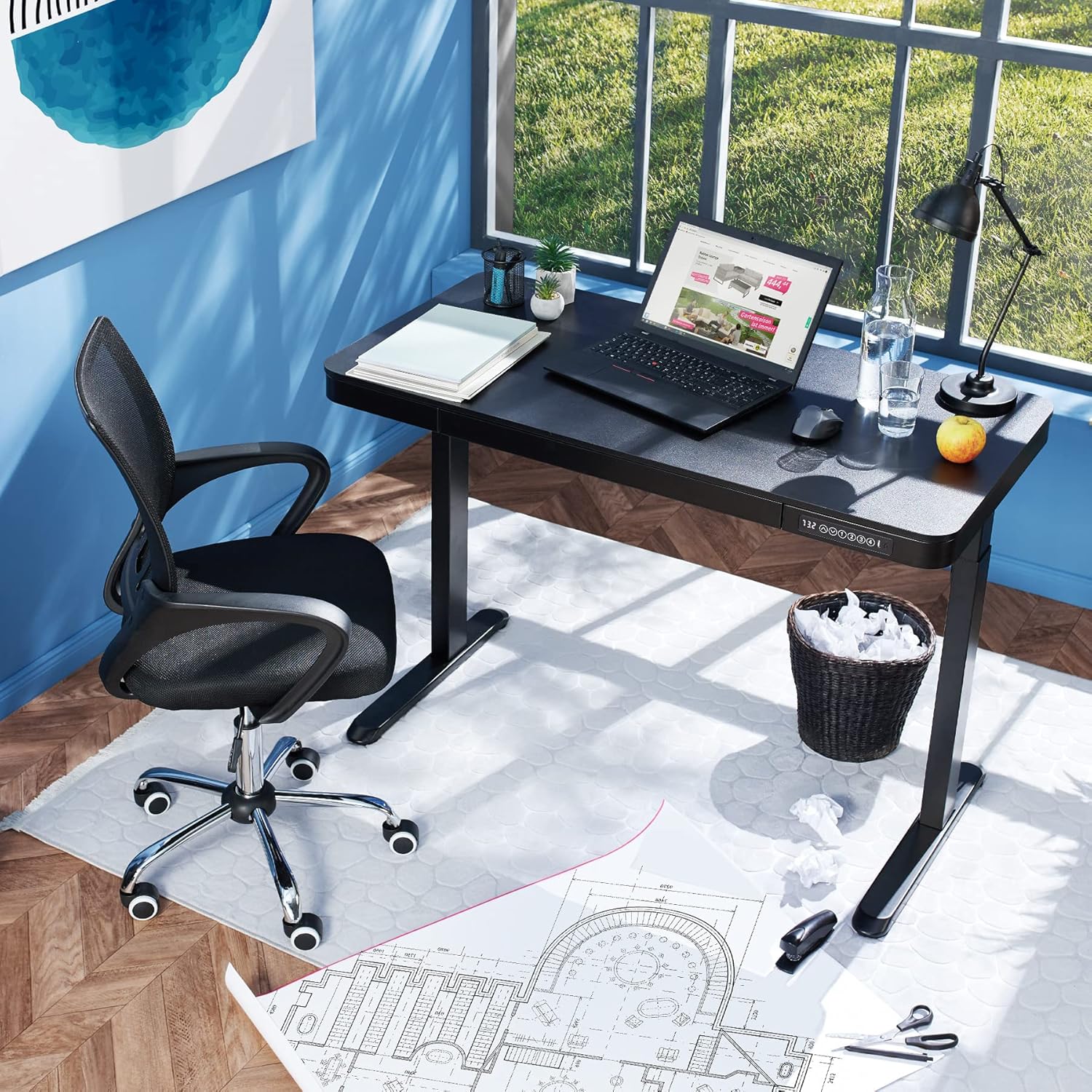
Image 1.2: The desk integrated into a modern office environment, demonstrating its practical use.
2. Ntuziaka nchekwa
- Gụọ ntuziaka niile nke ọma tupu mgbakọ na iji.
- Debe ụmụaka na anụ ụlọ pụọ na tebụl mgbe ị na-arụ ọrụ.
- Ensure all screws and bolts are tightened securely before use. Periodically check and re-tighten as necessary.
- Do not overload the desk. The maximum load capacity is 45 kg.
- Keep hands and fingers clear of moving parts during height adjustment. The desk is equipped with an anti-collision system, but caution is still advised.
- Jiri naanị nkwụnye ọkụ enyere.
- Do not disassemble or modify the motor or control unit. Contact qualified personnel for repairs.
- Place the desk on a level surface. Adjustable feet can compensate for minor unevenness.
3. Ihe ngwugwu
Hụ na ihe niile dị na ya dị ma ghara imebi tupu ịmalite njikọta. Ọ bụrụ na akụkụ ọ bụla efuola ma ọ bụ mebie, kpọtụrụ ndị ahịa.
- Tabletop with integrated drawer and control panel
- Mgbakọ Ụkwụ aka ekpe
- Mgbakọ ụkwụ aka nri
- Ụkwụ (2x)
- Ihe nkwụnye ọkụ na eriri
- Assembly Hardware (screws, Allen key, etc.)
- Akwụkwọ ntuziaka (akwụkwọ a)
4. Ntuziaka Mgbakọ
Assembly is required for this product. It is recommended to have two people for easier and safer assembly. Clear a spacious area for assembly and lay out all components.
Mgbakọ nzọụkwụ site na nzọụkwụ:
- Attach Leg Assemblies to Tabletop: Carefully place the tabletop upside down on a soft, clean surface to prevent scratches. Align the left and right leg assemblies with the pre-drilled holes on the underside of the tabletop. Secure them using the provided screws and Allen key. Ensure the motor cables are not pinched.
- Attach Feet to Leg Assemblies: Slide the feet onto the bottom of each leg assembly. Secure them with the appropriate screws.
- Jikọọ eriri ọkụ: Locate the power input port on the control unit (usually on the underside of the tabletop near the control panel). Connect the power cable firmly.
- Position the Desk: With assistance, carefully flip the desk upright and move it to its desired location. Adjust the plastic feet at the bottom of the legs to ensure the desk is stable and level on uneven floors.
- Ike izizi: Plug the power adapter into a wall outlet. The control panel display should light up.

Image 4.1: Dimensional drawing of the desk, useful for planning space and assembly.

Foto 4.2: Akụkụ view illustrating the robust leg structure and height adjustment mechanism.
5. Ntuziaka ọrụ
The tectake Zola desk features an intuitive control panel for easy height adjustment and memory functions.
Ọrụ Panel Control:

Image 5.1: The control panel, showing the digital height display and control buttons.
- Ngosipụta Digital: Na-egosi ịdị elu nke tebụl dị ugbu a na sentimita asatọ.
- Up/Down Arrows (↑ / ↓): Press and hold to continuously adjust the desk height upwards or downwards. Release the button to stop at the desired height.
- Memory Buttons (1, 2, 3, 4): These buttons allow you to save and recall up to four preferred height settings.
- To Save a Height: Adjust the desk to your desired height using the up/down arrows. Press and hold one of the memory buttons (1-4) until the display flashes or beeps, indicating the height has been saved.
- To Recall a Height: Simply press the corresponding memory button (1-4). The desk will automatically move to the saved height.
- Anti-Collision System: The desk is equipped with a sensitive anti-collision system. If the desk encounters an obstruction during height adjustment, it will stop and slightly reverse direction to prevent damage.
- USB-A and USB-C Ports: Located on the control panel, these ports can be used to charge small electronic devices.

Image 5.2: Detail of the USB-A and USB-C charging ports for convenient device charging.

Image 5.3: Visual representation of the desk's adjustable height range.
Drawer agbakwunyere:
The desk includes a convenient integrated drawer for storing small office supplies, helping to keep your workspace tidy.

Image 5.4: The desk's integrated drawer, providing discreet storage.

Image 5.5: Detail of the drawer's smooth-gliding mechanism.
6. Nlekọta na nlekọta
- Nhicha: Wipe the desk surface and legs with a soft, damp akwa . Zere iji kemịkalụ siri ike ma ọ bụ ihe nhicha abrasive, n'ihi na ha nwere ike imebi njedebe.
- Nlele anya mgbe niile: Na-enyocha skru na njikọ niile mgbe niile iji hụ na ha siri ike. Mee ka ọ sie ike ọzọ ma ọ dị mkpa.
- Njikwa USB: Ensure power cables are not tangled or pinched, which could lead to damage or malfunction.
7. Nchọpụta nsogbu
| Nsogbu | Ihe nwere ike ime | Ngwọta |
|---|---|---|
| Desktọpụ anaghị emegharị. | No power; cable disconnected; motor error. | Check power connection to wall outlet and desk. Ensure all cables are securely connected. Unplug and replug the power cable to reset the system. |
| Desktọpụ na-aga n'ụzọ na-ezighi ezi ma ọ bụ na-eme mkpọtụ pụrụ iche. | Loose connections; obstruction; uneven load. | Check all assembly screws for tightness. Ensure there are no obstructions under or around the desk. Distribute weight evenly on the tabletop. |
| Anti-collision system frequently activates. | Obstruction; sensitive setting. | Ensure the path of movement is clear. If the issue persists without clear obstruction, consult customer support. |
| Ọrụ ebe nchekwa anaghị arụ ọrụ. | Usoro nchekwa na-ezighi ezi. | Refer to 'Operation Guide' section 5 for correct saving procedure (press and hold memory button until confirmation). |
8. Nka na ụzụ nkọwa
| Njirimara | Nkọwapụta |
|---|---|
| Nọmba nlereanya | 404316 |
| N'ozuzu akụkụ (L x W x H) | Approx. 1204 x 604 x 720 - 1220 mm |
| Akụkụ tebụl (L x W x H) | Ihe dị ka. 1204 x 604 x 64.5 mm |
| Inner Drawer Dimensions (L x W x H) | Ihe ruru. 60 x 29 x 5 cm |
| Lifting Columns per Side | 2 main columns (approx. 4.5 x 7.5 cm) |
| Oke Ụkwụ na-agbanwe agbanwe | Ihe ruru. 1.2 cm |
| Motor Noise Level | <50dB |
| Ọsọ ebuli | 25 mm / s |
| Ike moto | 52.2 W |
| Ntinye Voltage | 100-240 V |
| Ogologo eriri USB | Ihe ruru. 310 cm |
| Ibu Ibu | 45 n'arọ |
| Ibu ngwaahịa | Ihe ruru. 32 n'arọ |
| Akụrụngwa | Powder-coated steel, particle board, polychloride, ABS plastic |
9. Akwụkwọ ikike na nkwado
For information regarding warranty terms and conditions, please refer to the purchase documentation or contact your retailer. For technical support or inquiries about replacement parts, please visit the official tectake websaịtị ma ọ bụ kpọtụrụ ngalaba ọrụ ndị ahịa ha. Debe nnata nzụta gị ka ihe akaebe nke ịzụrụ.
Onye nrụpụta: tectake
Akara: TecTake
Ask a question about this manual
Ask about setup, troubleshooting, compatibility, parts, safety, or missing instructions. Manuals+ will review the question and use this page’s manual context to help answer it.