
Liene Liene 4x6
Akwụkwọ ntuziaka onye ọrụ nke igwe nbipute foto Liene 4x6''
Model: Liene 4x6
1. Okwu mmalite
This user manual provides detailed instructions for the setup, operation, maintenance, and troubleshooting of your Liene 4x6'' Photo Printer. Please read this manual thoroughly before using the product to ensure proper and safe operation.
2. Ozi nchekwa
- Ewepụla ihe nbipute na mmiri ma ọ bụ oke iru mmiri.
- Zere itinye igwe nbipute ahụ n'ebe anwụ na-acha kpọmkwem ma ọ bụ nso ebe okpomọkụ dị.
- Use only Liene original ink cartridges and photo paper for optimal performance and to prevent damage.
- Debe ebe ụmụaka na-apụghị iru.
- Wepụ ngwa nbipute na ebe ọkụ tupu ihicha ma ọ bụ ọ bụrụ na agaghị eji ya ogologo oge.
3. Ihe ngwugwu
Nyochaa na etinyere ihe niile edepụtara n'okpuru na ngwugwu gị:
- Liene 4x6'' Photo Printer
- Akwụkwọ Cassette
- 20pcs Photo Papers (4x6'')
- 1 Ink Cartridge
- Ihe nkwụnye ọkụ
- Akwụkwọ ntuziaka
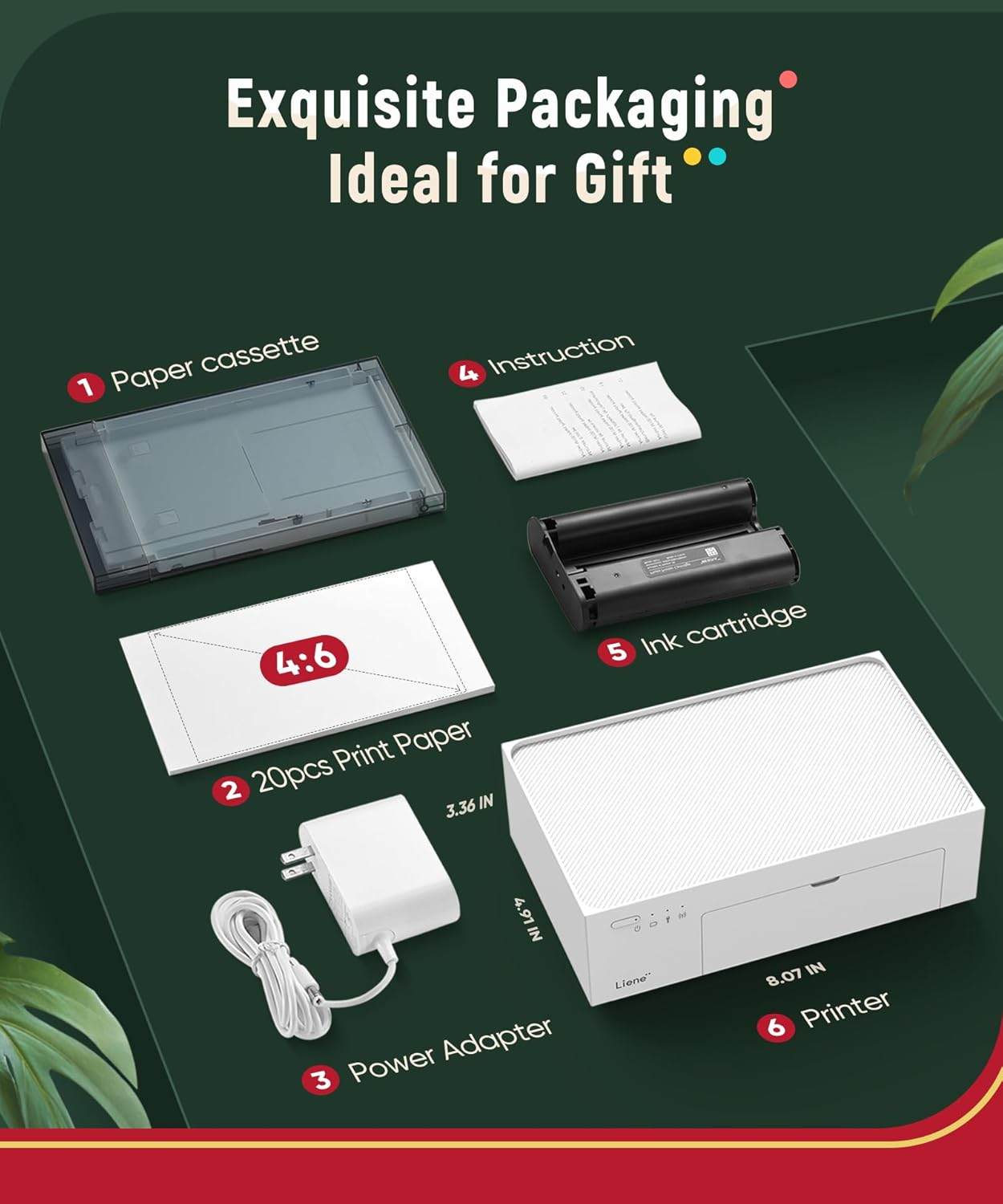
Image: Contents of the Liene 4x6'' Photo Printer package, including the printer, paper cassette, photo paper, ink cartridge, power adapter, and instruction manual.
4. Ngwaahịa gafereview
The Liene 4x6'' Photo Printer is designed for high-quality photo printing from various devices. Its compact design and built-in battery make it ideal for both home and travel use.

Image: The Liene 4x6'' Photo Printer in operation, demonstrating its ability to print vibrant photos directly from a smartphone.
Magnetic Suction Design
The printer features a unique magnetic suction design for the paper cassette, allowing it to be securely placed on top of the printer for easy storage and portability.

Image: Illustration of the one-piece magnetic suction design, highlighting how the paper cassette attaches securely to the printer for convenient storage.
5. Nhazi
Ntuziaka nhazi nzọụkwụ site na nzọụkwụ
- Bufee akwụkwọ foto:
Open the paper cassette and carefully load the 4x6'' photo papers with the glossy side facing up. Ensure the paper stack is aligned properly and does not exceed the maximum capacity.

Image: Step 1 - Loading photo paper into the paper cassette, ensuring correct orientation and alignment.
- Wụnye katrij ink:
Open the ink cartridge compartment on the side of the printer. Insert the ink cartridge firmly until it clicks into place. Close the compartment cover.

Image: Step 2 - Inserting the ink cartridge into its designated slot on the printer.
- Ike Na:
Connect the power adapter to the printer and a power outlet. Press the power button on the front of the printer to turn it on. The indicator light will illuminate.

Image: Step 3 - Powering on the printer by pressing the power button.
- Install Liene App:
Download the 'Liene Photo' app from your device's app store (iOS or Android). Follow the on-screen instructions within the app to connect your smartphone or tablet to the printer's built-in Wi-Fi hotspot.

Image: Step 4 - Connecting the Liene app on a smartphone to the printer for initial setup.
6. Ntuziaka ọrụ
6.1 Njikọta
The Liene Photo Printer features a built-in Wi-Fi hotspot for stable and fast connections, allowing up to 5 devices to connect simultaneously. It is compatible with iOS, Android, laptops, and PCs.

Image: The printer's built-in Wi-Fi hotspot ensures a stable connection, independent of your home network.

Image: The Liene printer supports multiple connection methods, including iOS AirPrint, Android Mopria Print, computer wired/wireless connection, and the Liene App, allowing up to 5 devices to connect.
6.2 Foto Mbipụta
Once connected, select the desired photo from your device's gallery within the Liene app. You can perform basic edits, apply filters, and add borders before printing. The dye-sublimation technology ensures professional photo quality with vibrant colors and a protective layer.

Image: Step 5 - The printer actively printing a photo, demonstrating the seamless process from app to physical print.
6.3 Liene App Features
The Liene app offers a variety of features to enhance your printing experience:
- Basic Editing: Gbanwee nchapụta, ọdịiche, na saturation.
- Filters & Borders: Apply various artistic filters and decorative borders to your photos.
- Mbipụta foto ID: Print standard ID photos for various visa requirements (e.g., USA, Japan).

Image: The Liene app interface, showcasing options for adjusting, filtering, and enhancing photos before printing, including borderless, bordered, square, and no-crop options.

Image: The Liene printer's capability to print various standard ID photos, including those for USA and Japan visas.
6.4 Photo Quality and Speed
The Liene printer utilizes dye-sublimation technology, which applies three primary colors layer by layer, followed by a protective layer. This process ensures clear, vibrant, waterproof, fingerprint-proof, and anti-oxidation photos with a longer lifespan. Prints are typically completed in less than one minute.

Image: Illustration of the four-layer thermal dye sublimation process, which contributes to outstanding photo quality.

Image: A visual comparison demonstrating the high resolution and true color rendering achieved by the Liene printer compared to other printers.

Image: The printing process shown in four quick steps on a smartphone, illustrating that it takes less than one minute to print a picture.
6.5 Batrị arụ ọrụ
The Liene Photo Printer includes a built-in rechargeable battery, allowing for portable printing without constant connection to a power outlet. A full charge can support up to 40 prints.

Image: The Liene printer with a battery icon, emphasizing its built-in rechargeable battery for printing without constant plugging in.
7. Nlekọta
7.1 Na-ehicha ngwa nbipute
- Ensure the printer is turned off and unplugged before cleaning.
- Wipe the exterior of the printer with a soft, dry, lint-free cloth.
- Do not use liquid cleaners or aerosol sprays directly on the printer.
- Gently remove any dust or debris from the paper path using a soft brush or compressed air.
7.2 Ịdochi ihe oriri
- Photo Paper: When the paper runs out, replace it by following the instructions in Section 5.1. The Liene app will notify you when paper is low.
- Katrij ink: When the ink cartridge is depleted, replace it by following the instructions in Section 5.2. The Liene app will also notify you when the ink is low.
8. Nchọpụta nsogbu
If you encounter issues with your Liene Photo Printer, refer to the table below for common problems and solutions.
| Nsogbu | Ihe nwere ike ime | Ngwọta |
|---|---|---|
| Igwe nbipute anaghị agba. | No power, low battery. | Ensure power adapter is securely connected. Charge the printer battery. |
| Cannot connect to Wi-Fi hotspot. | Incorrect Wi-Fi settings, printer not in pairing mode. | Restart the printer and your device. Ensure you are connecting to the printer's built-in hotspot. Follow app instructions for connection. |
| Photos are blurry or discolored. | Low ink, incorrect paper type, dirty print head. | Replace ink cartridge. Ensure you are using Liene 4x6'' photo paper. Clean the printer as per maintenance instructions. |
| Mpempe akwụkwọ. | Improperly loaded paper, foreign object in paper path. | Turn off the printer and carefully remove jammed paper. Reload paper correctly. |
| App does not detect printer. | Bluetooth/Wi-Fi off, app not updated. | Ensure Bluetooth and Wi-Fi are enabled on your device. Update the Liene app to the latest version. |
9. Nkọwapụta
| Njirimara | Nkọwapụta |
|---|---|
| Ụdị | Liene |
| Aha Nlereanya | Liene 4x6 |
| Teknụzụ obibi akwụkwọ | Sublimation agba |
| Mgbasa ozi bipute | Akwụkwọ foto na-egbuke egbuke |
| Nha mpempe akwụkwọ | 4 inch x 6 sentimita asatọ |
| Oke ntinye akwụkwọ ikike | 20 |
| Mkpebi mbipụta Agba kacha | 300 DPI |
| Teknụzụ Njikọta | Wi-Fi |
| Atụmatụ pụrụ iche | Enwere ike ibugharị, enwere ike ibugharị, ikuku |
| Ngwa dakọtara | Laptops, PC, Smartphones (iOS, Android) |
| Usoro njikwa | Ngwa |
| Ngwa gụnyere | 20pcs photo papers, 1 ink cartridge, 1 power adapter |
10. Akwụkwọ ikike na nkwado
10.1 Ozi akwụkwọ ikike
The Liene 4x6'' Photo Printer comes with a Limited Warranty (1 year) from the date of purchase. This warranty covers manufacturing defects and malfunctions under normal use. It does not cover damage caused by misuse, accidents, unauthorized repairs, or use of non-original consumables.
10.2 Nkwado ndị ahịa
For technical assistance, troubleshooting not covered in this manual, or warranty claims, please contact Liene customer support through the official website or the contact information provided with your product packaging. Please have your model number and purchase details ready when contacting support.
Ask a question about this manual
Ask about setup, troubleshooting, compatibility, parts, safety, or missing instructions. Manuals+ will review the question and use this page’s manual context to help answer it.