
Provision ISR WP-919
Provision CAM-WiFi 2MP HD Security Camera User Manual
Ụdị: WP-919
1. Ngwaahịa gafereview
The Provision CAM-WiFi 2MP HD Security Camera (Model WP-919) is a high-definition outdoor surveillance device designed for reliable monitoring. It features 2-megapixel resolution, infrared night vision up to 10 meters, and two-way audio communication with a built-in speaker and microphone. The camera supports Wi-Fi connectivity for easy integration into your network and can be managed via a mobile application on iOS and Android devices.

Foto 1.1: N'ihu na akụkụ view of the Provision CAM-WiFi 2MP HD Security Camera, showing the lens, antenna, and mounting bracket.

Figure 1.2: Key features of the camera including 2MP resolution, Day & Night (ICR), 10m IR, SD card support, 2-Way Audio, WiFi connectivity, and mobile app compatibility.
2. Ozi nchekwa
- Ensure the power supply matches the camera's requirements to prevent damage.
- Do not expose the camera to extreme temperatures, humidity, or strong magnetic fields.
- Avoid direct exposure of the lens to strong light sources, as this may affect image quality or damage the sensor.
- Jikwaa igwefoto ahụ nke ọma. Atụfula ya ma ọ bụ mee ka ọ maa jijiji nke ukwuu.
- Keep the camera away from children and pets.
- For outdoor installation, ensure proper waterproofing of all connections.
3. Ihe ngwugwu
Biko lelee ngwungwu maka ihe ndị a:
- Provision CAM-WiFi 2MP HD Security Camera (WP-919)
- Ihe mgbakwasị ụkwụ na ihe nkwụnye mgbidi
- Ihe nkwụnye ike (enwere ike ire ya iche na mpaghara ụfọdụ)
- Ntuziaka mmalite ngwa ngwa
4. Nhazi
4.1 Nwụnye anụ ahụ
- Họrọ ebe: Select a suitable outdoor location for installation, ensuring a clear view and strong Wi-Fi signal.
- Ịkwanye:
- Mark the drilling points using the camera's mounting base as a template.
- Drill holes and insert wall plugs if mounting on masonry.
- Secure the camera's mounting base to the wall or ceiling using the provided screws.
- Gbanwee akụkụ igwefoto ka ọ dị mkpa.
- Njikọ Ike: Connect the power adapter to the camera's power input port and plug it into a power outlet.
- SD Card Installation (Optional):

Foto 4.1: Akụkụ view of the camera showing the cover for the SD card slot and the integrated speaker.
- Locate the SD card slot cover on the side of the camera.
- Carefully open the cover.
- Insert a compatible microSD card (up to 128GB, Class 10 recommended) into the slot with the contacts facing down.
- Close the cover securely to maintain weather resistance.
- Wired Connection (Optional): If a wired connection is preferred, connect an Ethernet cable to the camera's RJ45 port and to your router.

Figure 4.2: The camera's connection cables, including power input, Ethernet (RJ45), and a reset button.
4.2 Ntọala Ngwa Mkpanaka
- Budata ngwa: Chọọ maka the "Provision Cam2" or "Provision PnV" app (refer to your Quick Start Guide for the exact app name) on the Apple App Store (for iOS) or Google Play Store (for Android).
- Debanye aha Akaụntụ: Open the app and follow the on-screen instructions to register a new user account.
- Tinye igwefoto:
- Pịa akara ngosi "+" ma ọ bụ nhọrọ "Tinye Ngwaọrụ" na ngwa ahụ.
- Select "Wi-Fi Camera" or scan the QR code on the camera (if available).
- Follow the in-app prompts to connect the camera to your Wi-Fi network. This usually involves entering your Wi-Fi password and allowing the camera to connect.
- Once connected, give your camera a name and set a password for security.
5. Na-arụ ọrụ igwefoto
5.1 Ndụ View
After adding the camera, tap on its name in the app to access the live video feed. You can view ezigbo oge footage site na igwefoto gị.
5.2 Audio ụzọ abụọ
The camera is equipped with a built-in speaker and microphone, enabling two-way audio communication.
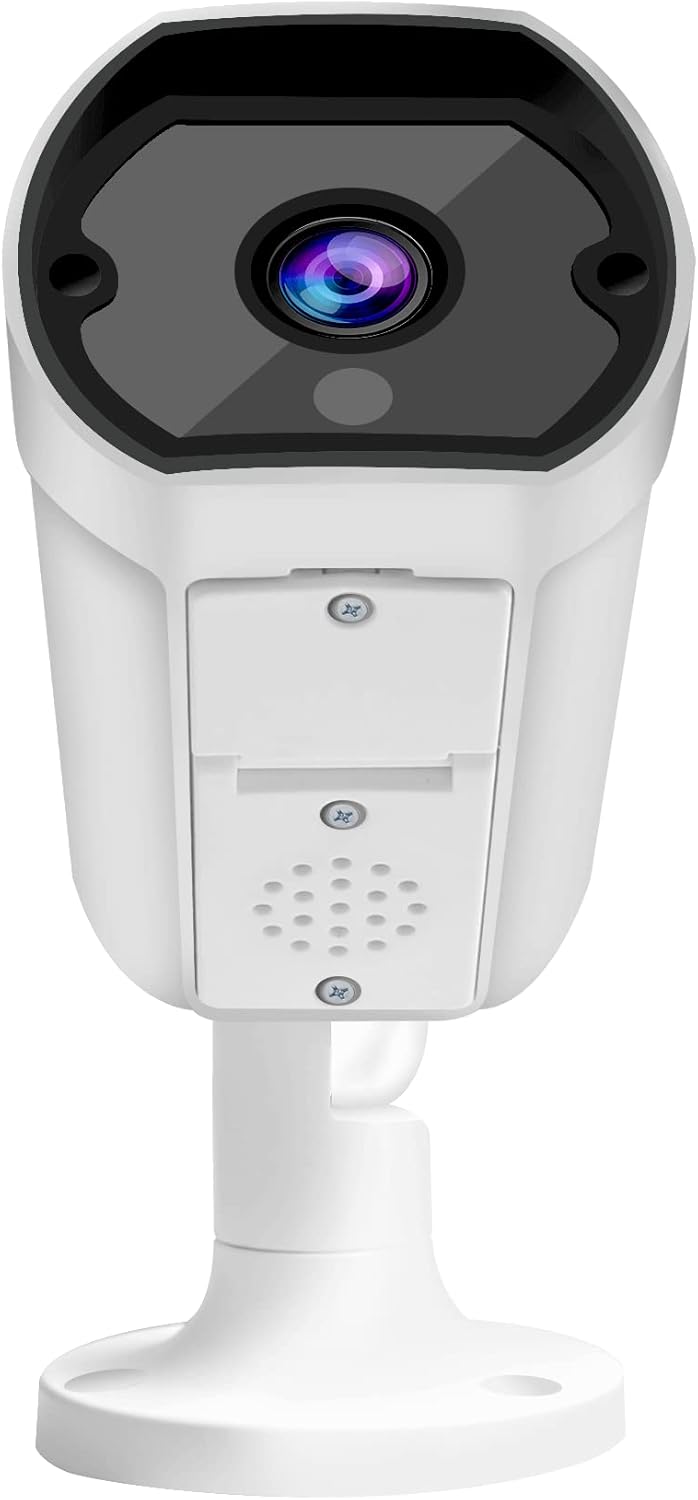
Foto 5.1: N'ihu view of the camera, highlighting the lens and the integrated speaker/microphone area below it.
- To Listen: Ensure the speaker icon in the app is enabled to hear audio from the camera's location.
- To Speak: Press and hold the microphone icon in the app to transmit your voice through the camera's speaker. Release to stop speaking.
5.3 Ọhụụ abalị
The camera automatically switches to infrared (IR) night vision mode in low-light conditions, providing clear black-and-white images up to 10 meters.
5.4 Ndekọ na ịkpọghachi
- Ndekọ na-aga n'ihu: If an SD card is installed and configured, the camera can record continuously.
- Ndekọ nchọpụta ngagharị: Configure motion detection settings in the app to record only when movement is detected.
- Nkpọghachi: Nweta ndekọ footage through the app's playback feature, typically found in the camera's settings or timeline view.
5.5 Mobile Notifications
Enable push notifications in the app settings to receive alerts on your mobile device when motion or other events are detected by the camera.
6. Nlekọta
- Nhicha: Jiri ákwà dị nro ma kpọọ nkụ hichaa anya igwefoto na ahụ ya. Ejila kemịkalụ siri ike ma ọ bụ ihe nhicha na-emebi emebi.
- Mmelite femụwe: Regularly check for and install firmware updates via the mobile app to ensure optimal performance and security.
- Nkwụsi ike netwọk: Hụ na netwọk Wi-Fi gị kwụsiri ike ma sie ike maka ọrụ igwefoto na-enweghị nkwụsị.
- Njikwa nchekwa: Periodically check the SD card storage status and format it if necessary (this will erase all recorded data).
7. Nchọpụta nsogbu
| Nsogbu | Ihe nwere ike ime | Ngwọta |
|---|---|---|
| Igwefoto anaghị ejikọta na Wi-Fi | Incorrect Wi-Fi password; Weak Wi-Fi signal; Camera too far from router; Router firewall settings. |
|
| No live video feed | Camera offline; Network issue; App glitch. |
|
| Imagedị mma adịghị mma | Dirty lens; Low light conditions; Network bandwidth. |
|
| Audio ụzọ abụọ anaghị arụ ọrụ | Microphone/speaker blocked; App volume settings; Network delay. |
|
| SD card not recording | SD card full; SD card corrupted; Incorrect recording settings. |
|
8. Nkọwapụta
| Njirimara | Nkọwa |
|---|---|
| Nọmba nlereanya | WP-919 |
| Mkpebi | 2MP (1080p video capture resolution) |
| Njikọta | Wireless (Wi-Fi), Wired (Ethernet) |
| Ọhụụ abalị | IR-10M (Infrared up to 10 meters), Day & Night (ICR) |
| Audio | Two-Way Audio with Built-in Speaker/Microphone |
| Nchekwa | Supports MicroSD card (details not specified, typically up to 128GB) |
| Ojiji gburugburu | N'èzí |
| Isi Iyi Ike | Igwe ọkụ eletrik |
| Ihe onwunwe | Ọla |
| Akụkụ (L x W x H) | 49.99 x 30 x 19 cm |
| Ibu | 640 g |
| Ndakọrịta ngwa mkpanaaka | iOS/Android Mobile App |
9. Nkwado
For technical assistance, warranty claims, or further inquiries, please contact Provision ISR customer support. Refer to the contact information provided with your product packaging or visit the official Provision ISR websaịtị.
Note: This manual provides general instructions. Specific features and app interfaces may vary with firmware updates.
Ask a question about this manual
Ask about setup, troubleshooting, compatibility, parts, safety, or missing instructions. Manuals+ will review the question and use this page’s manual context to help answer it.