
Okwu mmalite
This manual provides detailed instructions for the installation, operation, and maintenance of your darkFlash DLC29 All Mesh PC Case. Designed as an ATX Mid Tower, this case prioritizes high cooling performance and broad compatibility for various PC components. Please read this manual thoroughly before beginning assembly to ensure proper setup and optimal performance.

Image: The darkFlash DLC29 PC case with its mesh panels detached, illustrating the internal chassis and the full mesh design of the side and top panels.
Atụmatụ igodo
- Nhazi nke oge a mara mma: Features fine mesh panels on all sides for efficient airflow and dust filtration. Includes an integrated GPU supporter.
- Nkwado motherboard: Compatible with ATX, M-ATX, and ITX motherboard form factors.
- Ndakọrịta akụrụngwa: Supports Graphics Processing Units (GPUs) up to 330mm in length and CPU coolers up to 165mm in height. Designed for bottom-mounted ATX power supplies.
- Powerful Cooling System: Accommodates up to 6 fans simultaneously. Supports liquid coolers in sizes 120mm, 140mm, 240mm, 280mm, and 360mm for enhanced thermal management.
- Multifunctional I/O Panel: Conveniently located on the top, featuring 2x USB 3.0 ports, 2x USB 2.0 ports, HD Audio jacks, and Power/Reset buttons.
- Sufficient Internal Space: Case dimensions are 385mm (L) x 210mm (W) x 478mm (H). Offers flexible storage options with 4 or 5 (2.5-inch) drive bays and 2 or 1 (3.5-inch) drive bays. Provides 9 expansion slots.

Image: An illustration demonstrating the airflow pattern within the DLC29 case, with blue arrows indicating cool air intake from the front and sides, and orange arrows showing warm air exhaust from the top.
Nkọwapụta
| Ụdị | ọchịchịrịFlash |
| Aha Nlereanya | DLC29 |
| Nọmba Nlereanya ihe | HU-XI-58 |
| Ụdị ikpe | Mid Tower |
| Ihe onwunwe | Ọla |
| Agba | Nwa |
| Akụkụ ngwaahịa (LxWxH) | 11.02 x 18.11 x 22.05 sentimita (385 x 210 x 478 mm) |
| Ibu Ibu | 14.97 pound |
| Ndakọrịta Motherboard | ATX, M-ATX, ITX |
| Ogologo ogologo GPU | 330mm |
| Max CPU cooler elu | 165mm |
| Ụdị Nkwanye Ike | Bottom Mount (ATX) |
| Usoro jụrụ oyi | Ikuku, Mmiri |
| Nkwado ndị fan | Up to 6 fans (120mm/140mm) |
| Nkwado Radiator | 120mm, 140mm, 240mm, 280mm, 360mm |
| Drive Bays (2.5" SSD) | 4 ma ọ bụ 5 |
| Drive Bays (3.5" HDD) | 2 ma ọ bụ 1 |
| Oghere Mgbasawanye | 9 |
| N'ihu I / O Ports | 2x USB 3.0, 2x USB 2.0, HD Audio, Ike, Tọgharịa |

Image: Technical drawing displaying the external dimensions of the darkFlash DLC29 case, including its width (210mm), depth (385mm), and height (478mm).
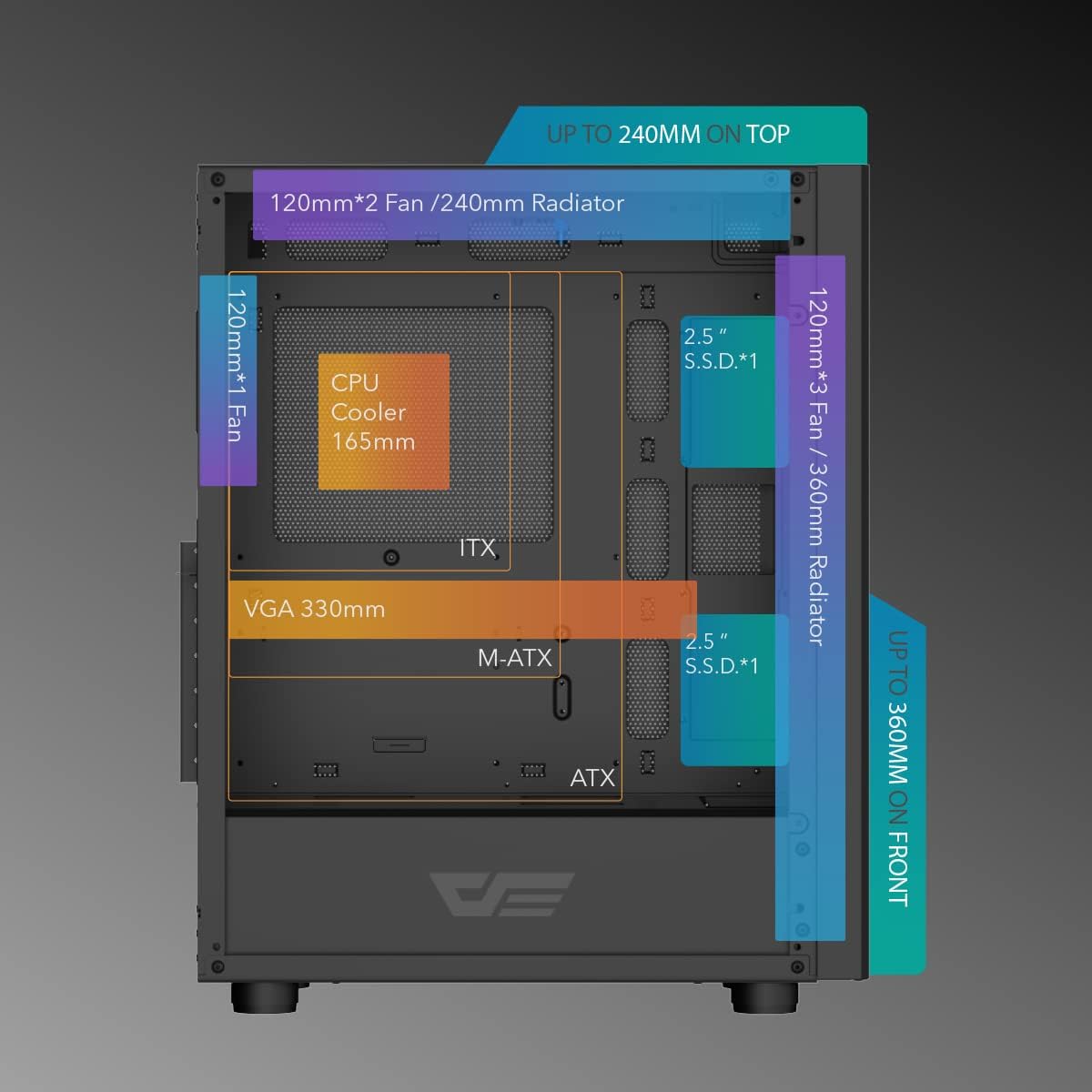
Image: An internal diagram of the DLC29 case, highlighting compatible component sizes such as CPU cooler height (165mm), VGA length (330mm), and various fan/radiator configurations for the front, top, and rear.

Foto: A view of the rear interior of the DLC29 case, detailing the mounting locations for 2.5-inch SSDs, 3.5-inch HDDs, and the dedicated compartment for the ATX power supply.
Ntọala na nwụnye
This section outlines the general steps for assembling your PC components within the darkFlash DLC29 case. For specific component installation, refer to your component's individual manuals.
- Iwepu: Carefully remove the PC case from its packaging. Inspect for any damage during transit.
- Mwepụ panel: Remove the side panels to access the interior. The mesh panels are typically secured with thumbscrews or a clip mechanism.
- Nwụnye Motherboard: Install the standoffs (if not pre-installed) according to your motherboard's form factor (ATX, M-ATX, ITX). Secure the motherboard into place.
- CPU and CPU Cooler Installation: Install your CPU and then the CPU cooler (air or liquid) onto the motherboard before or after installing the motherboard into the case, depending on the cooler's size and case access. Ensure the CPU cooler height does not exceed 165mm.
- Nwụnye kaadị eserese (GPU): Insert your GPU into the appropriate PCIe slot. Ensure the GPU length does not exceed 330mm. Utilize the included GPU supporter for stability if needed.
- Nwụnye Ngalaba Na-enye Ike (PSU): Mount the ATX power supply in the bottom compartment of the case.
- Nwụnye ngwaọrụ nchekwa: Install 2.5-inch SSDs and 3.5-inch HDDs into their designated bays. The case offers flexible configurations for these drives.
- Nwụnye Fan na Radiator: Install additional cooling fans (up to 6) or liquid cooling radiators (120mm/140mm/240mm/280mm/360mm) in the designated front, top, and rear mounting points.
- Njikwa USB: Route all power and data cables through the provided cutouts and tie-down points behind the motherboard tray to ensure clean aesthetics and unobstructed airflow.
- Mgbakọ ikpeazụ: Reattach the side panels. Connect all external peripherals.

Image: An exploded diagram of the DLC29 case, illustrating how the front, top, and side mesh panels can be detached from the main chassis for easier component installation and maintenance.
Ntuziaka ọrụ
Operating the darkFlash DLC29 PC case involves basic interaction with its front I/O panel.
- Gbanyụọ/ Gbanyụọ: Press the power button located on the top I/O panel to turn your system on or off. A short press typically powers on, while a longer press may initiate a forced shutdown.
- Tọgharịa bọtịnụ: Use the reset button for a quick system restart if necessary.
- ọdụ ụgbọ mmiri USB: Utilize the 2x USB 3.0 and 2x USB 2.0 ports for connecting peripherals such as keyboards, mice, external drives, and other USB-compatible devices.
- HD Audio Jacks: Connect your headphones or microphone to the dedicated HD Audio jacks for audio input and output.
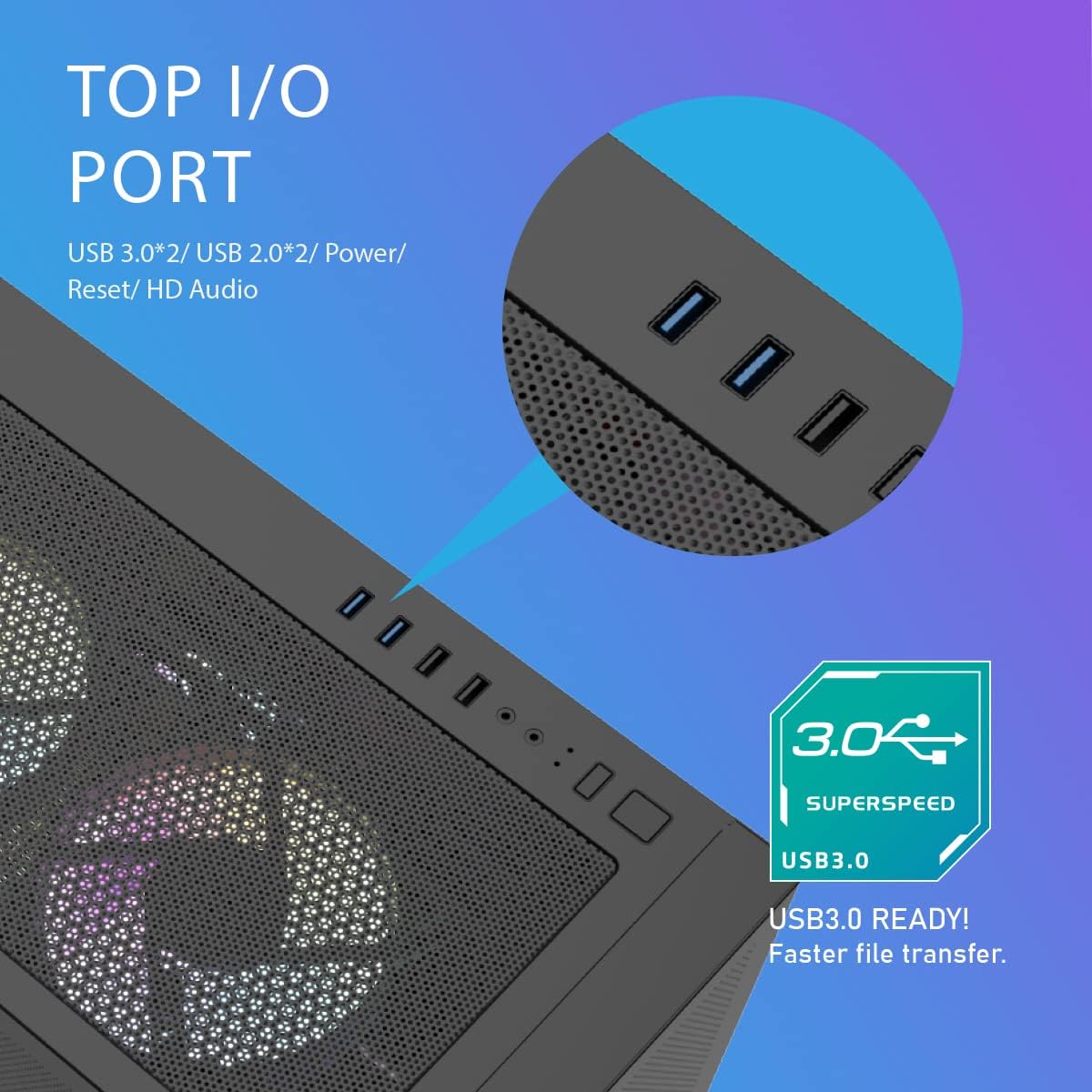
Foto: nkọwa zuru ezu view of the top I/O panel of the DLC29 case, showing the arrangement of the USB 3.0, USB 2.0, HD Audio ports, and power/reset buttons.
Nlekọta
Regular maintenance helps ensure the longevity and optimal performance of your darkFlash DLC29 PC case and the components within.
- Nchacha uzuzu uzuzu: The mesh panels act as dust filters. Periodically remove the panels and gently clean them using compressed air or a soft brush to remove accumulated dust. This maintains optimal airflow.
- Ime nhicha: With the system powered off and unplugged, use compressed air to clear dust from internal components such as CPU coolers, GPU fans, and power supply vents.
- Lelee njikwa eriri USB: Occasionally inspect cable routing to ensure no cables have come loose or are obstructing airflow.
- Nchacha mpụta: Jiri nwayọ hichaa elu mpụta, damp akwa . Zere ihe nhicha ma ọ bụ ihe mgbaze.
Nchọpụta nsogbu
This section addresses common issues you might encounter with your PC case. For complex system issues, consult a qualified technician or your component manufacturers' support.
- Sistemụ anaghị arụ ọrụ:
- Ensure the power supply is properly connected to the wall outlet and the PSU switch is in the 'ON' position.
- Verify all internal power cables (24-pin motherboard, CPU, GPU) are securely seated.
- Check that the front panel power switch cable is correctly connected to the motherboard's F_PANEL header.
- Okwu ekpo oke ọkụ:
- Confirm all case fans are spinning and oriented correctly for optimal airflow (intake at front/bottom, exhaust at rear/top).
- Hichaa ihe nzacha uzuzu na ihe dị n'ime dịka akọwara na ngalaba nlekọta.
- Ensure CPU cooler and GPU heatsinks are free of dust and fans are functioning.
- Ọdụ ụgbọ mmiri I/O n'ihu anaghị arụ ọrụ:
- Check that the USB and HD Audio cables from the front panel are correctly connected to the corresponding headers on your motherboard.
- Ensure motherboard drivers are installed and up to date.
- Oke mkpọtụ:
- Chọpụta ebe mkpọtụ si abịa (ndị fan, draịvụ ike).
- Ensure all fans are securely mounted and free from cable obstruction.
- If using traditional hard drives, ensure they are properly secured in their bays to minimize vibration.
Akwụkwọ ikike na nkwado
For warranty information, technical support, or service inquiries regarding your darkFlash DLC29 PC Case, please refer to the official darkFlash websaịtị ma ọ bụ kpọtụrụ nkwado ndị ahịa ha ozugbo. Debe ihe akaebe nke ịzụrụ ihe maka akwụkwọ ikike.
Official darkFlash Websaịtị: darkFlash Store on Amazon