
Okwu mmalite
This manual provides detailed instructions for the installation, operation, and maintenance of the 3nStar LDT114 Direct Thermal Label Printer. The LDT114 is designed for various labeling applications, offering reliable performance with its dual-wall framed construction and all-metal print head. Please read this manual thoroughly before using the printer to ensure proper setup and optimal functionality.
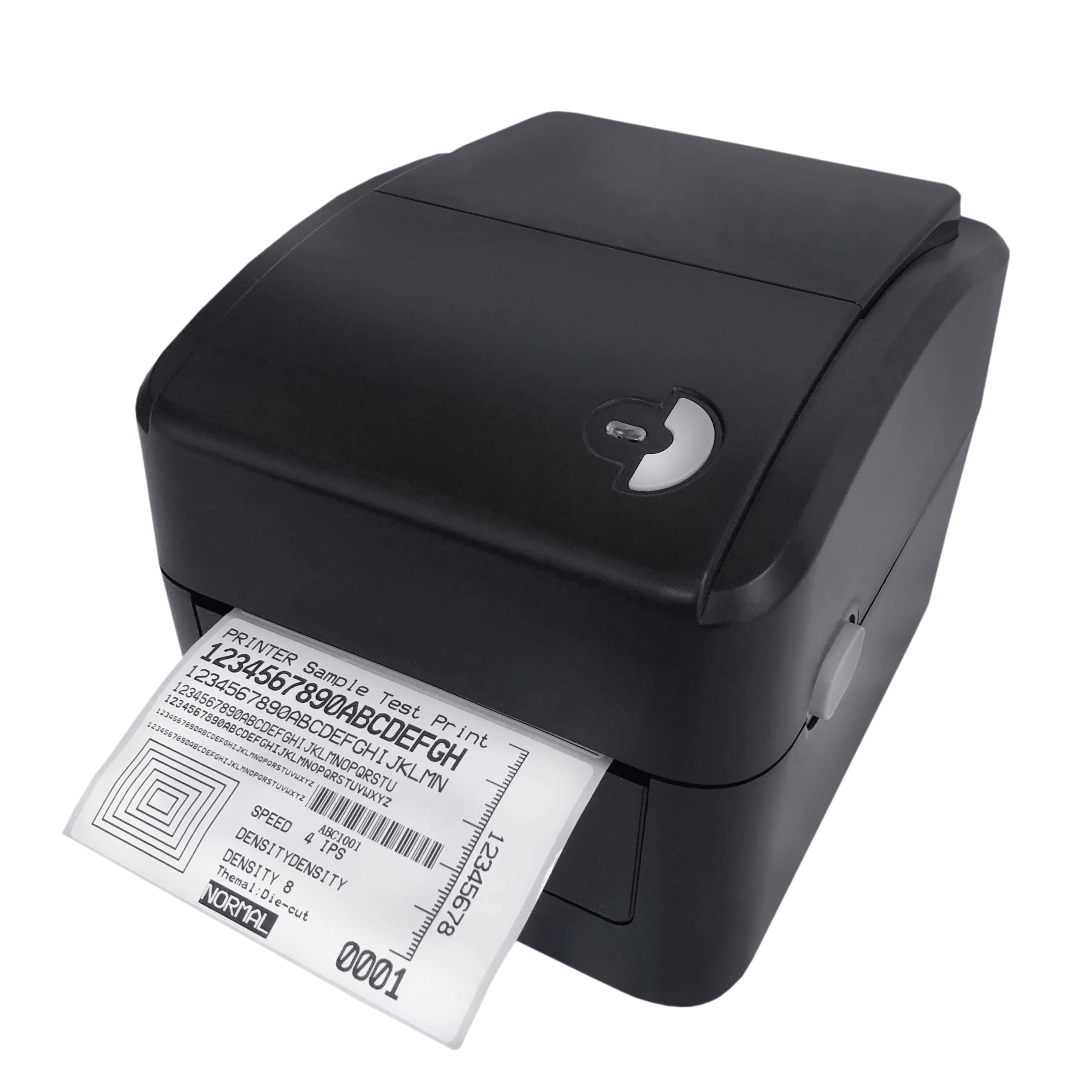
Image: The 3nStar LDT114 Direct Thermal Label Printer in operation, showing a sample label being printed.
1. Nhazi
1.1 Mwepu na nyocha
- Jiri nlezianya wepụ ihe nbipute na nkwakọ ngwaahịa ya.
- Verify that all included components are present: printer unit, power adapter, power cord, USB cable, quick start guide, and Windows labeling software driver CD.
- Inspect the printer for any visible damage. If damage is found, contact your vendor immediately.
1.2 Ijikọ ngwa nbipute
- Njikọ ike: Connect the external switching power adapter to the printer's power input port. Plug the power cord into the adapter and then into a suitable electrical outlet.
- Njikọ data:
- Njikọ USB: Connect one end of the provided USB cable to the USB port on the printer and the other end to an available USB port on your computer.
- LAN (Ethernet) Interface: Connect an Ethernet cable to the LAN port on the printer and to your network router or switch.

Image: Rear panel of the LDT114 printer, highlighting the power, USB, and Ethernet connectivity ports.
1.3 Ịwụnye draịva na ngwanrọ
- Insert the provided Windows labeling software driver CD into your computer's CD/DVD drive.
- Follow the on-screen instructions to install the printer drivers and the Bartender Label Printing Software.
- For network setup, refer to the software documentation for configuring the printer on your LAN.
1.4 Ndekọ Ibugo
- Gbaa mbọ hụ na agbanyụrụ ngwa nbipute ahụ.
- Mepee mkpuchi elu nke ngwa nbipute.
- Place the label roll onto the media holder, ensuring the labels feed from the bottom of the roll.
- Adjust the media guides to fit the width of your labels snugly, without pinching.
- Feed the leading edge of the labels through the print mechanism until it extends slightly past the print head.
- Mechie mkpuchi elu nke ọma.

Image: The LDT114 printer with its top cover open, illustrating the internal mechanism for loading label rolls.
2. Ntuziaka ọrụ
2.1 Gbanyụọ/ gbanyụọ
- To power on, ensure the power cord is connected and flip the power switch located at the rear of the printer to the 'ON' position.
- To power off, flip the power switch to the 'OFF' position.
2.2 Mbipụta bụ isi
- Gbaa mbọ hụ na ejikọrọ igwe nbipute na kọmputa gị wee gbanye ya.
- Open your label design software (e.g., Bartender) or any application from which you wish to print.
- Select the 3nStar LDT114 printer from the list of available printers.
- Configure your print settings, such as label size, orientation, and number of copies.
- Initiate the print command. The printer will begin printing labels at a speed of up to 6 IPS.
2.3 Label Calibration
For accurate label printing, especially when changing label sizes or types, calibration may be necessary. Refer to the Bartender Label Printing Software manual or the printer driver settings for specific calibration procedures. Typically, this involves a sensor adjustment to correctly detect the gaps between labels.
3. Nlekọta
3.1 Na-ehicha isi mbipụta
Regular cleaning of the print head ensures optimal print quality and extends the life of the printer. It is recommended to clean the print head after every few label roll changes or if print quality degrades.
- Power off the printer and disconnect the power cord.
- Mepee mkpuchi elu.
- Using a cotton swab lightly moistened with 100% alcohol, gently wipe the print head surface from the center outwards. Avoid touching the print head with bare hands.
- Hapụ isi mbipụta ahụ ka ọ kpọọ nkụ kpamkpam tupu e mechie mkpuchi ahụ ma jikọọ ike ọzọ.
3.2 Nhicha Platen Roller
The platen roller helps feed the labels smoothly. Clean it regularly to prevent label jams and ensure consistent feeding.
- Power off the printer and disconnect the power cord.
- Mepee mkpuchi elu.
- Rotate the platen roller and wipe its surface with a cotton swab lightly moistened with 100% alcohol.
- Allow it to dry completely before closing the cover and reconnecting power.
4. Nchọpụta nsogbu
| Nsogbu | Ihe nwere ike ime | Ngwọta |
|---|---|---|
| Ngwa nbipute anaghị agbanwu ọkụ. | Ejikọghị eriri ọkụ eletrik; ebe a na-esi ike nwere nsogbu. | Lelee njikọ ike; nwaa oghere dị iche. |
| No labels are printing. | Labels not loaded correctly; printer offline; driver issue. | Reload labels; check printer status; reinstall drivers. |
| Ọdịdị mbipụta na-adịghị mma (agbawa agbawa, ahịrị). | Dirty print head; low-quality labels; incorrect print settings. | Clean print head; use recommended labels; adjust print density. |
| Labels are jamming. | Incorrect label loading; media guides too tight/loose; dirty platen roller. | Reload labels correctly; adjust media guides; clean platen roller. |
| Kọmputa amataghị ngwa nbipute. | USB/LAN cable disconnected; driver not installed or corrupted. | Check cable connections; reinstall printer drivers. |
5. Nkọwapụta
| Njirimara | Nkọwa |
|---|---|
| Nlereanya | LDT 114 |
| Teknụzụ obibi akwụkwọ | Direct Thermal |
| Mkpebi Mbipụta | 203 DPI (ntụpọ kwa inch) |
| Ọsọ mbipụta kacha | 6 IPS (Inches Per Second) |
| Bipute Agba | Monochrome (Black) |
| Njikọta | USB, Ethernet (LAN) |
| Ebe nchekwa | 8 MB SDRAM, 8 MB Flash (Micro SD Card Reader for expansion) |
| Nṅomi | TSPL (EPL, ZPL, DPL compatible) |
| Ogologo mgbasa ozi kacha | 4.5 sentimita asatọ |
| Maximum Print Length | 70 sentimita asatọ |
| Akụkụ ngwaahịa (D x W x H) | 17.8 x 20.3 x 15.2 sentimita |
| Ibu Ibu | 2 kilogram |
| Oriri ike | 44 Watts (Operating) |
| Atụmatụ pụrụ iche | Network-Ready, Double-walled clamshell design |
| Ngwa gụnyere | Printer, Power Adapter, Power Cord, USB Cable, Quick Start Guide, Windows Labeling Software Driver CD |
6. Akwụkwọ ikike Ozi
The 3nStar LDT114 Direct Thermal Label Printer comes with a Akwụkwọ ikike dị afọ 1 from the date of purchase. This warranty covers defects in materials and workmanship under normal use. It does not cover damage caused by misuse, accidents, unauthorized modifications, or improper installation. Please retain your proof of purchase for warranty claims.
7. Nkwado
For technical assistance, troubleshooting beyond this manual, or warranty inquiries, please contact 3nStar customer support. Refer to the contact information provided with your product packaging or visit the official 3nStar websaịtị maka nkọwa nkwado kachasị ọhụrụ.
- Akụrụngwa dị n'ịntanetị: Check the 3nStar website for FAQs, updated drivers, and additional documentation.
- Kpọtụrụ: Refer to your product's quick start guide or packaging for specific customer service contact numbers or email addresses.