
Okwu mmalite
This manual provides essential information for the setup, operation, and maintenance of your Sharp 50EQ3EA Android TV. The Sharp 50EQ3EA is a 50-inch 4K Ultra HD Android TV featuring a frameless design, Quantum Dot display technology for superior color reproduction, and an integrated Harman/Kardon sound system with Dolby Atmos and DTS:X for an immersive audio experience. It operates on Android 11, offering access to numerous applications, Google Assistant, and Chromecast built-in. This television is designed to deliver high-quality visual and auditory entertainment.
Melite
1. Mwepu na nyocha
Carefully remove the TV and all accessories from the packaging. Ensure all components listed below are present and undamaged:
- Sharp 50EQ3EA Television
- Njikwa anya
- 2 x AAA batrị
- TV Stand Installation Kit
- Quick Start Guide (this document serves as a detailed guide)
2. Guzosie nwụnye
If you are not wall-mounting the TV, attach the included stand using the provided installation kit. Refer to the diagrams in the quick start guide for specific screw placement. Ensure the stand is securely fastened before placing the TV on a stable, level surface.
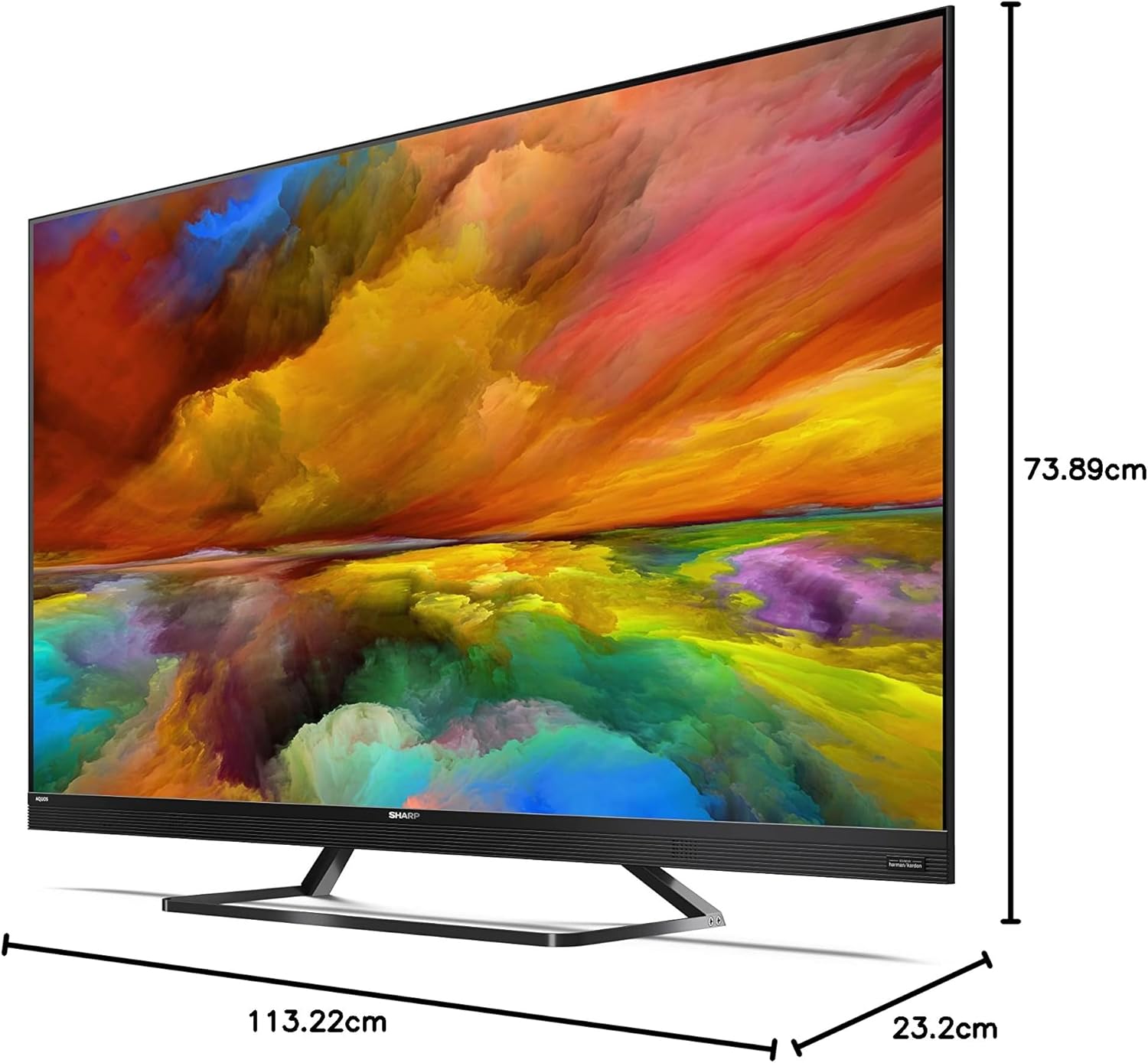
Image: The Sharp 50EQ3EA television with its stand, displaying overall dimensions for placement planning.
3. Ijikọ Ike
Connect the power cord to the TV's power input and then to a suitable electrical outlet (220V AC, 50Hz). The TV will enter standby mode.
4. Ijikọ Mpụga Devices
Your Sharp 50EQ3EA TV offers various connectivity options:
- HDMI: Use one of the four HDMI 2.1 ports for high-definition devices like Blu-ray players, gaming consoles, or set-top boxes. These ports support eARC, ALLM, VRR, and QMS for enhanced audio and gaming.
- USB: Two USB ports are available for connecting USB storage devices to play media or for software updates.
- Antenna/Satellite: Connect your terrestrial (DVB-T/T2), cable (DVB-C), or satellite (DVB-S/S2) antenna/dish to the respective inputs for live TV channels.
- Ethernet (LAN): Maka njikọ ịntanetị kwụsiri ike, jikọọ eriri Ethernet na ọdụ ụgbọ mmiri LAN.
- Mmepụta ọdịyo: Optical digital audio output and a headphone jack are available for external audio systems or headphones.
- Bluetooth/Wi-Fi: The TV supports wireless connectivity for internet access and connecting Bluetooth devices.

Image: The back panel of the Sharp 50EQ3EA TV, highlighting the available connection ports.
5. Mbido Mbido
Upon first power-on, the TV will guide you through the initial setup process. This includes selecting your language, connecting to a Wi-Fi network, signing in with your Google account, and scanning for TV channels. Follow the on-screen instructions.
Ntuziaka ọrụ
1. Remote Control
The TV comes with a remote control. Insert the two AAA batteries into the remote control. The remote supports both infrared and Bluetooth for control, including voice commands via Google Assistant.

Image: The two remote controls included with the Sharp 50EQ3EA TV, featuring dedicated buttons for popular streaming services.
2. Ọrụ TV bụ isi
- Ike: Press the power button on the remote to turn the TV on or off (standby mode).
- Olu: Jiri bọtịnụ VOL +/- ka ịhazie olu.
- Ọwa: Use the CH +/- buttons to change channels or the number pad to enter a specific channel.
- Isi mmalite: Press the SOURCE button to select input sources (HDMI, AV, TV Tuner).
- Ntugharị: Jiri pad ntụziaka na bọtịnụ OK iji chịgharịa menus wee họrọ nhọrọ.
3. Atụmatụ TV Smart (Android TV)
Your Sharp 50EQ3EA runs on Android 11, providing a smart and intuitive user experience.
- Ihuenyo ụlọ: Access the Android TV home screen to find recommended content, installed apps, and settings.
- Onye enyemaka Google: Press the Google Assistant button on your remote and speak into the microphone to control your TV, search for content, or get information.
- Chromecast arụnyere: Cast content from your compatible mobile devices or computer directly to your TV.
- Ngwa: Access pre-installed apps like Netflix, YouTube, Google Play Movies & TV, Google Play Store, and Prime Video. You can download more apps from the Google Play Store.

Image: The Android TV home screen, showing easy access to popular streaming services and personalized content.
4. Ntọala foto
Bulite gị viewing experience through the picture settings menu:
- Ụdị foto: Select from various preset modes (e.g., Standard, Movie, Game, Vivid) or customize your own.
- Quantum Dot (Q-COLOUR): This technology enhances color accuracy and vibrancy.
- Nkwado HDR: The TV supports HDR10, HLG, and Dolby Vision for improved contrast and color in compatible content.
- Active Motion 1000 & AQUOS Motion: These technologies ensure smooth and clear motion, reducing blur in fast-paced scenes.
- OPC (Optical Picture Control): The light sensor automatically adjusts screen brightness based on ambient light conditions for optimal viewing.
5. Ntọala ụda
Experience immersive audio with the integrated Harman/Kardon sound system:
- Ọnọdụ ụda: Choose from preset sound modes (e.g., Standard, Music, Movie, Speech) or adjust equalizer settings.
- Harman/Kardon Audio: The system features front-firing tweeters and down-firing woofers for clear sound and solid bass.
- Dolby Atmos & DTS:X: These technologies provide a 360-degree virtual surround sound experience.
- DTS mebere:X: Enhances audio depth and spaciousness.
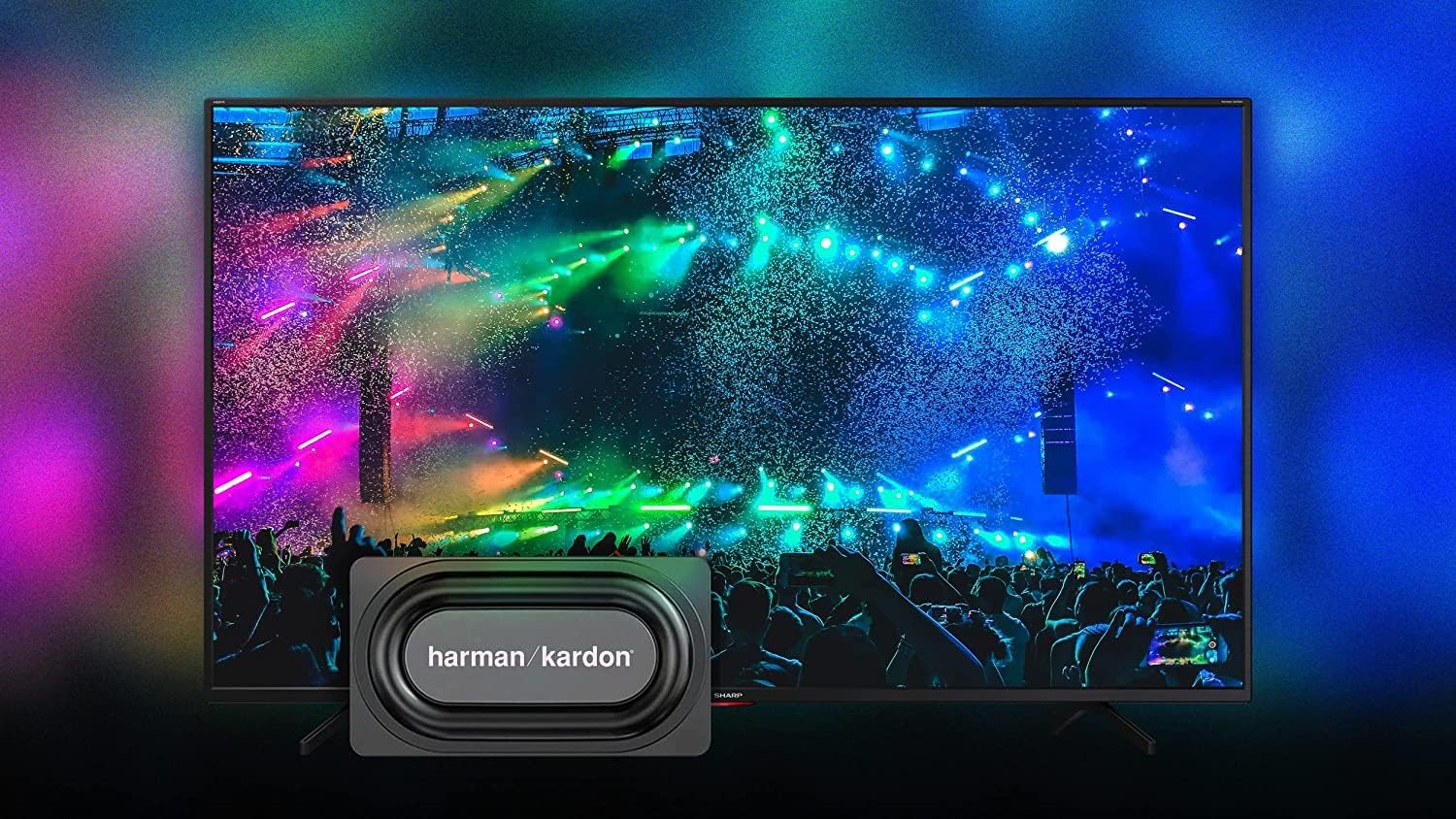
Image: The Sharp 50EQ3EA TV showcasing its Harman/Kardon sound system, designed for an immersive audio experience.
6. Njirimara egwuregwu
The Sharp 50EQ3EA is equipped with features for an enhanced gaming experience:
- HDMI2.1: Four HDMI 2.1 ports support advanced gaming features.
- eARC (Enhanced Audio Return Channel): Allows for high-quality audio passthrough to compatible sound systems.
- ALLM (Ụdị nkwụsị nke obere akpaaka): Automatically switches the TV to a low-latency mode when a game console is detected.
- VRR (ọnụego ume ọhụrụ dị iche iche): Synchronizes the TV's refresh rate with the game console's output to reduce screen tearing and stuttering.
- QMS (Quick Media Switching): Reduces black screen periods when switching between different frame rates.
- Google Stadia Support: The TV supports Google Stadia for cloud gaming.
Nlekọta
1. Na-ehicha ihuenyo
To clean the screen, first turn off the TV and unplug it from the power outlet. Use a soft, dry, lint-free cloth to gently wipe the screen. For stubborn marks, lightly dampen akwa na mmiri ma ọ bụ pụrụ iche ihuenyo Cleaner. Efesala mmiri mmiri ozugbo na ihuenyo.
2. Na-ehicha kabinet
Wipe the TV cabinet with a soft, dry cloth. Avoid using abrasive cleaners, waxes, or solvents as they can damage the finish.
3. Mmelite ngwanrọ
The TV may receive software updates to improve performance and add new features. Ensure your TV is connected to the internet to receive these updates. You can usually check for updates in the TV's settings menu.
Nchọpụta nsogbu
If you encounter issues with your Sharp 50EQ3EA TV, refer to the following common problems and solutions:
- Enweghị ike:
• Ensure the power cord is securely plugged into both the TV and the wall outlet.
• Check if the wall outlet is functioning by plugging in another device.
• Try pressing the power button on the TV itself, not just the remote. - Enweghị Foto/Ihuenyo Ojii:
• Verify the correct input source is selected (e.g., HDMI 1, TV). Press the SOURCE button on the remote.
• Check all cable connections between the TV and external devices.
• Ensure the external device is powered on and functioning correctly.
• Adjust brightness and contrast settings in the picture menu. - Enweghị ụda:
• Increase the volume using the remote control.
• Ensure the TV is not muted. Press the MUTE button.
• Check audio cable connections if using external speakers.
• If using an external audio system, ensure it is powered on and the correct input is selected. - Njikwa anya anaghị arụ ọrụ:
• Replace the AAA batteries in the remote control.
• Ensure there are no obstructions between the remote and the TV's IR sensor.
• For Bluetooth remote, ensure it is paired with the TV. Refer to the TV's settings for Bluetooth device management. - Okwu njikọ netwọkụ:
• For Wi-Fi, ensure your router is on and functioning. Try restarting the router.
• Re-enter the Wi-Fi password in the TV's network settings.
• For wired connection, ensure the Ethernet cable is securely connected.
• Try connecting to a different network if available to isolate the issue. - Picture Quality Issues (e.g., blurry, pixelated):
• Check the resolution of the content being played. 4K content will look best.
• Ensure the input source is providing a high-quality signal.
• Adjust picture settings like sharpness, noise reduction, and motion settings.
Ọ bụrụ na nsogbu ahụ dịgidere mgbe ịnwale azịza ndị a, biko kpọtụrụ nkwado ndị ahịa.
Nkọwapụta
Below are the key technical specifications for the Sharp 50EQ3EA Android TV:
| Njirimara | Nkọwapụta |
|---|---|
| Nọmba nlereanya | 50EQ3EA |
| Nha ihuenyo | 50 sentimita (126 cm) |
| Ngosipụta teknụzụ | Quantum Dot LED |
| Mkpebi | 4K Ultra HD (3840 x 2160) |
| Ọnụego ume ọhụrụ | 60 Hz |
| Nkwado HDR | HDR10, Dolby Vision, HLG |
| Mmelite ngagharị | Active Motion 1000, AQUOS Motion |
| Sistemụ nrụọrụ | Android 11 (R) |
| Atụmatụ Smart | Google Assistant, Chromecast Built-in, Google Stadia |
| Sistemụ ọdịyo | Harman/Kardon (2x 15W), Dolby Atmos, DTS:X, DTS Virtual:X |
| ọdụ ụgbọ mmiri HDMI | 4 x HDMI 2.1 (eARC, ALLM, VRR, QMS) |
| ọdụ ụgbọ mmiri USB | 2 x USB 2.0 |
| Njikọta | Wi-Fi, Bluetooth, Ethernet (RJ45) |
| Tuners | UHD Triple Tuner DVB-T/T2/C/S/S2 (MPEG4 + H.265 HEVC 10-bit) |
| Ọnụ ego nke VESA Standard | 200 x 200 mm |
| Akụkụ (ya na nkwụnye) | 113.22 x 73.89 x 23.2 cm (W x H x D) |
| Ibu | 11.8 n'arọ |
| Oriri ike | 83 Watt |
| Klas ike | G |
Akwụkwọ ikike na nkwado
Ozi akwụkwọ ikike
Specific warranty details for your Sharp 50EQ3EA TV are typically provided with your purchase documentation or can be found on the official Sharp websaịtị maka mpaghara gị. Biko dowe ihe akaebe nke ịzụrụ ihe maka akwụkwọ ikike.
Nkwado ndị ahịa
For technical assistance, troubleshooting beyond this manual, or warranty inquiries, please contact Sharp customer support. Contact information can usually be found on the Sharp official website or in the documentation included with your TV.