
1. Okwu mmalite
Thank you for choosing the JUQITECH Backlit Keyboard Case. This product is designed to enhance your Samsung Galaxy Tab A8 10.5 (2022) experience by providing a protective case and a versatile detachable Bluetooth wireless keyboard. This manual provides essential information for setup, operation, and maintenance to ensure optimal performance.
2. Ndakọrịta
This keyboard case is specifically designed for the Samsung Galaxy Tab A8 10.5 inch (2022 Release). It is compatible with the following model numbers:
- SM-X200
- SM-X205
- SM-X207
To verify your tablet's model number, navigate to 'Settings' > 'About tablet' > 'Model' on your device. This case is not compatible with any other tablet models. The Samsung Tablet and S Pen are not included with this product.
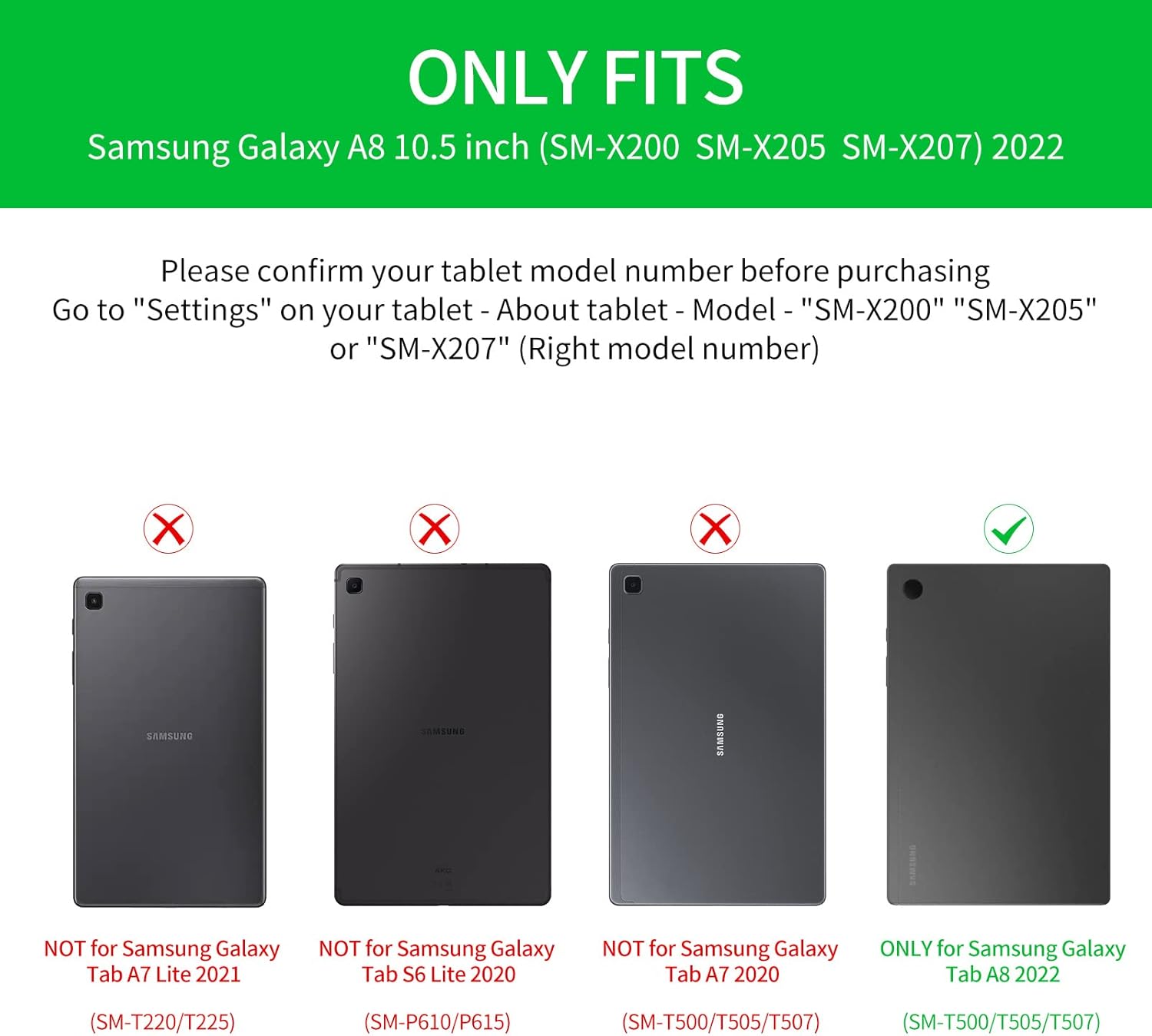
Image: Compatibility chart indicating supported Samsung Galaxy Tab A8 10.5 (2022) models and incompatible models.
3. Ihe ngwugwu
Biko lelee ngwungwu maka ihe ndị a:
- 1 x Smart Case for Galaxy Tab A8 10.5"
- 1 x Wireless Backlit Keyboard
- 2 x eriri USB chaja
- 1 x Akwụkwọ ntuziaka onye ọrụ
4. Nhazi ntuziaka
4.1 Nchaji izizi
Before first use, fully charge the wireless keyboard for 2-3 awa using one of the provided USB cables. The keyboard has a built-in Lithium-ion battery.
4.2 Njikọ Bluetooth
- Gbaa mbọ hụ na agbagoro ahụigodo.
- Turn on the keyboard using the power switch (usually located on the side or top edge).
- On your Samsung Galaxy Tab A8, go to 'Settings' > 'Connected devices' > 'Bluetooth'.
- Kwado Bluetooth wee chọọ ngwaọrụ dị.
- Select the keyboard (it may appear as 'Bluetooth Keyboard' or a similar name) from the list to pair.
- Soro mkpali na ihuenyo ọ bụla iji mezue usoro njikọta.
4.3 Ngbanwe Sistemu
The keyboard is compatible with iOS, Android, and Windows operating systems. To optimize keyboard functions for your tablet, switch to the appropriate system:
- Maka iOS: Pịa Fn + Q
- Maka Android: Pịa Fn + W
- Maka Windows: Pịa Fn + E

Image: Keyboard layout illustrating the function keys for switching between different operating systems.
5. Ntuziaka ọrụ
5.1 Keyboard Backlight Control
The keyboard features 7-color backlighting for typing in low-light conditions.
- Pịa bulb key to cycle through stable backlight mode, breathing backlight mode, or turn off the backlight.
- In stable backlight mode, press the RGB key to change between the 7 available colors: blue, green, red, light blue, purple, yellow, and white.

Image: Close-up of the keyboard demonstrating the backlit keys and color options.
5.2 Detachable Design and Viewna akụkụ
The keyboard is magnetically attached to the case, allowing for easy detachment. This feature enables flexible viewing positions for your tablet.
- Iji dozie viewing angle, detach the keyboard and reposition your tablet within the case.
- The case's design supports multiple viewing angles, ideal for watching videos, reading, working, or playing games.

Image: The keyboard case configured to hold the tablet at an optimal viewing angle, simulating a laptop setup.
5.3 Ụzọ mkpirisi ọtụtụ
The keyboard includes convenient multimedia shortcut keys for quick access to various functions. Refer to the keyboard layout for specific key assignments such as volume control, playback, and screen lock.

Foto: Zuru ezu view of the keyboard's multimedia shortcut keys.
6. Nlekọta
To ensure the longevity and performance of your JUQITECH keyboard case, follow these maintenance guidelines:
- Nhicha: Wipe the case and keyboard with a soft, damp akwa . Zere kemịkalụ siri ike ma ọ bụ ihe nhicha abrasive.
- Nchedo: The case is designed with oil resistance, dustproof properties, impact resistance, anti-fingerprint coating, and scratch-proof material. However, avoid exposing it to extreme temperatures or direct sunlight for extended periods.
- Nlekọta ahụigodo: The keyboard features a high-quality waterproof conductive film, offering some protection against minor spills. In case of liquid contact, immediately power off the keyboard and allow it to dry completely before reuse.
- Nchekwa: When not in use, store the keyboard case in a clean, dry environment.

Image: Visual representation of the case's protective features and material quality.
7. Nchọpụta nsogbu
If you encounter issues with your keyboard case, please refer to the following common solutions:
- Ahụigodo Anaghị ejikọta:
- Gbaa mbọ hụ na agbachara ahụigodo nke ọma.
- Verify Bluetooth is enabled on your tablet and the keyboard is powered on.
- Try unpairing and re-pairing the keyboard in your tablet's Bluetooth settings.
- Restart both your tablet and the keyboard.
- Ìhè azụ anaghị arụ ọrụ:
- Gbaa mbọ hụ na agbagoro ahụigodo.
- Press the bulb key to cycle through backlight modes.
- Igodo anaghị aza:
- Check if the keyboard is properly connected via Bluetooth.
- Ensure the correct operating system mode (Fn+Q/W/E) is selected for your tablet.
- If specific keys are unresponsive, try cleaning around the keys.
- Tablet Sleep/Wake Function Issues:
- For optimal sleep/wake functionality, it is recommended to remove the keyboard and use the case separately.
- Unexpected Keyboard Behavior:
- If the keyboard exhibits unusual behavior (e.g., taking screenshots, resetting pages), ensure your tablet's software is up to date.
- Try resetting the keyboard by turning it off and on. If the issue persists, contact customer support.
8. Nkọwapụta
| Njirimara | Nkọwa |
|---|---|
| Ụdị | JUQITECH |
| Nọmba nlereanya | SGTA8 |
| Ngwa dakọtara | Samsung Galaxy Tab A8 10.5" SM-X200 SM-X205 SM-X207 (2022) |
| Teknụzụ Njikọta | Bluetooth |
| Nkọwa ahụigodo | Wireless Bluetooth Rechargeable Detachable 7 Colors Backlit Keyboard |
| Atụmatụ pụrụ iche | Backlit, Multi-Angle Adjustable, Rechargeable, Soft Full Protective Case, Transforms Tablet to Laptop |
| Nkwado agba azụ azụ kiiboodu | RGB (agba 7) |
| Ihe onwunwe | Polyurethane (PU), Thermoplastic Polyurethane (TPU) |
| Ibu Ibu | 1.3 pound |
| Batrị | 1 batrị lithium ion (gụnyere) |
| Oge Nchaji | 2-3 awa |
| Oge ọrụ | Ruo awa 100 (na-enweghị ọkụ azụ) |
| Backlit ọrụ oge | 3-5 awa |
9. Akwụkwọ ikike na nkwado
JUQITECH offers a 24-hour after-sales service guarantee for your purchase. If you encounter any problems or have questions regarding your product, please do not hesitate to contact us. Our support team is available to assist you.
For assistance, please refer to the contact information provided with your product packaging or visit the official JUQITECH websaịtị.