
1. Okwu mmalite
Thank you for choosing the FEELWORLD T7PLUS 7-inch On-Camera Field Monitor. This manual provides detailed instructions for the proper setup, operation, and maintenance of your device. Please read this manual thoroughly before using the monitor to ensure optimal performance and to prevent damage.
The FEELWORLD T7PLUS is an advanced 7-inch field monitor designed for professional videographers and photographers. It features a 1920x1200 resolution IPS display, 4K HDMI input/output, and a robust metal casing. Key functionalities include custom 3D LUT support, waveform, vector scope, and various professional video assist features to enhance your shooting workflow.

Image: The FEELWORLD T7PLUS monitor displaying a high-resolution image, highlighting its compact design and clear display.
2. Atụmatụ igodo
- Ngosipụta IPS nke 7-inch zuru oke HD: Features a 1920x1200 resolution, 450 cd/m² brightness, and 1200:1 contrast ratio for clear and accurate image monitoring.
- Professional Video Assist Functions: Includes 3D LUT, Waveform, Vector Scope, Histogram, Peaking Focus Assist, False Color, Zebra Exposure, Nine Grid, Zoom-in, Embedded Audio, Anamorphic Mode, Image Flip, and Check Field.
- Custom 3D LUT Support: Allows users to load up to 32 custom 3D LUTs via USB for real-time color calibration and workflow optimization.
- 4K HDMI Input and Output: Supports 4K@30Hz HDMI signals, enabling synchronous monitoring and output to other devices.
- Igwe anaghị agba nchara Casing: Ultra-thin 18mm design with a robust metal shell for enhanced protection and portability (320g weight).
- Flexible Power System: Compatible with F970 battery plates (standard) and optional D28S/D54, LP-E6, U60 battery plates. Can also be powered by an optional DC 12V adapter.
- Bọtịnụ ụzọ mkpirisi nwere ike ịhazi ya: Four user-definable F1-F4 shortcut buttons for quick access to frequently used functions.
- Nkwado ọtụtụ asụsụ: The T7PLUS supports 11 languages, including English, French, German, Spanish, Japanese, Chinese, Traditional Chinese, Portuguese, Korean, Russian, and Dutch.
3. Ihe ngwugwu
Biko lelee ọdịnaya ngwungwu mgbe ị na-ebupụ igbe iji hụ na ihe niile dị:
- 1 × FEELWORLD T7PLUS Monitor
- 1 × Obere eriri HDMI
- 1 × Ndò anwụ
- 1 × Hot Shoe Mount
- Efere Batrị 1 × F970 (etinyere ya na mbụ)
- 1 × Akwụkwọ ntuziaka onye ọrụ
- 1 × USB Adapter Cable (for LUT loading)
- 1 × Storage Bag (optional, not always included)

Image: An illustration of the FEELWORLD T7PLUS package contents, including the monitor, mini HDMI cable, sunshade, hot shoe mount, F970 battery plate, and user manual.
4. Nhazi
4.1 Ịtinye ihe nleba anya
- Attach the hot shoe mount to the bottom of the monitor using the screw thread.
- Secure the hot shoe mount to your camera's hot shoe or a compatible rig.
- Adjust the monitor's angle for optimal viewing. The hot shoe mount typically allows for 360-degree rotation and 180-degree tilt.

Image: The FEELWORLD T7PLUS monitor mounted on a camera, illustrating its use in a typical shooting setup.
4.2 Ịkwanye ihe nleba anya
The T7PLUS offers flexible power options:
- Batrị NP-F: The monitor comes with a standard F970 battery plate. Insert a compatible NP-F series battery (F970, F960, F950, F930, F770, F750, F730, F570, F550, F530 series) into the battery slot. Ensure the battery is fully charged.
- DC 12V Adapter: Connect an optional DC 12V/1.5A power adapter to the DC IN port on the side of the monitor.
Mara: Batteries and DC power adapters are typically sold separately and are not included in the standard package.

Image: A diagram illustrating the flexible power options for the FEELWORLD T7PLUS, including the NP-F battery plate and the DC 12V input port.
4.3 Ijikọ na Igwefoto (HDMI)
The T7PLUS supports 4K HDMI input and output.
- Connect one end of the provided Mini HDMI cable to the HDMI OUT port of your camera.
- Connect the other end of the Mini HDMI cable to the HDMI IN port on the side of the T7PLUS monitor.
- If you need to output the signal to another monitor, connect an HDMI cable from the HDMI OUT port of the T7PLUS to the input of the secondary monitor.
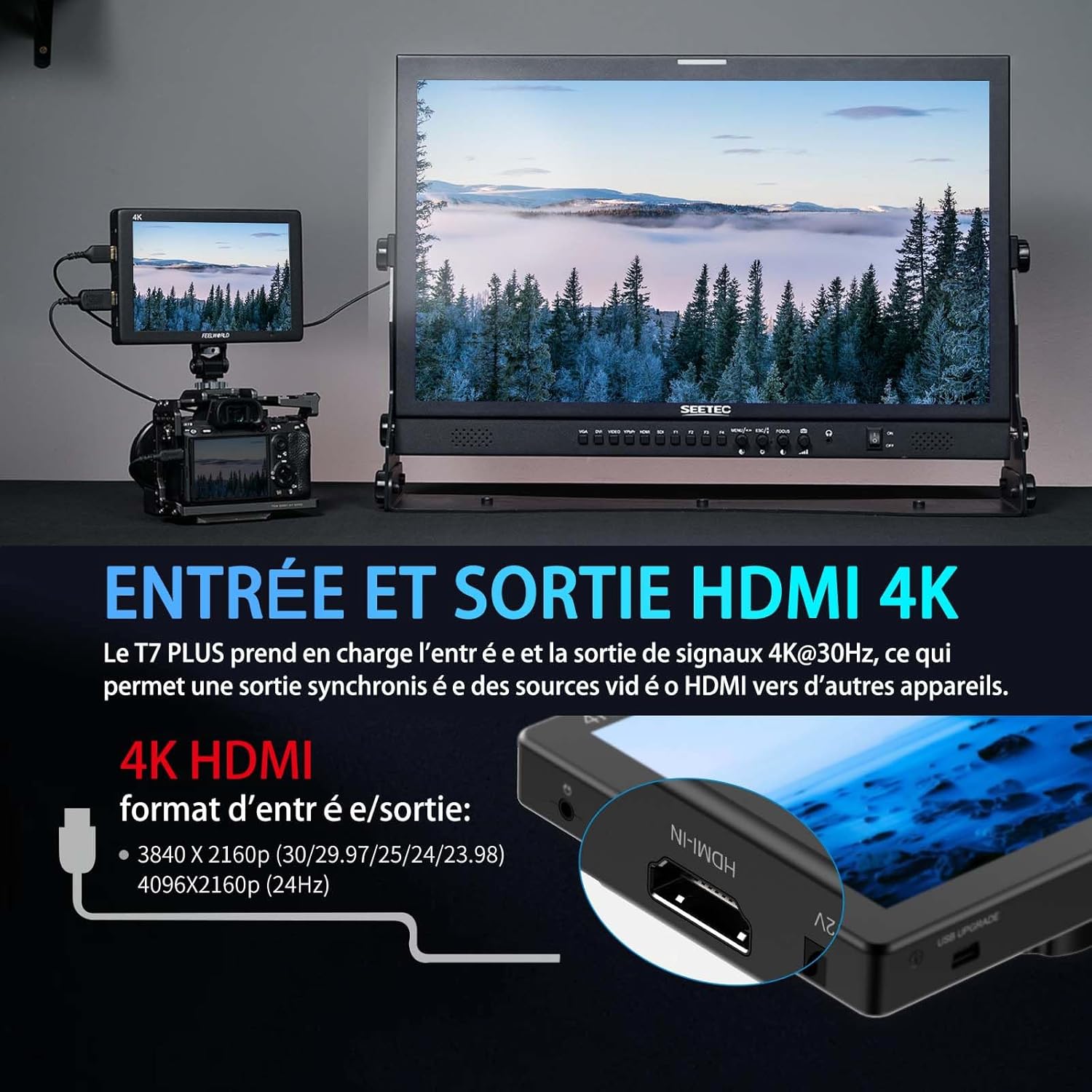
Image: A visual representation of the 4K HDMI input and output ports on the FEELWORLD T7PLUS, demonstrating connectivity to a camera and a larger display.
5. Na-arụ ọrụ nlekota oru
5.1 Gbanyụọ ma ọ bụ gbanyụọ
Press and hold the power button located on the top or side of the monitor to turn it on or off.
5.2 Ntugharị menu na bọtịnụ ụzọ mkpirisi
The T7PLUS features an intuitive menu system accessible via buttons on the top of the monitor. It also includes four customizable shortcut buttons (F1-F4) for quick access to frequently used functions.
- Use the menu buttons to navigate through settings such as image adjustments, assist functions, and system settings.
- To customize F1-F4 buttons: Enter the main menu, navigate to "User Option" or "Function Settings," and assign desired functions (e.g., Peaking, False Color, LUTs) to each button.

Image: The user interface menu of the FEELWORLD T7PLUS, demonstrating the navigation options and the location of the F1-F4 shortcut buttons.
5.3 Using Professional Video Assist Functions
The T7PLUS integrates a suite of tools to aid in precise exposure, focus, and color management. These can be accessed via the main menu or assigned to shortcut buttons.
- 3D LUT: Load custom LUTs to preview foo gitage with desired color grades. Connect a USB drive with .cube LUT files to the monitor's USB port, then navigate to the LUT menu to import and apply them. Up to 32 user LUTs can be stored.
- Ebugharị: Monitor luminance and chrominance levels across the image. This helps in achieving correct exposure and color balance.
- Oke vector: Analyze the color saturation and hue of your video signal.
- Enyemaka mgbado anya kacha elu: Highlights sharp edges in red, green, or blue to help achieve precise focus.
- Agba ụgha: Displays different exposure levels as distinct color overlays, assisting in setting optimal exposure.
- Mkpughe zebra: Na-egosi ebe ekpughere oke nwere eriri zebra.
- Histogram: Provides a graphical representation of the tonal distribution of your image.
- Grid itoolu: Na-ekpuchi grid 3x3 maka enyemaka nhazi.
- Bata-na: Magnifies a portion of the image for critical focus checking.
- Ụdị anamorphic: Na-ewepụ ihe anamorphic footage maka nke ọma viewing.
- Foto tụgharịa: Flips the image horizontally or vertically, useful for various mounting configurations.
- Ule lelee: Displays only red, green, blue, or mono channels for color calibration.
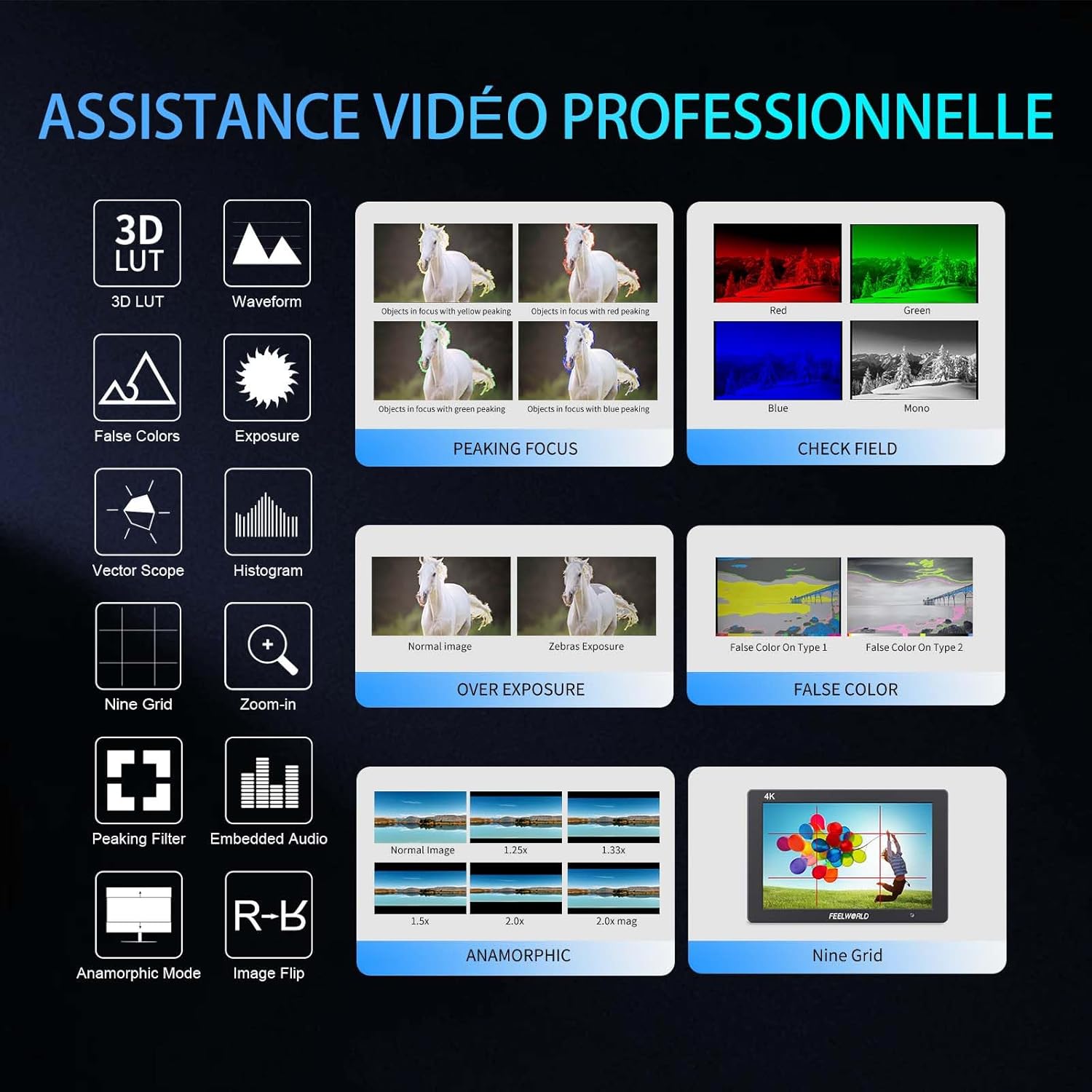
Foto: Ihe osise dị n'eluview of the professional video assistance features available on the FEELWORLD T7PLUS monitor, including 3D LUT, Waveform, Peaking Focus, and False Color.
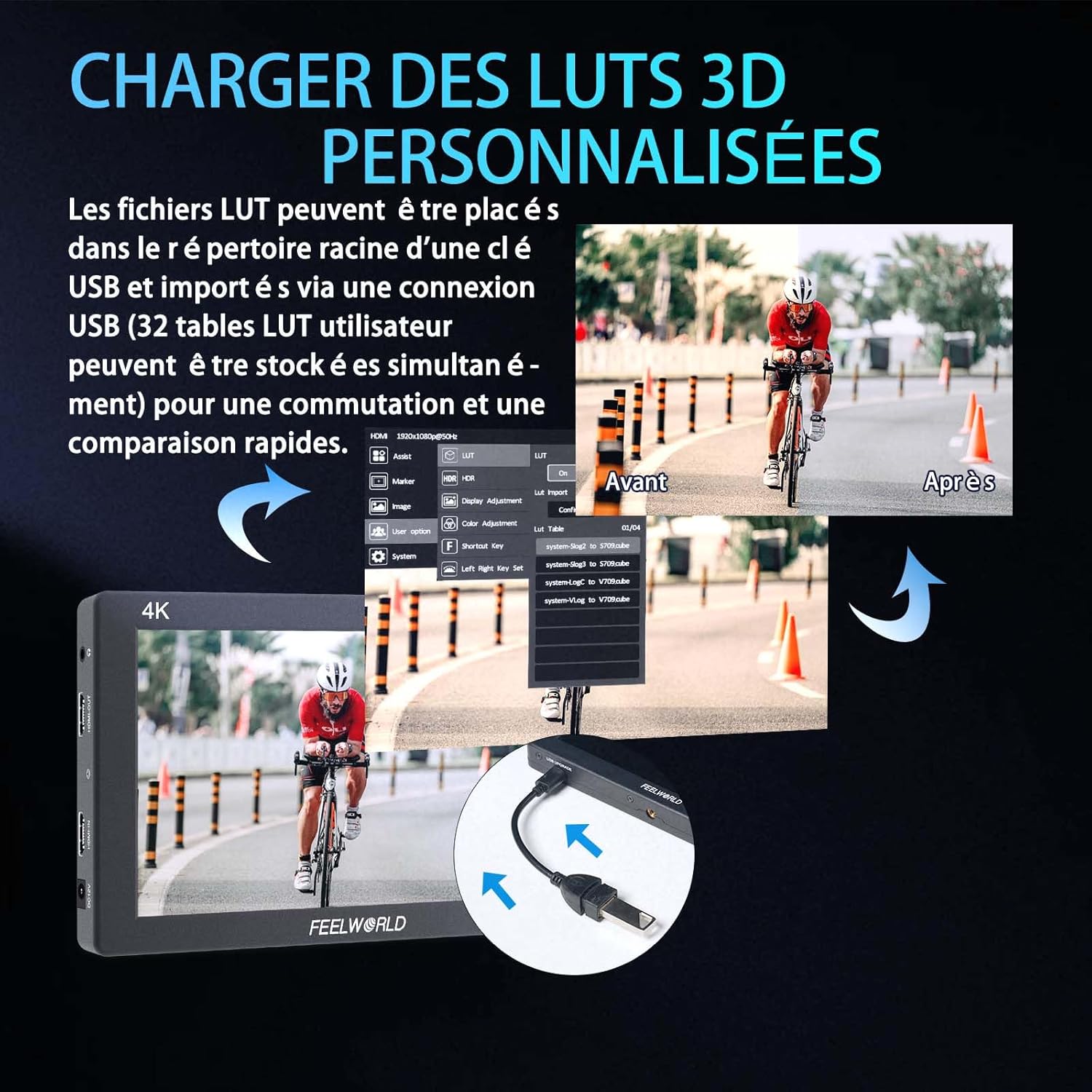
Image: The FEELWORLD T7PLUS demonstrating the process of loading custom 3D LUTs via USB, with a split screen showing the "Before" and "After" application of a LUT.

Image: The FEELWORLD T7PLUS displaying broadcast-level waveform monitoring functions, including Vectorscope, Brightness Histogram, YUV Parade, and Y Parade.
5.4 Ntọala asụsụ
To change the display language, navigate to the "System" menu and select "Language." Choose your preferred language from the available options.
6. Nlekọta
- Nhicha: Use a soft, dry cloth to clean the monitor's screen and body. For stubborn smudges, a slightly damp cloth with a mild cleaning solution designed for electronics can be used, but avoid direct spraying.
- Nchekwa: When not in use, store the monitor in a cool, dry place, away from direct sunlight and extreme temperatures. Use the provided storage bag for protection.
- Nlekọta batrị: If using batteries, ensure they are charged regularly and stored properly. Remove batteries if the monitor will not be used for an extended period.
- Mmelite femụwe: Check the FEELWORLD official website periodically for any available firmware updates to ensure your monitor has the latest features and bug fixes.
7. Nchọpụta nsogbu
| Nsogbu | Ihe nwere ike ime | Ngwọta |
|---|---|---|
| Monitor anaghị agba ọkụ. | Low or dead battery; power adapter not connected or faulty. | Ensure battery is charged or replace it. Check power adapter connection and functionality. |
| No signal on screen. | HDMI cable loose or faulty; incorrect input selected; camera not outputting signal. | Check HDMI cable connections. Ensure the correct input source is selected on the monitor. Verify camera's HDMI output settings. |
| Image is distorted or colors are off. | Incorrect color settings; faulty HDMI cable; monitor settings misconfigured. | Reset monitor to factory settings. Check HDMI cable. Adjust color settings in the menu. |
| Bọtịnụ anaghị anabata ya. | Temporary software glitch; physical damage. | Power cycle the monitor. If the problem persists, contact customer support. |
8. Nkọwapụta
| Njirimara | Nkọwa |
|---|---|
| Ụdị | MMETỤTA |
| Nlereanya | T7PLUS-OF-EU |
| Nha ihuenyo | 7 sentimita asatọ |
| Mkpebi | 1920x1200 |
| Icha ọkụ | 450 cd/m² |
| Ọnụọgụ ọdịiche | 1200:1 |
| Njupụta Pixel | 323 PPI |
| Viewna n'akuku | 160° (IPS) |
| Ntinye/Mpụta HDMI | 4K@30Hz (3840x2160p, 4096x2160p) |
| Ntinye ike | DC 12V/1.5A or NP-F Battery Plate |
| Akụkụ (L x W x H) | 22.5 x 16.2 x 8.1 cm (ihe dị ka 8.86 x 6.38 x 3.19 sentimita) |
| Ibu | 930 grams (ihe dị ka 2.05 lbs) |
| Casing ihe | Ọla |
9. Akwụkwọ ikike na nkwado
The FEELWORLD T7PLUS monitor comes with a Akwụkwọ ikike onye nrụpụta afọ 1. Akwụkwọ ikike a na-ekpuchi ntụpọ dị na ngwa na arụ ọrụ n'okpuru ojiji nkịtị. Biko dowe ihe akaebe nke ịzụrụ ihe maka akwụkwọ ikike.
For technical support, troubleshooting assistance, or warranty service, please contact FEELWORLD customer support through their official websaịtị ma ọ bụ ụlọ ahịa ebe ịzụrụ ngwaahịa ahụ.
Mara: Availability of spare parts and software updates may vary. Please refer to the manufacturer's official channels for the most current information.