
Okwu mmalite
The LeadsaiL KF29 Wireless Keyboard and Mouse Combo provides a compact and silent solution for your computing needs. This set features a 2.4G wireless connection via a single USB receiver, ensuring a stable and responsive experience for both Windows and Mac OS systems. Its ergonomic design and energy-saving features make it ideal for extended use in various environments.
Ihe ngwugwu
- 1 x LeadsaiL Wireless Keyboard
- 1 x LeadsaiL Wireless Mouse
- 1 x USB Receiver (stored inside the mouse battery compartment)
- 1 x Akwụkwọ ntuziaka onye ọrụ
Mara: 1 AA battery for the mouse and 2 AA batteries for the keyboard are not included in the package.

Image: LeadsaiL KF29 Wireless Keyboard and Mouse Combo showing the keyboard, mouse, and USB receiver.
Video: Official LeadsaiL video demonstrating the unboxing and package contents of the wireless keyboard and mouse combo.
Ntuziaka nhazi
- Wụnye batrị:
- For the mouse: Open the battery compartment on the underside of the mouse. Insert 1 AA battery, ensuring correct polarity. Close the compartment.
- For the keyboard: Open the battery compartment on the underside of the keyboard. Insert 2 AA batteries, ensuring correct polarity. Close the compartment.
- Chọta onye nnata USB: The 2-in-1 USB receiver is conveniently stored inside the mouse's battery compartment. Carefully remove it.
- Jikọọ eriri USB: Plug the USB receiver into an available USB port on your computer (laptop or desktop).
- Ike Na Ngwaọrụ: Turn on the mouse using the ON/OFF switch located on its underside. The keyboard does not have a separate power switch; it activates upon key press after battery installation.
- Njikọ akpaaka: The keyboard and mouse will automatically connect to your computer. No additional drivers are typically required for installation.

Image: Illustration showing the USB receiver being plugged into a laptop, establishing a 2.4G wireless connection for the keyboard and mouse.
Ntuziaka ọrụ
Ojiji izugbe
Once connected, the keyboard and mouse function as standard input devices. The keyboard features a full-size layout with a numeric keypad, while the mouse offers left-click, right-click, and a scroll wheel.
FN+ Multimedia Shortcuts
The keyboard includes 12 FN+ multimedia shortcuts for quick access to various functions. Press and hold the FN key, then press the corresponding F-key (F1-F12) to activate:
- FN + F1: Ihe ọkpụkpọ mgbasa ozi
- FN + F2: Mpịakọta ọnụ
- FN + F3: Elu elu
- FN + F4: Ogbi
- FN + F5: Egwu gara aga
- FN + F6: Track na-esote
- FN + F7: Gwuo/kwụsịtụ
- FN + F8: Kwụsị
- FN + F9: Ibe ebe obibi
- FN + F10: Email
- FN + F11: Kọmputa m
- FN + F12: ọkacha mmasị

Image: Close-up of the keyboard highlighting the FN keys and their associated multimedia functions.
Mgbanwe DPI nke òké
The mouse features adjustable DPI settings to control cursor sensitivity. Press the DPI button located behind the scroll wheel to cycle through available DPI levels (e.g., 800, 1200, 1600 DPI) to suit your preference.

Image: Diagram illustrating the adjustable DPI settings of the LeadsaiL wireless mouse.
Ndakọrịta
This wireless combo is compatible with a wide range of operating systems, including Windows XP/7/8/10/11 and Mac OS. It works seamlessly with various devices such as laptops, desktops, and PCs.

Image: The LeadsaiL keyboard and mouse combo shown with a laptop and tablet, indicating universal compatibility with Windows and Mac OS.
Atụmatụ
- Ọrụ nkpuchi nkịtị: The keyboard utilizes a scissor-structure button design, significantly reducing typing noise. The mouse also features silent clicks, ensuring a quiet working environment.
- Kọmpat & Ergonomic imewe: The keyboard's compact size with a number pad saves desk space, while its 9° typing angle provides comfortable use. The mouse is ambidextrous, fitting both left and right hands comfortably.
- Auto Sleep & Energy Saving: Both the keyboard and mouse enter a sleep mode after 3 minutes of inactivity to conserve battery life. Press any key or button to wake them up instantly.
- Ọkụ egosi: The keyboard features indicator lights for Num Lock, Caps Lock, and a low battery warning, providing clear status updates.

Image: Close-up of the keyboard demonstrating its ergonomic 9° angle and scissor-switch design for comfortable, quiet typing.

Image: Illustration showing the automatic energy-saving feature of the keyboard and mouse, with a battery icon and sleep automation.

Image: Close-up of the keyboard's top right corner, showing the Num Lock, Caps Lock, and low battery indicator lights.
Nlekọta
- Ngbanwe batrị: Replace batteries when the low battery indicator on the keyboard illuminates or when mouse responsiveness decreases. Use 1 AA battery for the mouse and 2 AA batteries for the keyboard.
- Nhicha: Jiri akwa dị nro dị nro hichaa elu nke ahụigodo na òké. Maka unyi isi ike, ntakịrị damp cloth can be used, ensuring no moisture enters the device. Avoid harsh chemicals or abrasive materials.
- Nchekwa: When not in use for extended periods, it is recommended to turn off the mouse to further conserve battery life. Store the USB receiver inside the mouse's battery compartment to prevent loss.
Nchọpụta nsogbu
- Enweghị njikọ/anaghị aza:
- Hụ na e tinyere ihe nnata USB n'ime ọdụ ụgbọ USB na-arụ ọrụ na kọmputa gị nke ọma.
- Check if the mouse is turned ON.
- Jiri ndị ọhụrụ dochie batrị ndị dị na ma keyboard na òké.
- Gbalịa itinye ihe nnata USB n'ọdụ ụgbọ mmiri USB dị iche.
- Malitegharịa ekwentị gị na kọmputa.
- Lagging/Intermittent Connection:
- Ensure there are no large metallic objects or other wireless devices causing interference between the keyboard/mouse and the USB receiver.
- Move the keyboard and mouse closer to the USB receiver. The optimal range is up to 10 meters (33 ft).
- Keyboard Typing Incorrect Characters:
- Check your computer's language and keyboard layout settings to ensure they match your physical keyboard.
- Re-pair the devices by unplugging and re-plugging the USB receiver.
Nkọwapụta
| Ụdị | LeadsaiL |
| Nọmba nlereanya | KF29 |
| Teknụzụ Njikọta | 2.4G ikuku (USB nnata) |
| Ngwa dakọtara | Windows XP/7/8/10/11, Mac OS (Asus, Dell, HP, Lenovo, MacBook Air) |
| Igodo kiiboodu | 14.57 x 5.51 x 0.2 sentimita (37.0 x 14.0 x 0.5 cm) |
| Akụkụ òké | 4.45 x 2.52 x 1.22 sentimita (11.3 x 6.4 x 3.1 cm) |
| Ibu Ibu | 1.32 pound (0.6 n'arọ) |
| Batrị ahụigodo | Batrị 2 x AA (anaghị etinye ya) |
| Batrị òké | Batrị 1 x AA (anaghị etinye ya) |
| Atụmatụ pụrụ iche | Ergonomic, Portable, Silent Click, Adjustable DPI, Auto-Sleep |
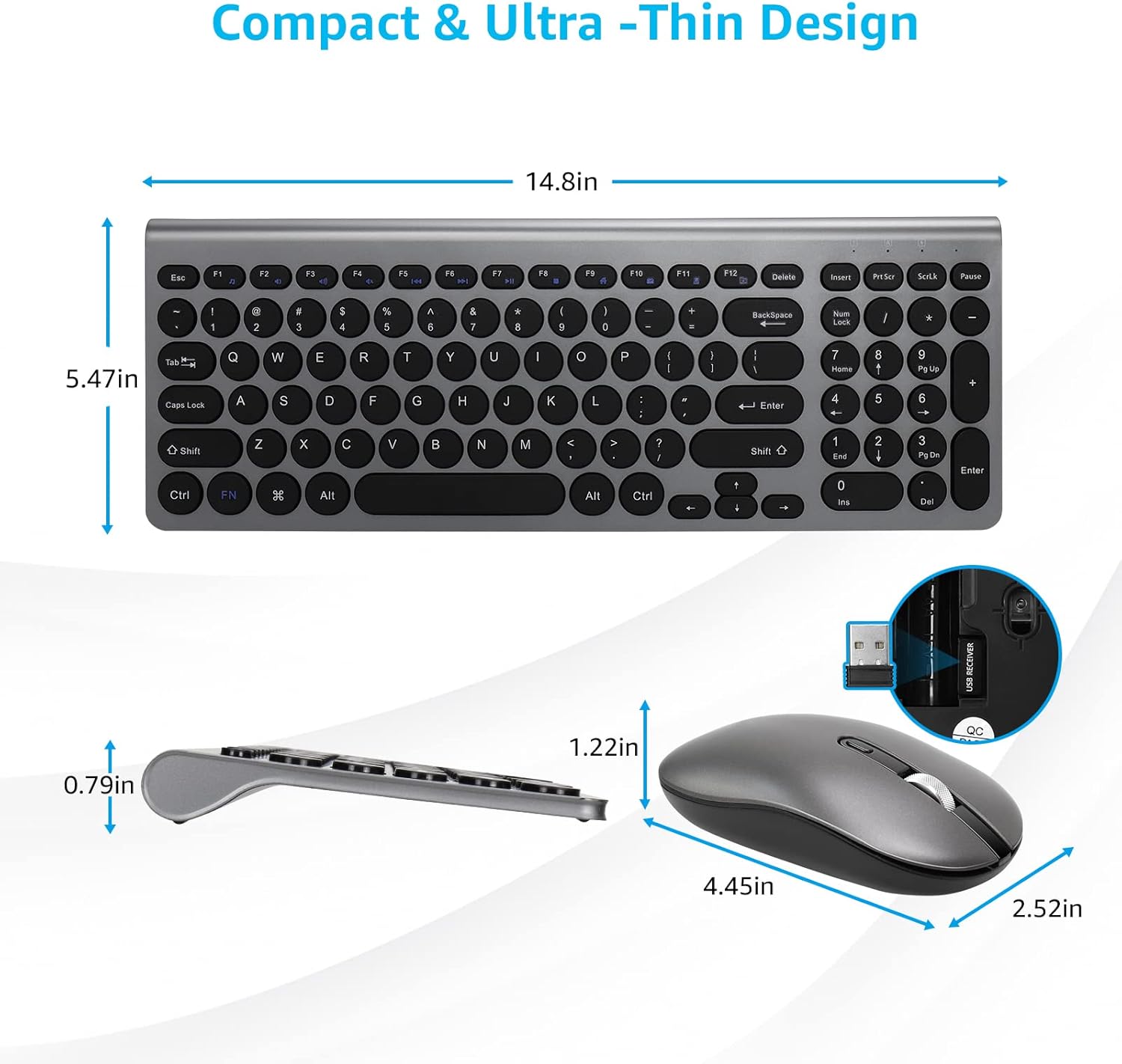
Image: Detailed diagram showing the dimensions of both the LeadsaiL wireless keyboard and mouse.
Akwụkwọ ikike na nkwado
LeadsaiL products are designed for reliability and performance. For warranty information, technical support, or customer service inquiries, please refer to the contact information provided on the product packaging or visit the official LeadsaiL websaịtị. Biko dowe akwụkwọ ikike ịzụrụ ihe ọ bụla.