
1. Okwu mmalite
This instruction manual provides detailed information on the setup, operation, maintenance, and troubleshooting for your Aibecy withzoom 1080P 3X Optical Zoom Webcam. Please read this manual thoroughly before using the product to ensure proper functionality and to prevent damage.
2. Ngwaahịa gafereview
2.1 Atụmatụ
- 1080P Full HD Video Resolution
- 3X oghere mbugharị ngwa anya
- 355° Horizontal Rotation and 90° Vertical Rotation
- Ọrụ njikwa anya
- Njikọ USB
- Compatible with Windows, Mac, Linux, and Chromebook operating systems
- Infrared (IR) support
Ihe ngwugwu 2.2
Chọpụta na ihe niile dị na ngwugwu:
- Aibecy withzoom Webcam
- Njikwa anya
- Ada Ada AC
- eriri USB
- Arịọnụ mgbodo
- kposara maka echichi

Ọgụgụ 1: Ihe ngwugwu
2.3 Eserese ngwaahịa

Foto 2: N'ihu View na akụrụngwa
- HD Anya: Captures high-definition video.
- 355° Rotating Gimbal: Allows for wide-angle coverage and precise positioning.
- IR Infrared Receiver: Na -enweta akara site na njikwa ime obodo.
- Ihe ngosi ike: Na-egosi ọnọdụ ike nke ngwaọrụ ahụ.
- Remote Indicator: Lights up when a remote control signal is received.
3. Ntuziaka Nhazi
3.1 Ụzọ ntinye
The Aibecy withzoom webcam offers flexible installation options:
- Ndokwa tebụl: Place the camera on a flat surface such as a desk or conference table.
- Ugwu elu ụlọ: Use the included mounting bracket and screws to attach the camera to the ceiling. Ensure the image flip function is enabled if mounting upside down.
- Ugwu nkwado: Attach the camera to a tripod or other compatible bracket using the screw hole at the bottom.

Figure 3: Installation Options
3.2 Ijikọ igwefoto
Follow these steps to connect your webcam:
- Njikọ ike: Connect the AC power adapter to the camera's 12V power input port and plug it into a power outlet.
- Njikọ USB: Connect the USB cable from the camera's USB port to an available USB port on your computer (Windows, Mac, Linux, or Chromebook). The camera is plug-and-play and does not require driver software.
- Optional RS232/RS422 Connection: If advanced control via RS232 or RS422 is required, connect the appropriate cable from the camera to your control device.

Ọgụgụ 4: Eserese Njikọ
Once connected, open your video conferencing software (e.g., Zoom, Skype, Microsoft Teams) and select the Aibecy withzoom camera as your video input device.
4. Ntuziaka ọrụ
4.1 Basic Arụmọrụ
- Ike Na: After connecting the power adapter, the camera will automatically power on. The Power Indicator light will illuminate.
- Gbanyụọ: Disconnect the power adapter from the camera.
4.2 Iji njikwa anya
The included remote control allows for easy adjustment of camera functions.

Foto 5: Webcam and Remote Control
- Camera Selection Buttons: If multiple cameras are connected, use these buttons to select the camera you wish to control.
- Njikwa ọsọ ntụgharị: Adjust the pan/tilt speed for smoother movements.
- Pan/Tilt/Zoom (PTZ) Controls: Use the directional arrows to pan (left/right) and tilt (up/down) the camera. Use the zoom in/out buttons to adjust the optical zoom.
- Preset Function Area: Save and recall specific camera positions and zoom levels using the preset buttons.
4.3 Camera Movement and Zoom
The camera supports wide-range movement for comprehensive coverage:
- Ntụgharị kwụ ọtọ: The camera head can rotate 355 degrees horizontally.
- Ntụgharị kwụ ọtọ: The camera head can tilt 90 degrees vertically.
- Mbugharị anya: Utilize the 3X optical zoom to focus on specific areas without loss of image quality.
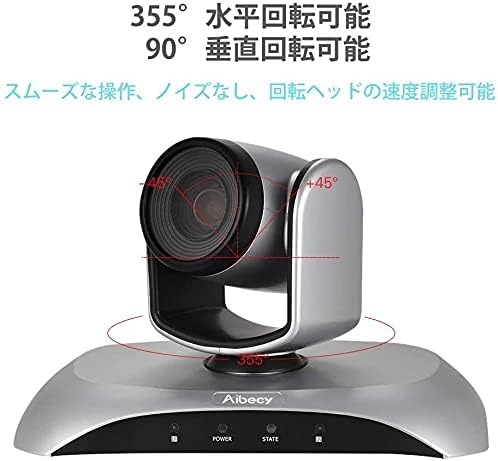
Figure 6: Camera Rotation Capabilities
4.4 Image Flip Function
If the camera is mounted upside down (e.g., on a ceiling), you can use the image flip function to correct the video orientation.

Figure 7: Image Flip Function in Use
Refer to the remote control instructions for the specific button to activate or deactivate the image flip function.
5. Nlekọta
Nlekọta kwesịrị ekwesị na-eme ka ogologo oge na arụmọrụ kachasị mma nke ngwaọrụ gị webcam.
- Nhicha: Use a soft, dry cloth to clean the camera body. For the lens, use a specialized lens cleaning cloth and solution. Avoid abrasive cleaners or solvents.
- Nchekwa: Mgbe a naghị eji ya ruo ogologo oge, debe igwefoto ahụ n'ebe dị jụụ ma kpọọ nkụ, ebe anwụ na-anaghị apụta kpọmkwem ma ọ bụ oke okpomọkụ.
- Ijikwa: Zere ịda ma ọ bụ itinye igwefoto ahụ n'ọnọdụ siri ike.
6. Nchọpụta nsogbu
If you encounter issues with your Aibecy withzoom webcam, refer to the table below for common problems and solutions.
| Nsogbu | Ihe nwere ike ime | Ngwọta |
|---|---|---|
| No image or video output | Power not connected; USB cable loose; Incorrect camera selected in software. | Ensure power adapter is securely connected. Check USB cable connection. Select the Aibecy withzoom camera in your video conferencing software settings. |
| Njikwa anya anaghị arụ ọrụ | Batteries low/dead; Obstruction between remote and camera; Remote not pointed at IR receiver. | Replace remote control batteries. Ensure a clear line of sight to the camera's IR receiver. Point the remote directly at the camera. |
| Image is upside down | Camera mounted upside down and image flip not activated. | Activate the image flip function using the remote control. |
| Ogo vidiyo na-adịghị mma | Insufficient lighting; Dirty lens; Network bandwidth issues. | Ensure adequate lighting in the room. Clean the camera lens. Check your internet connection speed. |
7. Nka na ụzụ nkọwa
| Njirimara | Nkọwapụta |
|---|---|
| Ụdị | Aịbecy |
| Nọmba nlereanya | withzoom |
| Mkpebi ịse vidiyo | 1080p |
| Mbugharị anya | 3X |
| Ntụgharị kwụ ọtọ | 355° |
| Vetikal adiana | 90° |
| Teknụzụ Njikọta | USB |
| Ngwa dakọtara | Windows, Mac, Linux, Chromebook |
| Atụmatụ pụrụ iche | Remote Control, Infrared |
| Ndozi onyonyo | Mba |
| Akụkụ ngwugwu | 29.7 x 22.4 x 19.9 cm |
| Ibu Ibu | 1.51 n'arọ |
8. Ozi nkwado
For further assistance or inquiries not covered in this manual, please refer to the official Aibecy support channels or contact your retailer. Keep your purchase receipt for warranty purposes.