
1. Okwu mmalite
This manual provides detailed instructions for the setup, operation, and maintenance of your Bytech BYMCWC101BLK PC Web Camera. Please read this manual thoroughly before using the product to ensure proper functionality and longevity.
2. Ihe ngwugwu
Hụ na ihe niile edepụtara n'okpuru dị na ngwugwu ngwaahịa gị:
- Bytech BYMCWC101BLK PC Web Igwefoto
- Akwụkwọ ntuziaka (akwụkwọ a)
- Igwe USB agbakwunyere
3. Nhazi
Follow these steps to set up your Bytech BYMCWC101BLK PC Web Igwefoto:
- Nkwanye: Debe ya webcam on top of your computer monitor, laptop screen, or a flat surface. The adjustable clip allows for secure attachment.
- Jikọọ na Kọmputa: Plug the integrated USB cable from the webcam banye n'ọdụ ụgbọ mmiri USB dị na kọmputa gị.
- Nwụnye ọkwọ ụgbọala: Nke webcam is typically plug-and-play. Your operating system (Windows, macOS, Linux) should automatically detect and install the necessary drivers. Wait for the installation to complete.
- Nyocha: Open a video conferencing application (e.g., Zoom, Skype, Microsoft Teams) or your computer's camera application to confirm the webA na-amata cam ma na-egosi vidiyo.
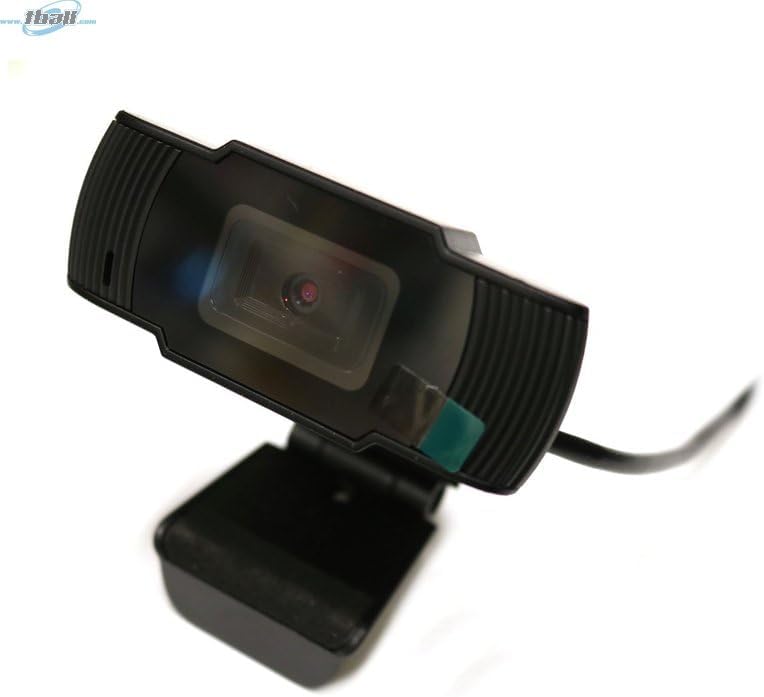
Image: The Bytech BYMCWC101BLK PC Web Camera securely mounted on top of a computer monitor, demonstrating its adjustable clip design.
4. Ntuziaka ọrụ
Once installed, the Bytech BYMCWC101BLK PC Web Camera can be used with various applications:
- Mkpakọrịta vidiyo: Select the Bytech webcam as your video input device within your preferred video conferencing software (e.g., Zoom, Skype, Google Meet).
- gụgharia: For live streaming platforms, configure the webcam as your primary video source in your streaming software (e.g., OBS Studio).
- Edekọ: Use your computer's built-in camera application or third-party software to record video.
- Arụmọrụ ọkụ dị ala: Nke webcam features BSI CMOS photo sensor technology and is designed to perform effectively in low-light conditions, providing clear video even with limited ambient lighting.
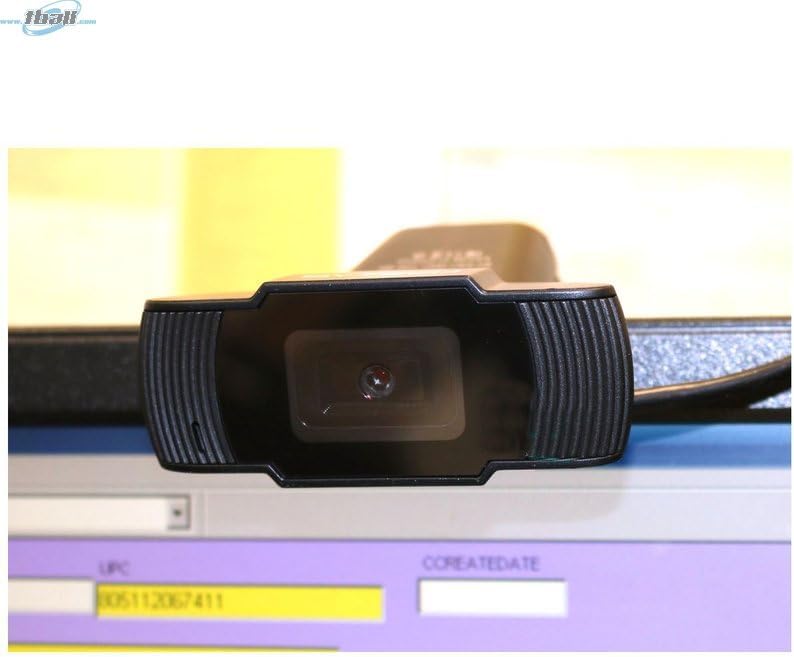
Foto: A nso nso view of the Bytech BYMCWC101BLK PC Web Camera's lens, highlighting its design and integrated privacy cover (if applicable, otherwise just lens).
5. Nlekọta
To ensure optimal performance and extend the lifespan of your webcam:
- Nhicha: Jiri nwayọ hichaa oghere ahụ na akwa dị nro, akwa enweghị akwa. Zere iji kemịkalụ siri ike ma ọ bụ ihe na-emebi emebi.
- Nchekwa: Mgbe anaghị eji, chekwaa ụlọ ahịa webcam in a clean, dry environment away from direct sunlight and extreme temperatures.
- Nlekọta USB: Ehulata ma ọ bụ kpachie eriri USB gabiga ókè.
6. Nchọpụta nsogbu
Ọ bụrụ na ị nwere nsogbu na ndụ gị webcam, rụtụ aka na nsogbu na azịza ndị a na-ahụkarị:
- Enweghị onyonyo/vidiyo:
- Hụ na eriri USB ejikọtara na nke ọma na abụọ ahụ webcam na kọmputa gị.
- Gbalịa ịkwụnye webcam n'ọdụ ụgbọ mmiri USB dị iche.
- Malitegharịa ekwentị gị na kọmputa.
- Check your application settings to ensure the Bytech webcam is selected as the video input device.
- Ogo vidiyo na-adịghị mma:
- Hụ na ọkụ zuru oke na gburugburu ebe obibi gị.
- Hichaa weblensị kamera nwere ákwà dị nro.
- Check your application's video settings for resolution and frame rate.
- Microphone Not Working (if applicable):
- Chọpụta na webcam's microphone is selected as the audio input device in your computer's sound settings and within your application.
- Ensure the microphone is not muted in your system or application.
7. Nkọwapụta
| Njirimara | Nkọwa |
|---|---|
| Aha Nlereanya | BYMCWC101BLK |
| Ụdị | Bytech |
| Teknụzụ Njikọta | USB |
| Teknụzụ ihe mmetụta foto | BSI CMOS |
| Usoro Nseta vidiyo | MP4 |
| Njirimara Pụrụ Iche | Ìhè dị ala |
| Agba | Nwa |
| Ibu Ibu | 4.9 ounces |
| Akụkụ ngwugwu | 7.76 x 4.65 x 2.44 sentimita asatọ |
8. Akwụkwọ ikike na nkwado
For warranty information or technical support, please refer to the documentation included with your purchase or contact your retailer. Keep your proof of purchase for warranty claims.