
1. Okwu mmalite
This manual provides essential instructions for the installation, operation, and maintenance of your Hikvision 8MP AcuSense WDR Mini Bullet Network Camera, model DS-2CD2083G2-IU. Please read this manual thoroughly before using the product and retain it for future reference.
Ngwaahịa gafereview
The Hikvision DS-2CD2083G2-IU is a high-performance 8-megapixel (4K) network camera designed for advanced surveillance. It features AcuSense technology for accurate human and vehicle target classification, Wide Dynamic Range (WDR) for clear imaging against strong backlight, and a fixed 2.8mm lens for a wide field of view. Its IP67 rating ensures robust outdoor performance, and the integrated microphone allows for audio monitoring.
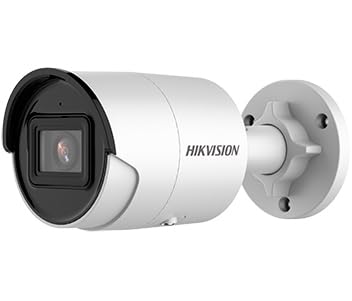
Figure 1: Hikvision 8MP AcuSense WDR Mini Bullet Network Camera (DS-2CD2083G2-IU)
This image displays the Hikvision 8MP AcuSense WDR Mini Bullet Network Camera, highlighting its compact bullet-style design suitable for various installation environments.
Atụmatụ igodo
- 8 Megapixel (4K) Resolution: Delivers high-quality, detailed video.
- AcuSense Technology: Reduces false alarms by accurately classifying human and vehicle targets.
- Oke di omimi (WDR): Ensures clear images even in scenes with strong contrast.
- Fixed 2.8mm Lens: Na-enye ebe sara mbara viewakụkụ n'akuku.
- Infrared (IR) Illumination: Night vision up to 40 meters.
- IP67 Weatherproof Rating: Kwesịrị ekwesị maka ojiji n'èzí na ọnọdụ ihu igwe dị iche iche.
- Igwe okwu arụnyere n'ime ya: Enables audio monitoring.
- Integrated Card Reader: Supports local storage (microSD card not included).
2. Ozi nchekwa
Biko debe ihe nchekwa nchekwa ndị a iji gbochie mmerụ ahụ ma ọ bụ mebie ngwaahịa a:
- Ensure the power supply meets the camera's requirements (6.5 Watts).
- Ekpughela igwefoto ahụ n'ebe okpomọkụ dị oke elu, iru mmiri dị elu, ma ọ bụ ebe na-emebi emebi.
- Avoid pointing the lens directly at strong light sources, as this may damage the sensor.
- Ndị ọrụ ruru eru kwesịrị ịrụ ọrụ nrụnye ahụ dịka iwu eletriki mpaghara si dị.
- Jiri naanị ngwa ndị nrụpụta akọwapụtara.
- Clean the camera lens with a soft, dry cloth. Avoid harsh chemicals.
3. Ntọala na nwụnye
3.1 Nwepu
Carefully unpack the camera and check for any signs of damage. Ensure all components are present. (Typical components include: camera unit, mounting template, screws, waterproof connector, quick start guide).
3.2 Nwụnye anụ ahụ
The camera is designed for ceiling mounting. Select a suitable location that provides the desired field of view and is within reach of network and power cables. Due to its IP67 rating, it is suitable for outdoor environments.
- Use the provided mounting template to mark drill holes on the ceiling.
- Drill the necessary holes and insert wall plugs if required.
- Secure the camera base to the mounting surface using the supplied screws.
- Gbanwee akụkụ igwefoto maka mkpuchi kacha mma.
3.3 Network and Power Connection
This is an IP network camera. It requires a network connection and power. Power over Ethernet (PoE) is typically supported, simplifying installation by delivering both power and data over a single Ethernet cable. If PoE is not used, a separate 12V DC power adapter (not included) will be required.
- Connect an Ethernet cable from your network switch/router to the camera's RJ45 port. Use the waterproof connector for outdoor installations.
- If not using PoE, connect a 12V DC power adapter to the camera's power input.
- Once connected, the camera will power on. Allow a few minutes for it to boot up.
3.4 Nhazi izizi
Nweta igwefoto ahụ web interface site na a web browser using its default IP address (refer to the quick start guide or use Hikvision's SADP tool to discover the IP address). You will be prompted to set a strong password for security. Follow the on-screen instructions to configure network settings, date/time, and other basic parameters.
4. Ntuziaka ọrụ
4.1 Ndụ View na Ndekọ
After initial setup, you can view the live feed from the camera through its web interface, a Network Video Recorder (NVR), or Hikvision's client software (e.g., iVMS-4200) or mobile app (Hik-Connect). Configure recording schedules and methods (continuous, motion-triggered) via the camera's settings or NVR.
4.2 AcuSense Smart Features
The AcuSense technology allows the camera to distinguish between humans, vehicles, and other moving objects, significantly reducing false alarms caused by animals, rain, or falling leaves. Configure these detection rules in the camera's event settings to receive more accurate alerts.
- Nchọpụta ngagharị 2.0: Set up detection zones and sensitivity for human and vehicle events.
- Nchọpụta nke intrusion: Define virtual boundaries, and the camera will trigger an alarm if a human or vehicle crosses them.
- Line Crossing Detection: Similar to intrusion, but for a specific line.
4.3 Oke Mgbanwe Dị Ukwuu (WDR)
WDR compensates for extreme lighting conditions, such as strong backlight, to ensure that both bright and dark areas of the image are clearly visible. This feature is typically enabled by default but can be adjusted in the image settings.
4.4 Infrared (IR) Night Vision
The camera automatically switches to IR mode in low-light conditions, providing clear black-and-white video up to 40 meters. Ensure no obstructions block the IR LEDs for optimal night vision performance.
4.5 Nlekota Ọdịyo
With its built-in microphone, the camera can capture audio from the surveillance area. Audio settings, including gain control, can be configured in the camera's web interface. Ensure local regulations regarding audio recording are followed.
5. Nlekọta
- Nhicha: Jiri ihe dị nro, d hichaa oghere igwefoto na ebe nchekwa ya mgbe niile.amp akwa . Ejila ihe nhicha abrasive.
- Mmelite femụwe: Na-elele onye ọrụ Hikvision mgbe niile. website for firmware updates. Keeping the firmware updated ensures optimal performance, new features, and security enhancements.
- Nyocha USB: For outdoor installations, periodically inspect cables and connections for wear or damage, especially the waterproof connectors.
- Njikwa okwuntughe: Regularly change your camera's password to maintain security.
6. Nchọpụta nsogbu
| Nsogbu | Ihe nwere ike ime | Ngwọta |
|---|---|---|
| No image/camera offline | No power, network cable disconnected, incorrect IP address. | Check power supply and network cable. Verify IP address using SADP tool. Restart camera. |
| Imagedị mma adịghị mma | Dirty lens, incorrect focus (if adjustable), poor lighting, network bandwidth issues. | Clean the lens. Ensure adequate lighting. Check network connection speed. Adjust image settings (WDR, exposure). |
| False alarms from motion detection | Sensitivity too high, environmental factors (trees, animals), AcuSense not configured. | Adjust motion detection sensitivity. Configure AcuSense human/vehicle detection. Adjust detection zones. |
| Enweghị ike ịnweta web interface | Adreesị IP ezighi ezi, okwu njikọ netwọkụ, ndakọrịta ihe nchọgharị. | Verify IP address. Ensure camera and PC are on the same network segment. Try a different browser. |
If the problem persists after attempting these solutions, please contact Hikvision technical support.
7. Nkọwapụta
| Njirimara | Nkọwa |
|---|---|
| Nọmba nlereanya | DS-2CD2083G2-IU |
| Ihe mmetụta onyonyo | CMOS |
| Oke. Mkpebi | 8 MP (4K) |
| oghere | 2.8mm Mpempe akwụkwọ edoziri |
| Ọnọdụ IR | Ruo mita 40 |
| WDR | Akwadoro |
| AcuSense | Human and Vehicle Target Classification |
| Audio | Igwe okwu arụnyere n'ime ya |
| Nchekwa mpaghara | Integrated Card Reader (MicroSD slot) |
| Ntụle ihu igwe anaghị egbochi ya | IP67 |
| Oriri ike | 6.5 Watt |
| Akụkụ (L x W x H) | 15 x 15 x 8 cm (ihe dị ka) |
| Ụdị nkwụnye | Ugwu elu ụlọ |
| Rtdị Alert | Motion Only (configurable for human/vehicle) |
8. Akwụkwọ ikike na nkwado
Hikvision products typically come with a limited manufacturer's warranty. Please refer to the warranty card included with your product or visit the official Hikvision websaịtị maka nkọwa zuru oke usoro na ọnọdụ nke akọwapụtara mpaghara gị.
For technical support, firmware downloads, or further assistance, please visit the official Hikvision support portal or contact their customer service department. Ensure you have your product model number (DS-2CD2083G2-IU) and serial number ready when contacting support.
Hikvision gọọmentị Websaịtị: www.hikvision.com