
Groov-e GVBT750BK
Ntuziaka maka ekweisi Bluetooth ikuku na-enweghị eriri na Groov-e Ultra GVBT750BK
Okwu mmalite
Daalụ maka ịzụrụasing the Groov-e Ultra Wireless Bluetooth Headphones. These headphones are designed to provide a superior audio experience with features such as wireless connectivity, extended battery life, and comfortable design. This manual will guide you through the setup, operation, and maintenance of your new headphones.
Ihe ngwugwu
Please ensure all items are present in your Groov-e Ultra headphone package:
- Groov-e Ultra Wireless Bluetooth Headphones
- Igwe nchaji USB
- 3.5mm Audio USB
- Akwụkwọ ntuziaka (akwụkwọ a)
Ngwaahịa gafereview
Familiarize yourself with the various components of your Groov-e Ultra headphones.
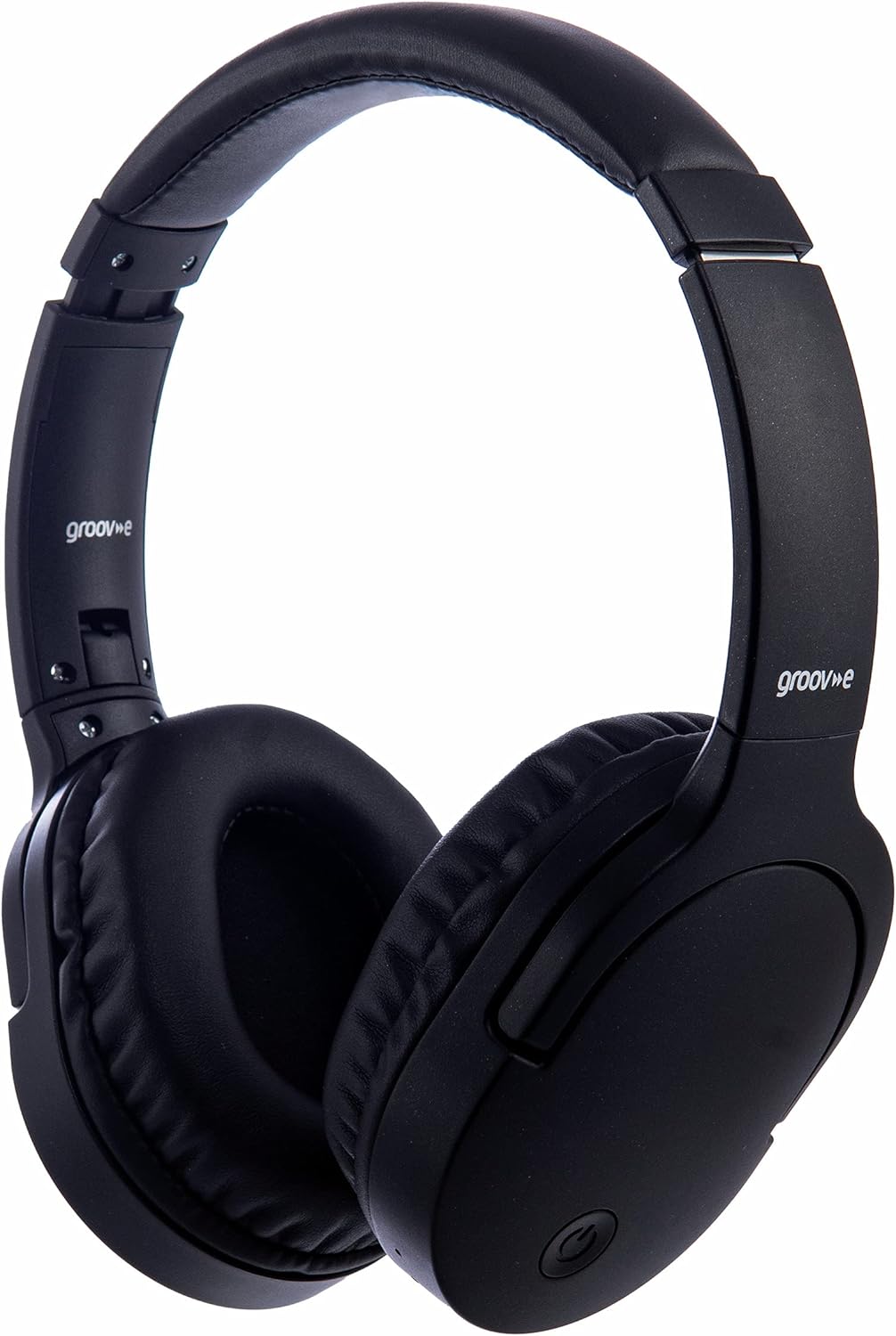
Foto: N'ihu view of the Groov-e Ultra Wireless Bluetooth Headphones in black.
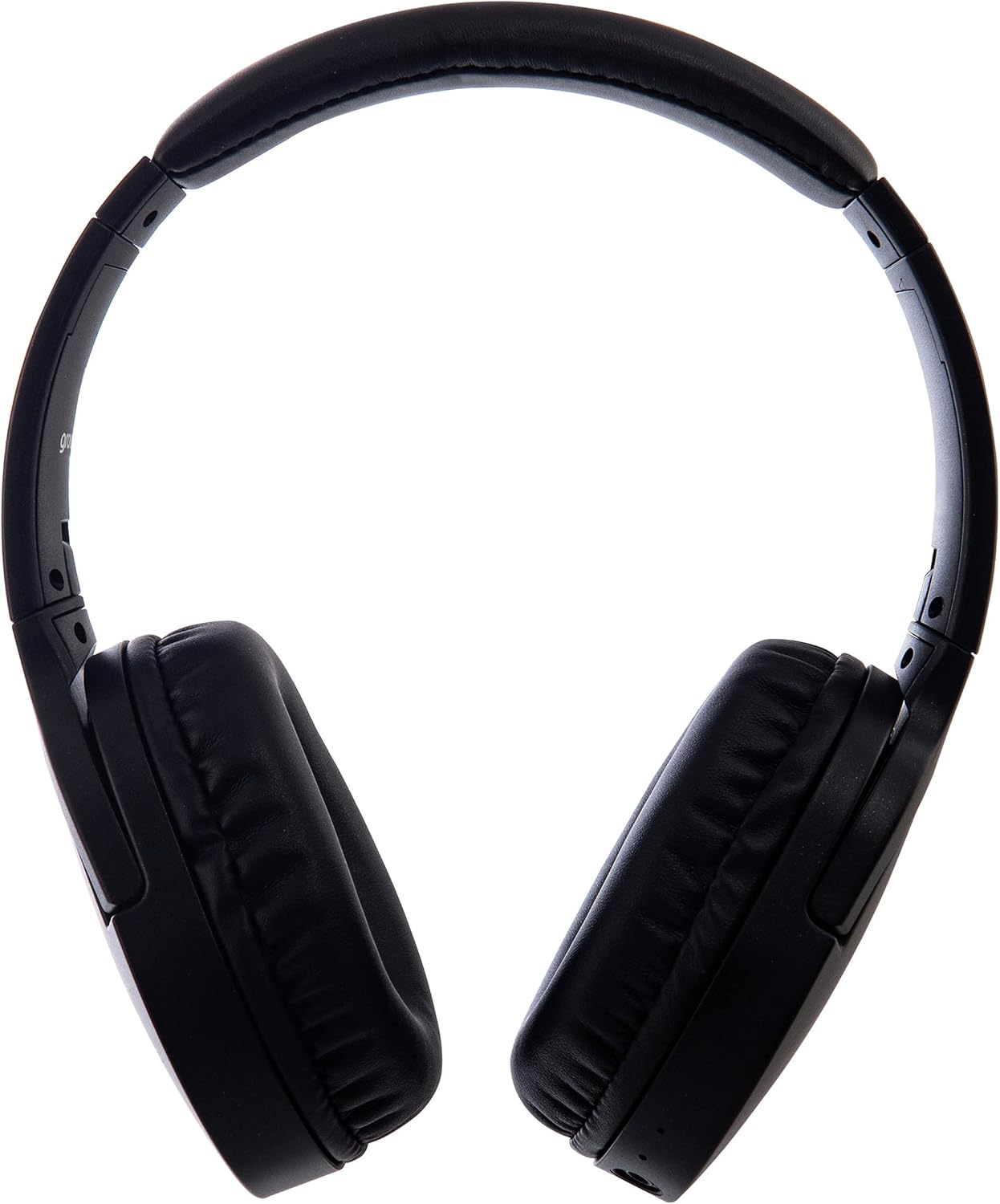
Foto: Akụkụ view of the Groov-e Ultra Wireless Bluetooth Headphones, showing the earcups and headband.
Key features and controls include:
- Bọtịnụ ike: Located on the earcup, used for powering on/off and initiating pairing mode.
- Njikwa olu: Buttons for adjusting audio volume.
- Bọtịnụ ọrụ ọtụtụ: For play/pause, answer/end calls, and activating voice assistant.
- Igwe okwu: Integrated for hands-free calling.
- Jack Audio: 3.5mm Maka njikọ waya na isi mmalite ọdịyo.
- USB Nchaji Port: For charging via the included USB cable.
- Wireless Charging Area: Located on the right earcup for compatible wireless charging pads.
- Ihe ngosi LED: Displays power, charging, and Bluetooth pairing status.
Melite
1. Nchaji mbụ
Before first use, fully charge your headphones. The Groov-e Ultra headphones support both wired and wireless charging.
Wired Nchaji:
- Connect the supplied USB charging cable to the headphone's charging port.
- Connect the other end of the USB cable to a compatible USB power source (e.g., computer USB port, USB wall adapter).
- Ihe ngosi LED ga-enwu ọkụ n'oge ịchaji wee gbanyụọ ma ọ bụ gbanwee agba mgbe chajachara.
Nchaji ikuku:
- Place the right earcup of the headphones onto a compatible Qi-certified wireless charging pad.
- Ensure the headphones are correctly positioned on the charging pad for optimal contact.
- Ihe ngosi LED ga-enwu ọkụ n'oge ịchaji wee gbanyụọ ma ọ bụ gbanwee agba mgbe chajachara.
Chajị zuru oke na-ewekarị ihe dị ka otu awa. awa 2.
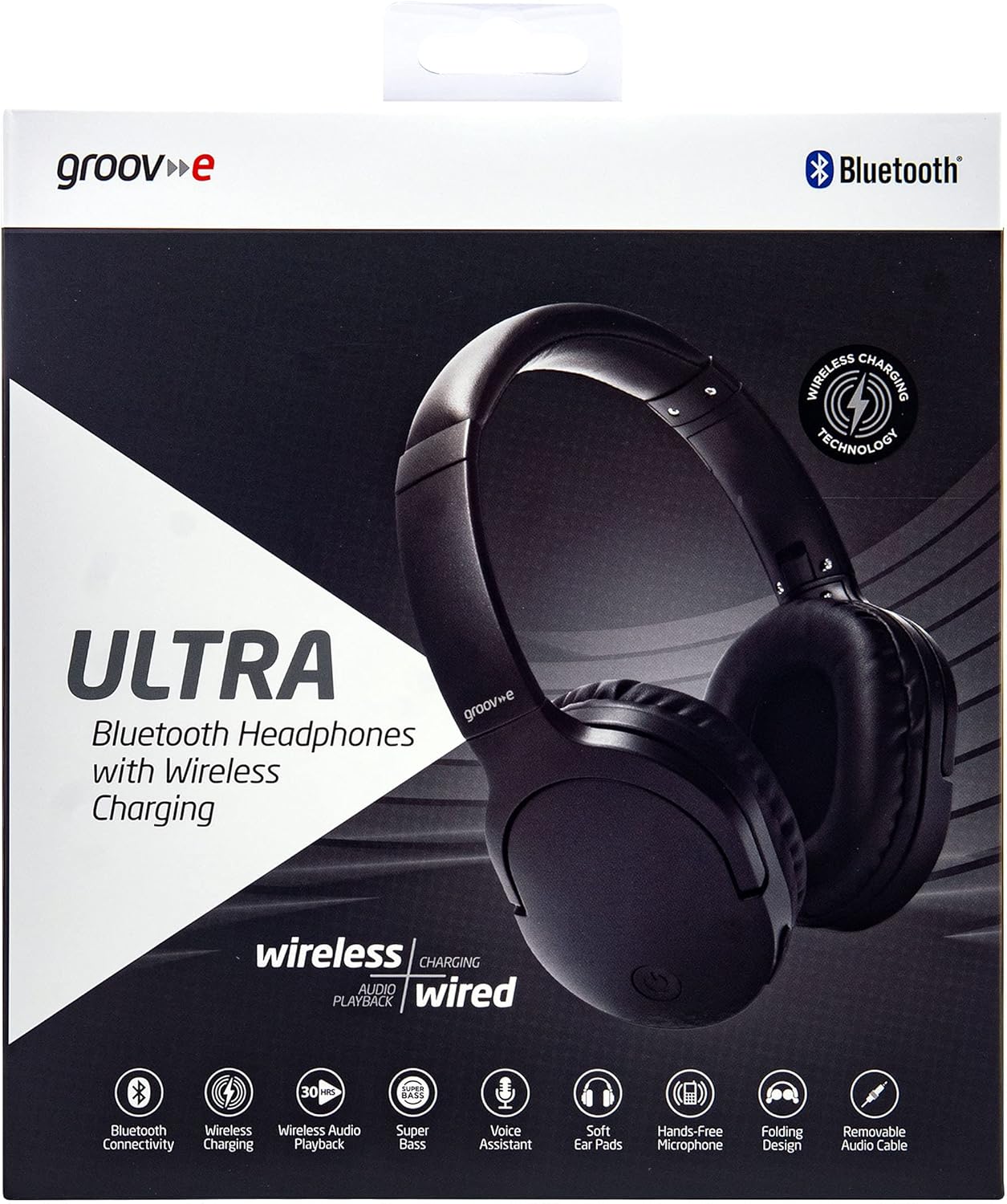
Image: Groov-e Ultra headphones charging wirelessly on a pad, with a laptop in the background.
Ntuziaka ọrụ
1. Gbanyụọ / gbanyụọ
- Ike Na: Press and hold the Power button for approximately 3 seconds until the LED indicator flashes.
- Gbanyụọ: Pịa ma jide bọtịnụ ike maka ihe dịka 3-5 sekọnd ruo mgbe ihe ngosi LED gbanyụrụ.
2. Njikọ Bluetooth
- Gbaa mbọ hụ na agbanyụrụ ekweisi.
- Press and hold the Power button for approximately 5-7 seconds until the LED indicator flashes red and blue alternately, indicating pairing mode.
- Na ngwaọrụ gị (smartphone, tabletị, laptọọpụ), gbanye Bluetooth wee chọọ ngwaọrụ dị.
- Select "Groov-e Ultra" from the list of found devices.
- Once paired, the LED indicator will flash blue slowly, and you may hear an audible confirmation.
- Ọ bụrụ na a kpaliri maka paswọọdụ, tinye "0000".
Ekweisi ndị a ga-anwa ijikọghachi na ngwaọrụ ikpeazụ ejikọtara na akpaghị aka mgbe agbanyere ya.
3. Wired Connection (3.5mm Audio Cable)
For devices without Bluetooth or to conserve battery, you can use the supplied 3.5mm audio cable.
- Connect one end of the 3.5mm audio cable to the audio jack on the headphones.
- Jikọọ nsọtụ nke ọzọ na mmepụta ọdịyo 3.5mm nke ngwaọrụ gị.
- The headphones will operate in passive mode, and Bluetooth functionality will be disabled.
4. Nghaghachi egwu
- Gwuo/kwụsịtụ: Pịa bọtịnụ Multi-function ozugbo.
- Track na-esote: Press and hold the Volume Up button.
- Gara aga Track: Pịa ma jide bọtịnụ ụda ala.
- Olu elu: Press the Volume Up button briefly.
- Olu ala: Press the Volume Down button briefly.
5. Njikwa oku
- Azịza/Kwụsị Oku: Pịa bọtịnụ Multi-function ozugbo.
- Jụ oku: Pịa ma jide bọtịnụ ọtụtụ ọrụ maka sekọnd iri na abụọ.
- Enyemaka Olu: Double-press the Multi-function button to activate your device's voice assistant (e.g., Siri, Google Assistant).
Nlekọta
To ensure the longevity and optimal performance of your Groov-e Ultra headphones, follow these maintenance guidelines:
- Nhicha: Use a soft, dry cloth to clean the earcups and headband. Do not use abrasive cleaners or solvents.
- Nchekwa: Mgbe ejighị ya, chekwaa ekweisi n'ebe dị jụụ, kpọrọ nkụ, pụọ na ìhè anyanwụ kpọmkwem na oke okpomọkụ. Nhazi a na-agbanwe agbanwe na-enye ohere maka nchekwa kọmpat.
- Nlekọta batrị: To preserve battery life, avoid fully discharging the headphones frequently. Charge them regularly, even if not in constant use.
- Nguzogide mmiri: The headphones are rated as "waterproof" (as per specifications), but this typically refers to resistance against splashes or light rain. Avoid submerging them in water.
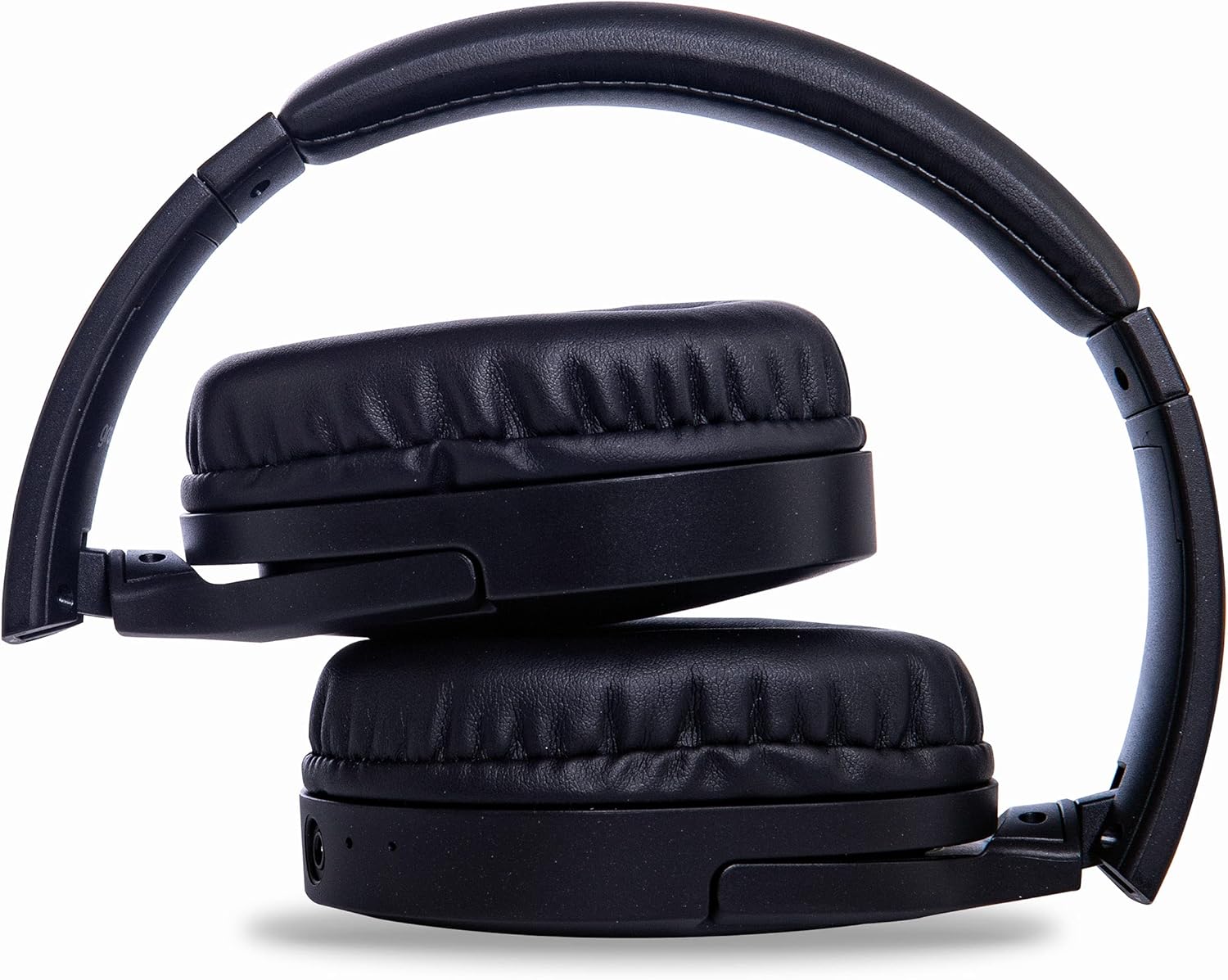
Image: Groov-e Ultra headphones folded, demonstrating their compact storage design.
Nchọpụta nsogbu
Ọ bụrụ na ịnwee nsogbu na ekweisi gị, rụtụ aka na azịza ndị a na-ahụkarị:
| Nsogbu | Ihe nwere ike ime | Ngwọta |
|---|---|---|
| Igwe ekweisi anaghị agba ọkụ. | Batrị dị ala. | Charge the headphones fully using either wired or wireless charging. |
| Enweghị ike ijikọ site na Bluetooth. | Ekweisi anaghị adị n'ụdị njikọta; Bluetooth agbanyụrụ ngwaọrụ; ndabichi. | Ensure headphones are in pairing mode (flashing red/blue). Turn Bluetooth off and on on your device. Move closer to the device. |
| Enweghị ụda ma ọ bụ ụda adịghị mma. | Volume too low; incorrect source; loose wired connection; Bluetooth interference. | Increase volume on headphones and device. Check if the correct audio output is selected. Ensure 3.5mm cable is fully inserted. Re-pair Bluetooth. |
| Nchaji ikuku anaghị arụ ọrụ. | Headphones not positioned correctly; incompatible charging pad. | Adjust headphone position on the charging pad. Ensure the charging pad is Qi-certified and functioning. |
| Buzzing or too loud on Bluetooth. | Bluetooth signal issue; volume settings. | Try moving closer to the source device. Adjust volume levels on both the headphones and the connected device. |
| Cannot connect to Apple Mac Book Pro. | Compatibility issue or specific Bluetooth driver problem. | Ensure your Mac's Bluetooth drivers are up to date. Try resetting Bluetooth on your Mac. Consult Apple support or Groov-e support for specific compatibility advice. |
Nkọwapụta
| Njirimara | Nkọwa |
|---|---|
| Aha Nlereanya | Ultra |
| Nọmba nlereanya | GVBT750BK |
| Ụdị | Groov-e |
| Teknụzụ Njikọta | Ikuku (Bluetooth) |
| Teknụzụ nzikọrịta ozi ikuku | Bluetooth |
| Ụdị Ihe | Supra-Aural (Over-ear) |
| Ntinye ntị | Supra-auriculaire |
| Mkpọtụ iche | Mbelata mkpọtụ na-arụ ọrụ |
| Jack ekweisi | 3.5mm ọkpụrụkpụ |
| Atụmatụ pụrụ iche | Microphone included, Sweat resistant |
| Ndụ batrị | Up to 30 hours (wireless audio playback) |
| Oge Nchaji | Ihe dị ka awa 2 |
| Usoro njikwa | Emetụ aka (metụ) |
| Oke ugboro ugboro | 20 Hz - 20,000 Hz (Possible) |
| Ọkwa Nguzogide mmiri | Waterproof |
| Ngwa dakọtara | Smartphones, laptops, tablets, car audio systems, music production equipment, televisions |
| Ihe onwunwe | Akpụkpọ anụ |
Ozi nchekwa
Please read and follow these safety guidelines to prevent damage to your headphones or personal injury:
- Do not expose headphones to extreme temperatures, humidity, or corrosive environments.
- Zere idobe ma ọ bụ idobe ekweisi na mmetụta siri ike.
- Agbalịla ịgbasa ma ọ bụ gbanwee ekweisi. Nke a ga-eme ka akwụkwọ ikike ahụ ghara ịdị mma.
- Wepụ ụmụaka na anụ ụlọ.
- Ige ntị ogologo oge n'olu dị elu nwere ike imebi ntị. Gbanwee olu ka ọ dị mma.
- Exercise caution when using headphones in situations requiring awareness of your surroundings (e.g., driving, cycling, walking in traffic).
- Use only approved charging cables and power adapters.
Akwụkwọ ikike na nkwado
Groov-e products are designed and manufactured to the highest standards. For warranty information, please refer to the warranty card included with your purchase or visit the official Groov-e websaịtị.
For technical support, troubleshooting assistance, or general inquiries, please contact Groov-e customer service through their official channels. Contact details can typically be found on the product packaging or the Groov-e websaịtị.
Nkwado n'ịntanetị: www.groov-e.co.uk/support
Ask a question about this manual
Ask about setup, troubleshooting, compatibility, parts, safety, or missing instructions. Manuals+ will review the question and use this page’s manual context to help answer it.